
CapCut Seedance 2.5 AI Video Agent: From Brief to Finished Video

AI Overview
What is the CapCut Seedance 2.5 AI video agent?
The search term combines a video model, an assisted creation workflow, and an editor. Confirm which model and agent tools your CapCut workspace actually offers before generating.
Is CapCut Seedance 2.5 free?
Check the generation charge and export conditions in your account. A free editor, trial credits, and unrestricted AI video generation are different offers.
How do I use Seedance 2.5 in CapCut?
Enter the available AI video workspace, verify the model, add a short brief and references, generate a test, then finish timing, captions, and sound in the editor.
Can I use Seedance Agent instead?
Yes, Seedance.tv has its own Agent for planning shots and producing a video from an idea. It is an independent service, not your CapCut account or subscription.
Find the Right CapCut Seedance 2.5 Entry
Separate the model, agent, and editor
A useful CapCut Seedance 2.5 AI video agent workflow starts with three distinct jobs. The model creates moving footage. An agent helps translate your brief into a sequence of production tasks. The editor gives you deliberate control over the final cut. Finding one does not automatically mean you have every feature of the others.
CapCut's public Seedance pages describe reference-guided scene generation and a later editing pass. However, public pages do not establish the controls enabled in your particular account. Read the model name beside the generation settings, not just the landing-page headline. Treat claims about duration, resolution, reference counts, and editing modes as things to confirm before spending credits.
Check web, desktop, and account access
Use the official web workspace or installed application. Look for the available AI Video or creation entry, sign in, and inspect the model picker. Interface labels can differ between releases. If your workspace does not show Seedance 2.5, updating the app or checking the supported web entry is more useful than downloading an unofficial “unlocked” APK.
Keep CapCut, Dreamina, and Seedance.tv separate when comparing access. Do not assume balances or paid plans transfer between them. If the route you intended was Dreamina, the Seedance 2.5 Dreamina access guide covers that different starting point.
Understand CapCut Seedance 2.5 Free Access and Price
Searches for “CapCut Seedance 2.5 free” and “CapCut Seedance 2.5 price” usually lead to the same decision: can you finish a usable video within your allowance? Check the actual charge for the selected model, duration, resolution, and mode. Then inspect download availability and watermark conditions before investing in a long sequence.
| Check before generating | Why it affects the finished project |
|---|---|
| Credits per selected generation | Longer or different modes may change the charge |
| Free allowance and expiry | A promotion may not cover later revisions |
| Export and watermark conditions | A playable preview is not necessarily the deliverable you need |
| Included models and tools | An editing subscription may not cover every generation option |
| Retry budget | Rejected clips still consume production time and may consume credits |
Estimate the project, not just one click. If a three-shot film needs two attempts per shot, budget for six generations plus finishing time. This is a planning example, not a quoted CapCut price. Run a small test before choosing a plan, and save the displayed terms if pricing is important to your decision.
Build an Edit-Ready Video From One Brief
Prepare the outcome and reference roles
Write down the audience, desired action, duration, and delivery format first. “Make a polished video” gives the system little to prioritize. “Create a vertical morning-routine ad showing a travel mug being lifted and carried outside” gives it an observable sequence.
Choose references for specific responsibilities: a product photograph protects shape, a portrait protects identity, and a location image establishes the setting. Avoid several conflicting pictures of the same object. A product ad video workflow is a useful starting point when product recognition matters more than visual novelty.

Illustrative generated frames for the brief: judge the handle, lid, hand contact, and consistent light. These are not a CapCut benchmark.
Generate a test, then assemble the sequence
Start with the shortest available setting that answers your main question. Can the hand pick up the mug without changing its shape? Does the camera move without losing the subject? Approve that behavior before expanding the scene or increasing delivery quality.
Review every clip from beginning to end. Save accepted takes separately from experiments, with the prompt and settings beside them. In the editor, place the clearest action first, cut repeated movement, and preserve enough time for viewers to understand the result. Add captions after the image sequence works instead of asking the generator to draw important sales text into the scene.
Sound deserves a separate review. Listen for abrupt ambience changes at edits and check visible contact against sound. The existing generated performance below is a useful listening exercise, not evidence of CapCut's model quality.
Watch the moving performance and listen across the entire clip; a convincing poster frame cannot establish synchronization.
Write Prompts That Survive the Final Edit
Give each shot one clear action
Describe the subject, action, setting, camera, and ending condition in that order. Use timing to organize the request, but treat timestamps as direction rather than a promise of frame-exact execution. If your interface offers an agent plan, revise the proposed sequence before approving generation.
Create a vertical morning-routine commercial. Keep the same sage-green travel mug, ivory lid, cream shirt, and bright kitchen. Begin with the mug on the oak counter. Show one hand lifting it by the handle, then follow the person toward the garden door. Use gentle camera movement and natural room sound. End with a stable view of the mug. No generated lettering or extra hands.
For a multi-shot result, separate those beats in the plan. Do not demand a macro close-up, a room-wide orbit, dialogue, and a location change in the same brief test. Complexity makes it harder to identify what needs correction.
Protect continuity and leave room for captions
Repeat the same identity and object descriptions across related shots. Preserve the light direction and costume unless the story requires a change. Ask for a clean ending frame so the editor has a practical cut point rather than a half-finished gesture.
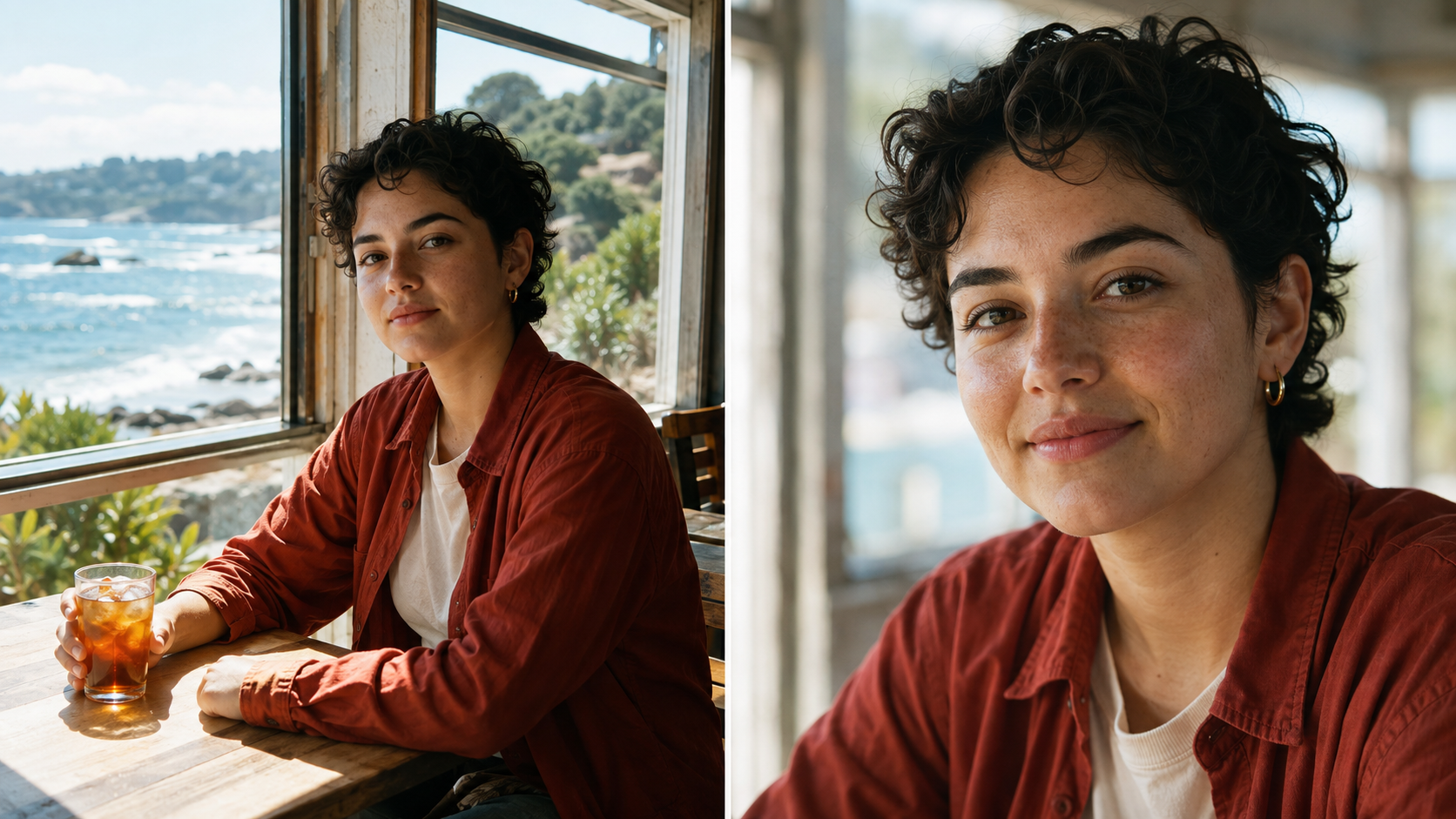
Illustrative continuity target: compare the face, hair, wardrobe, and window light when changing shot size.
Plan the final crop early. For an Instagram Reels video, keep essential action away from interface overlays and leave readable space for editorial text. A landscape scene may lose its strongest detail when forced into a vertical frame.
Fix Access, Motion, and Export Problems
When the model or a usable result is missing
If the model is absent, record the app version, workspace, and account state before contacting support. Do not keep purchasing upgrades based on a feature name from search results. If a generation fails, check accepted file types and simplify the reference set before retrying.
When footage looks wrong, name the failure precisely: identity drift, broken hand contact, unstable background, or an unfinished action. Change one relevant instruction, preserve accepted material, and compare the next attempt against the same requirement. “Make it better” rarely tells you why the new version succeeded.
When a good clip becomes a poor export
Check the downloaded file rather than only the preview. Watch for accidental cropping, black borders, missing audio, unreadable captions, and a different frame rate. Keep an untouched master so you can revise the edit without another paid generation. The guide to editing Seedance videos with OpenShot explains a separate finishing route when you prefer that editor.

Inspect a final composition at its delivery size: the tram and umbrella should remain readable after cropping and caption placement.
Where Seedance Agent Fits Into the Same Project
If your main challenge is organizing an idea into coherent shots, rather than finding one particular CapCut menu, consider the Agent available through the Seedance homepage. Seedance.tv's current Agent entry describes a workflow that writes shots, generates them, and assembles them from an idea. Its examples include product commercials, short films, and social ads.
Use the same brief and reference assets when evaluating it. Check whether the proposed sequence matches your message, whether generated objects remain recognizable, and how much correction the finished video needs. This is a workflow comparison, not a claim that one service always produces better footage. Keep model selection and displayed charges visible before approving production.
Existing Seedance Agent output: inspect product readability, framing, and progression. It is not a CapCut-versus-Seedance controlled comparison.
The useful choice is where you want to spend your effort. CapCut can be your finishing environment; an Agent can help organize and produce the source sequence. Exporting approved footage between tools is often more practical than expecting a single feature to handle every creative decision.
Conclusion
Use the CapCut Seedance 2.5 AI video agent search as a starting point, then verify the actual model, cost, and workspace available to you. Build a small reference-led test, protect continuity, and judge the exported video rather than its first frame. When you want help turning the brief into an organized sequence, start a project with Seedance Agent and compare the usable result against your original goal.
Ready to try it yourself?
Put the steps from this guide into practice with Seedance and turn prompts or images into polished videos in minutes.
Free credits on signup. Plans from $28/month.
Related Articles
More posts in the same locale you may want to read next.

Seedance App Preview Video Generator 2026: Create App Store and Product Launch Clips
Use Seedance to turn app screenshots, feature copy, and launch goals into App Store previews, Google Play promo videos, and product launch clips.
Read article
Best AI Video-to-Video Models in 2026
The best AI video-to-video models in 2026 for editing footage you already shot: Higgsfield Genjutsu, Seedance 2.x, Runway Aleph, Luma Modify and Kling Omni compared.
Read article
Kling 4.0 vs Seedance 2.5: Full Comparison
Kling 4.0 vs Seedance 2.5 compared by spec: 30-second clips, keyframes vs 50 references, audio, 4K and 10-bit color, editing, and which model fits which job.
Read article