
15 AI Video Editing Tips to Make Your Videos Look Professional (2026)
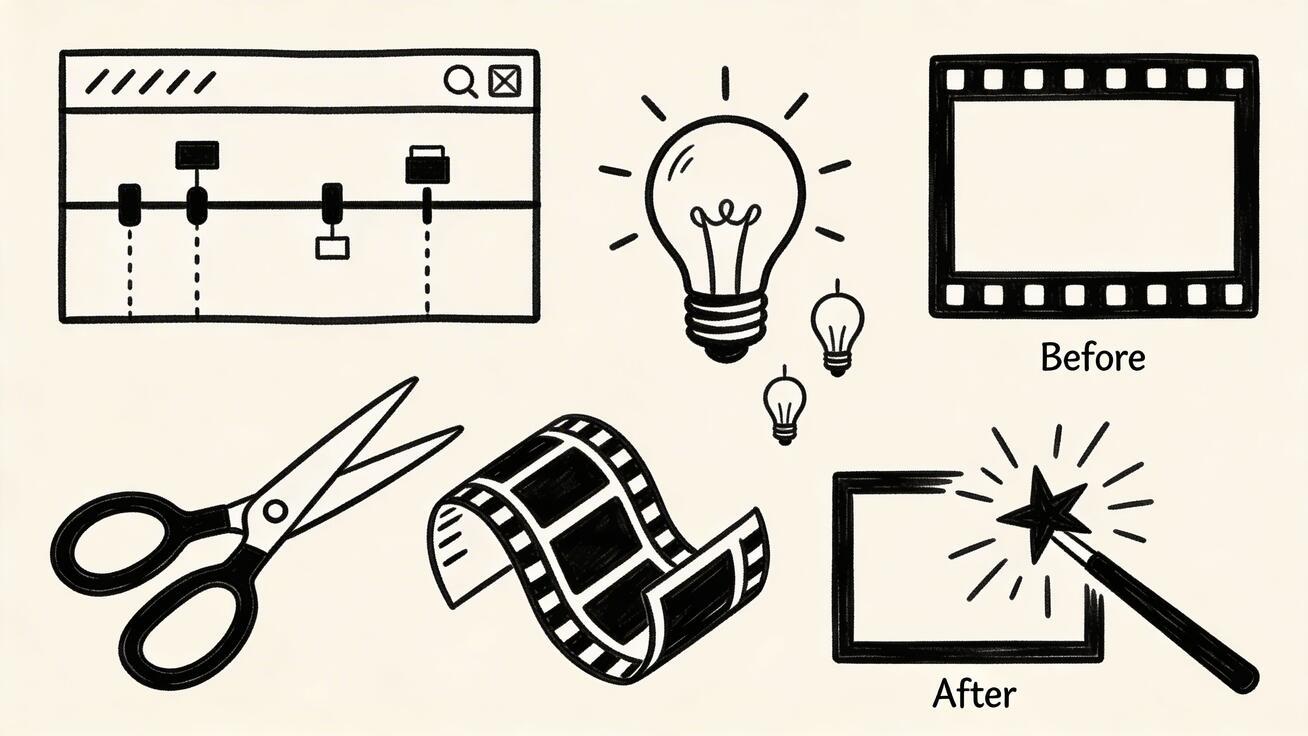
AI video generation has made it possible for anyone to create stunning clips in seconds. But the difference between a good AI video and a truly professional one often comes down to what happens after generation — the editing, enhancement, and refinement steps that transform raw AI output into polished, publishable content.
Quick Answer: AI video generation with Seedance lets you create stunning, professional-quality videos from text prompts or images in just minutes — no editing experience required.
These 15 tips cover everything from prompt refinement to post-processing, helping you get professional results from AI-generated video regardless of your experience level.
Before You Generate: Foundation Tips
Tip 1: Master the Six-Element Prompt Structure
Before touching any editing tool, the most important "editing" happens in your prompt. Weak prompts produce generic results that require extensive post-processing or regeneration. Strong prompts produce near-finished output that needs minimal work.
The six elements every strong prompt needs:
- Subject: What is the focal point?
- Action: What is happening?
- Setting: Where and when?
- Lighting: Quality, direction, and mood of light?
- Camera: Angle, distance, movement?
- Style: Visual aesthetic and tone?
An example that incorporates all six: "A barista (subject) crafting a latte with slow deliberate movements (action) in a dimly lit specialty coffee shop at 6am (setting), warm amber task lighting over the counter contrasting with cool predawn blue through windows (lighting), medium shot slowly pushing in (camera), cinematic documentary style (style)."
Compare with a weak prompt: "A barista making coffee." The strong prompt requires less editing because the AI has specific direction to follow.
Tip 2: Generate Multiple Variations
Always generate at least 2-3 variations of your most important scenes. AI generation has inherent randomness — the same prompt produces different results each time. Having multiple versions lets you select the best motion, composition, and overall quality, reducing the editing work needed on the chosen clip.
On Seedance 2.0, daily credits refresh every 24 hours, giving you enough for multiple variations per session without running out.
Tip 3: Generate Longer Than You Need
If you need a 4-second clip, generate 8 seconds. This gives you flexibility to use the best portion of the generated motion, cut to the most interesting moment, or slow down a section in post. AI motion quality often varies within a single clip — some moments are better than others, and having more footage gives you more choices.
Composition and Pacing Tips
Tip 4: Cut to the Action
AI-generated clips often contain a slow ramp-up period at the beginning before the most interesting motion occurs. In editing, don't use the first few frames if the action starts mid-clip. Cut directly to the moment when the most compelling motion or scene element is present.
This single habit transforms the perceived quality of AI video significantly. Most amateur AI video edits start from the beginning of every clip by default. Professional edits find the best moment within each clip and lead with that.
Tip 5: Use AI Video as B-Roll, Not Just A-Roll
One of the most effective uses of AI-generated video is as B-roll — supporting footage that plays while a voiceover, music, or primary clip drives the narrative. AI video is excellent for creating atmospheric background footage, illustrative visuals for topics being discussed, and mood-setting transitions.
When composing your edit, consider AI clips as visual support for your message rather than standalone content. This approach requires less from each individual clip and creates more professional, cohesive final videos.
Tip 6: Match Cut to Music
When pairing AI video with music or sound, make cuts on the beat. This technique — common in professional music video and commercial editing — creates an unconscious sense of polish and timing that dramatically elevates the perceived quality of the final piece.
Most editing software can display waveforms that show where beats occur. Even simple tools show audio visually. Cut on the downbeat, the snare hit, or whatever rhythmic element drives your chosen music.
Tip 7: Use J-Cuts and L-Cuts for Flow
Rather than cutting video and audio simultaneously (a "straight cut"), professional editors use J-cuts and L-cuts to create smoother transitions:
- J-cut: The audio from the next clip starts before the video cut. You hear what's coming before you see it.
- L-cut: The audio from the current clip continues over the beginning of the next video clip.
These techniques create a sense of continuity and flow that straight cuts lack. For AI video compilations, L-cuts work especially well — letting a music track or narration continue smoothly while the visuals change.
Color and Visual Enhancement Tips
Tip 8: Apply a Consistent Color Grade
AI-generated clips from different prompts often have different color temperatures and overall color palettes. In a multi-clip edit, this inconsistency signals "AI-generated compilation" immediately to trained eyes.
Apply a consistent color grade to all clips in your project. This means:
- Matching the white balance across clips
- Applying a consistent contrast and saturation adjustment
- Using a LUT (Lookup Table) to impose a unified color aesthetic
Even a simple grade — pulling all clips toward warmer or cooler tones, applying consistent contrast — creates visual cohesion that makes multi-clip edits look intentional rather than assembled.
Tip 9: Add Film Grain Subtly
Clean digital AI video can look unnaturally smooth. A subtle film grain overlay (available in most editing software as an effect, typically set to 5-15% opacity) adds organic texture that makes AI video look more cinematic and less obviously artificial.
The key word is "subtle." Heavy grain degrades quality. Light grain adds depth. This is the most simple technique with the most disproportionate positive impact on perceived quality.
Tip 10: Use Contrast to Draw Attention
AI-generated scenes often have relatively flat contrast by default. Boosting contrast slightly — particularly in the highlights and shadows — creates more visual depth and directs the eye toward the scene's focal point. In editing software, use curves to add contrast without washing out midtones.
Tip 11: Calibrate for Your Target Platform
Different platforms display video differently. YouTube processes video aggressively. TikTok's compression favors certain color ranges. Instagram Stories auto-crops vertical video with different display behaviors on different devices.
Export your video calibrated for its destination:
- YouTube: Slightly boost saturation and contrast to compensate for YouTube's compression
- TikTok/Reels: Bright, saturated color performs better in the feed
- Twitter/X: High contrast helps content stand out in the chaotic feed
- LinkedIn: Cleaner, more professional color grades perform better
Technical Quality Tips
Tip 12: Upscale Free-Tier Video When Needed
Most AI video generators produce 720p output on free plans. For content that will be displayed at larger sizes, this resolution can look slightly soft. Several free upscaling tools (Topaz Video AI trial, DaVinci Resolve's Super Scale feature, and online upscalers) can increase resolution to 1080p or higher with AI-enhanced detail.
For most social media use cases, 720p is completely acceptable — platforms compress video significantly regardless of source resolution. But for large-format display or client presentations, upscaling is worth the extra step.
Tip 13: Stabilize Shaky AI Motion
AI-generated camera movement occasionally produces subtle wobble or inconsistent motion that looks unintentional. Video stabilization tools (Warp Stabilizer in Premiere Pro, Gyroflow, or the stabilization feature in CapCut and DaVinci Resolve) can smooth this out significantly.
Apply stabilization selectively — only to clips where the motion looks unstable. Over-stabilizing clips with intentional camera movement creates an unnaturally locked-off look.
Tip 14: Composite AI Video with Real Footage
Some of the most effective content combines AI-generated clips with real recorded footage. AI video excels at creating scenes that would be expensive or impossible to film. Real footage excels at authenticity, recognizable locations, and consistent character identity.
Alternating between AI and real footage — or compositing AI elements into real footage using green screen techniques — creates hybrid content that leverages the strengths of both.
Publishing and Distribution Tips
Tip 15: Add Captions and Text Overlays
Video with on-screen text and captions performs significantly better on most social platforms than video without. Most platforms auto-play video with sound off — text overlays communicate your message even to silent viewers. Adding a title card, key points as text, or closed captions dramatically increases the number of people who engage with your content fully.
For AI video specifically, captions also help contextualize abstract or impressionistic content. If your AI clip is highly atmospheric, a brief text overlay communicating the emotion or concept helps viewers connect with it more deeply.
Recommended Free Tools for AI Video Editing
CapCut (Free): The most capable free mobile and desktop video editor with AI-powered effects, auto-captions, and templates specifically designed for social media formats.
DaVinci Resolve (Free): Professional-grade desktop editor used by Hollywood productions. The free version is fully featured for most creators. Excellent color grading tools.
Canva (Free tier): Web-based editor with strong text overlay tools, templates, and easy export to social media formats. Less capable for advanced editing but extremely accessible.
VEED.io (Free tier): Browser-based editor with particularly good auto-caption features and simple interface.
The 5-Minute Polish Process
When time is limited, this 5-minute process reliably upgrades the quality of AI video edits:
- Trim to the best moments (1 minute): Remove weak starts and ends from each clip
- Apply a quick color grade (1 minute): Match white balance, boost contrast slightly
- Add music or sound (1 minute): Even simple royalty-free background music elevates perceived quality dramatically
- Add one text overlay (1 minute): A title or key message text
- Export for platform (1 minute): Choose the right format and resolution for your destination
This process consistently produces results that look significantly more finished than raw AI output, without requiring advanced editing skills or expensive software.
What Is Ai Video Editing Tips Tricks 2026 and Why Does It Matter?
Ai Video Editing Tips Tricks 2026 is an essential capability for modern content creators and marketers. The best tools for ai video editing tips tricks 2026 combine AI-powered automation with professional-quality outputs — saving hours of manual work while delivering results that meet commercial standards.
In 2025, platforms like Veo 3 and Seedance have made ai video editing tips tricks 2026 more accessible than ever, offering free-tier access alongside professional plans.
How Do You Get Started with Ai Video Editing Tips Tricks 2026?
Getting started with ai video editing tips tricks 2026 requires just a few steps:
- Choose the right tool for your needs (see comparison above)
- Sign up for a free account — no payment required to start
- Follow the step-by-step guide in this article
- Test with simple examples first, then scale up
Most users can produce their first professional result within 30 minutes of starting.
What Are the Best Tools for Ai Video Editing Tips Tricks 2026 in 2025?
The top tools for ai video editing tips tricks 2026 in 2025 are:
- Veo 3 — best overall quality, free via Google Gemini
- Kling AI — best mobile experience and free tier generosity
- Runway Gen-4 — best for artistic and cinematic styles
- Pika 2.1 — best for beginners with simple interface
Each tool has strengths in different areas — the best choice depends on your specific use case, volume requirements, and budget.
Frequently Asked Questions
What is the best free editing software for AI video? CapCut is the most versatile free option for mobile and desktop. DaVinci Resolve is the best free option for serious desktop editing with professional-grade tools.
Does AI video need color grading? It benefits from it, but is not always necessary. AI video from tools like Seedance 2.0 often produces well-graded output. Color grading becomes most important when combining multiple AI clips that have inconsistent color temperature.
How do I make AI video look less artificial? The three most effective techniques: add subtle film grain, apply a consistent color grade, and combine AI video with real footage or voiceover narration.
Can I monetize edited AI video? Depends on the tool and plan. Review Terms of Service for commercial use rights. Most paid plan tiers include commercial licensing.
Related Guides
- AI Video Generator for Beginners 2026 — Getting started with AI video
- Best AI Video Generator App 2026 — Top tools ranked
- How to Make AI Videos Free 2026 — Step-by-step tutorial
- AI Video Generator Free Unlimited 2026 — Best free options with daily credits
Advanced AI Video Editing Techniques
Beyond the foundational tips, several advanced techniques consistently separate professional-looking AI video edits from amateur ones. These require more investment of time and creative attention but produce proportionally stronger results.
Multi-clip narrative construction is the technique of assembling multiple AI-generated clips into a coherent visual sequence that tells a story or makes an argument. Rather than using each clip as a standalone piece, this approach treats AI clips as raw material for a larger composition. The editing decisions — clip selection, sequence, transition timing, and pacing — are where the creative control lives.
The challenge is that AI-generated clips have inherent randomness. You generate 10 clips and select the 5 that work best together. Visual consistency across different AI-generated clips requires careful attention to shared visual elements: consistent time of day and lighting character, similar color palettes, and complementary camera movements that create visual flow across cuts.
Juxtaposition editing uses the contrast between different AI clips to create meaning. Cutting between large and small scale, between motion and stillness, between warm and cool color temperature, between interior and exterior — these visual contrasts create rhythm and emphasis that carries the viewer's attention through the piece. This technique works particularly well for abstract or conceptual video content where the meaning emerges from relationships between clips rather than from literal narrative.
Sound design as creative driver means letting the audio determine the edit rather than treating audio as something you add after picture lock. When you have a strong piece of music or a compelling sound design concept, build the edit to serve the audio from the beginning. Generate AI clips that match the emotional character of specific musical sections. Cut on beats and musical phrases rather than arbitrary duration. Let crescendos and dynamic changes in the music determine where you place the most visually intense clips.
The slow montage is an editing approach that works particularly well with AI video. Rather than cutting rapidly between many clips, use long extended versions of a small number of clips, allowing subtle motion to develop over 8-10 seconds per clip. This approach creates a meditative, cinematic quality that short-clip rapid-cut editing cannot achieve. It also tends to hide the limitation that AI clips are short — by lingering on each clip and letting its motion fully develop, you create a sense of extended space that belies the brevity of the underlying clip.
Color story construction goes beyond color grading consistency to using color as a deliberate narrative element. A video might begin in cool blue tones (establishing tension or distance), move through neutral midrange tones (resolution), and conclude in warm golden tones (arrival or warmth). Planning this color journey before generating clips — and writing prompts that specify the appropriate lighting for each phase — creates a visual arc that sophisticated viewers feel even when they cannot consciously identify it.
Working With Music and AI Video
Music selection and synchronization is one of the most impactful aspects of AI video editing. The right music transforms adequate AI video into compelling content; poor music selection undermines even excellent visual material.
For sourcing music, several categories are available to creators depending on budget and use case. Royalty-free music libraries (Epidemic Sound, Artlist, Musicbed) provide professional-quality licensed tracks for content creators. YouTube Audio Library provides free music for content used on YouTube. Creative Commons licensed music on platforms like Bandcamp or Free Music Archive offers additional free options with varying attribution requirements. For AI-generated music, tools like Suno and Udio can produce custom tracks tailored to specific moods and tempos.
When selecting music for AI video, consider the tempo's relationship to intended cut rate. Music with a tempo of 120 BPM (beats per minute) suggests cuts every half-second to every two beats. Slower music (80 BPM or below) supports more contemplative, sustained edits. Very fast music (140+ BPM) demands rapid-cut editing with high visual energy.
The emotional character of the music must align with the visual content. Mismatched music and visuals create cognitive dissonance that undermines both elements. Transcendent orchestral music over mundane product footage feels hollow. Energetic electronic music over calm nature footage creates unresolved tension. The music and visuals should reinforce the same emotional register.
Layering sound design elements underneath music adds depth that music alone cannot provide. Ambient environmental sound — the sound of the setting the video depicts — grounds the visual content in physical reality in a way that music alone does not. Seedance 2.0 and other modern AI video tools sometimes generate relevant ambient sound with video, which can serve as a sound design foundation to build upon.
Platform-Specific Optimization for AI Video
Each major platform where AI video is published has distinct technical requirements, audience behaviors, and content characteristics that affect what works best. Optimizing for a specific platform from the prompt-writing stage through final export significantly improves performance.
TikTok: 9:16 vertical orientation is essential. First three seconds must capture attention immediately — TikTok's algorithm measures watch completion rate and rewards videos where viewers watch through. High contrast, bright colors, and dynamic visual energy work best. Text overlays that communicate the video's premise instantly help reduce early drop-off. Export at TikTok's maximum supported resolution and bitrate.
Instagram Reels: Similar to TikTok in orientation and pacing requirements. Instagram's algorithm weights shares and saves heavily, so content that viewers want to share or save (visually striking, useful, emotionally resonant) performs better than content optimized purely for views. Slightly more polished aesthetic than TikTok's more raw-feeling content culture.
YouTube Shorts: 9:16 vertical. YouTube's algorithm for Shorts emphasizes watch completion rate more than any other metric. Clips that hold attention through their full duration receive dramatically more distribution than clips with significant drop-off. Keep pacing steady; avoid slow sections in the middle that cause viewers to swipe away.
YouTube (standard): 16:9 landscape. Longer content (3+ minutes) can build substantial view time, which YouTube rewards heavily. AI video works best as b-roll alongside longer talking-head or tutorial content. High production quality expectations from YouTube audiences means quality matters more here than on short-form platforms.
LinkedIn: 16:9 or 1:1. Professional context means tone matters more than creative risk. Clean, clear, professional-feeling AI video outperforms highly creative or abstract content. Business topics and professional insights perform best. Sound-off autoplay in the feed means the video must communicate clearly without audio.
Frequently Asked Questions
What free software is best for editing AI video? CapCut is the most capable free option for both mobile and desktop with AI-powered features. DaVinci Resolve (free desktop version) provides professional-grade color grading and editing tools. VEED.io is an excellent browser-based option for simple edits with auto-captions.
How do I fix inconsistent color across multiple AI clips? Apply a consistent color grade to all clips. In most editing software, create a grade adjustment layer or use the color match feature to align clips to a reference clip. Even a simple white balance and contrast adjustment applied uniformly creates significantly more cohesive results.
Can I slow down AI video in post? Yes, but with limitations. AI video is typically generated at 24fps. Slowing to 50% produces 12fps playback which can look choppy. For smooth slow motion, either request slow motion style in the prompt (which asks the AI to generate motion suited to slow playback) or use motion interpolation software like Topaz Video AI to synthesize additional frames.
Related Guides
- AI Video Maker Online Free 2026 — Best free online tools
- Best AI Video Generator App 2026 — Tool comparison
- How to Make AI Videos Free 2026 — Beginner tutorial
- Seedance 2.0 Free Guide — Free plan guide
Conclusion: Our Final Recommendation on Ai Video Editing Tips Tricks 2026
After reviewing all available options and strategies, our verdict is clear: the best approach to ai video editing tips tricks 2026 in 2025 combines AI-powered tools like Veo 3 with proven content strategies.
We recommend:
- Start with free tools to test and learn
- Focus on quality and consistency over volume
- Use AI to accelerate production, not replace creative direction
Bottom line: Ai Video Editing Tips Tricks 2026 is more accessible than ever in 2025. The tools and strategies in this guide are tested and proven — start applying them today for immediate results.
Ready to try it yourself?
Put the steps from this guide into practice with Seedance and turn prompts or images into polished videos in minutes.
Free credits on signup. Plans from $28/month.
Related Articles
More posts in the same locale you may want to read next.

Seedance App Preview Video Generator 2026: Create App Store and Product Launch Clips
Use Seedance to turn app screenshots, feature copy, and launch goals into App Store previews, Google Play promo videos, and product launch clips.
Read article
Gemini AI Video Prompt Examples: Copy-Ready Veo Scenes and a Better Prompt Formula
Copy Gemini AI video prompt examples for cinematic motion, product ads, dialogue, and vertical clips, then adapt them with a practical Veo prompt formula.
Read article
How to Keep Product Shape Consistent in AI Video Ads
Lock product geometry, packaging, labels, references, camera angles, and approval checks so AI video ads preserve the real SKU across every shot.
Read article