
Nâng cấp video
Bộ tăng độ phân giải video AI: Tăng độ phân giải và cải thiện video lên 4K trực tuyến
Sử dụng bộ tăng độ phân giải video AI của Seedance để cải thiện chất lượng video trực tuyến. Nâng cao độ rõ nét cho các video mờ hoặc có độ phân giải thấp lên 1080p, 2K hoặc 4K trong khi vẫn giữ nguyên chuyển động, thời gian và bố cục gốc.
Tăng độ phân giải video ngay bây giờTại sao nên chọn bộ tăng độ phân giải video AI của chúng tôi?
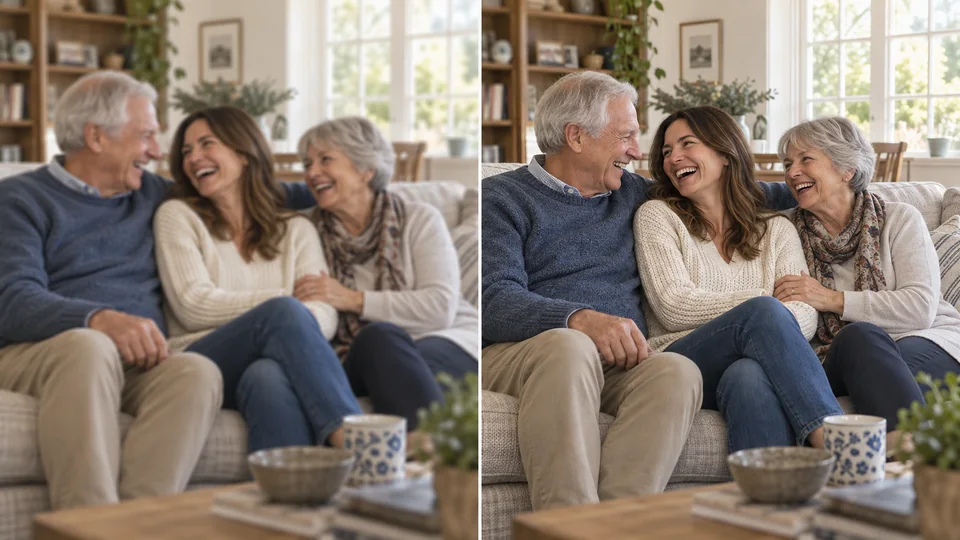
Tăng độ phân giải video AI chất lượng cao
Vượt xa việc chỉ kéo giãn các điểm ảnh. Bộ tăng độ phân giải video AI của chúng tôi tái tạo lại các đường viền, kết cấu và chi tiết tinh tế nhằm tạo ra hình ảnh rõ ràng, sắc nét hơn, trông tự nhiên trên màn hình lớn.
Bắt đầu tăng độ phân giải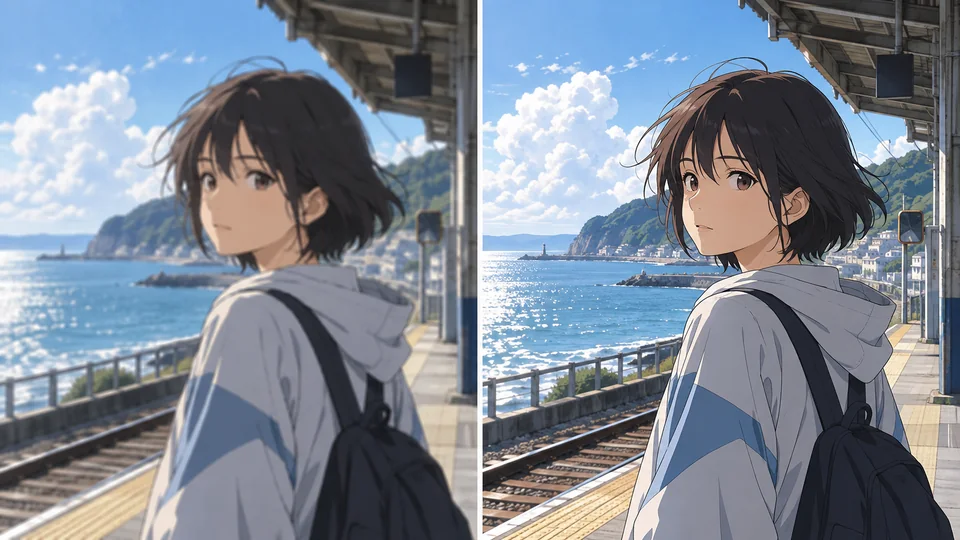
Làm cho video anime trở nên sắc nét và sống động
Nâng cao các đoạn phim anime trong khi bảo vệ phong cách đặc trưng của chúng. Làm rõ các đường nét, làm phong phú màu sắc và cải thiện độ rõ nét mà không thay đổi hoạt ảnh gốc, nhịp độ hay bố cục.
Bắt đầu tăng độ phân giải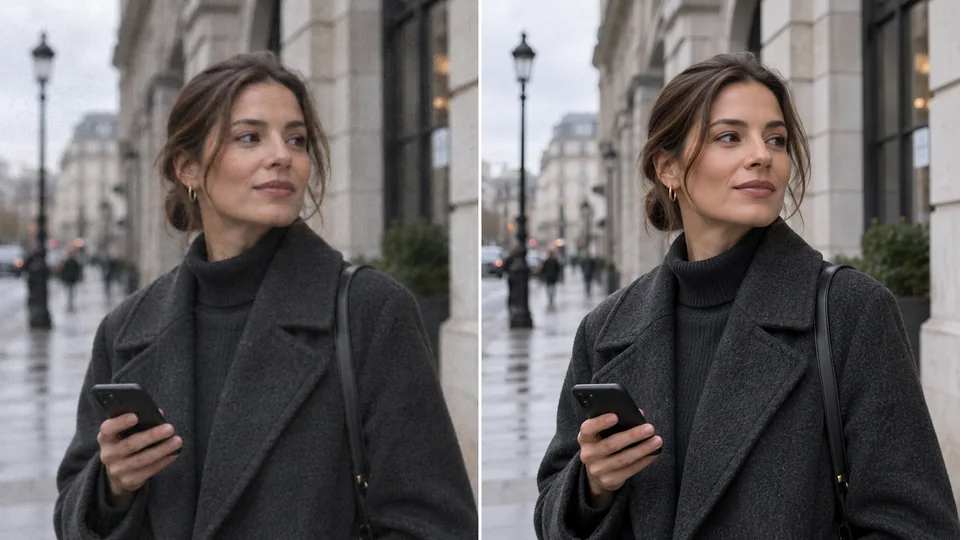
Giảm nhiễu và hiện tượng khối (blocking) trong video
Làm sạch các hạt nhiễu gây mất tập trung, các khối nén, hiện tượng dải màu (banding) và các cạnh mờ trong quá trình tăng độ phân giải. Kết quả là video mượt mà và chuyên nghiệp hơn, với các chi tiết dễ quan sát hơn.
Bắt đầu tăng độ phân giải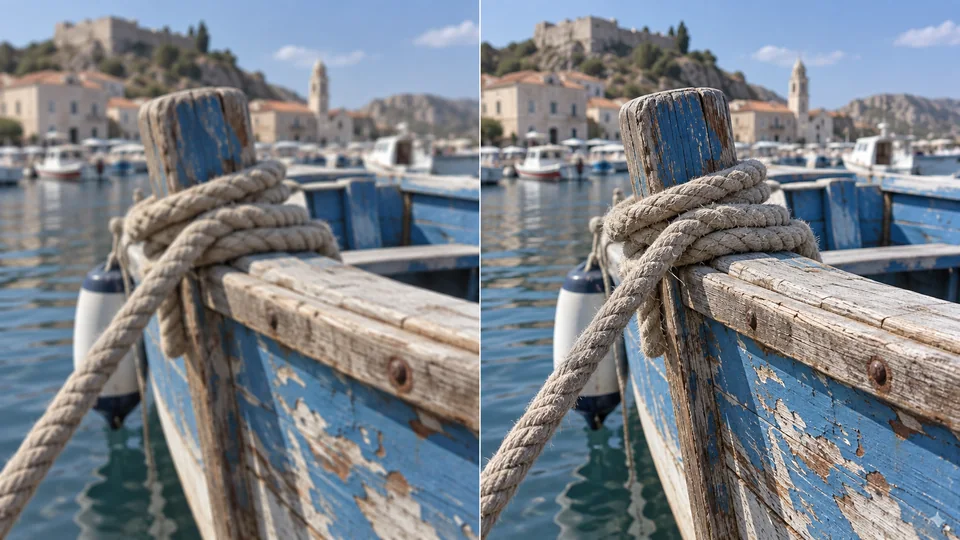
Bảo toàn mọi chi tiết gốc
Cải thiện độ phân giải video mà không hy sinh chất lượng đoạn phim nguồn. Seedance giữ nguyên bố cục, chuyển động, thời lượng và đặc trưng thị giác của bản gốc, đồng thời mang đến cho từng khung hình một kết quả sạch và sắc nét hơn.
Bắt đầu tăng độ phân giảiAi đang sử dụng bộ tăng độ phân giải video AI?
Các đoạn phim người dùng gửi tới đây thường bị mờ vì một lý do nào đó — và mỗi lý do đều có giải pháp khắc phục riêng
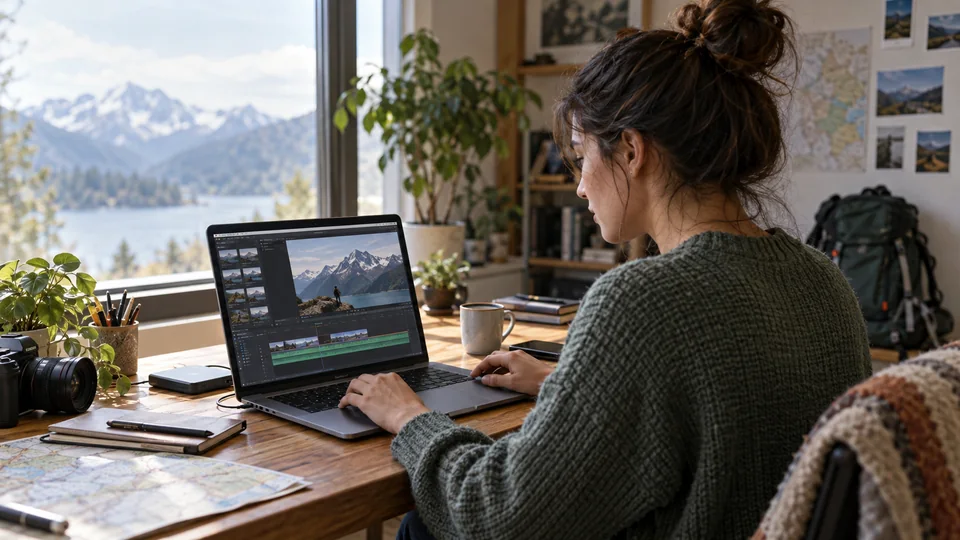
Làm sắc nét mọi video đăng tải
Biến các vlog, YouTube Shorts và bài hướng dẫn bị mờ trở nên sắc nét, sạch sẽ và chuyên nghiệp hơn trước khi đăng tải.
Khôi phục các cảnh giàu phong cách
Làm sạch các đoạn phim anime và hoạt hình trong khi vẫn giữ nguyên các đường viền đậm, màu sắc rực rỡ và chuyển động nhân vật mượt mà.
Tinh chỉnh video chiến dịch
Nâng cao chất lượng video sản phẩm, quảng cáo mạng xã hội và các đoạn UGC để từng khung hình trông rõ ràng hơn, đáng tin cậy hơn và sẵn sàng thúc đẩy chuyển đổi.
Giúp bài hướng dẫn dễ theo dõi hơn
Cải thiện các video giải thích, demo sản phẩm và đào tạo để văn bản, giao diện và chi tiết trình bày trên màn hình luôn sắc nét và dễ đọc.
Cách tăng độ phân giải video lên 4K trong 3 bước
Từ một đoạn video mờ thành một đoạn sắc nét — mà không cần rời khỏi trình duyệt
- 1
Thêm video nguồn của bạn
Tải lên tệp MP4 hoặc MOV tối đa 50 MB, hoặc chọn một đoạn video đã tạo trước đó từ mục My Creations. Không cần cài đặt, không cần plugin — công cụ chạy trực tiếp trên trình duyệt trên Windows, Mac và thiết bị di động.
- 2
Chọn độ phân giải đầu ra
Chọn 1080p, 2K hoặc 4K. Chỉ những mức cao hơn video nguồn mới hiển thị; kích thước đầu ra và số tín dụng sẽ cập nhật theo lựa chọn của bạn.
- 3
Tăng độ phân giải và tải về
Bắt đầu xử lý và video đã nâng cấp sẽ xuất hiện trong bảng lịch sử khi hoàn tất. Tải về tệp MP4 — không có hình mờ (watermark), và không có việc mã hóa lại lần thứ hai.
Khám phá thêm các công cụ video AI tiên tiến khác
Văn bản thành video
Mô tả một cảnh quay và tạo nó từ đầu, sau đó tăng độ phân giải cho cảnh bạn chọn giữ lại.
Thử ngay →

Ảnh thành video
Chuyển bất kỳ ảnh nào thành video AI động với chuyển động và ánh sáng chân thực.
Thử ngay →

Bộ tạo quảng cáo sản phẩm AI
Chuyển ảnh sản phẩm thành quảng cáo video gây ấn tượng mạnh nhờ avatars AI và lời nhắc.
Thử ngay →
Các câu hỏi thường gặp về bộ tăng độ phân giải video AI
Những câu hỏi phổ biến về việc nâng cao chất lượng đoạn phim hiện có bằng AI
Bộ tăng độ phân giải video AI thực sự làm gì?
Nó nâng độ phân giải của một đoạn phim hiện có trong khi tái tạo lại các chi tiết vốn chưa từng được ghi lại hoặc đã bị mất do nén. Khác với việc phóng to trong phần mềm chỉnh sửa — chỉ đơn thuần trải các điểm ảnh hiện có trên khung hình lớn hơn — mô hình này dự đoán các cấu trúc tinh tế khả thi — như sợi tóc, họa tiết vải, đường viền chữ, kết cấu da — dựa trên những gì nó đã học được về cách hình ảnh thực tế trông như thế nào trước và sau khi bị suy giảm.
Tôi có thể tải lên những định dạng tệp nào?
MP4 và MOV, tối đa 50 MB mỗi tệp. Chúng tôi đọc chính xác thời lượng và độ phân giải thực tế của tệp trên máy chủ trước khi bắt đầu xử lý, do đó bất kỳ đoạn phim nào không thể đọc được sẽ bị từ chối trước khi trừ tín dụng.
Chi phí được tính như thế nào?
Dựa trên độ dài của video nguồn, tính theo giây nguyên — một phần giây cuối cùng không bị tính phí, và mỗi lần xử lý đều tính ít nhất một giây — theo mức giá trên mỗi giây được hiển thị bên cạnh chi phí trong biểu mẫu. Hãy tải lên đoạn phim của bạn trước, bảng điều khiển sẽ hiển thị con số chính xác trước khi bạn gửi yêu cầu. Các lần xử lý thất bại sẽ được hoàn tiền tự động.
Tôi nên chọn 1080p, 2K hay 4K?
Hãy chọn kích thước phù hợp với nơi bạn sẽ đăng hoặc giao video. 2K tương ứng mức 1440p. Chỉ những mức cao hơn video nguồn mới được hiển thị. Kích thước chính xác phụ thuộc vào tỷ lệ khung hình của video nguồn.
Việc tăng độ phân giải có làm thay đổi nội dung trong video của tôi không?
Không. Bộ tăng độ phân giải bảo toàn nguồn: nó không yêu cầu bất kỳ lời nhắc nào và không thể thêm, xóa hay thay đổi thời điểm bất kỳ yếu tố nào. Thời lượng, bố cục, cắt cảnh và chuyển động đều được giữ nguyên; chỉ có độ phân giải và độ rõ nét là thay đổi.
Tôi có thể tăng độ phân giải video do AI tạo ra không?
Có thể, và đây là một trong những trường hợp hữu ích nhất. Nhiều mô hình giới hạn đầu ra ở mức 720p hoặc 1080p. Hãy tạo video ở độ phân giải gốc của mô hình, chọn kết quả từ mục My Creations, rồi tăng độ phân giải sau đó — thường rẻ hơn so với việc trả phí cao hơn để tạo video ở độ phân giải cao hơn.
Một lần xử lý mất bao lâu?
Thời gian phụ thuộc vào độ dài nguồn, kích thước đầu ra và hàng đợi của nhà cung cấp. Công việc tiếp tục chạy ngay cả khi bạn rời khỏi trang; hãy lấy video đã xử lý xong từ lịch sử của bạn.
Kết quả có hình mờ (watermark) không?
Không. Tệp MP4 đã tăng độ phân giải được trả về sạch sẽ và sẵn sàng đăng tải, với thời lượng và tỷ lệ khung hình giống hệt tệp bạn đã tải lên.
Tôi có cần cài đặt phần mềm không?
Không. Mọi thứ đều chạy trên máy chủ của chúng tôi, do đó hiệu suất xử lý không phụ thuộc vào GPU của thiết bị bạn. Bạn có thể tải lên từ trình duyệt trên Windows, Mac hoặc điện thoại, đóng tab nếu muốn, và sau đó lấy kết quả từ lịch sử của bạn.
Loại video nguồn nào cho kết quả tốt nhất?
Đoạn phim mềm hoặc nhỏ nhưng còn sạch sẽ. Hiện tượng chặn nén nặng, mờ chuyển động nghiêm trọng và thiếu sáng cực độ sẽ giới hạn khả năng phục hồi của mọi mô hình, bởi vì chi tiết không chỉ bị ẩn đi — mà còn chưa từng được ghi lại. Hãy bắt đầu từ bản gốc chất lượng cao nhất bạn có, thay vì một bản sao đã được xuất lại hoặc tải lên lại.
Thử miễn phí bộ tăng độ phân giải video AI Seedance ngay hôm nay
Trao cho các đoạn phim cũ, các đoạn do AI tạo ra và các bản xuất cuối cùng độ rõ nét mà chúng xứng đáng có được — ngay từ trình duyệt của bạn.