
Vivideo AI Video Agent Tutorial: Brief, Plan, Generate, and Revise

AI Overview
What does the Vivideo AI video agent do?
It turns a conversational brief into a script and scene plan, selects production elements, renders a video, and accepts revision requests. You approve the plan before treating the output as final.
How do you start a Vivideo agent video?
Open Agentic Chat and describe one audience, one goal, one format, and one call to action. Add source material, brand constraints, duration, and anything the agent must not invent.
Can you edit the plan before rendering?
Yes. Review every scene's duration, visual description, and voiceover before generation. Fix unsupported claims, weak hooks, pacing gaps, and continuity problems while changes are still inexpensive.
When should you use Seedance Agent instead?
Use Seedance Agent when the work needs reference organization, model choice by shot, approvals, continuity checks, or selective reruns across a multi-shot production rather than one automatic pass.
What the Vivideo AI Video Agent Actually Does
Vivideo's agent is designed for creators who would rather describe a deliverable than operate a traditional timeline. Its documented flow covers the expensive coordination work around generation: interpreting the request, writing the script, dividing it into scenes, assigning duration and voiceover, choosing an avatar or voice when needed, rendering, and revising through conversation. The key distinction is that the agent proposes a readable plan before the first full render.
That plan matters more than the phrase “one prompt.” A finished video contains several decisions that a short prompt often leaves ambiguous: who the viewer is, what they should understand, what appears in each shot, how long each beat lasts, what the narrator says, and how the final call to action lands. The agent can draft those decisions, but the creator still owns approval.

Treat every generated frame as a deliverable to inspect: product geometry, hands, reflections, readable action, and space for later captions all matter.
Vivideo also separates Agentic Chat from Auto-Generate and Manual modes. Agentic Chat is conversational and revision-led. Auto-Generate is better when a single instruction can safely produce a complete draft. Manual mode is for creators who already know the model, scene structure, voice, and output settings they want. This tutorial focuses on Agentic Chat because it gives the clearest approval boundary.
Prepare a Brief the Agent Can Use
Do not begin with “make a great promo video.” Give the agent a compact production brief. The most useful input names the audience, job, proof, format, duration, visual direction, voice, and non-negotiable restrictions. If the video refers to a product page or document, identify which claims may be used and which facts require confirmation.
Copy this starting template:
Create a [duration] [aspect ratio] video for [audience].
Goal: [one action the viewer should take].
Core message: [one sentence].
Proof we can use: [approved facts only].
Visual direction: [subject, setting, pace, camera language].
Voice: [speaker style, language, energy].
Call to action: [exact final action].
Keep: [brand colors, product shape, character identity].
Avoid: [unsupported claims, extra logos, visual clichés].
Before rendering, show the complete scene plan for approval.
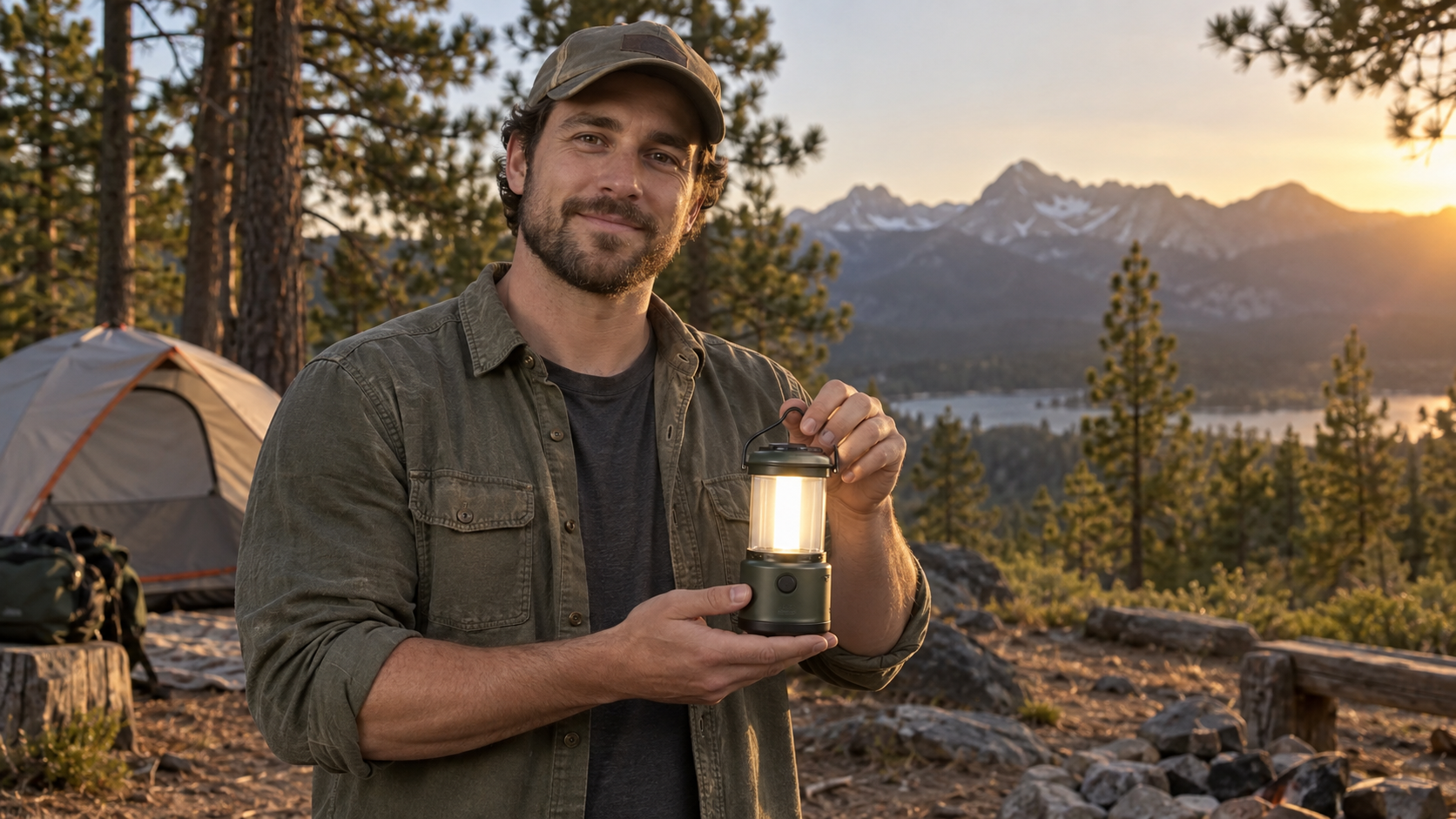
For presenter-led work, approve the person's identity, product grip, eye line, wardrobe, background, and caption-safe space before asking for more scenes.
The last line is important. It tells the agent that planning and generation are separate gates. Attach clean source images instead of compressed screenshots, and name their roles: product reference, character reference, background inspiration, or first frame. If the job starts from one approved still, the image-to-video workflow is the simplest production path; do not ask the system to redesign the source and animate it at the same time.
Build and Approve the Scene Plan
Vivideo describes each planned scene with three practical fields: duration, visual, and voiceover. Review them as a connected sequence, not as isolated cards. A strong opening should make the audience problem visible immediately, the middle should prove one useful point per scene, and the ending should contain a specific next action.
| Plan check | What to approve | What to revise |
|---|---|---|
| Hook | Audience and problem are clear in the first beat | Generic opening or delayed value |
| Duration | Each scene has enough time for its line and action | Long narration over a short visual |
| Visual | One readable subject and one main action | Several competing actions in one shot |
| Voiceover | Claims match approved source material | Invented numbers, guarantees, or features |
| Continuity | Product, person, location, and time remain coherent | Unexplained wardrobe or environment changes |
| CTA | The final action is explicit and realistic | Vague ending such as “learn more” without context |

A scene plan should preserve visual anchors across cuts: apron color, counter layout, pastry shape, window direction, and warm daylight are all continuity cues.
Read the voiceover aloud with a timer. Spoken language usually needs more breathing room than text on a plan suggests. If the narration sounds crowded, shorten the line before increasing the shot duration. Then check whether the visual actually supports the words. A close-up of a product label cannot simultaneously prove an emotional lifestyle claim, a technical process, and a customer result.
For a multi-model production, record which scene needs a speaking avatar, product fidelity, cinematic motion, or simple graphic support. The multi-model AI video workflow provides a useful routing method when one generator should not own every shot.
Generate, Review, and Revise by Chat
After approval, generate the first cut and review it at delivery size with sound on. Watch once for story and pacing, once for image defects, and once for audio. Do not pause every second during the first pass; first learn whether the sequence communicates. On the second pass, note the exact scene, timestamp, defect, and desired change.
This independent motion example is not claimed as a Vivideo render; use it to see how a single product action and controlled camera move simplify approval.
Write revision requests like production notes: “In scene 2, keep the bottle and background unchanged; replace only the fast orbit with a slow 20-degree move.” Avoid “make it better.” One request should contain one primary change and the invariants that must remain fixed. For script edits, quote the replacement line exactly. For timing edits, name the target duration.
Useful commands include: “Shorten the hook to six words,” “Remove the unsupported claim in scene 3,” “Keep the same speaker and voice across every scene,” “Regenerate only scene 4 with a wider composition,” and “Translate the narration but preserve product names.” If a revision changes the entire brief, duplicate the approved version before proceeding.

For social motion, inspect the face, limbs, floor contact, background lines, and empty space for captions before approving the frame as an animation source.
When to Use Agentic, Auto, or Manual Mode
Use Agentic Chat when the brief is incomplete, several stakeholders need to approve the plan, or you expect conversational revisions. It is well suited to explainers, product stories, social campaigns, localized variants, and presenter-led videos where script and scene decisions matter as much as raw generation.
Use Auto-Generate when the assignment is low-risk and repeatable: a routine recap, internal draft, simple list, or fast concept that can be discarded if it misses. The gain is speed, but the creator should still verify claims, rights, captions, voice, and visual coherence before publishing.
Use Manual mode when the output must obey a known model, aspect ratio, duration, resolution, avatar, or reference setup. Manual control is also the better recovery path when one automatic scene keeps failing. If the task is primarily direct prompt-to-clip generation, start with Seedance's text-to-video workflow and keep the prompt focused on one shot.
The right mode is determined by risk, not by technical confidence. A short paid ad with a legal claim may need more control than a five-minute internal training draft. Decide where approval must occur, what can be regenerated, and what failure would cost before choosing the fastest button.
Bring the Same Workflow into Seedance Agent
Vivideo's conversational flow and Seedance Agent solve related but different production problems. Vivideo is useful when you want an agent inside its studio to draft, build, and revise a complete video. Seedance Agent becomes especially useful when you want to organize references, route shots, compare generation approaches, preserve approvals, and rerun only the failed part of a larger production.
This separate motion example shows a restrained review target: stable cup geometry, continuous steam, small camera movement, and believable timing.
A practical handoff is simple. Save the approved brief, scene table, source files, voiceover, target ratio, and notes about what must not change. Import the strongest stills or clips, then assign one motion goal to each shot. Keep the same file names and acceptance criteria so a producer can tell which version was approved. If you are evaluating a more tool-driven agent setup, the Higgsfield MCP agent guide explains the difference between conversational planning and callable agent tools.
Do not run both agents on the same undefined problem. Let one layer own the plan, establish approval checkpoints, and use the other only where it adds control or generation quality. The MiniMax Hailuo agent workflow is another useful example of separating shot planning from model execution.
Conclusion
A useful Vivideo AI video agent tutorial is less about finding the chat box and more about creating clean approval boundaries. Start with one audience and goal, require a scene plan, verify duration, visuals, voiceover, claims, and continuity, then generate. Review the first cut in three passes and revise one scene with explicit invariants instead of restarting the entire project. Choose Agentic Chat for collaborative planning, Auto-Generate for low-risk drafts, and Manual mode for known production controls. When the work expands into multiple references, models, approvals, and selective reruns, continue the production in Seedance Agent.
Ready to try it yourself?
Put the steps from this guide into practice with Seedance and turn prompts or images into polished videos in minutes.
Free credits on signup. Plans from $28/month.
Related Articles
More posts in the same locale you may want to read next.

Seedance App Preview Video Generator 2026: Create App Store and Product Launch Clips
Use Seedance to turn app screenshots, feature copy, and launch goals into App Store previews, Google Play promo videos, and product launch clips.
Read article
How to Make a Talking AI Avatar You Can Reuse
Make a talking AI avatar with Seedance: design one consistent character, give it a voice, and make it speak in a talking photo or a full Seedance 2.5 scene, episode after episode.
Read article
Best AI Video-to-Video Models in 2026
The best AI video-to-video models in 2026 for editing footage you already shot: Higgsfield Genjutsu, Seedance 2.x, Runway Aleph, Luma Modify and Kling Omni compared.
Read article