
Sky Falling AI Video: How to Make the Viral Skyfall Effect with Prompts and Step-by-Step Workflow
AI Overview
What is the sky falling AI video effect?
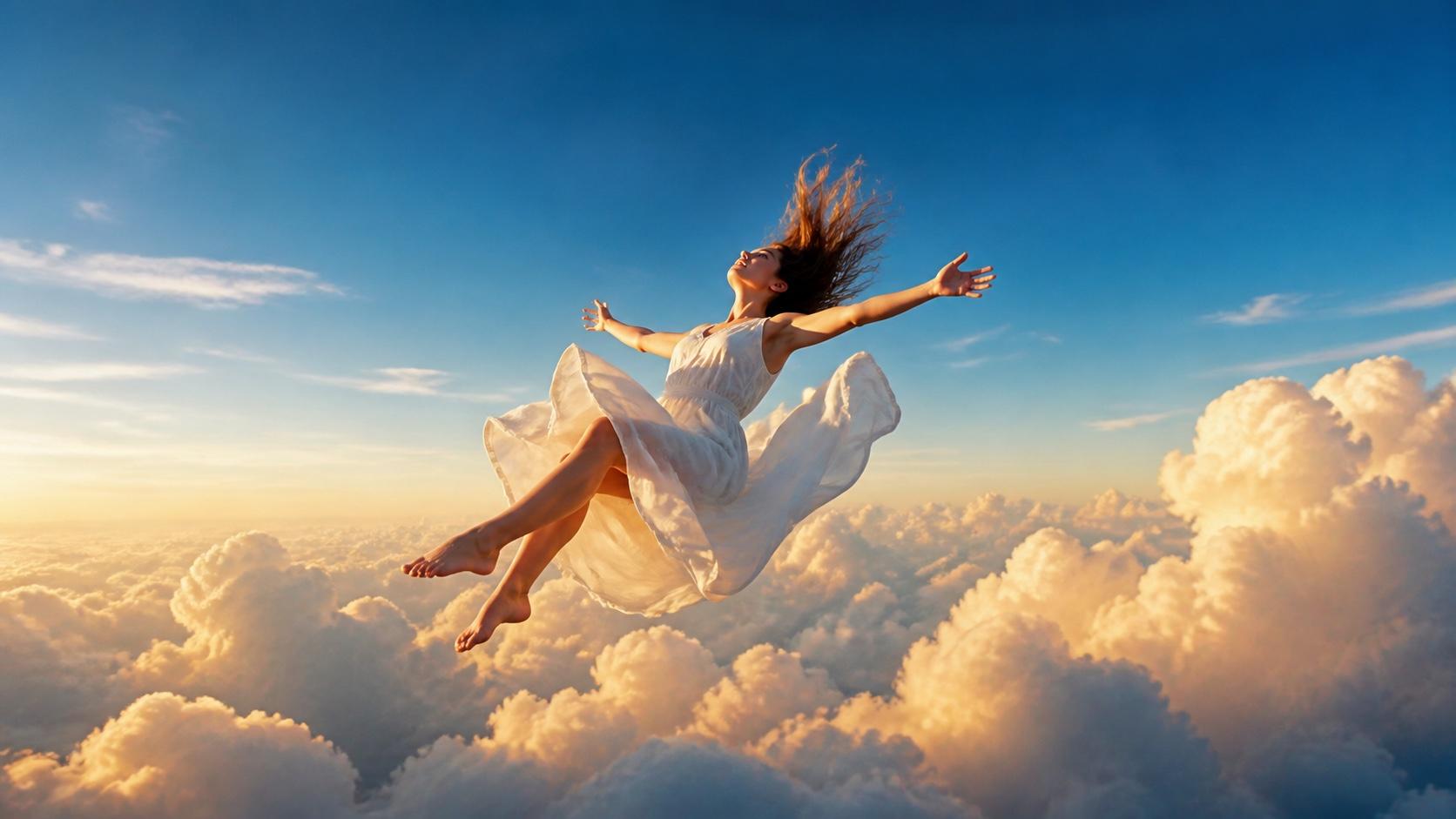
The sky falling AI video effect turns a photo into a cinematic clip of a person falling backward through open sky and clouds. It combines two AI-generated reference frames with image-to-video interpolation.
How do you make a sky falling AI video?
Generate a wide aerial start frame and a close-up falling end frame, then load both into a first-and-last-frame video model. A motion prompt directs the downward fall and camera follow.
What prompt creates the best sky falling effect?
Specify the camera angle, backward-leaning pose, cloud environment, slow motion, and vertical camera path. Add “camera cinematically follows downward” and “no lateral drift.”
Which AI tools work best for the sky falling video trend?
Seedance can generate realistic reference images and animate them with first-and-last-frame control. Higgsfield, Kling, and Veo can also work when the selected model handles vertical motion consistently.
What the Sky Falling AI Video Trend Actually Is
This is not a one-click filter. It is a complete AI production workflow built from three ideas: free fall, movement through clouds, and a slow-motion transition from an extreme wide shot to a close-up. Together they create a strong sense of weightlessness and release.
The format spread across TikTok and Instagram Reels in early 2026 because it creates an immediate scale change: the subject begins as a tiny figure surrounded by sky, then grows into a readable face and flowing outfit. It belongs to the same family of shareable AI motion experiments as the AI squish effect, but its emotional hook is cinematic rather than playful.
The traditional version would require a green screen, aerial footage, wire work, and compositing. The AI version can begin with one clear portrait, although the best results come from generating two controlled reference images instead of animating the original photo directly.
The 3-Step Workflow Overview
Use this map before you start:
Step 1: Generate reference frames
  → Image A: extreme wide aerial view; subject under 5% of the frame
  → Image B: close-up falling pose; subject fills about 60% of the frame

Step 2: Animate the fall
  → Use Image A as the start frame and Image B as the end frame
  → Add a vertical fall and camera-follow prompt
  → Let the image-to-video model interpolate the descent

Step 3: Refine the result (optional)
  → Add slow motion
  → Insert a clothing or accessory close-up
  → Add wind and a restrained bass impact
Keep the same subject description, clothing, lighting direction, and color palette in both frames. Consistency here matters more than adding extra visual detail later.
Step 1 — Generating Your Aerial Reference Frames
Image A — Wide Aerial Start Frame
A young woman in a white flowy dress, very high in the sky, full body visible,
person occupies less than 5% of the frame. Shot from slightly below, looking up.
Background: dramatic volumetric clouds, golden-hour light, deep blue sky above.
Cinematic, realistic, atmospheric perspective, no horizon line visible.
9:16 vertical.
Image B — Close-Up Falling End Frame
The same young woman in the same white flowy dress falling backward through the
sky, horizontal pose, arms slightly spread, expression calm or euphoric. Camera
at eye level with the subject, shallow depth of field, clouds softly blurred in
the background. Golden-hour backlight, hair flowing upward with wind. Close-up
to medium shot, subject fills 60% of the frame. 9:16 vertical.
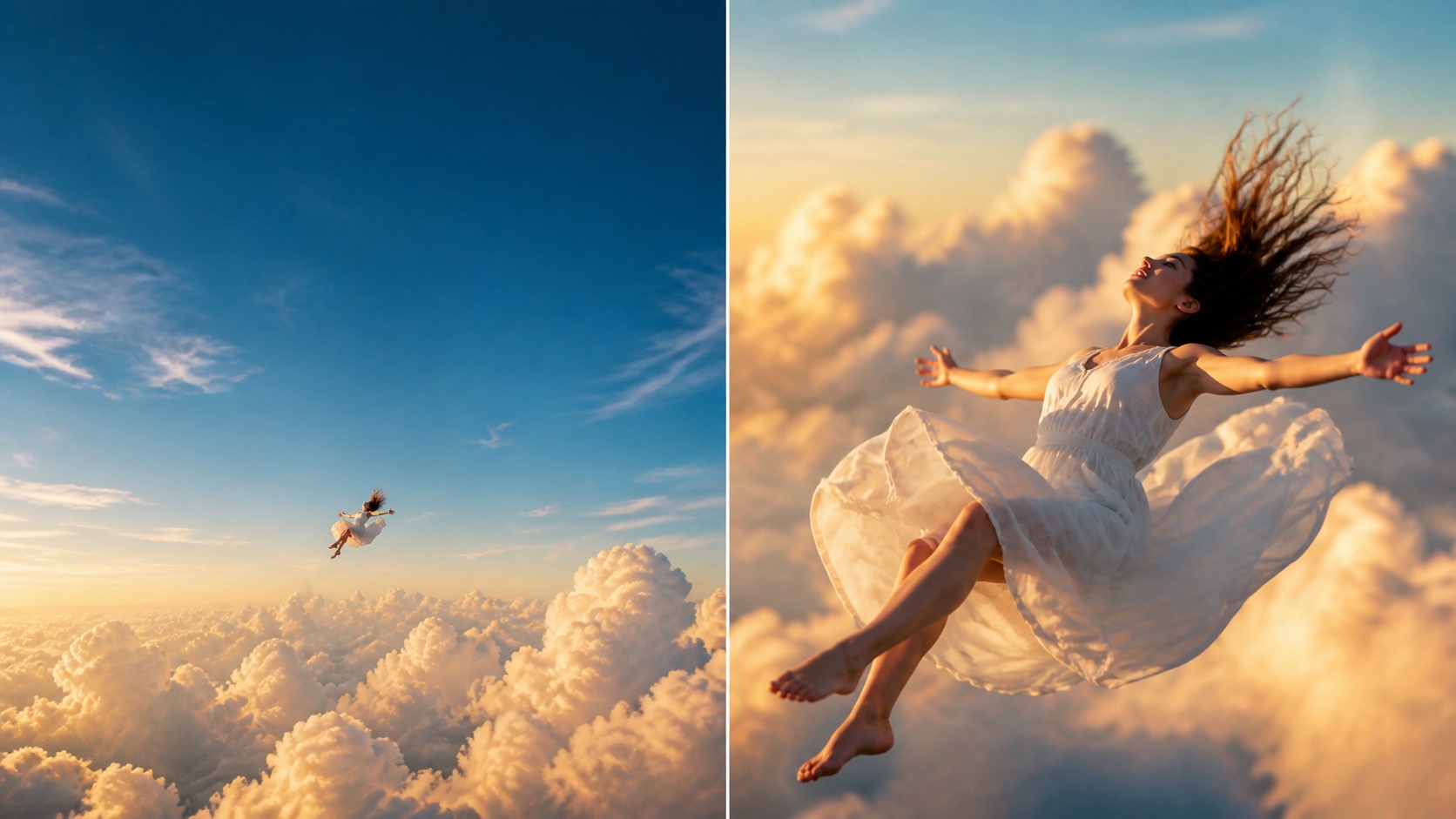
The start and end frames change scale dramatically while preserving the same face, dress, light, and sky palette.
If the reference frames look like different people, the animation will reveal the mismatch. Reuse the exact identity and wardrobe phrases, and apply the consistency techniques in the Seedream product poster prompt guide when refining lighting, framing, and surface detail.
Step 2 — Animating the Fall with Image-to-Video
Video Prompt Template
Person falling downward from the sky, leaning back into the fall. Camera
cinematically follows downward, slowly zooming in from wide to medium close-up.
Extreme slow motion, 10% speed. Volumetric clouds rushing past in the periphery.
Golden light flickering through clouds. Smooth continuous motion, no camera
shake, no lateral drift. 9:16 vertical format.
Seedance First-and-Last-Frame Setup
- Open Image to Video.
- Set Image A as the first frame.
- Set Image B as the last frame.
- Paste the video prompt and generate the transition.
- Check face identity, vertical travel, and lighting before changing style.
First-and-last-frame control gives the model two visual anchors instead of asking it to invent the final composition. For more detail on the technique, read the first-and-last-frame workflow guide.
Common Prompt Variations
- Sunset:
rose-tinted sunset, warm amber and pink clouds - Night sky:
falling through cosmos with stars and galaxies, nebula clouds - Angel:
large angel wings spread behind, feathers flowing in wind - Minimal:
pure white clouds, overexposed dreamy aesthetic
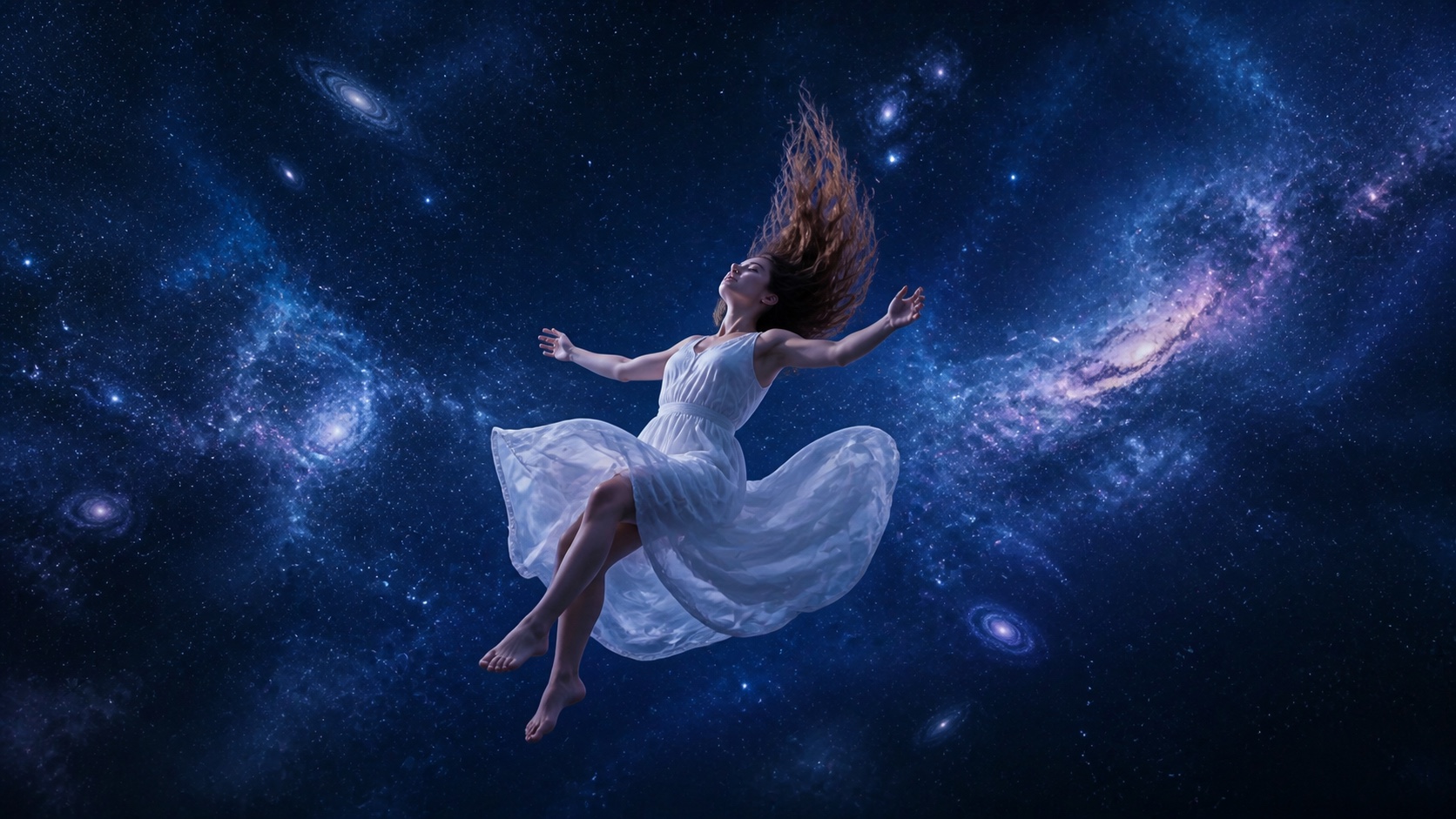
A single environment phrase can transform the mood without changing the underlying pose or camera path.
Getting the Details Right — Prompt Fixes for Common Problems
| Problem | Likely cause | Prompt fix |
|---|---|---|
| Clouds look flat or artificial | Cloud texture is undefined | Add “ultra-realistic volumetric clouds, atmospheric perspective, natural lighting.” |
| Fall happens too quickly | Slow motion is not explicit | Add “extreme slow motion, 10% speed, time appears to slow.” |
| Face becomes blurry or distorted | End-frame identity is weak | Use a sharper Image B and add “preserve facial features throughout.” |
| Camera drifts sideways | Direction is ambiguous | Add “strictly vertical downward camera movement, no lateral or horizontal shift.” |
| Subject and clouds feel disconnected | Lighting differs between frames | Use the same phrase in both prompts, such as “golden hour from upper left.” |
| Pose does not resemble free fall | Body angle is vague | Add “leaning backward at a 30-degree angle, arms slightly spread, legs relaxed.” |
Fix one variable at a time. If identity fails, improve Image B before extending the prompt. If movement fails, simplify the background and make the vertical camera instruction the first motion sentence.
Posting for Maximum Impact — Format and Creator Tips
The final edit should make the scale change readable immediately. Explore related formats on the Video Effects page, then use this checklist for the skyfall version:
- Format: 9:16 vertical, 6–10 seconds, with a visually strong first second.
- Structure: about 3 seconds of wide aerial fall, 3 seconds of close slow motion, then an optional 1–2 second clothing or accessory detail.
- Sound: layer wind under a restrained bass drop at the slow-motion transition. Community reports sometimes cite a 40% completion lift, but treat that as a test hypothesis rather than a guaranteed benchmark.
- Cover frame: choose the extreme wide aerial frame; the scale contrast creates curiosity.
- Hashtags:
#skyfalling #aitrend #skyfalleffect #aiVideo - Subject: flowing dresses, coats, scarves, and long hair show the fall more clearly than rigid styling.
- Timing: publish while the visual still feels novel, then test a second color or sky variation.
Conclusion
The sky falling AI video effect depends on two carefully matched reference frames and one precise downward-motion prompt. The most common mistake is skipping the reference-frame step and animating an uncontrolled portrait.
Save this three-step card:
- Generate a tiny wide subject and a clear close-up with identical identity and lighting.
- Use them as first and last frames with a vertical camera-follow prompt.
- Refine slow motion, sound, and one visual variation only after the motion works.
Create your sky falling video with Seedance: upload the two images, paste the prompt, and inspect the first result before adding more detail. Generation time depends on the selected model and queue.
Ready to try it yourself?
Put the steps from this guide into practice with Seedance and turn prompts or images into polished videos in minutes.
Free credits on signup. Plans from $28/month.
Related Articles
More posts in the same locale you may want to read next.

Seedance App Preview Video Generator 2026: Create App Store and Product Launch Clips
Use Seedance to turn app screenshots, feature copy, and launch goals into App Store previews, Google Play promo videos, and product launch clips.
Read article
Gemini AI Video Prompt Examples: Copy-Ready Veo Scenes and a Better Prompt Formula
Copy Gemini AI video prompt examples for cinematic motion, product ads, dialogue, and vertical clips, then adapt them with a practical Veo prompt formula.
Read article
How to Keep Product Shape Consistent in AI Video Ads
Lock product geometry, packaging, labels, references, camera angles, and approval checks so AI video ads preserve the real SKU across every shot.
Read article