
Seedance Tutorial for Beginners: How to Make AI Videos in 2026
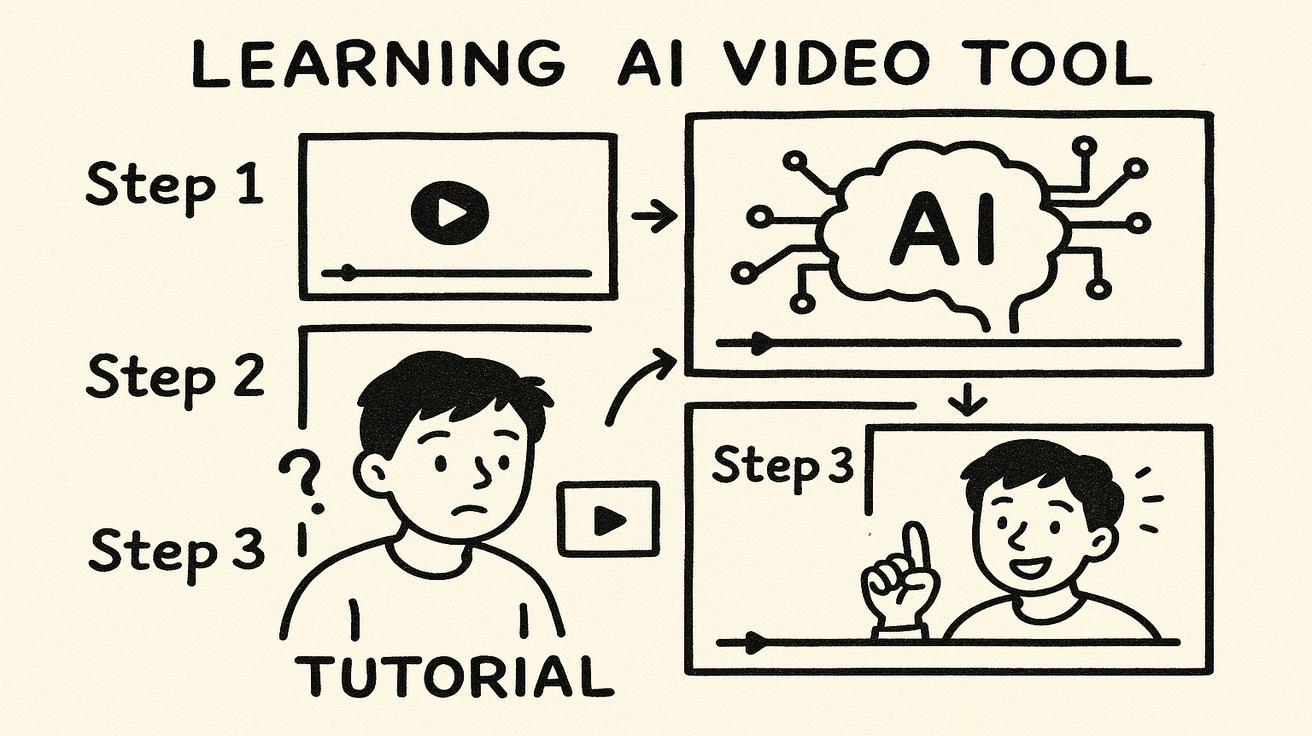
AI video generation has exploded in 2026, and Seedance stands out as one of the most powerful tools for creators. Whether you're a content marketer, social media manager, educator, or just curious about AI video creation, this comprehensive tutorial will walk you through everything you need to know to create stunning videos with Seedance 2.0.
In this guide, you'll learn how to set up your account, navigate the interface, create your first AI video, and master advanced techniques. By the end, you'll be creating professional-quality videos in minutes—not hours.
What Is Seedance? A Quick Overview
Seedance 2.0 is ByteDance's next-generation AI video generator that transforms text, images, audio, and video inputs into cinematic-quality content. Unlike earlier AI tools that only accepted text prompts, Seedance 2.0 adopts a unified multimodal architecture, supporting up to 12 combined inputs for unprecedented creative control.
Key features that make Seedance 2.0 revolutionary:
- Four-modality input: Combine text, images, video, and audio simultaneously
- @ reference system: Tag specific assets to guide generation (e.g., "Use @image1 as the first frame with @video1's camera movement")
- Native 2K resolution: Generate crisp, professional-quality videos without upscaling
- Seamless extension: Extend 4-15 second clips by uploading results and refining
- Natural language control: Control every aspect using simple conversational commands
Seedance is ideal for marketing videos, product demonstrations, educational content, social media clips, and creative storytelling. Best of all, it runs entirely in your browser—no downloads or installations required.
Getting Started: Creating Your Seedance Account
Before you start creating videos, you'll need a Seedance account. Here's how to get set up:
Step 1: Visit the Official Website
Navigate to https://www.seedance.tv in your web browser. Click the "Get Started" or "Sign Up" button in the top right corner.
Step 2: Choose Your Signup Method
Seedance offers several signup options:
- Email registration: Enter your email address and create a password
- Google account: Sign up with your existing Google credentials
- Discord account: Quick signup if you're already part of the Discord community
Step 3: Verify Your Email
After signing up, check your email inbox for a verification message. Click the confirmation link to activate your account.
Step 4: Choose Your Plan
Seedance offers several tiers:
- Free tier: Limited daily generations with basic features
- Starter plan: $4.99/month for more generations and enhanced features
- Pro plan: $19.99/month for unlimited access and priority processing
For beginners, start with the free tier to explore the platform. You can always upgrade later.
Step 5: Complete Your Profile
Add a profile picture, bio, and any other information to personalize your experience. This step is optional but helps you connect with the Seedance community.
Understanding the Seedance Interface
Once you're logged in, you'll see the main dashboard. Let's break down the key elements:
1. Navigation Bar (Top)
- Dashboard: Your home screen with recent projects
- Create: The main video generation interface
- Gallery: Your previously generated videos
- API: For developers who want to integrate Seedance
- Settings: Account preferences and billing
2. Generation Panel (Left Side)
This is where the magic happens. You'll find:
- Mode selector: Switch between Text-to-Video, Image-to-Video, and Multi-modal modes
- Prompt input: Where you'll write your text prompts
- Upload area: Drag and drop images, videos, or audio files
- Reference tags: Your uploaded assets appear here, ready to be tagged with @
3. Settings Panel (Right Side)
Configure your video parameters:
- Resolution: Choose from 720p, 1080p, or 2K
- Duration: Set video length (4-15 seconds for standard generation)
- Aspect ratio: 16:9 (landscape), 9:16 (vertical), or 1:1 (square)
- Style: Select from cinematic, realistic, animation, or custom presets
- Advanced options: Fine-tune motion, camera control, and consistency
4. Preview Window (Center)
This large area shows your generated videos as they create. You can also preview your uploaded reference assets here.
5. History Sidebar (Bottom)
See all your previous generations, making it easy to revisit or extend videos.
Your First AI Video: Step-by-Step Tutorial
Ready to create your first video? Follow these steps exactly as written.
Step 1: Navigate to Create Page
Click "Create" in the top navigation bar. You'll see a clean interface with the generation panel on the left and a blank preview area in the center.
Step 2: Select Text-to-Video Mode
In the mode selector (left panel, top section), ensure "Text-to-Video" is selected. It should be highlighted or have a border indicating it's active.
Step 3: Write Your First Prompt
In the prompt input box, type:
A peaceful forest clearing with sunlight filtering through tall trees, gentle breeze moving leaves, cinematic lighting, 24mm lens, shallow depth of field, morning mist, nature documentary style
Step 4: Configure Settings
On the right panel, set these parameters:
- Resolution: 1080p (good balance of quality and generation time)
- Duration: 8 seconds (perfect for your first test)
- Aspect ratio: 16:9 (standard landscape)
- Style: Cinematic
- Motion: Normal (not high or low)
Step 5: Generate Your Video
Click the large "Generate" button (usually green or blue) at the bottom of the left panel. The button will change to "Generating..." and show a progress bar.
Step 6: Wait for Processing
Generation typically takes 30-90 seconds depending on your plan and current platform load. You'll see a progress bar and sometimes a preview of intermediate frames.
Step 7: Review Your Creation
When complete, your video will appear in the center preview window. Play it back to see the results. Click "Download" to save it to your computer, or "Extend" to add more time to the clip.
Congratulations! You've just created your first AI video with Seedance 2.0.
Seedance Text-to-Video: How It Works
Text-to-video is Seedance's most straightforward mode. You provide a natural language description, and Seedance creates a matching video.
How Seedance Processes Your Prompts
- Natural Language Understanding: Seedance analyzes your text using advanced language models to extract key concepts, actions, objects, and styles.
- Scene Construction: The system builds a 3D representation of your scene based on the description
- Motion Planning: Determines how objects and camera should move throughout the clip
- Style Application: Applies your chosen visual style (cinematic, realistic, etc.)
- Rendering: Generates the final video frames and encodes them
Writing Effective Text Prompts
For best results, structure your prompts like this:
[Subject] + [Action] + [Environment] + [Style/Camera] + [Lighting/Atmosphere]
Example:
- Basic: "A cat running"
- Good: "A fluffy orange cat running across a sunny garden, slow-motion, 50mm lens, golden hour lighting"
- Excellent: "A photorealistic fluffy orange tabby cat sprinting playfully across a flower-filled garden, flowers sway gently, tracking shot following the cat, golden hour sunlight creates lens flares, shallow depth of field, nature documentary style"
The more detail you provide, the better Seedance can match your vision.
Advanced Text Prompt Techniques
Camera Control
Specify camera movements directly:
- "Dolly in from wide shot to close-up"
- "Pan left to reveal the landscape"
- "Static tripod shot with no movement"
- "Handheld camera following the subject"
Motion Modifiers
Control the intensity of movement:
- "Gentle breeze" vs "Strong wind"
- "Slowly walking" vs "Sprinting at full speed"
- "Subtle facial expressions" vs "Dramatic gestures"
Multiple Subjects
Guide how subjects interact:
- "Two people having a conversation, looking at each other"
- "Bird flying past a group of trees"
Common Text-to-Video Mistakes to Avoid
❌ Overcomplicating: "And then the bird flies, and the sun sets, and the camera zooms out, and it starts raining, and..." (Too many actions in 5-10 seconds) ❌ Vague descriptions: "Make it look cool" (Not enough guidance) ❌ Conflicting instructions: "Static shot but camera moves around" (Contradictory) ✅ Solution: Focus on 1-2 main actions per 8-second clip, be specific, ensure instructions align
Seedance Image-to-Video: Bringing Photos to Life
Image-to-video lets you upload a static image and animate it. This is perfect for turning product photos, portraits, or artwork into engaging videos.
How Image-to-Video Works
- Image Analysis: Seedance analyzes your uploaded image to understand subjects, composition, lighting, and depth
- Motion Synthesis: Generates realistic movement that matches the image content
- Camera Motion: Adds camera movements (pans, zooms, dolly moves)
- Environmental Effects: Optionally adds weather, lighting changes, or background elements
Step-by-Step Image-to-Video Tutorial
Step 1: Switch to Image-to-Video Mode
On the Create page, click the mode selector and choose "Image-to-Video" from the dropdown menu.
Step 2: Upload Your Source Image
Drag and drop your image file into the upload area, or click "Browse Files" to select from your computer. Seedance accepts JPG, PNG, and WEBP files up to 10MB.
Step 3: Write a Motion Prompt
This is crucial for image-to-video. Describe what should move:
The woman gently turns her head to look at the camera, hair moves naturally, slight smile appears, subtle breathing motion, camera slowly zooms in for intimate feel
Good image-to-video prompts focus on: What moves, how it moves, and camera movement.
Step 4: Set Motion Controls
Image-to-video mode has special settings:
- Motion strength: 0-100%, controls how much movement occurs (start with 30-50%)
- Camera motion: Pan, zoom, or static (match it to your prompt)
- Motion area: "Full scene" (everything moves) or "Subject only" (just main subject animates)
Step 5: Generate and Refine
Click "Generate" and wait for completion. Image-to-video often requires 2-3 attempts to get perfect motion. Adjust your prompt or motion strength based on results.
Best Practices for Image-to-Video
✅ Use high-quality images: 1080p or higher resolution ✅ Clear subjects: Distinct main subjects animate better than cluttered scenes ✅ Match motion to content: Landscapes benefit from slow pans, portraits from subtle movements ✅ Start conservative: Too much motion looks unnatural (30-50% is usually best)
Creative Image-to-Video Use Cases
- Product showcase: Rotate products to show all angles
- Portrait animation: Bring profile pictures to life with subtle movements
- Artwork animation: Animate paintings or digital art
- Logo animation: Transform static logos into dynamic intro sequences
- Real estate: Make property photos more engaging with camera moves
Writing Better Prompts for Seedance
Mastering prompts is the key to professional results. Here's a framework for consistently excellent videos.
The SEED Framework for Seedance Prompts
S - Subject: What is the main focus? E - Environment: Where does it take place? E - Emotion/Action: What is happening and how? D - Details: Camera, style, lighting, technical specs
Example using SEED:
- S: Majestic Bengal tiger
- E: Dense jungle after rainfall
- E: Confidently prowling, alert gaze
- D: Low-angle tracking shot, National Geographic style, 85mm lens, dramatic golden hour lighting, shallow depth of field, steam rising from wet leaves
Full prompt: "Majestic Bengal tiger confidently prowling through a dense jungle after rainfall, alert gaze scanning surroundings, low-angle tracking shot following the tiger, National Geographic documentary style, 85mm lens, dramatic golden hour sunlight filtering through canopy, shallow depth of field, steam rising from wet leaves"
15 Powerful Seedance Keywords
Add these to enhance your videos:
Style Keywords
- "Cinematic" - Film-quality lighting and composition
- "Documentary style" - Natural, observational feel
- "Music video" - Creative angles and aggressive color grading
- "Commercial" - Polished, product-focused aesthetic
- "Viral TikTok" - Fast cuts, energetic transitions
Technical Keywords
- "24mm lens" - Wide angle, immersive
- "85mm lens" - Portrait, flattering compression
- "50mm lens" - Natural human perspective
- "F/1.8" - Shallow depth of field, blurry background
- "F/8" - Deep focus, everything sharp
Motion Keywords
- "Slow motion" - Dramatic, elegant movement
- "Time-lapse" - Fast-forward timelapse effect
- "Hyperlapse" - Timelapse with camera movement
- "Drone footage" - Aerial perspectives
- "POV shot" - First-person perspective
Prompt Examples by Category
Nature & Wildlife
A majestic bald eagle diving to catch a fish in a crystal-clear mountain lake, water splashes dramatically, slow-motion at 120fps, telephoto lens compression, golden hour backlighting, nature documentary style
Urban & Architecture
Time-lapse of Manhattan skyline at sunset transitioning to night, city lights flicker on, clouds move rapidly, aerial drone shot ascending from street level to 300 feet, cinematic color grading, 4K quality
Product Videos
Luxury smartwatch rotating on black reflective surface, premium lighting reveals metallic finish, slow product beauty spin, macro lens shows fine details, commercial photography style, camera dollies in for dramatic hero shot
People & Lifestyle
Young woman laughing while walking through sunflower field, hair flowing in wind, soft natural lighting, shallow depth of field, warm color palette, 50mm lens handheld camera following subject, lifestyle magazine aesthetic
Prompt Testing Strategy
Don't settle on the first try:
- Generation 1: Basic prompt (e.g., "cat running")
- Generation 2: Add details (e.g., "fluffy orange cat running across garden, 50mm lens")
- Generation 3: Full specification (add style, lighting, motion)
- Generation 4: Refine based on what you learned
Each iteration teaches you how Seedance interprets specific terms, making you a better prompt engineer.
Seedance Styles and Settings Explained
Beyond prompts, Seedance offers powerful settings that dramatically affect output.
Resolution Settings
720p (HD)
- Fastest generation
- Good for quick tests or social media
- File size: 2-5MB
1080p (Full HD)
- Best balance of quality and speed
- Professional for most use cases
- File size: 5-12MB
2K (QHD)
- Highest quality available
- Use for commercial projects or archival
- Slower generation (1-3 minutes)
- File size: 10-20MB
Aspect Ratios
16:9 (Landscape)
- Traditional videos, YouTube, presentations
- Most natural for AI generation
9:16 (Vertical)
- TikTok, Instagram Reels, YouTube Shorts
- Perfect for mobile-first content
- Often requires taller subjects in frame
1:1 (Square)
- Instagram feed posts
- Thumbnails
- Modern but less common
Motion Control Settings
Motion Strength (0-100%)
- 0%: Static shot, almost no movement
- 25%: Subtle motion (breathing, slight camera drift)
- 50%: Standard motion (walking, natural movements)
- 75%: Strong motion (running, active scenes)
- 100%: Chaotic motion (for experimental effects)
Camera Motion
- Static: Ideal for product shots or portraits
- Pan/Zoom: Add gentle camera movement
- Orbit: Camera circles around subject (great for product reveals)
- Dolly: Smooth forward/backward movement adds cinematic depth
Style Presets
Cinematic
- Film-like color grading
- 24fps frame rate
- Shallow depth of field tendencies
Realistic
- Natural colors and lighting
- 30fps frame rate
- Documentary feel
Animation
- Stylized colors
- Smooth, exaggerated movements
- Cartoon or anime aesthetic
Custom Style
- Upload a style reference image
- Perfect for maintaining brand aesthetics
- Use @style_reference in prompt
Advanced Settings (Pro Users)
Negative Prompts Tell Seedance what to avoid:
ugly, deformed, blurry, low quality, watermark, text overlay, bad anatomy
Sampling Steps Higher values (50-100) = more detailed, slower generation Lower values (20-30) = faster, less refinement
Seed Value Lock this number to reproduce similar results with minor changes Leave it random for maximum variety
How to Download and Share Your Videos
Once you've created a video you love, here's how to use it.
Downloading Options
Standard Download
- Click the download button below your generated video
- Choose format: MP4 (recommended) or GIF
- Select quality level if prompted
Batch Download
- In your Gallery, select multiple videos
- Click "Download Selected" to get a ZIP file
- Useful for downloading entire projects
API Download (Advanced) For developers:
curl -X GET "https://api.seedance.com/videos/{video_id}/download" \\
  -H "Authorization: Bearer YOUR_API_KEY"
Sharing Directly from Seedance
Get Share Link
- Click the "Share" button below your video
- Toggle "Public Link" to generate a URL
- Copy the link and send it to anyone
- They can view but not edit your video
Embed Code for Websites
- Click "Share" → "Embed"
- Copy the provided iframe code
- Paste into your website's HTML
- Adjust width/height parameters as needed
Best Practices for Social Media
For Instagram/TikTok (9:16 videos)
- Download vertical format
- Use platform's native upload for best quality
- Add captions within Instagram/TikTok (not burned into video)
For YouTube (16:9 videos)
- Upload 1080p or 2K versions
- Use custom thumbnails (generate these separately if needed)
- Add SEO-friendly titles and descriptions
For LinkedIn/Presentations
- 16:9 format works best
- Keep videos under 30 seconds for engagement
- Add subtle branding if desired
Watermark Removal
Free tier videos include a small Seedance watermark. To remove it:
- Upgrade to paid plan
- Re-download existing videos (watermark automatically removed)
- New generations will be watermark-free
Tips and Tricks for Better Results
These pro tips will elevate your videos from good to exceptional.
1. Start Simple, Then Build
Begin with short 4-6 second clips to test patterns. Once you understand how Seedance interprets your style, create longer, more complex videos.
2. Use Reference Consistency
For a series of videos (e.g., product line), use the same style reference across all generations. This creates visual consistency:
Generate 5 product videos using @style_reference, showing [product name] with identical lighting and camera angles
3. Master the Art of Negative Prompts
Prevent common issues with strategic negatives:
ugly, deformed, duplicate characters, extra limbs, bad hands, watermark, text overlay, blurry, low quality
4. Chain Generations for Complex Stories
Create a 30-second narrative by generating 4-6 separate clips and editing them together:
- Generation 1: Establishing shot
- Generation 2: Character introduction
- Generation 3: Main action
- Generation 4: Climax/moment of tension
- Generation 5: Resolution
5. Use Motion Strength Strategically
- Portraits: 20-30% (subtle breathing, eye blinks)
- Landscapes: 40-60% (clouds, water, gentle camera moves)
- Action scenes: 70-80% (strong movement, sports)
- Cinematic: 50% for natural realism
6. Optimize for Your Platform
Calculate aspect ratio first:
- TikTok: 9:16 vertical
- Instagram Reels: 9:16 vertical
- YouTube: 16:9 horizontal (or 9:16 for Shorts)
- LinkedIn: 16:9 or 1:1
- Presentation: 16:9
Generate once in the correct aspect ratio—converting later reduces quality.
7. Use Audio Inputs for Rhythm
Seedance 2.0 supports audio references for rhythm-based motion:
- Upload a music track or sound effect
- Tag it with @audio1
- Prompt: "Camera and subjects move in sync with @audio1's rhythm"
- Result: Motion that matches the beat
8. Build a Prompt Library
Save your best prompts in a document. Categorize them:
- Subject types (animals, people, products, landscapes)
- Style presets (cinematic, commercial, documentary)
- Lighting conditions (golden hour, overcast, studio)
- Camera moves (dolly, pan, static)
Over time, you'll develop a personal formula bank that guarantees consistent results.
9. Understand Generation Time vs. Quality
Higher resolution = longer wait times. Strategy:
- Testing: Generate at 720p (30-60 seconds)
- Final content: Generate at 1080p (1-2 minutes)
- High-end commercial: Generate at 2K (2-3 minutes)
Consider time constraints when planning multiple videos.
10. Leverage Community Examples
Browse the Seedance community gallery to see:
- What prompts work well
- Popular styles and trends
- Creative use cases you hadn't considered
- How others solved similar video challenges
11. Batch Create Similar Content
Need 10 product videos? Generate them in sequence with consistent settings:
- Same style preset
- Similar prompts (swap product name only)
- Identical resolution and aspect ratio
This creates a cohesive series perfect for brand campaigns.
12. Fine-Tune With the @ System
Reference specific elements precisely:
Use @image1's color palette, @video2's camera movement, but create a new scene with [your subject]
This gives director-level control without complex technical knowledge.
13. Experiment With Unusual Combinations
The @ system excels at unexpected pairings:
- "Use @painting1's style but @photograph1's content"
- "Match @video1's motion but with @audio1's rhythm"
- "Apply @style_reference's aesthetic to @image1"
14. Monitor Your Credit Usage
Track generations per day:
- Free tier: ~10 generations/day
- Starter: ~50 generations/day
- Pro: Unlimited
Batch similar tests together to maximize learning per credit.
15. Save Everything (Even "Failures")
Videos that didn't work as planned teach you about:
- How prompts get misinterpreted
- Motion strength sweet spots
- Style interactions
Create a "learning folder" on your computer and review periodically.
Common Mistakes to Avoid
Learn from these frequent errors so you don't repeat them.
1. Overcomplicating Prompts
Mistake: "A dragon flying over a castle, then breathing fire, then villagers running, then the dragon lands, then a hero appears..."
Problem: Too many actions in 8 seconds. Each action needs time to register.
Fix: "A dragon majestically flying over an ancient stone castle, wings spread wide, sunset sky, cinematic camera follows from below" One main action = clearer results.
2. Ignoring Aspect Ratio
Mistake: Generating a vertical video of a wide landscape.
Problem: Composition looks cramped and unnatural.
Fix: Match aspect ratio to your subject:
- Landscapes: 16:9 horizontal
- People/tall objects: 9:16 vertical
- Balanced scenes: 1:1 square
3. Setting Motion Strength Too High
Mistake: Motion strength at 90% for a portrait.
Problem: Subject distorts and looks unnatural (excessive blinking, head tilts).
Fix: Start low (20-30% for portraits, 40-50% for landscapes) and increase gradually.
4. Inconsistent Style References
Mistake: Using different style references for each video in a brand campaign.
Problem: Videos look disconnected and unprofessional.
Fix: Use ONE style reference and @mention it in every prompt for the campaign.
5. Not Using Negative Prompts
Mistake: Accepting generations with common AI artifacts.
Problem: Extra limbs, duplicate characters, warped faces.
Fix: Always include: ugly, deformed, duplicate, extra limbs, bad anatomy, watermark, text
6. Giving Up After One Attempt
Mistake: "The first generation wasn't perfect, so I gave up."
Problem: AI generation requires iteration. The first attempt is rarely the best.
Fix: Generate 3-5 variations, then pick the best or use it as a reference for the next generation.
7. Overusing "Cinematic" Without Specification
Mistake: Every prompt includes "cinematic" but nothing else.
Problem: Too generic; Seedance needs details to execute.
Fix: "Cinematic with 85mm lens, shallow depth of field, golden hour backlighting, film grain effect"
8. Not Testing Prompt Segments
Mistake: Writing 100-word prompts and wondering why results are inconsistent.
Problem: Can't identify which part of the prompt works or fails.
Fix: Test individual components:
- Test subject alone
- Test camera move alone
- Test lighting alone
- Combine only what works
9. Ignoring the @ Reference System
Mistake: Never uploading reference materials.
Problem: Missing the most powerful feature of Seedance 2.0.
Fix: Upload at least one reference (style, motion, or composition) for every serious project.
10. Downloading Wrong Format
Mistake: Downloading GIF when you need MP4 for Instagram.
Problem: Quality loss, large file sizes, or unsupported formats.
Fix: Instagram/TikTok = MP4, website embedding = MP4, simple web graphics = GIF only when appropriate.
11. Not Checking Generation History
Mistake: Recreating prompts from scratch every day.
Problem: Wasting time trying to remember what worked.
Fix: Bookmark or save your best generations. Use them as parent references for similar projects.
12. Forgetting to Check Dimensions
Mistake: Generating a 4K video at 2:1 aspect ratio for Instagram.
Problem: Instagram crops or compresses awkwardly.
Fix: Know your platform specs before generating:
- Instagram feed: 1080x1080px (1:1)
- Instagram stories: 1080x1920px (9:16)
- YouTube: 1920x1080px (16:9)
13. Mixing Too Many Genres
Mistake: "Photorealistic cartoon of a robot in Studio Ghibli style"
Problem: Conflicting instructions produce muddy, inconsistent results.
Fix: Pick one aesthetic direction: photorealistic OR cartoon OR Studio Ghibli style.
14. Skipping the Style Reference Upload
Mistake: Describing a style instead of showing it.
Problem: Text descriptions of style are less precise than visual examples.
Fix: Find 3-5 images representing your desired style. Upload them as @style_reference.
15. Not Leveraging Community Knowledge
Mistake: Working in isolation, never checking what others create.
Problem: Missing trends, techniques, and inspiration.
Fix: Spend 10 minutes browsing the Seedance community weekly. Save prompts from videos you admire.
FAQ: Frequently Asked Questions
Q1: How long can videos be?
Standard generation produces 4-15 second clips. For longer content:
- Generate a 10-second clip
- Use "Extend" feature to add 5-10 more seconds
- Repeat until desired length
- Use external video editor to combine extended clips
Professional tip: Create multiple 8-10 second scenes and edit them together in DaVinci Resolve, Final Cut, or Adobe Premiere for seamless longer videos.
Q2: Can I use Seedance videos commercially?
Yes, with the following conditions:
- Free tier: Videos include watermark; not ideal for commercial use
- Paid plans: Full commercial rights to watermark-free videos
- Read the Terms of Service: Stay updated on usage rights
- No major restrictions: Most industries (marketing, education, entertainment) are approved
Q3: Why do my videos look different from the preview?
Two main reasons:
- Compression: Downloaded videos are compressed for file size; preview shows raw generation
- Browser player: Your browser's video player may render colors differently
Solution: Download and view in a professional video player (VLC, QuickTime) for accurate representation.
Q4: How do I fix distorted faces or hands?
Common AI generation issue:
Immediate fixes:
- Add to negative prompt:
bad anatomy, extra fingers, deformed hands - Reduce motion strength (sometimes distortion increases with high motion)
- Increase resolution (higher res = more detail for AI to work with)
Long-term solution: Use reference images of perfect faces/hands and tag them with @reference in your prompt.
Q5: What's the difference between Seedance 1.5 and 2.0?
Seedance 2.0 is a major upgrade:
| Feature | Seedance 1.5 | Seedance 2.0 |
|---|---|---|
| Max inputs | Text only | Text + Image + Video + Audio (12 total) |
| Resolution | Up to 1080p | Native 2K |
| Reference system | Basic | Advanced @ tagging |
| Generation speed | 2-3 minutes | 30-90 seconds |
| Audio support | No | Yes (reference and sync) |
| Style consistency | Moderate | Excellent with @style_reference |
Recommendation: Always use Seedance 2.0 unless a specific feature from 1.5 is required (rare).
Q6: How many videos can I generate per day?
- Free tier: ~10 generations/day (resets at midnight UTC)
- Starter ($4.99/month): ~50 generations/day
- Pro ($19.99/month): Unlimited
Tip: Track your usage on the dashboard; Use free tier for testing, paid plans for final content creation.
Q7: Can I control camera movements precisely?
Yes, using multiple methods:
Method 1: Text description
Slow dolly in from wide to medium shot, gentle upward tilt revealing skyline
Method 2: Video reference Upload a video showing desired camera move, tag with @camera_motion
Method 3: Seedance controls Use "Camera Motion" dropdown: Pan left/right, Zoom in/out, Orbit, Dolly, Static
Method 4: Combination
Use @camera_motion's movement pattern, apply to a new scene with [subject], 85mm lens
Q8: Why is my video generation taking so long?
Normal factors:
- Higher resolution (2K takes longer than 720p)
- Complex prompts (detailed scenes need more processing)
- Platform load (peak hours = slower)
- Your subscription tier (paid = priority)
Typical times:
- 720p: 30-60 seconds
- 1080p: 60-90 seconds
- 2K: 90-180 seconds
If over 5 minutes: Refresh page or contact support (possible queue stuck).
Q9: How do I maintain character consistency across scenes?
Character consistency is challenging but achievable:
Method 1: Seed value preservation
- Generate first scene, note the seed
- Use that exact seed for subsequent scenes
- Add character reference image with @character
Method 2: Detailed description
- Over-describe the character in every prompt
- "Red-haired woman named Maya, 28 years old, green eyes, wearing blue denim jacket"
Method 3: Multiple reference images
- Upload 5-10 images of your character
- Tag different angles: @character_front, @character_profile, etc.
- Reference specific images for each new scene
Expect 80-90% consistency, not 100%. Some variation is inevitable with current AI.
Q10: Can I edit videos after generating them?
Yes, two ways:
In-Seedance editing:
- Upload generated video back to Seedance
- Use "Edit" or "Extend" options
- Change prompt, add references, modify settings
- Re-generate with changes
External editing:
- Download MP4 files
- Edit in professional software (Premiere, Final Cut, DaVinci Resolve)
Best workflow: Generate scenes in Seedance, edit together externally for best flexibility.
Conclusion: Your Seedance Journey Starts Now
You've now mastered everything needed to create professional AI videos with Seedance 2.0. From setting up your account to writing advanced prompts, you have a complete toolkit for success.
Next Steps
- Start simple: Generate one 8-second text-to-video clip today
- Practice prompts: Try different styles and keywords
- Upload references: Experiment with @ mention system
- Build a portfolio: Create 5-10 videos in the same style
- Share your work: Show what you've created
Resources to Continue Learning
- Seedance Community Gallery: Browse and learn from top creators
- Official Discord: Get real-time help and share tips
- API Documentation: For developers building with Seedance
- This blog: Regular tutorials and feature updates
Final Pro Tip
The creators who succeed with Seedance aren't those with the most expensive plans—they're the ones who:
- Test frequently and learn from every generation
- Build a personal prompt library
- Study what works (and what doesn't)
- Iterate instead of expecting perfection first try
Your first 50 generations are your "training period." Expect mixed results. After 100+ generations, you'll develop an instinct for what prompts produce your desired style.
Ready to start creating? Head over to https://www.seedance.tv and generate your first video right now. Use this tutorial as your reference guide, experiment with the prompt examples, and don't be afraid to try unusual combinations.
The future of video creation is here—and you're now equipped to master it.
Emma Chen is a professional content creator specializing in AI tools and digital marketing. With over 500 AI-generated videos under her belt, she helps creators master emerging technologies.
Ready to try it yourself?
Put the steps from this guide into practice with Seedance and turn prompts or images into polished videos in minutes.
Free credits on signup. Plans from $28/month.
Related Articles
More posts in the same locale you may want to read next.

Seedance App Preview Video Generator 2026: Create App Store and Product Launch Clips
Use Seedance to turn app screenshots, feature copy, and launch goals into App Store previews, Google Play promo videos, and product launch clips.
Read article
Gemini AI Video Prompt Examples: Copy-Ready Veo Scenes and a Better Prompt Formula
Copy Gemini AI video prompt examples for cinematic motion, product ads, dialogue, and vertical clips, then adapt them with a practical Veo prompt formula.
Read article
How to Keep Product Shape Consistent in AI Video Ads
Lock product geometry, packaging, labels, references, camera angles, and approval checks so AI video ads preserve the real SKU across every shot.
Read article