
Seedance Aspect Ratio Guide: 9:16, 16:9 and 1:1 Video for Every Platform (2026)
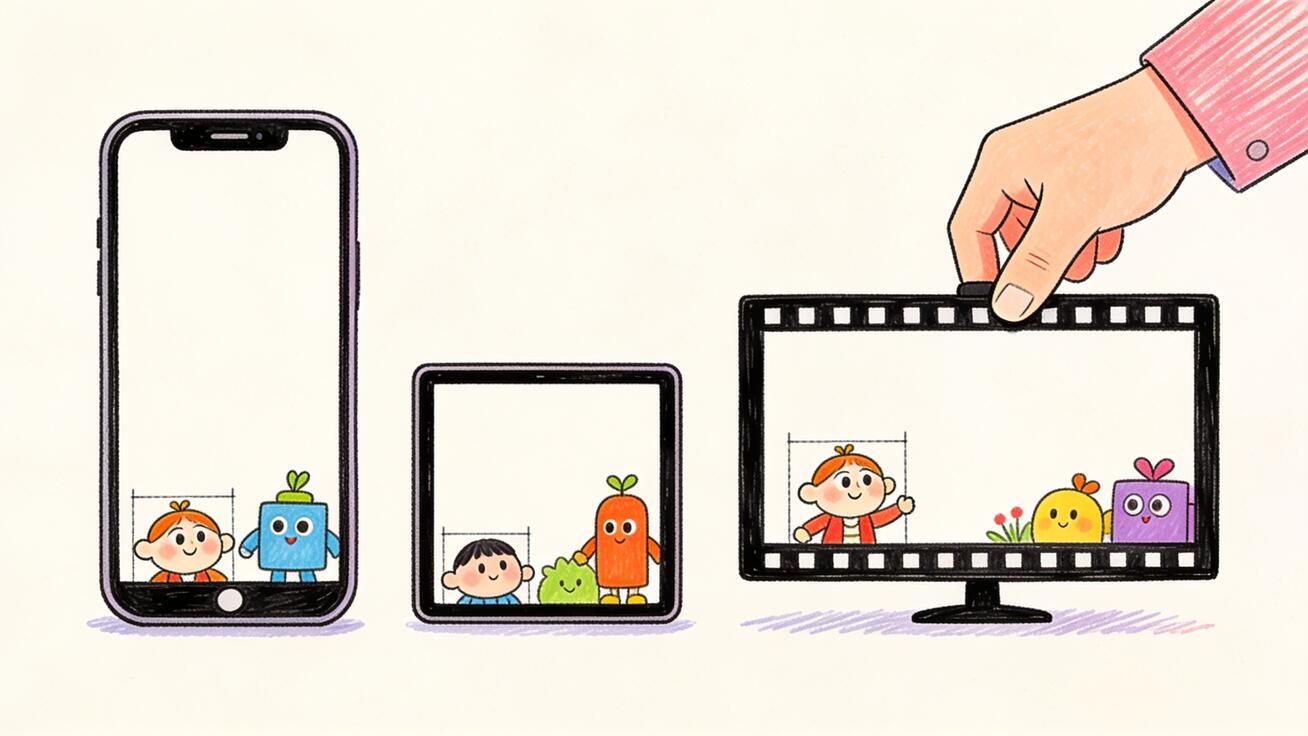
Picking the wrong Seedance aspect ratio is the fastest way to waste a good generation. You write a strong prompt, the model renders a clean 16:9 clip, and then you realize you needed a vertical 9:16 video for TikTok. Now your subject is centered for a widescreen frame, the action sits in the wrong third, and cropping it to fit a phone screen chops off heads and captions. This guide shows you how to choose and set the right aspect ratio inside Seedance before you generate, so every clip lands at the correct shape for the platform you are posting to.
Aspect ratio is not just a crop setting in Seedance. Because the model frames the shot for the canvas you choose, a 9:16 generation is composed differently from the same prompt at 16:9. Get the ratio right up front and you save credits, avoid re-generations, and ship videos that already fit TikTok, Reels, Shorts, YouTube, or a landing page hero. By the end of this guide you will know which Seedance aspect ratio to use for each platform, how to set it, and how to write prompts that respect the frame.
Quick Answer: Which Seedance Aspect Ratio Should You Use?
The fastest answer: match the aspect ratio to where the video will be watched. In Seedance, choose the ratio in the generation panel before you hit generate.
| Platform / use | Best Seedance aspect ratio | Orientation |
|---|---|---|
| TikTok, Instagram Reels, YouTube Shorts | 9:16 | Vertical |
| YouTube, landing page hero, product demo | 16:9 | Widescreen |
| Instagram feed post, profile grid | 1:1 | Square |
| Instagram feed (taller, more screen space) | 4:5 (crop from 9:16 or 3:4) | Portrait |
| Cinematic trailer, film look, ultrawide hero | 21:9 | Cinemascope |
| Classic TV, presentation, some ad slots | 4:3 or 3:4 | Standard |
Seedance 2.0 natively supports six aspect ratios — 16:9, 9:16, 1:1, 4:3, 3:4, and 21:9 — plus an auto option that lets the model pick a ratio from a reference image. Set the ratio first, then write a prompt that frames the subject for that shape. That single habit prevents most "why is my subject cut off" problems.
Why Aspect Ratio Matters More in Seedance Than in an Editor
In a normal video editor, aspect ratio is a crop you apply after the footage exists. In Seedance, the aspect ratio is part of the generation itself, so it changes what the model actually creates.
When you generate at 9:16, Seedance composes for a tall frame: it places the subject higher or lower, leaves the right amount of headroom, and keeps the important action inside the narrow vertical column where a phone viewer is looking. The same prompt at 16:9 spreads the scene horizontally, gives the subject more environment around them, and reads as a wider, more cinematic shot. A 1:1 square pulls everything toward the center.
This is why you cannot just generate one 16:9 master and crop it down to vertical later. Cropping a widescreen clip to 9:16 throws away two-thirds of the horizontal frame, often slicing through faces, logos, or on-screen text. It also fixes the composition the model chose for a wide canvas, which rarely flatters a tall one. Generating natively at 9:16 gives you a clip that was framed for the phone from the first frame.
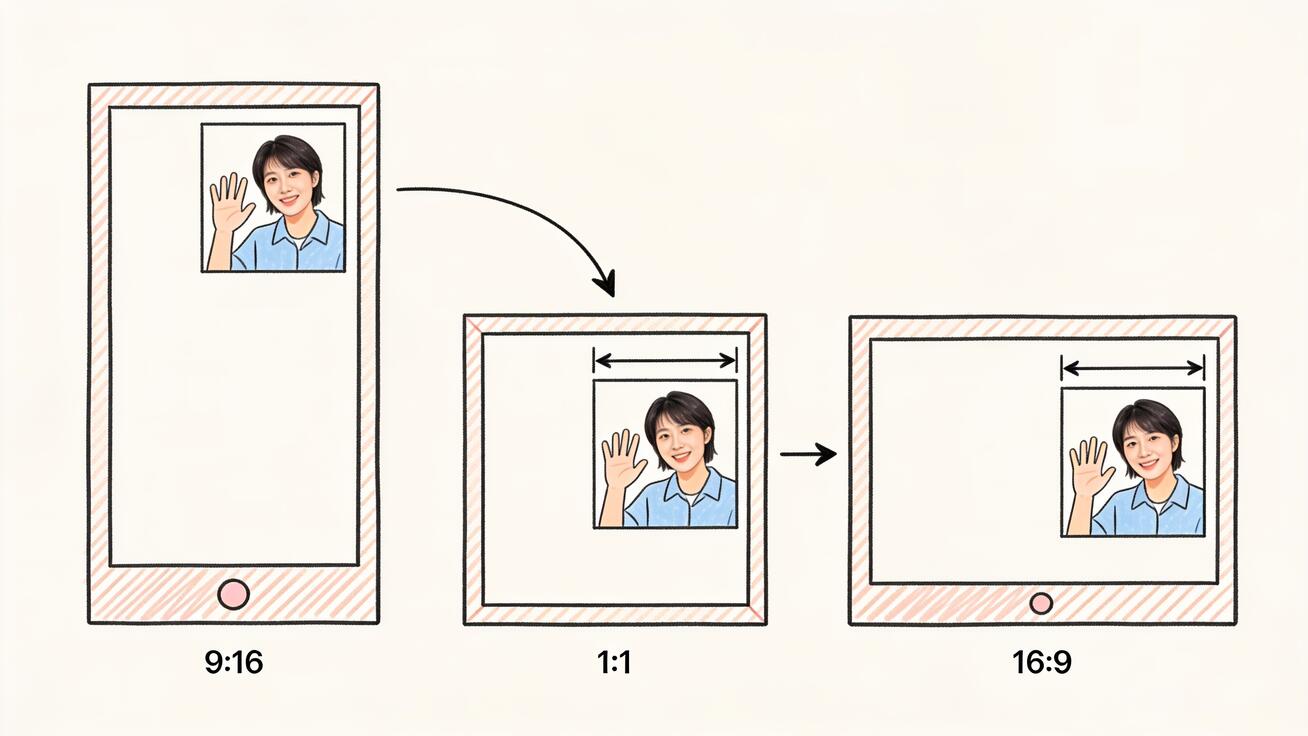
The practical takeaway: decide where the video is going before you generate, set that ratio, and let Seedance frame the shot for it. If you genuinely need the same scene in two shapes, generate it twice at the two ratios rather than cropping one into the other.
Every Seedance Aspect Ratio and When to Use It
Here is each ratio Seedance 2.0 supports and the job it is best at. All of them run across text-to-video, image-to-video, and reference-to-video, and all of them can render up to native 4K with clips from 4 to 15 seconds.
9:16 — Vertical (the default for short-form social)
This is the workhorse ratio for 2026. TikTok, Instagram Reels, and YouTube Shorts are all full-screen vertical, so 9:16 is what you want for any clip aimed at a phone-first audience. Subjects fill the frame, faces read large, and there is room at the top and bottom for captions and UI without covering the action. If you are making social content, start here.
16:9 — Widescreen (YouTube, web, demos)
The classic horizontal frame. Use 16:9 for long-form YouTube videos, landing page hero loops, product demos, SaaS explainers, and anything that will be watched on a laptop or TV. It gives the model the most horizontal room to show environment, motion across the frame, and wide establishing shots.
1:1 — Square (feed posts, multi-platform safety)
Square sits between vertical and horizontal, which makes it a safe choice when one clip has to work in several places. It performs well in the Instagram and Facebook feed, where a square takes up more vertical space than a 16:9 clip while still looking balanced. It is also the most crop-tolerant master if you later need both a vertical and a horizontal version.
4:5 and 3:4 — Tall portrait (feed-optimized)
Seedance supports 3:4, and 4:5 is the standard Instagram feed portrait that you can crop cleanly from a 3:4 or 9:16 source. Portrait posts claim more screen real estate in the feed than square or landscape, which is why many brands shoot product and lifestyle content this way. Use 3:4 when you want a tall feed post that is not as extreme as full 9:16.
21:9 — Cinemascope (trailers and film look)
The ultrawide cinematic ratio. Use 21:9 for movie-trailer style clips, dramatic hero shots, and anything where you want a letterboxed, theatrical feel. It is a stylistic choice more than a platform requirement — most social platforms will letterbox it — so reserve it for when the cinematic look is the point.
4:3 — Standard (retro, slides, certain ad units)
The old television and monitor shape. It shows up for retro aesthetics, presentation decks, and a few legacy ad placements. You will reach for it rarely, but it is there when a slide or a vintage look calls for it.
Auto — Let a reference image set the ratio
When you run image-to-video or reference-to-video, the auto option tells Seedance to match the aspect ratio of your input image. This is handy when your source asset is already the right shape and you want the video to inherit it without manual selection.
How to Set the Aspect Ratio in Seedance: Step by Step
Setting the ratio is a deliberate choice you make in the generation panel before rendering. The flow is the same whether you start from text or an image.
- Open Seedance and start a new generation. Choose your mode: text-to-video, image-to-video, or reference-to-video.
- Select the Seedance 2.0 model so you have access to all six aspect ratios, native audio, and higher resolutions.
- Find the aspect ratio control in the settings (it sits alongside duration and resolution). Pick the shape for your target platform — for example 9:16 for a TikTok clip.
- Write your prompt with that frame in mind (see the prompt templates below). Mention where the subject sits and how the camera moves so the composition suits the canvas.
- Set your duration and resolution. Remember that a longer, higher-resolution, ultrawide clip costs more credits than a short, square one.
- Generate two or three versions. Aspect ratio changes composition, so it is worth comparing variants to see which framing reads best.
- Review the result on the device it is going to: preview a 9:16 clip on your phone, not just your desktop. Then export.
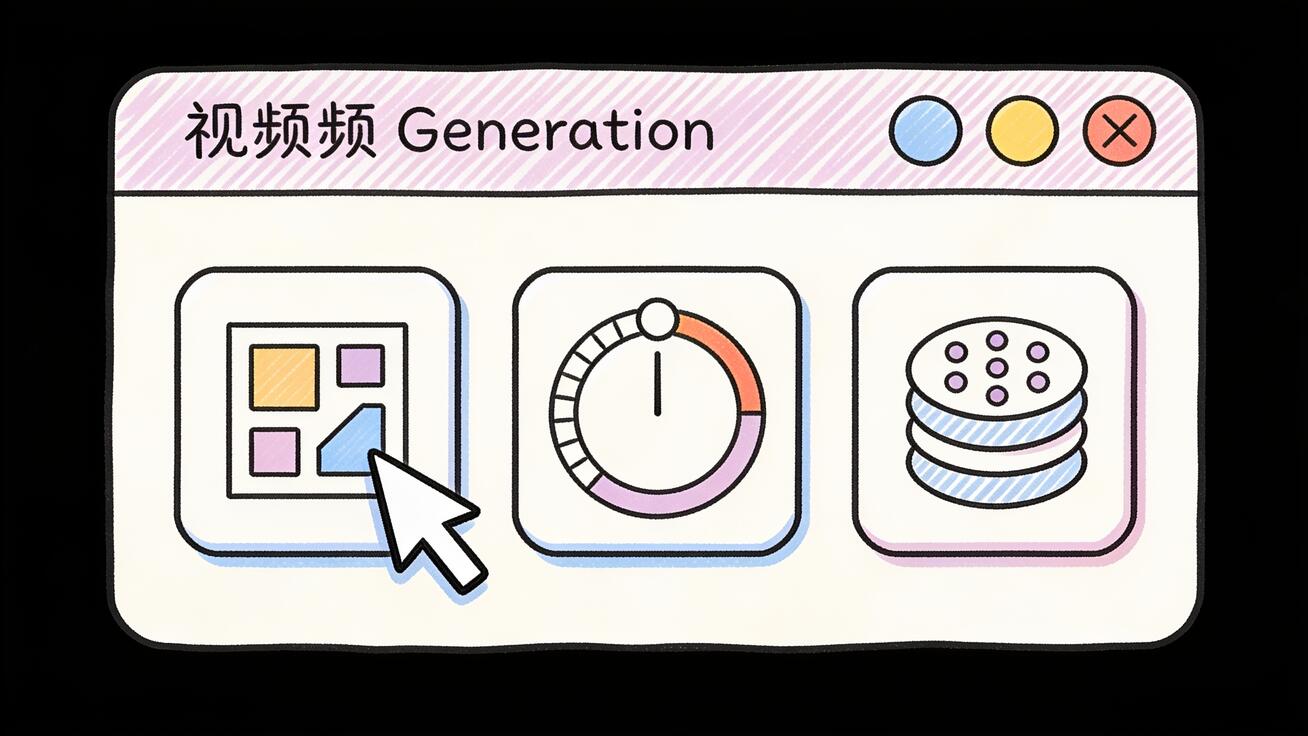
A quick credit note: ratio, duration, and resolution all affect cost. A 5-second 1080p 16:9 clip is cheaper than a 15-second 4K 21:9 one. Lock your ratio early so you are not paying to re-render the same scene in a different shape.
Prompt Templates for Each Aspect Ratio
Because Seedance frames for the canvas, your prompt should reinforce the composition you want for that ratio. These are copy-ready starting points — swap in your own subject.
9:16 vertical prompt (TikTok / Reels / Shorts)
Vertical 9:16 video. A barista in an apron pours latte art into a cup, framed from chest up so the face and hands fill the tall frame. Camera holds steady at eye level with the subject centered in the upper two-thirds, clean headroom at the top, soft cafe lighting, shallow depth of field. Leave space at the bottom for captions.
The key phrases: name the 9:16 vertical frame, keep the subject chest up, and reserve space for captions so on-screen text and UI do not cover the action.
16:9 widescreen prompt (YouTube / hero)
Widescreen 16:9 cinematic shot. A drone glides forward over a coastal highway at sunset, the road sweeping diagonally across the wide frame, mountains on the right, ocean on the left. Slow forward dolly, warm golden light, deep depth of field showing the full landscape.
Use the horizontal room: describe motion across the frame and environment on both sides. See camera movement prompts for more control language.
1:1 square prompt (feed post)
Square 1:1 product shot. A pair of white sneakers rotates slowly on a pedestal in the center of the frame, even studio lighting, soft shadow beneath, minimal pastel background. Keep the product centered and fully inside the square with even margins on all sides.
Square loves centered, symmetrical subjects. Tell the model to keep the product fully inside the frame with even margins.
3:4 / 4:5 portrait prompt (feed post)
Portrait 3:4 lifestyle shot. A woman sips iced coffee on a sunny balcony, framed from the waist up and slightly off-center, plants on one side, soft morning light, gentle handheld motion. Keep her face in the upper half and the cup visible in the lower third.
Portrait sits between square and full vertical, so frame the subject a little higher and let the lower third carry a secondary element.
21:9 cinematic prompt (trailer)
Ultrawide 21:9 cinemascope shot. A lone figure walks across a vast desert toward the horizon, tiny against the wide landscape, heat haze rising, letterboxed film look, slow tracking shot, muted teal-and-orange grade.
Ultrawide rewards scale: small subject, big environment, horizontal movement.
Aspect Ratio vs Resolution: Don't Confuse Them
Two settings that get mixed up constantly are aspect ratio and resolution, and they control different things. Aspect ratio is the shape of the frame — 9:16 is tall, 16:9 is wide, 1:1 is square. Resolution is how many pixels fill that shape — 720p, 1080p, or native 4K. You can have a 9:16 clip at 1080p and a 9:16 clip at 4K; both are the same shape but one is sharper and heavier.
In practice you set them together in Seedance: choose the ratio for the platform, then the resolution for the quality and budget you want. A vertical TikTok ad might be 9:16 at 1080p to keep file size and cost reasonable, while a 9:16 brand hero might justify 4K. Decide the shape first (it depends on where the video goes) and the resolution second (it depends on quality and credits). Treating them as one setting is how people end up with a sharp clip in the wrong shape — or the right shape at a resolution that looks soft on a big screen.
Platform Cheat Sheet: Best Aspect Ratio by Channel
Use this as a quick reference when you are deciding what to generate. These are the shapes each platform displays best in 2026.
- TikTok: 9:16 vertical. Full-screen, sound-on, caption-safe zones top and bottom.
- Instagram Reels: 9:16 vertical. Same as TikTok; keep text away from the bottom UI.
- YouTube Shorts: 9:16 vertical. Vertical and under 60 seconds.
- YouTube (standard): 16:9 widescreen. The home of long-form horizontal video.
- Instagram feed: 4:5 portrait or 1:1 square. Portrait claims more screen height.
- Facebook feed: 1:1 square or 4:5 portrait performs better than 16:9.
- LinkedIn: 1:1 square or 16:9, depending on whether it is feed-native or a longer clip.
- X (Twitter): 16:9 or 1:1 both autoplay cleanly in the timeline.
- Landing page hero / product demo: 16:9 for desktop, a separate 9:16 cut for mobile.
- Cinematic trailer: 21:9 for the theatrical letterboxed look.
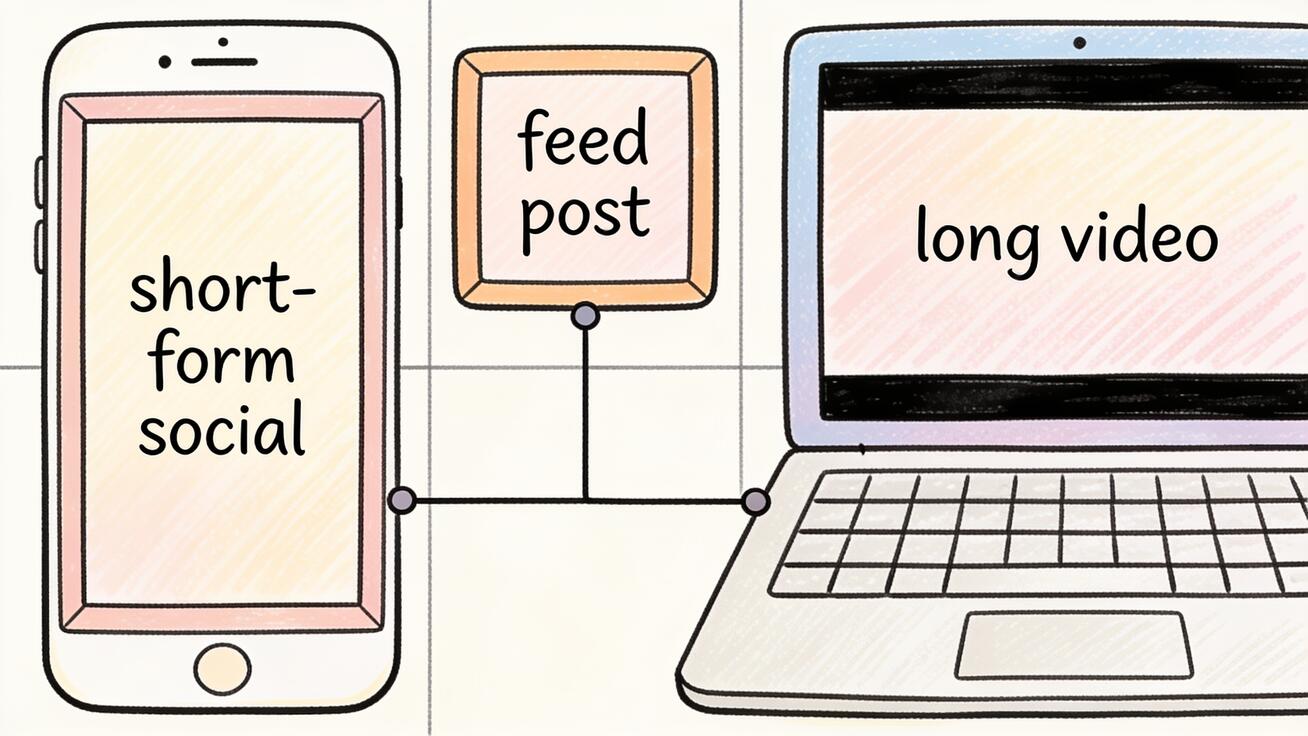
If a campaign needs the same scene on several channels, the efficient move is to generate the hero shape natively (usually 9:16 for social-first brands) and generate a second native version in 16:9 for web, rather than cropping one into all the others.
Best Use Cases for Each Ratio
A few concrete workflows where ratio choice does real work:
- Short-form creator content: Generate everything at 9:16. A creator building a TikTok or Reels series should default to vertical so faces and captions read on a phone.
- YouTube channel: 16:9 for main uploads, plus a 9:16 cut of the best moment for Shorts. Generate the Short natively rather than cropping the long video.
- Ecommerce product video: 1:1 or 4:5 for the feed, 9:16 for Reels and TikTok ads, 16:9 for the product page. Three native generations beat one crop in three places.
- SaaS or app demo: 16:9 for the website hero and YouTube, 9:16 for app-store-style vertical promos.
- Brand film or trailer: 21:9 for the cinematic master, with a 9:16 teaser cut generated separately for social.
Common Aspect Ratio Mistakes (and the QA Checklist)
Most aspect-ratio problems come from deciding the shape too late. Watch for these:
- Generating 16:9 and cropping to 9:16. You lose two-thirds of the frame and the composition was never built for vertical. Generate native instead.
- Forgetting caption-safe zones. On 9:16, the top and bottom of the frame are covered by platform UI and captions. Keep your subject in the middle and leave breathing room.
- Centering for square, then posting vertical. A 1:1 composition has the subject dead-center; stretched to 9:16 it leaves awkward empty space. Match the prompt's composition to the ratio.
- Ignoring the device. Always preview a vertical clip on a phone. Desktop preview hides how tight a 9:16 frame really feels.
- Mixing ratios in one sequence. If you are chaining shots into one video, keep them all the same ratio so the cut does not jump shape.
QA checklist before you export:
- [ ] Ratio matches the destination platform (9:16 social, 16:9 web/YouTube, 1:1/4:5 feed).
- [ ] Subject sits inside the safe zone, not behind captions or UI.
- [ ] No important element (face, logo, text) is clipped at the edges.
- [ ] Previewed on the actual device it will be watched on.
- [ ] All shots in a multi-clip sequence share the same ratio.
- [ ] Duration and resolution are set intentionally for cost and platform limits.
FAQ
Can I change the aspect ratio after I generate in Seedance?
Not without re-generating. The ratio is baked into the clip because Seedance composes the shot for that canvas. You can crop a finished clip in an editor, but you will lose part of the frame and the composition will not match. The clean fix is to set the ratio before generating and, if you need another shape, generate a second native version.
What is the best Seedance aspect ratio for TikTok?
9:16 vertical. TikTok, Instagram Reels, and YouTube Shorts are all full-screen vertical, so 9:16 fills the phone screen and keeps your subject and captions readable. Generate natively at 9:16 rather than cropping a horizontal clip.
Does aspect ratio affect how much a Seedance generation costs?
Yes, in combination with duration and resolution. A short, square, 1080p clip costs fewer credits than a long, ultrawide, 4K one. Wider canvases and higher resolutions mean more pixels to render, which raises the price. Choosing the right ratio early avoids paying twice for re-renders.
How many aspect ratios does Seedance 2.0 support?
Six: 16:9, 9:16, 1:1, 4:3, 3:4, and 21:9, plus an auto mode that matches the ratio of a reference image. All of them work across text-to-video, image-to-video, and reference-to-video and can render up to native 4K.
Should I generate one master and crop, or generate each ratio natively?
Generate each ratio natively whenever you can. Cropping discards frame data and locks you into a composition built for a different shape. Native generation lets Seedance frame the subject correctly for each canvas, which is why a native 9:16 always beats a cropped-down 16:9 for vertical platforms.
Conclusion
The right Seedance aspect ratio is a decision you make before you generate, not a crop you fix afterward. Because Seedance frames each shot for the canvas you choose, picking 9:16 for TikTok, 16:9 for YouTube, or 1:1 for the feed gives you a clip that was composed for that screen from the first frame — subject placed correctly, nothing clipped, captions clear. Match the ratio to the platform, write a prompt that respects the frame, and generate native versions instead of cropping one master into many.
Once you make ratio the first setting you choose, re-generations drop, credits stretch further, and your videos land at the correct shape every time. Pick your platform, set the matching ratio, and try Seedance free to generate your first native vertical, square, or widescreen clip.
Ready to try it yourself?
Put the steps from this guide into practice with Seedance and turn prompts or images into polished videos in minutes.
Free credits on signup. Plans from $28/month.
Related Articles
More posts in the same locale you may want to read next.

Seedance App Preview Video Generator 2026: Create App Store and Product Launch Clips
Use Seedance to turn app screenshots, feature copy, and launch goals into App Store previews, Google Play promo videos, and product launch clips.
Read article
Gemini AI Video Prompt Examples: Copy-Ready Veo Scenes and a Better Prompt Formula
Copy Gemini AI video prompt examples for cinematic motion, product ads, dialogue, and vertical clips, then adapt them with a practical Veo prompt formula.
Read article
How to Keep Product Shape Consistent in AI Video Ads
Lock product geometry, packaging, labels, references, camera angles, and approval checks so AI video ads preserve the real SKU across every shot.
Read article