
Runway Aleph Green Screen: Create a Keyable Subject and Clean Plate
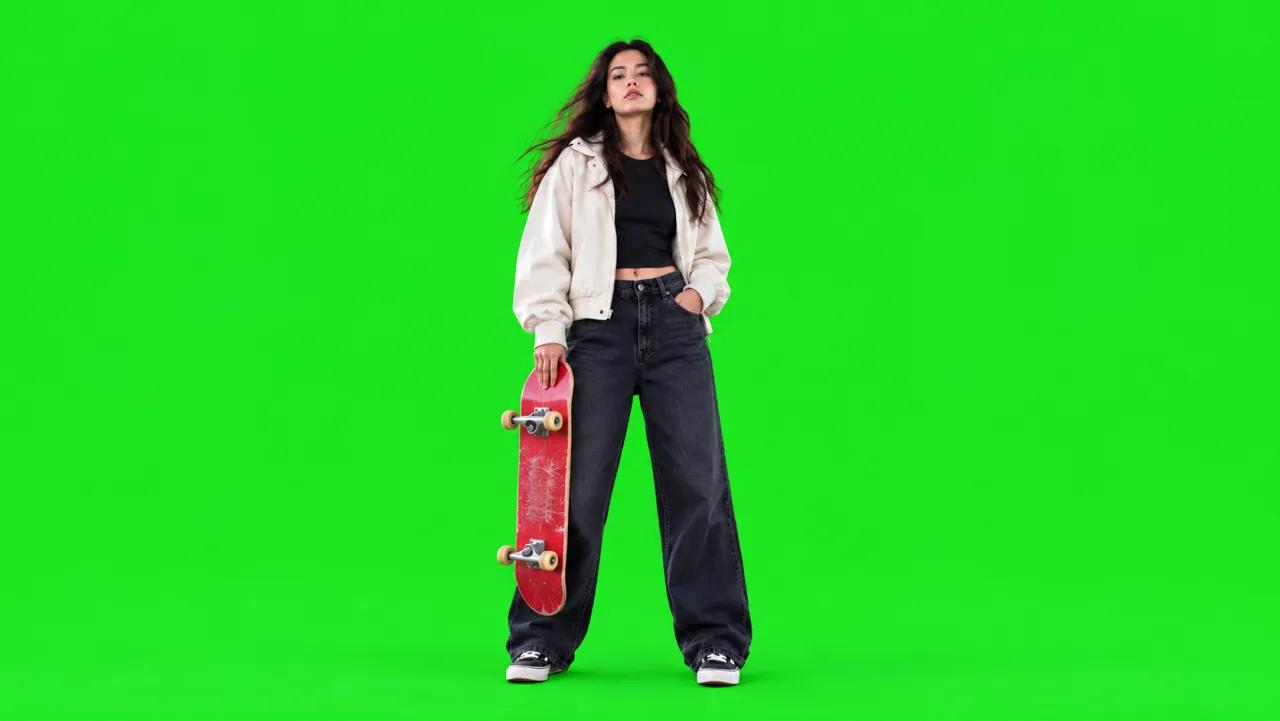
AI Overview
Can Runway Aleph turn a normal video into green-screen footage?
Yes. In Edit Studio, select a clear keyframe and ask Aleph 2.0 to replace the background with a flat chroma green field while preserving the moving subject.
What prompt should I use for an Aleph green screen?
Ask to replace only the entire background with uniform chroma green, preserve the subject and motion, keep fine edges, and avoid shadows, texture, gradients, and green spill.
Does Aleph export a transparent video with alpha?
A generated green-screen clip is usually a color-key asset, not proof of an embedded alpha channel. Key the green in your editor and verify the actual export format before delivery.
When should I create a clean plate instead?
Create a clean plate when you want the original environment without the subject, need to patch a removal, or plan to composite another performance into the same camera view.
Decide Whether You Need Green Screen, Alpha, or a Clean Plate
“Runway Aleph green screen” can describe three different deliverables. A chroma-key clip keeps the moving subject and replaces everything behind it with a flat green color. An alpha-ready asset stores transparency in the file itself, if the chosen export route supports it. A clean plate removes the subject and reconstructs the original environment. The files serve different compositing jobs, so define the output before spending credits.
Runway's current academy material presents Aleph 2.0 as a way to turn a video into a green-screen asset or a clean plate. Edit Studio also supports background swaps and subject removal. That makes Aleph useful for generating a keyable intermediate, but it does not eliminate the final keying and quality-control work in an editor.
Choose green screen when the subject needs to move over several future backgrounds. Choose a direct background replacement when only one final environment is required. Choose a clean plate when the original camera view must remain after the subject disappears. If your real goal is to generate a new performance from a still rather than edit existing footage, start in the image-to-video workspace.
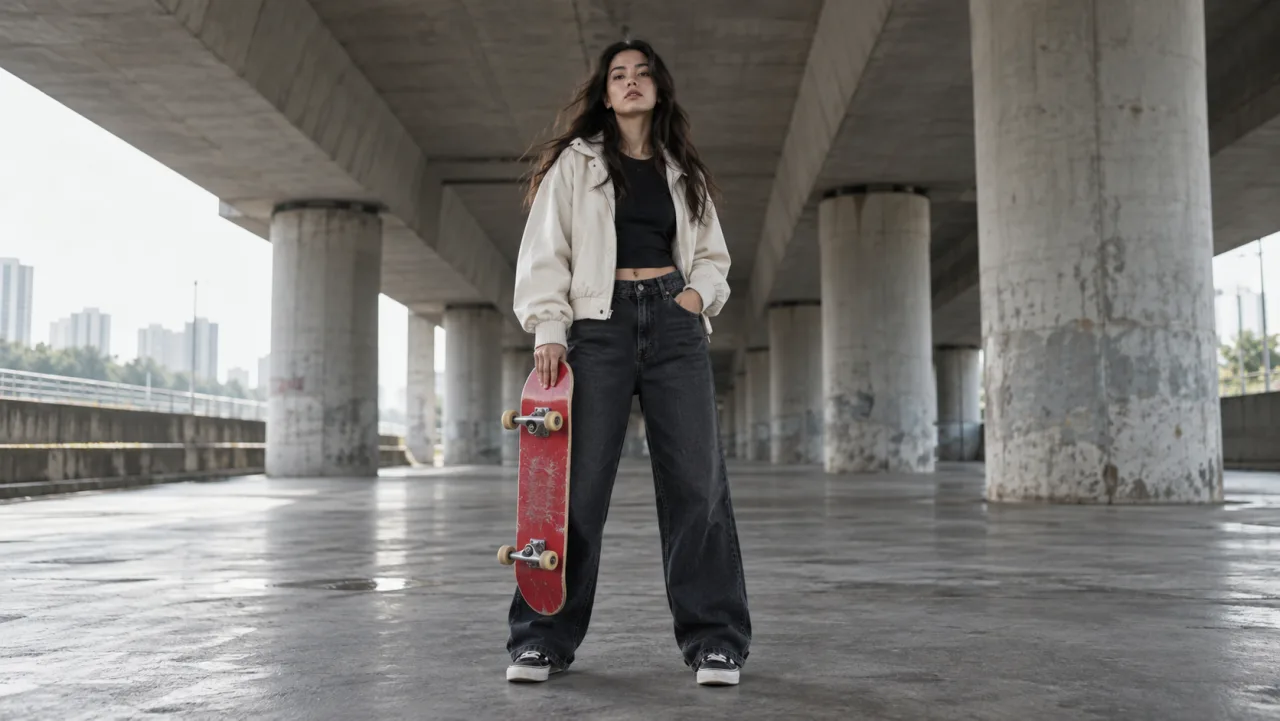
Original illustrative source frame for this guide. It is not a Runway output; inspect the hair, jacket cuffs, skateboard wheels, and floor contact before planning a background edit.
Prepare a Source Clip With Edges Aleph Can Track
Edit Studio can accept video and keyframes, and its current guide lists single-edit clips from two to thirty seconds, up to 30 FPS and 1080p input. Do not treat the maximum as the best test. Begin with a short single shot in which the subject stays visible, does not cross the frame edge, and does not disappear behind large foreground objects.
Fine hair, translucent fabric, motion blur, spinning wheels, and contact shadows are the first places a green-screen conversion fails. They are also the details that make a key look believable. Before uploading, review the source frame by frame and note the protected features. For the skateboarder example, protect the face, loose hair, cream jacket outline, fingers, red deck, four wheels, shoes, and ground contact.
Avoid green clothing or props when possible because they collide with the key color. If the subject contains green, request a saturated blue background instead or use a direct background replacement. Compressing the source several times before upload can create ringing around edges that later becomes a visible halo.
For a reusable motion-quality checklist, see the best AI video consistency guide. Apply the same identity, geometry, edge, and temporal checks to an edit rather than judging one attractive still.
Select the Keyframe and Write a Narrow Aleph Prompt
In Runway Edit Studio, upload the video and choose Single edit. Select a keyframe that shows the widest useful view of the subject and the background boundary you want to replace. Runway recommends a wide frame for scene or background changes; a close frame is better for a detailed local edit.
Start with one action verb and one transformation. Runway's Aleph 2.0 prompting guide recommends simple, precise instructions such as change, remove, replace, re-light, or re-style. A copy-ready green-screen prompt is:
Replace only the entire background with perfectly uniform saturated chroma green. Preserve the subject, clothing, face, hair, hands, prop, pose, motion, camera, framing, proportions, and edge detail. No background texture, gradient, shadows, green spill, or changes to the subject. Keep everything else exactly the same.
Do not ask for green screen, wardrobe replacement, camera motion, relighting, and a new prop in the same first attempt. Each extra change expands the area Aleph must reinterpret. Generate the keyframe edit, open Runway's before-and-after preview, and compare the subject before committing to the video render.
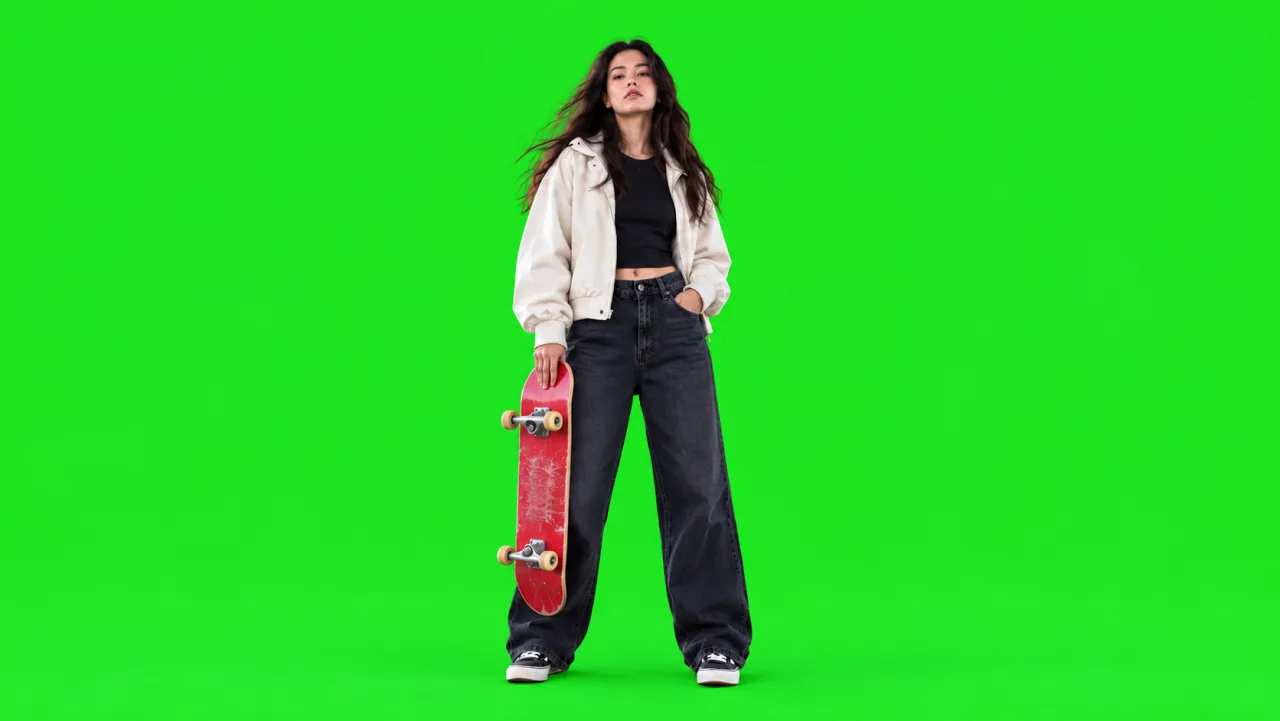
Illustrative target frame, not an Aleph render. The even field is easy to key, while hair, jacket, skateboard, shoes, and ground contact remain the acceptance targets.
Generate the Video and Control the Edited Range
By default, Edit Studio applies the selected edit across the full clip. If only part of the shot needs the green screen, drag the range handles around that section before generation. A ranged edit reduces unnecessary work and keeps approved frames outside the range untouched. Record the exact in and out points so a rerun uses the same comparison window.
Extra motion is optional. Runway says most edits animate from the keyframe without it. Use an extra-motion instruction only when the edit itself requires movement that the source and keyframe do not contain. A green-screen conversion normally should not invent new motion, so leave that field empty for the first pass.
Generate one short test, then watch the whole result. Check whether green stays uniform between frames and whether subject edges crawl, flash, or change thickness. Look for holes inside dark hair, missing skateboard wheels, green reflections on the cream jacket, and a floating gap below the shoes.
This is a real Seedance motion output, not a Runway Aleph green-screen result. Use it to practice reviewing edges and contact through motion instead of relying on a poster frame.
If the generation stalls or fails, do not submit identical jobs repeatedly. The Runway failed-generation guide separates processing errors, cancelled tasks, safety failures, and poor results so you can choose an appropriate next step.
Key the Result and Inspect the Composite
Import the generated clip into an editor with chroma-key controls. Sample the green, reduce the tolerance until the subject returns, then increase it only enough to remove the field. Use edge feather, spill suppression, and a small choke carefully; aggressive settings can erase hair and thin skateboard parts.
Place a high-contrast test background behind the key: white reveals dark edge contamination, black reveals bright halos, and a saturated magenta or blue reveals green spill. Scrub every frame around fast motion. A subject may be clean while standing still but tear at the cuffs or wheels once movement begins.
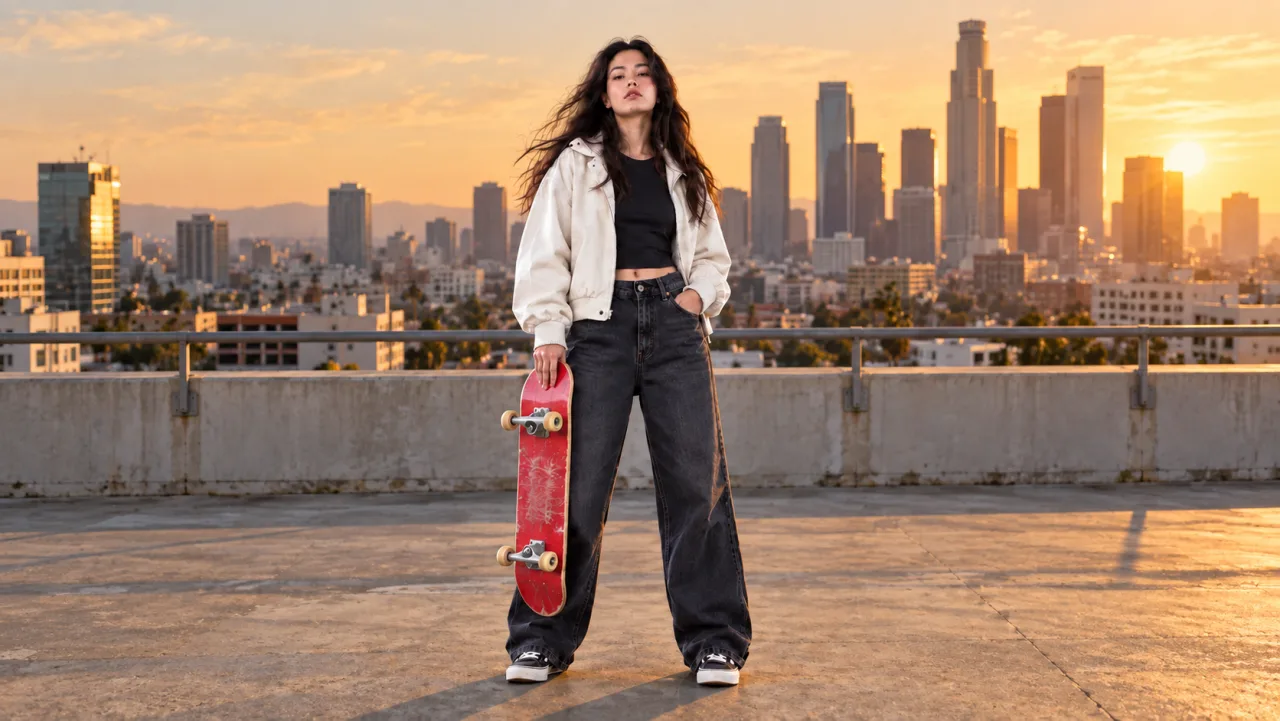
Illustrative composite target. The new environment is intentionally warm and detailed so green spill, hard halos, mismatched light, and missing contact shadows become easier to spot.
Judge the composite, not the green clip alone. Match light direction, contrast, color temperature, grain, sharpness, and motion blur with the destination plate. A technically clean key can still look pasted on if the source has soft overcast light and the replacement background has hard sunset light. The final article asset should be a convincing shot, not merely a subject surrounded by transparency.
Create a Clean Plate When Green Screen Is the Wrong Intermediate
A clean plate asks Aleph to remove the subject and reconstruct the environment. Use it when another performer will occupy the same camera view, when the original background must continue behind a removed subject, or when you need pixels for a patch and paint operation.
A concise prompt is: Remove the skateboarder and red skateboard. Reconstruct the concrete floor, pillars, reflections, and distant background naturally. Preserve the original camera, framing, lighting, texture, and every other element. Select a keyframe where the subject covers as little unique background as possible. If the subject blocks a large one-of-a-kind object, Aleph must invent missing information and the clean plate becomes an inference rather than a factual reconstruction.
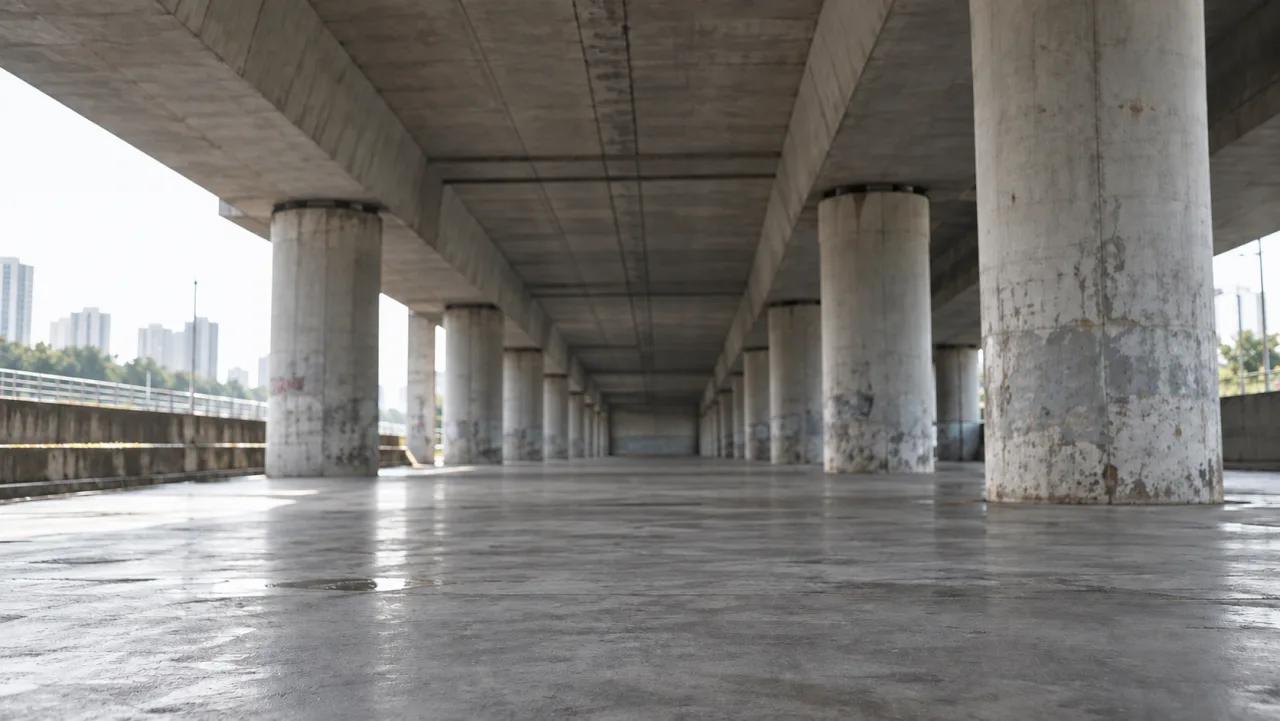
Illustrative clean-plate target, not a Runway output. Inspect repeating pillars, floor reflections, perspective lines, and texture continuity where the subject was removed.
Compare the plate with source frames before and after the removal. Watch for duplicated pillars, smeared floor lines, changing reflections, or texture that pulses in motion. When reconstruction drift is unacceptable, use a locked still plate, a manual patch, or a shorter edit range rather than asking a prompt to recover hidden detail it never saw.
Organize variants, review, and delivery.
Keep the source, keyframe preview, green-screen render, clean plate, keyed composite, and rejection notes as separate versioned assets. A simple review row should include source range, prompt, keyframe timestamp, output URL, edge verdict, identity verdict, background uniformity, and one rejection reason.
For a larger campaign, Seedance Agent can organize the clips, references, prompt versions, approvals, and selective reruns around the Aleph edit. It does not perform a mathematically perfect chroma key or certify rights, but it keeps the production decision trail visible when several shots and reviewers are involved.
Deliver the final composite along with the reusable intermediate the client requested: keyed subject, green-screen master, clean plate, or all three. State the codec, resolution, frame rate, color space, whether audio was preserved, and whether an alpha channel is actually present. For broader finishing work, move the approved clips through the Seedance video workspace without overwriting the original source.
Conclusion
A reliable Runway Aleph green-screen workflow begins by naming the required intermediate, choosing a short source with readable edges, selecting a representative keyframe, and prompting one narrow background change. Preview the still edit, generate only the needed range, key the result against several test backgrounds, and review fine details through motion. Use a clean plate when removal is more useful than a reusable subject, and label every generated intermediate honestly. To coordinate source clips, edit variants, approvals, and final assembly across a larger project, plan the workflow with Seedance Agent.
Ready to try it yourself?
Put the steps from this guide into practice with Seedance and turn prompts or images into polished videos in minutes.
Free credits on signup. Plans from $28/month.
Related Articles
More posts in the same locale you may want to read next.

Seedance App Preview Video Generator 2026: Create App Store and Product Launch Clips
Use Seedance to turn app screenshots, feature copy, and launch goals into App Store previews, Google Play promo videos, and product launch clips.
Read article
15 Faceless YouTube Channel Ideas You Can Make with AI (2026)
15 faceless YouTube channel ideas for 2026, with the format, a sample AI video prompt and difficulty for each, plus how to make them with Seedance AI.
Read article
How to Use Seedance in Claude: MCP Setup and Automated Video Workflows
Use Seedance 2.5 inside Claude: connect the Seedance MCP server, generate videos by chat, batch variations and schedule daily video jobs with Claude scheduled tasks.
Read article