
PixVerse Lip Sync API Tutorial: Upload, Generate, Poll, and Review
AI Overview
What does the PixVerse lip sync API need?
Provide one video reference and one speech source. The video can be a PixVerse-generated source_video_id or an uploaded video_media_id; speech can be uploaded audio or a TTS speaker plus script.
Which endpoint creates a lip-sync task?
Send POST /openapi/v2/video/lip_sync/generate with your API key, a fresh trace ID, and one valid video/audio combination. A successful task response gives a video_id, not a finished file.
How do I know when the result is ready?
Poll GET /openapi/v2/video/result/{id} using the returned video_id. PixVerse documents status 5 as generating and status 1 as successful; only then use the returned video URL.
Can I use text instead of an audio file?
Yes. Select a built-in or custom TTS speaker and send lip_sync_tts_speaker_id with lip_sync_tts_content. Do not combine that route with an unrelated audio media ID in the same example.
Choose the Video and Voice Before Calling the API
This PixVerse lip sync API tutorial is for a specific job: put a chosen line of speech onto an existing moving face, retrieve the asynchronous result, and decide whether mouth motion is usable. If you need to create the base clip first, a short speaker shot is easier to evaluate than a fast cut, profile-to-front turn, or face hidden by hands. You can make that base with an image-to-video workflow, a PixVerse generation, or footage you have rights to use.
PixVerse's official Speech guide identifies two ways to supply the picture. A clip made by its API already has a video_id, passed as source_video_id. An external clip is uploaded through the media endpoint and yields a media_id, passed as video_media_id. These IDs are not interchangeable. Record the origin beside each ID in your own job log so a later retry does not send an uploaded media number in the generated-video field.
For speech, choose either a finished recording with audio_media_id or a text-to-speech route with lip_sync_tts_speaker_id and lip_sync_tts_content. The four combinations are a two-by-two matrix: generated or uploaded video, crossed with recorded audio or TTS. A voice sample used to create a custom speaker has a different role from the final audio uploaded for a lip-sync job, even though both pass through a media-upload step.
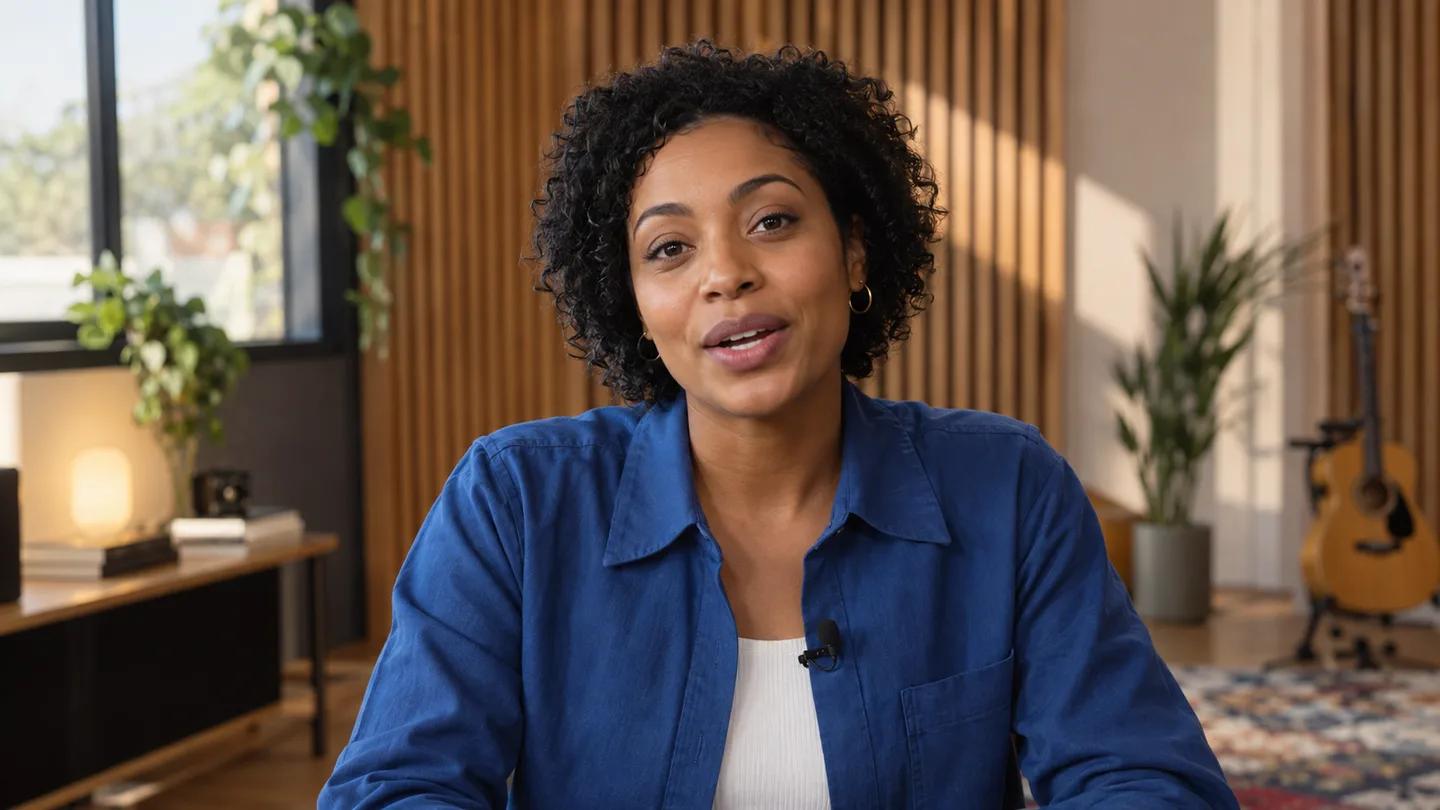
The stills are editorial illustrations of one fictional adult presenter, not PixVerse output or proof of lip accuracy. They show why a clear face and unoccluded mouth matter when choosing a source clip.
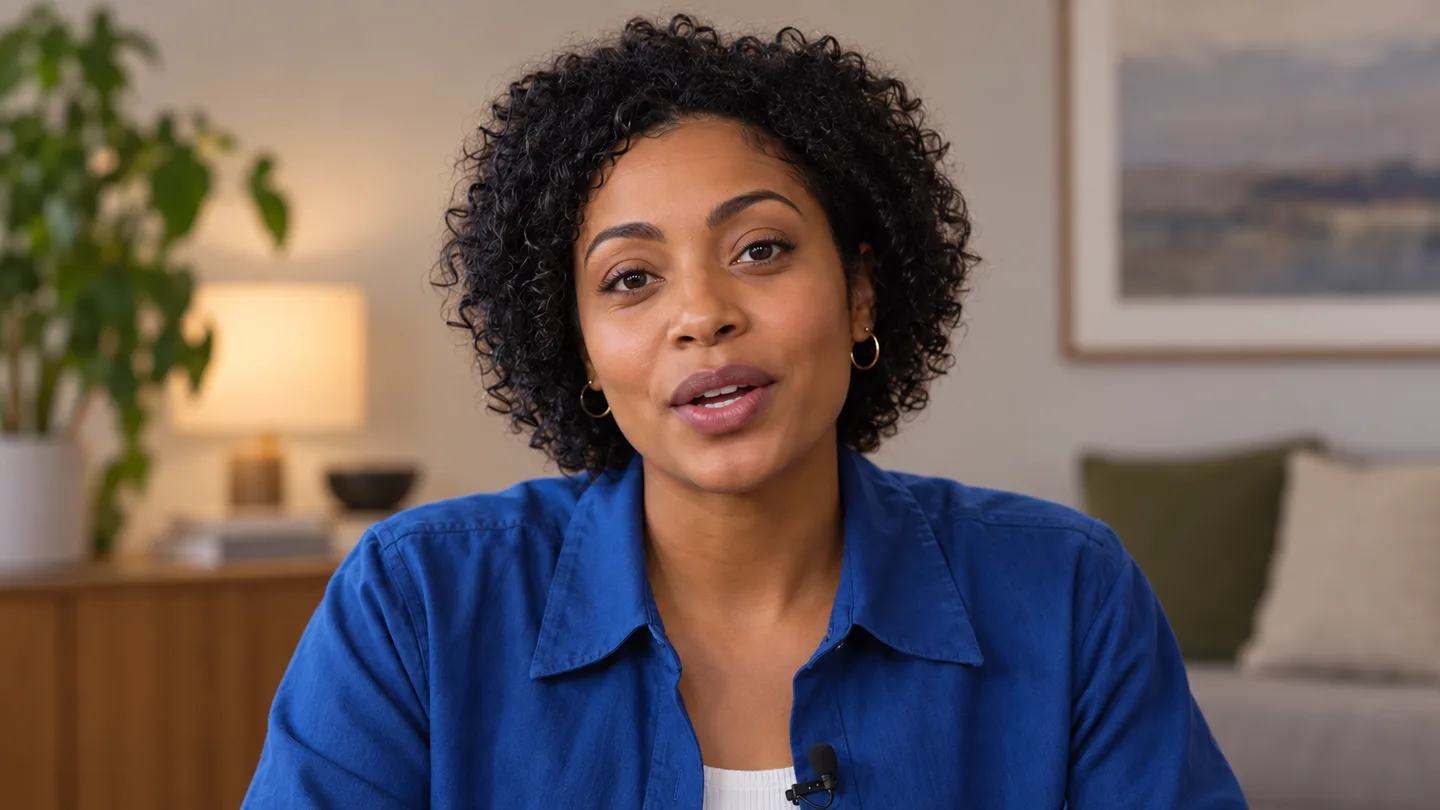
Original editorial still, not PixVerse output. A frontal, steady face is a practical first input for checking speech alignment.
Keep the first test modest: one visible speaker, a short sentence, clean speech, and little camera motion. The Speech narrative guide and media-upload reference currently state different feature limits for lip-sync uploads, so do not treat a copied size or duration as a permanent universal rule. Check the current endpoint-specific documentation and keep the initial sample comfortably short. PixVerse API credits are separate from its web-app membership; confirm balance before launching a batch.
Upload External Media Without Mixing Up IDs
If you already have a PixVerse-generated video_id, skip video upload. Otherwise, upload a supported external video through POST /openapi/v2/media/upload, then store the returned Resp.media_id as video_media_id. Upload a recorded voice track through the same media endpoint and store its returned Resp.media_id as audio_media_id. PixVerse documents common video types such as MP4, MOV, and WebM and audio types such as MP3, WAV, M4A, and AAC; verify the current format and feature limits before transfer.
Name artifacts by purpose: speaker-base-v1.mp4, line-01-clean-v1.wav, and a job record with their media IDs. Keep the face visible at voice onset, trim unwanted dead air, and check whether the source clip gives the new line enough mouth movement to work with.
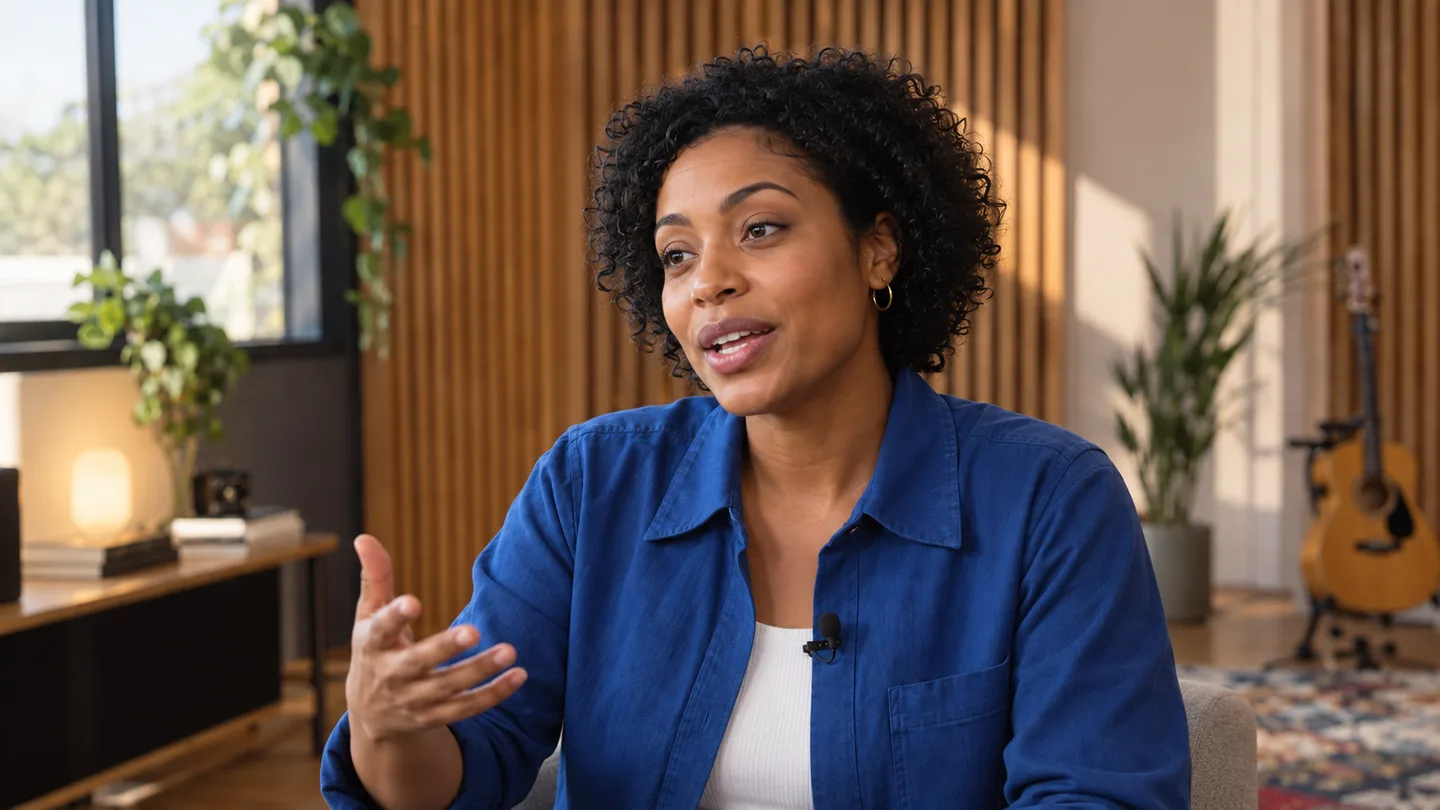
Original editorial still. Three-quarter framing gives the reviewer more depth cues but makes teeth, jaw, and lip edges harder to hide if timing drifts.
For TTS, skip the finished-audio upload. Query the voice list, select a built-in speaker ID, or create a custom voice from a separately uploaded sample with permission. Do not assume auto fits every language; store the actual selected speaker ID. For multiple speakers, create separate clips and assemble them later.
The native-audio video guide explains why voice, ambience, and motion need joint review. Obtain consent to use a real person's face or voice, and disclose synthetic speech where appropriate.
Send One Valid Generation Request
The official generation route is https://app-api.pixverse.ai/openapi/v2/video/lip_sync/generate. PixVerse expects an API-KEY and a fresh Ai-trace-id for each new API request. Store the key server-side, not in browser JavaScript or an article example. Reusing a trace ID can return a prior result rather than starting an intended new task, so log each ID with its input IDs, script version, and response.
This placeholder request uses a PixVerse-generated source video plus uploaded final audio. Replace the example numbers with IDs returned by your own account; it has not been executed for this article.
curl -X POST 'https://app-api.pixverse.ai/openapi/v2/video/lip_sync/generate' \
  -H "API-KEY: $PIXVERSE_API_KEY" \
  -H "Ai-trace-id: $(uuidgen)" \
  -H 'Content-Type: application/json' \
  -d '{"source_video_id":123456,"audio_media_id":234567}'
For an external video, replace source_video_id with video_media_id. For text-to-speech, replace audio_media_id with both lip_sync_tts_speaker_id and lip_sync_tts_content. Those are alternative paths, not four fields to populate indiscriminately. The response wrapper uses ErrCode, ErrMsg, and Resp; on a successful task creation, Resp.video_id is the identifier to save. It is not proof that a playable file has finished generating.
Validate one video ID type and one speech mode before the call; reject an empty TTS script. Log returned credits without hard-coding a price. Tie each line and task response to a stable shot ID, like a first-and-last-frame handoff for visual continuity.
Poll the Job and Keep the Result Traceable
After task creation, use GET /openapi/v2/video/result/{id} with the returned video_id. PixVerse documents status 5 as generating and status 1 as successful. A successful HTTP response or ErrCode: 0 from the create call means the task was accepted, not that the moving result passed your review. When status is 1, retrieve the output URL from the result and save a copy under your normal asset policy before the URL expires or access rules change.
Status 7 is documented as content-moderation failure and status 8 as generation failure. Treat each as a stopped job rather than polling forever. A production poller should have a bounded wait, backoff, and a durable record of the last observed status. If your worker restarts, resume from the stored video_id instead of creating the same paid task again. Use a new trace ID for a deliberately new request, but do not manufacture retries when a slow task is merely processing.

Original editorial still. A wider shot tests whether face timing remains legible while the performer moves, but no still can establish actual lip synchronization.
Keep a readable record of shot ID, video and speech IDs, trace ID, generated video_id, final URL, and review verdict. Never store credentials in that review log. The PixVerse Agent workflow guide covers the broader brief-to-shot job.
Review Mouth Motion, Audio, and Cut Boundaries
Watch the final moving file at normal speed with sound, then at reduced speed around selected syllables. Choose a sentence containing visible bilabial sounds such as p, b, and m and a longer open vowel. Look for a mouth closure before those consonants, a plausible opening on the vowel, and speech that starts and ends without a distracting lag. That is an editorial inspection method, not a reported benchmark or a claim of a measured PixVerse success rate.
Compare the output with the source: eye line, identity, jaw, lighting, and teeth should not shift abruptly. Check both close-up and full clip. These stills are not a PixVerse before/after result.
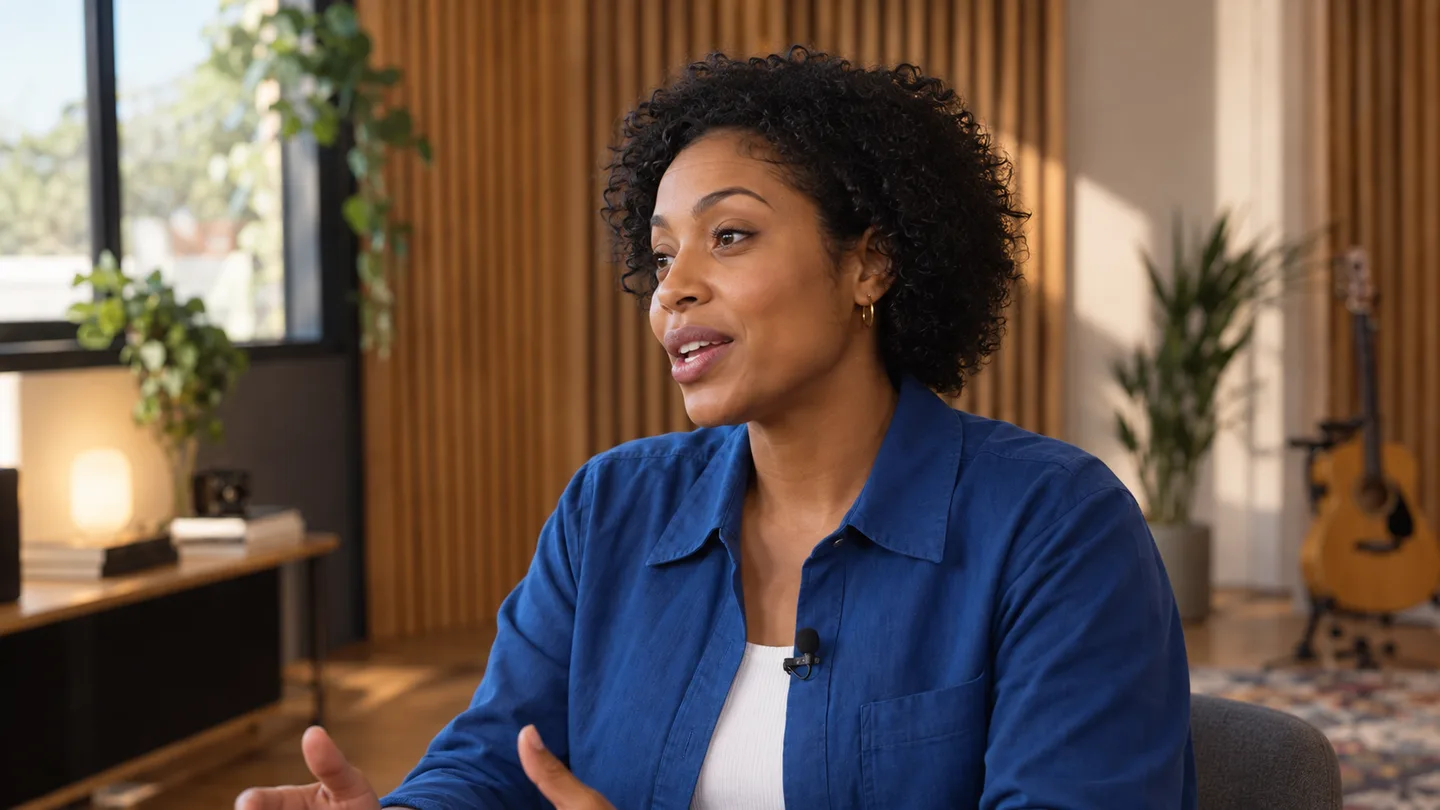
Original editorial still. Profile angles reveal jaw and lip contour errors that a front-facing thumbnail can conceal.
The playable clip below is an existing real moving Seedance dialogue example. It is independent of the PixVerse API and of the illustrated presenter; it is included solely to make full-motion voice and mouth inspection concrete. It does not demonstrate a PixVerse-generated lip-sync result or comparative performance.
Play through the entire line and assess the mouth, voice, head movement, and cut together; this is not PixVerse output.
Use a simple acceptance card: pass if the line is intelligible, starts at the intended beat, maintains the speaker identity, and survives a normal-speed watch; repair if only the edit boundary or audio trim is wrong; reject if mouth shape, face, or timing fails throughout. Approval should be based on the moving file, not the poster. A separate lip-sync workflow example can help compare general review habits, but its vendor controls are not interchangeable with PixVerse API fields.
Troubleshoot the Right Layer and Organize Delivery
If the API rejects a request, inspect the response and parameter pair. Check for swapped video ID types, a voice sample ID used as final audio, missing TTS fields, or a reused trace ID. Verify authorization, credits, media type, limits, and concurrency. Never paste an API key into a support screenshot.
If the job succeeds but the output looks wrong, changing the endpoint is unlikely to fix poor source geometry. Try a steadier clip, clearer voice, less occlusion, a shorter utterance, and a face that stays in frame. If the timing fails only at the first word, inspect audio lead-in and video start frame; if it fails only at a cut, adjust the edit boundary and room tone. Keep the best approved take while you rerun only the weak line.
Seedance Agent fits after the API result exists: keep the approved base clip, voice version, generated output, acceptance notes, and assembly decision together; plan or replace one shot without rebuilding the whole piece. It can coordinate reference organization and review, but it does not make an untested PixVerse API call or certify a PixVerse result. Maintain clear provenance when combining outputs from different providers.
Conclusion
A reliable PixVerse lip sync API workflow chooses one video ID type and one speech mode, uploads only the necessary media, sends one well-formed request with a fresh trace ID, waits for the returned video_id to finish, and judges the actual moving result. Keep current PixVerse documentation as the authority for limits and billing, and keep editorial acceptance separate from task creation. When several approved lines must become one coherent deliverable, organize the references, reviews, and final assembly in Seedance Agent.
Ready to try it yourself?
Put the steps from this guide into practice with Seedance and turn prompts or images into polished videos in minutes.
Free credits on signup. Plans from $28/month.
Related Articles
More posts in the same locale you may want to read next.

Seedance App Preview Video Generator 2026: Create App Store and Product Launch Clips
Use Seedance to turn app screenshots, feature copy, and launch goals into App Store previews, Google Play promo videos, and product launch clips.
Read article
15 Faceless YouTube Channel Ideas You Can Make with AI (2026)
15 faceless YouTube channel ideas for 2026, with the format, a sample AI video prompt and difficulty for each, plus how to make them with Seedance AI.
Read article
How to Use Seedance in Claude: MCP Setup and Automated Video Workflows
Use Seedance 2.5 inside Claude: connect the Seedance MCP server, generate videos by chat, batch variations and schedule daily video jobs with Claude scheduled tasks.
Read article