
Pika Video Object Replacement Tutorial: Replace One Object Without Breaking the Shot
AI Overview
How do I replace an object in a video with Pika?
Upload a short source clip to Pikaswaps, describe the visible region to replace, write the replacement object prompt, generate, then review the entire moving result frame by frame.
Is Pikaswaps the same as Pikadditions?
No. Pikaswaps replaces a described region in an existing clip, while Pikadditions inserts a referenced person or object without requiring an existing object to be removed.
Why does the replacement object flicker or change shape?
Flicker usually comes from heavy occlusion, motion blur, abrupt scale changes, an ambiguous target description, or a replacement whose shape conflicts with the original object's motion and footprint.
Can Seedance Agent help with an object-replacement project?
Yes. Use it to organize source clips, replacement briefs, review criteria, approvals, and selective reruns when the edit belongs to a larger multi-shot deliverable.
Choose a Source Clip That Can Survive Replacement
Pika video object replacement is an editing job, not a request to regenerate the whole scene. The current Pikaswaps video-to-video API describes two separate inputs: a free-text description of the region to replace and a prompt for the replacement result. That distinction matters. The first instruction identifies the target already present in the clip; the second defines what should occupy the target's visual role.
Start with footage in which one object remains visible for most of the shot. A five-second clip of a suitcase resting on a bench is easier than a suitcase that passes behind three people, leaves frame, returns at a new scale, and reflects in a window. The model must infer a temporally consistent region across moving frames. Every occlusion, reflection, and rapid perspective change makes that region harder to follow.
Before uploading, play the source once at normal speed and once frame by frame. Confirm that the target has a clear name, stays distinguishable from nearby objects, and has enough pixels to preserve useful detail. Trim dead time before the object appears. If you are still learning Pika's broader feature set, our Pika AI video generator review explains how swaps differ from effects, keyframes, and additions.
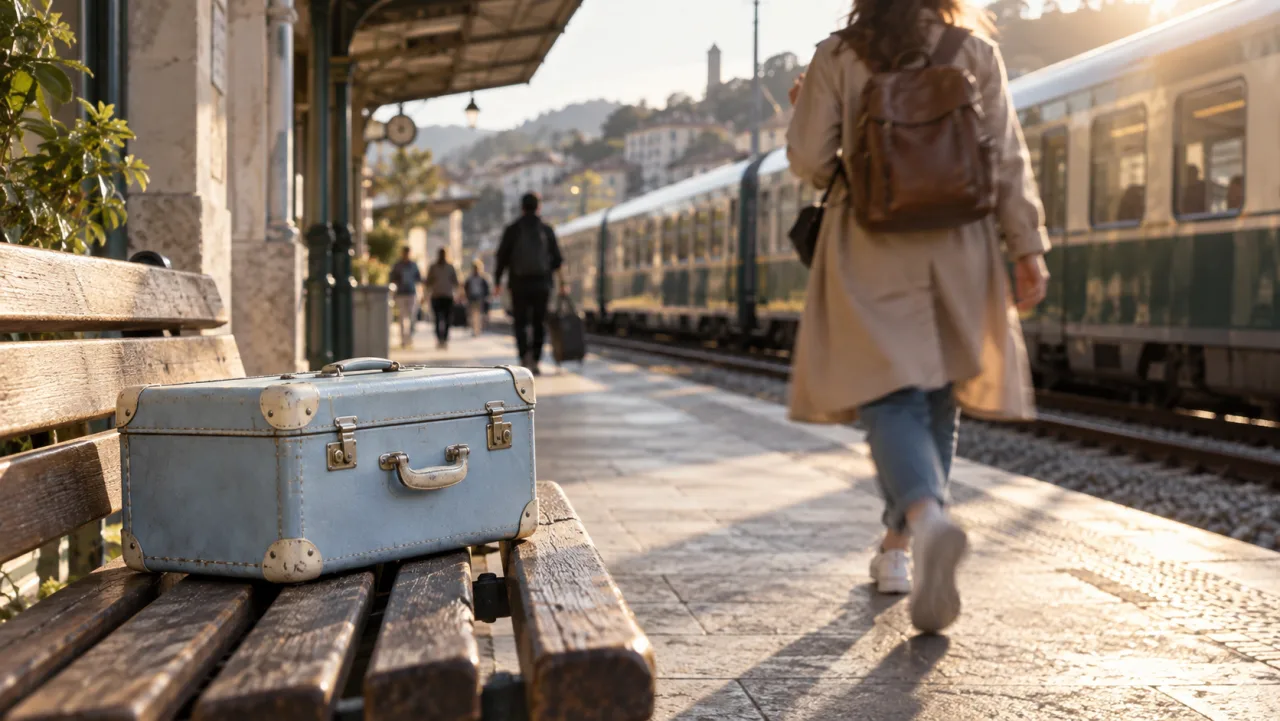
Original illustrative source frame created for this guide. It is not a Pika output; use it to identify the target, footprint, contact surface, and likely occlusions.
Write the Target Description Before the Replacement Prompt
Treat target identification and replacement design as two separate sentences. A useful target description names the object, its location, and one distinguishing property: “the pale-blue vintage suitcase on the left side of the wooden bench.” Avoid descriptions such as “the thing near the person,” because the relationship may change as the camera or person moves.
The replacement prompt should describe the new object and the physical rules it must obey. A copy-ready template is:
Replace the [target object and location] with [new object]. Preserve the original footprint, position, perspective, contact with the surface, camera movement, lighting direction, shadows, and foreground occlusions. Keep every other element unchanged.
For the railway example, the working prompt becomes: “Replace the pale-blue vintage suitcase on the left side of the wooden bench with a compact red hard-shell carry-on. Preserve the original footprint, position, perspective, bench contact, warm late-afternoon light, contact shadow, camera movement, and all people and trains.” This is more actionable than “turn the suitcase red.” It defines identity, geometry, placement, light, and invariants.
Do not overload the prompt with a new camera move, weather change, costume edit, and background redesign. Those instructions compete with localization. When the task actually needs a new shot instead of a local edit, use a dedicated text-to-video workflow rather than forcing a swap to rebuild everything.
Run Pikaswaps and Preserve the Shot's Physical Logic
Open the Pikaswaps workflow available in your Pika product surface, upload the trimmed video, and enter the target description and replacement prompt in their corresponding controls. Product interfaces and API access can change, so use the labels in the surface you actually have rather than assuming a screenshot from another date still matches.
Generate one conservative replacement first. Match the approximate mass and silhouette of the original object. Replacing a rectangular suitcase with another suitcase asks the edit to preserve a similar footprint and occlusion pattern. Replacing it with a tall olive tree is a harder test because branches occupy new pixels, react to motion, and may intersect the traveler or train.
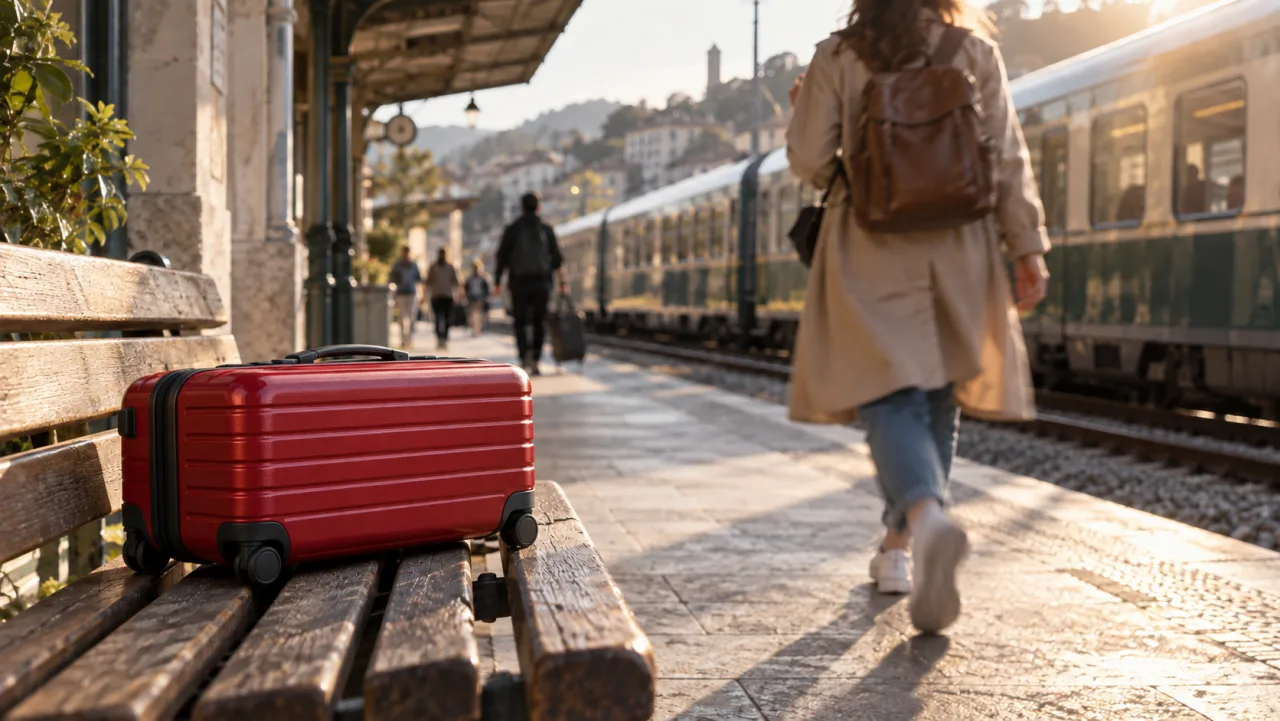
Illustrative target result: the replacement keeps a similar footprint, scale, contact shadow, and perspective. It is an image-edit example, not evidence of a Pika render.
After the first result, resist the urge to judge only the best-looking still. Play the entire video at normal speed, half speed, and frame by frame. A replacement can look convincing in one frame while sliding across the bench, changing handle count, or disappearing during an occlusion. For a structured continuity review, the method in our multiple-keyframe tutorial is useful even when the generation mode is different.
Review the Result With a Six-Point Acceptance Checklist
Use the same checklist for every candidate so taste does not replace evidence:
- Identity: Does the replacement remain the same object, color, material, and part count through the clip?
- Tracking: Does it stay attached to the original object's position without swimming or drifting?
- Geometry: Does its size and perspective change naturally as the camera or object moves?
- Occlusion: Do people, hands, furniture, and foreground elements pass in front of it correctly?
- Lighting: Do highlights, shadows, and reflections agree with the scene rather than resetting each frame?
- Background preservation: Did unrelated faces, signage, textures, or train details change?
The last item is easy to miss. A successful local edit should not quietly repaint the rest of the shot. Compare the output with the source at matching timestamps and reject a candidate when background drift would create a visible jump in the final sequence.
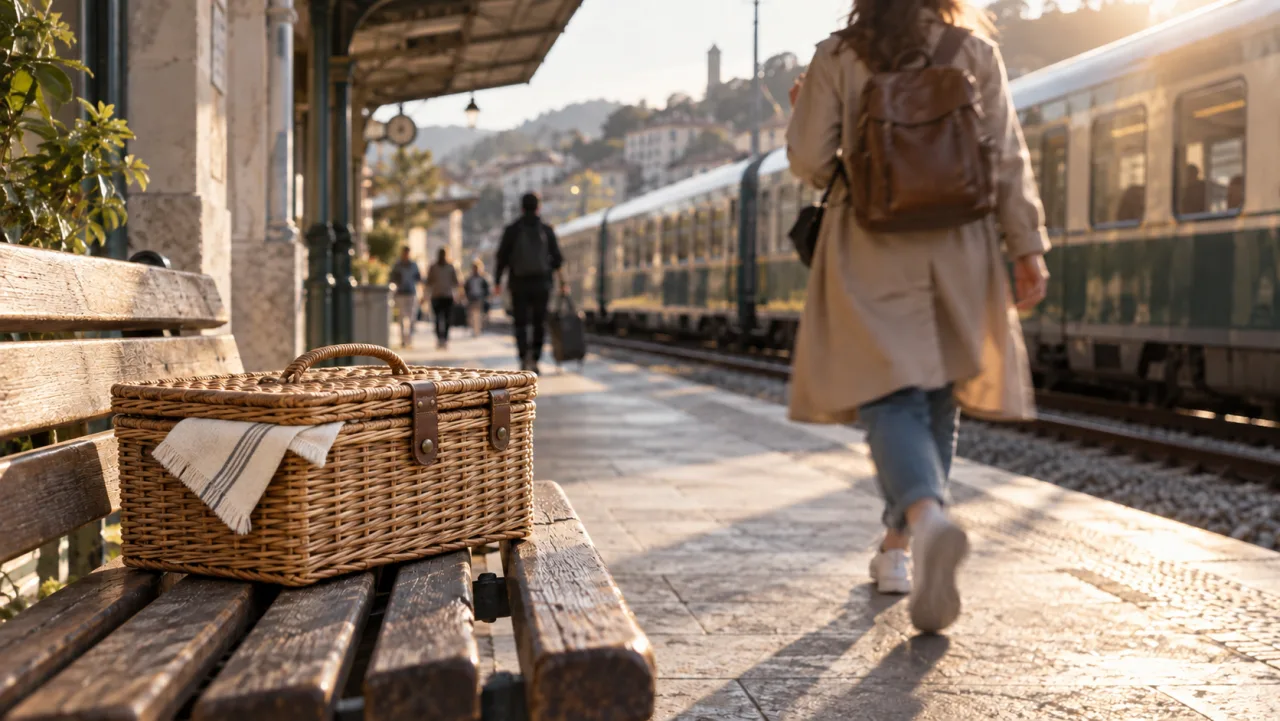
Illustrative alternate result: the basket keeps the target footprint but introduces finer edge detail, making temporal edge stability harder to maintain.
This is Pika's official Pikadditions sample, not a Pikaswaps result. Use it only to practice checking tracking, occlusion, and edge stability in motion.
Diagnose Flicker, Drift, and Partial Replacement
When a swap fails, identify the first bad frame and classify the failure before spending another attempt. If the new object flickers between two shapes, simplify the replacement description and remove decorative details. If it drifts, make the target location more explicit and trim the clip around the period of stable visibility. If part of the original survives, describe the complete target region rather than one feature of it.
Occlusion errors need source changes more often than extra adjectives. A hand crossing the suitcase for twenty frames may confuse the region mask. Try a shorter segment before the crossing, a different take with a cleaner view, or a two-stage edit assembled afterward. Heavy motion blur and compression artifacts can create the same problem because the target edges cease to be reliable.
A replacement that grows or shrinks incorrectly often has a geometry mismatch. Choose a substitute with a comparable shape, or explicitly say that it must inherit the original footprint and scale change. The planter below is intentionally harder: its leaves extend far beyond the suitcase silhouette and create many fine edges that must stay coherent.

Illustrative stress test: the tall plant changes the silhouette and adds thin moving edges. Use this kind of variant to decide whether the idea is suitable for a local swap or needs a newly generated shot.
If generation freezes after the edit begins, separate an interface or processing problem from a content problem. The recovery sequence in ComfyUI freezes after video generation covers transferable checks such as reducing clip length, confirming output completion, and changing one variable at a time, although the tools are different.
Plan Variants Without Losing the Approved Source
Keep the original clip immutable. Create a small variant matrix with one row per replacement: target description, replacement prompt, source time range, output URL, acceptance result, and one reason for rejection. Do not overwrite a previous candidate under the same filename. Versioned files make review and rollback possible.
Test the closest geometric match first, then one moderate variation, then the ambitious silhouette change. In the railway example that order is red carry-on, picnic basket, then potted olive tree. If the carry-on cannot hold its shape, the more complex plant is unlikely to improve simply because the prompt is longer.
For multi-shot ads or stories, Seedance Agent can organize the source, swap brief, output versions, reviewer notes, and selective reruns around the edit. It does not turn Pikaswaps into a deterministic compositor, but it reduces the coordination gap between one generated edit and an approved deliverable. Keep human approval on object identity, brand details, rights, and continuity.
Export and check the edit in context.
Download the chosen result and compare its duration, resolution, aspect ratio, and frame rate with the source. Place it between the preceding and following shots before approval. A swap that looks stable alone may reveal a color-temperature jump or unexpected crop once it sits in the sequence.
Check the first and last six frames for edge popping. Listen to the audio too: a video edit can preserve pictures while leaving an obsolete sound cue tied to the original object. If the scene originally included a suitcase wheel impact but the replacement is a soft basket, the audio now contradicts the image. Replace or mix that cue deliberately.
Use the Seedance video workspace when the edit needs additional generated shots, format variants, or a final assembly pass. Preserve the source, the approved swap, and the review notes as separate assets so a later revision does not erase the decision trail.
Conclusion
A reliable Pika object replacement starts with a short, readable source clip; a precise description of the existing target; and a separate replacement prompt that preserves position, geometry, lighting, occlusion, and everything outside the edited region. Review the moving output with the same six-point checklist, shorten or change the source when occlusion defeats tracking, and escalate from shape-matched variants to complex silhouettes only after the basic edit holds. When the swap belongs to a larger campaign, coordinate the sources, approvals, variants, and reruns with Seedance Agent.
Ready to try it yourself?
Put the steps from this guide into practice with Seedance and turn prompts or images into polished videos in minutes.
Free credits on signup. Plans from $28/month.
Related Articles
More posts in the same locale you may want to read next.

Seedance App Preview Video Generator 2026: Create App Store and Product Launch Clips
Use Seedance to turn app screenshots, feature copy, and launch goals into App Store previews, Google Play promo videos, and product launch clips.
Read article
15 Faceless YouTube Channel Ideas You Can Make with AI (2026)
15 faceless YouTube channel ideas for 2026, with the format, a sample AI video prompt and difficulty for each, plus how to make them with Seedance AI.
Read article
How to Use Seedance in Claude: MCP Setup and Automated Video Workflows
Use Seedance 2.5 inside Claude: connect the Seedance MCP server, generate videos by chat, batch variations and schedule daily video jobs with Claude scheduled tasks.
Read article