
OpenShot 4.0 Review: Features, Performance, Pros and Cons
AI Overview
Is OpenShot 4.0 worth using?
Yes for beginners and creators who want free offline editing, recording, color tools, and local AI masks. Complex professional productions may still need deeper controls.
What is new in OpenShot 4.0?
It adds a Color View, built-in screen and camera recording, ten new effects, local object masking, and a fully native Qt timeline.
Is OpenShot 4.0 free and safe?
OpenShot is free, open source, and watermark-free. Download the official build and avoid third-party installers that may bundle unrelated software.
Is OpenShot better than Shotcut?
OpenShot is easier for quick edits and first-time users. Shotcut generally offers more technical control for editors willing to learn a denser interface.
OpenShot 4.0 Review: Quick Verdict
OpenShot 4.0 is the most complete version of the beginner-friendly editor so far. Recording, color finishing, animated graphics, subject masks, and export now sit inside one free desktop application. That is a meaningful upgrade for teachers, solo creators, small businesses, and anyone who wants to finish a straightforward video without a subscription.
The release does not turn OpenShot into a collaborative post-production suite. Its strength remains approachability: trim clips, stack tracks, add titles, correct color, mix basic audio, and export without first mastering a professional editing system.
| Review area | Verdict |
|---|---|
| Ease of use | Excellent for a first editor |
| Recording | A major and practical addition |
| Color tools | Much stronger than previous releases |
| Local AI tools | Useful for masks, tracking, and privacy effects |
| Timeline performance | Improved, but project complexity still matters |
| Value | Excellent: free, open source, and no watermark |
Best for: beginners, educators, tutorial makers, family videos, short-form creators, and lightweight business editing.
Think twice if: you need team review, advanced sound post, large shared projects, or a deep plugin ecosystem.
What’s New in OpenShot 4.0?
A real color-finishing workspace
The new Color View is more than a filter drawer. It groups a large preview, clip controls, color wheels, curves, LUT support, and live scopes into one workspace. Exposure, contrast, temperature, tint, highlights, shadows, saturation, and vibrance cover everyday correction. Separate wheels for shadows, midtones, highlights, and the full image make creative grading possible without leaving the editor.
Waveform, histogram, RGB parade, and vectorscope displays help you judge the signal instead of trusting a laptop screen. The region tool can analyze only a face, product, or sky.

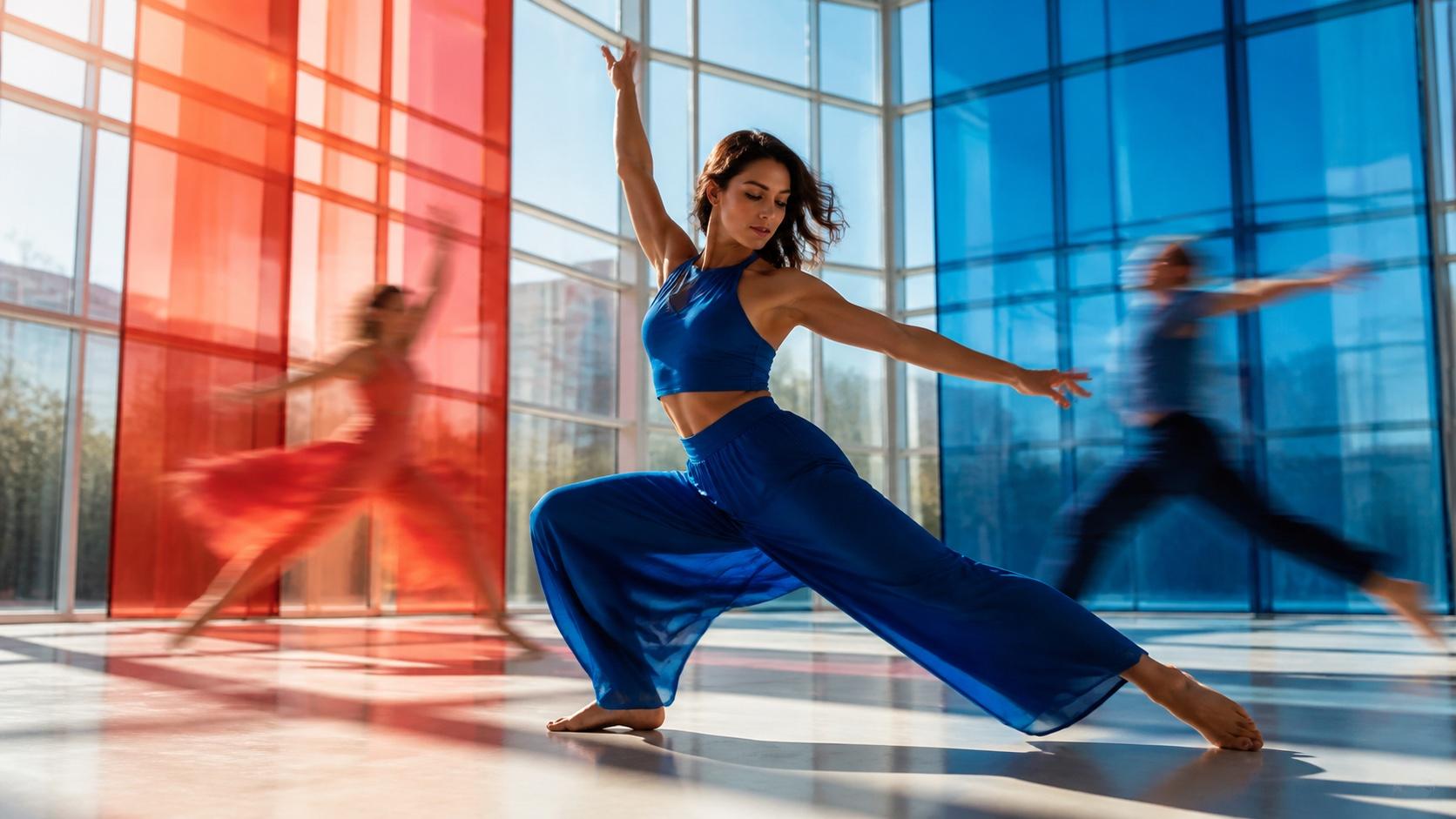
This controlled illustration shows the practical difference between flat source footage, a neutral correction, and a deliberate warm look. A good grade changes mood without changing identity or hiding skin texture.
Screen, webcam, microphone, and system-audio recording
OpenShot can now capture a screen, window, region, webcam, microphone, and system audio from its Recording View. Each enabled source becomes a separate file and timeline clip. That separation is important: the presenter can crop a webcam frame, lower system audio, remove a pause, or replace narration without damaging the screen recording.
The available sources depend on operating-system permissions and hardware, but the workflow is well suited to lessons, product walkthroughs, software demos, and reaction videos.

The useful result is not the recording panel itself—it is an editable tutorial in which the presenter, demonstration, and picture-in-picture layout remain independent.
Local object masks and tracking
Object Mask can isolate and follow a selected subject with downloadable models running on the computer. The animated mask can then drive blur, pixelation, color, glow, or background treatments. Object Detection also gains model validation, segmentation masks, and stronger controls over tracked items.
That makes local AI practical rather than decorative. A creator can blur bystanders, brighten only a speaker, mute a distracting background, or protect a child’s identity without uploading the source clip to a masking service.
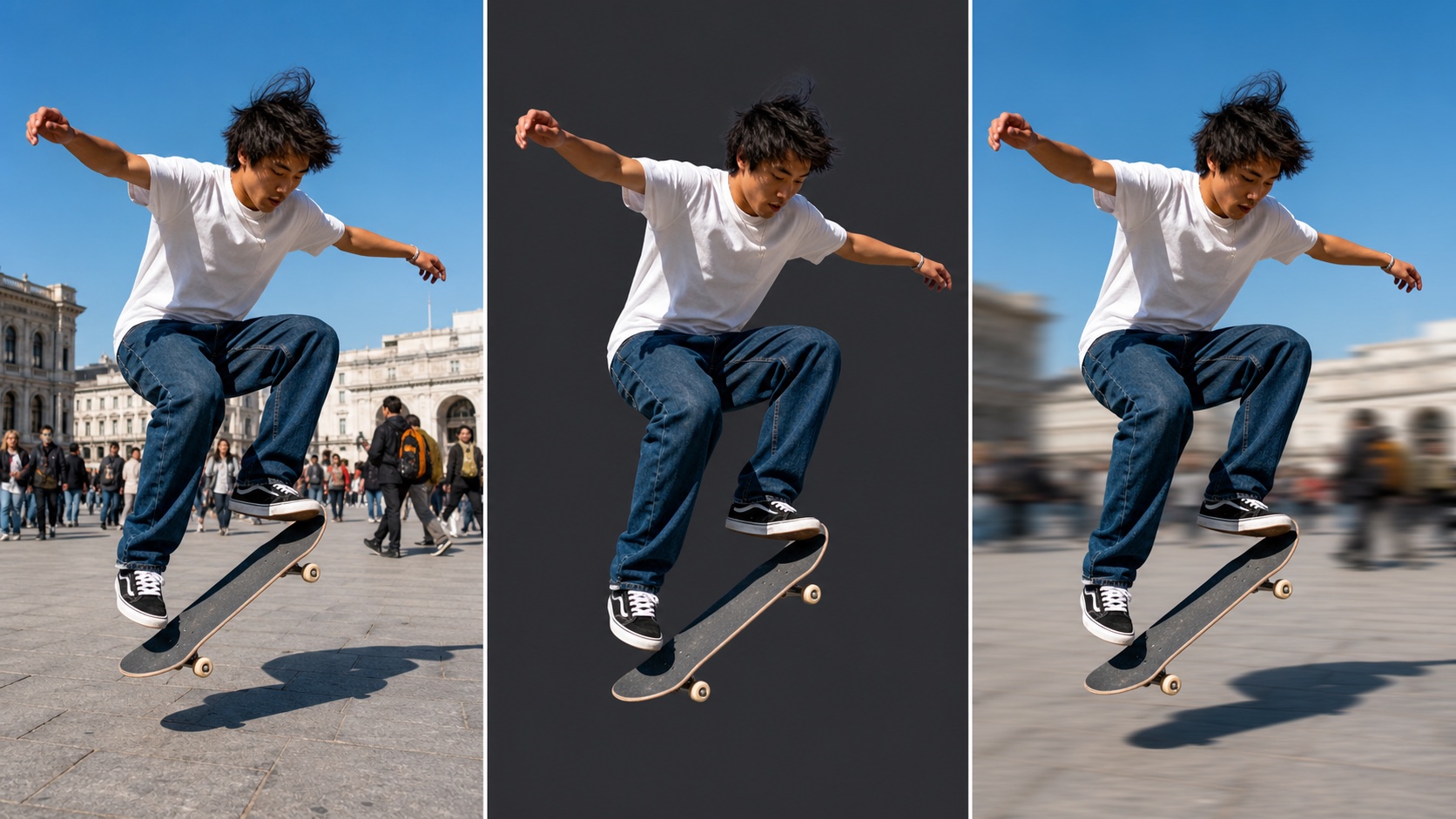
The middle panel represents a reusable subject matte; the final panel shows the kind of selective background treatment that mask can control.
Ten new effects and a native timeline
The effects set now includes Color Grade, Object Mask, Audio Visualization, Beat Sync, Film Grain, Denoise Image, Shadow, Glow, Displacement Map, and Timer. They support audio-reactive graphics, film texture, cleaner footage, countdowns, and selective compositing.
OpenShot 4.0 also completes its move from older web-based timeline elements to native Qt components. Smoother zooming, clearer keyframes, editable timecode, improved clip menus, and better high-DPI behavior make ordinary editing feel more consistent.
Real-World Editing, Preview, and Export Performance
What the official speed numbers mean
OpenShot reports that its Blur workload completed 61.8% faster than version 3.5.1, Sharpen improved by 12.8%, the standard timeline test by 3.4%, and the transformed-timeline test by 5.1%. Those figures are useful evidence of focused optimization, but they are not a promise that every project exports 60% faster.
Blur is one expensive effect; decoding, thumbnails, audio, scaling, storage, and export codecs can dominate another project. Treat the numbers as directionally positive and benchmark the exact footage you edit.
Test the timeline with your real workload
A sensible trial uses one short 1080p project and one demanding project. Add several tracks, transitions, titles, color work, and a mask; then check playhead response, preview drops, waveform loading, scrubbing, undo, and export. If you deliver 24, 30, or 60 fps, the best frame rate for AI video guide helps separate creative cadence from editing performance.
OpenShot’s optimized-preview workflow can make high-resolution footage easier to edit, but proxy-like previews do not eliminate every bottleneck. Fast storage, sufficient memory, and realistic preview resolution still matter.
Hardware and export expectations
The official guidance starts around a 64-bit, four-thread processor with 4 GB of RAM, while recommending more CPU speed, six or more threads, 16 GB of memory, solid-state storage, and ample disk space. Those minimums can open the editor; they are not ideal targets for layered 4K work.
Export a representative one-minute section before committing a long project. Check duration, audio sync, color, titles, file size, and playback in the delivery platform—not merely whether the export reaches 100%.
Is OpenShot Free, Safe, and Private?
What free and open source includes
OpenShot is licensed under GPLv3 and does not require a subscription, export watermark, or paid account. Projects can use unlimited tracks, common media formats, titles, effects, and platform-oriented export profiles.
How to download it safely
Use the official OpenShot download source and confirm the version and operating system before installation. Avoid download portals that wrap the installer, add browser extensions, or advertise a modified “premium” build. On managed work computers, follow the organization’s software policy and verify package signatures where available.
What stays on your computer
Normal editing is local. Object Mask and Object Detection use downloadable local models, so footage does not need to leave the machine for those tasks. This is valuable for client drafts, classrooms, interviews, and private family media. Our local versus cloud AI video guide explains when local processing matters and where cloud tools still save time.
Is OpenShot Good for Beginners?
The first-project path is clear
Project Files, preview, properties, and the multitrack timeline follow an understandable layout. A new editor can import footage, trim clips, add music and titles, apply a transition, and export a short video without mastering professional terminology. Built-in tutorials and one-click presets shorten that first session.
If you need source footage before editing, create a focused clip with text to video, animate a controlled still through image to video, or carry a subject across shots with reference to video.
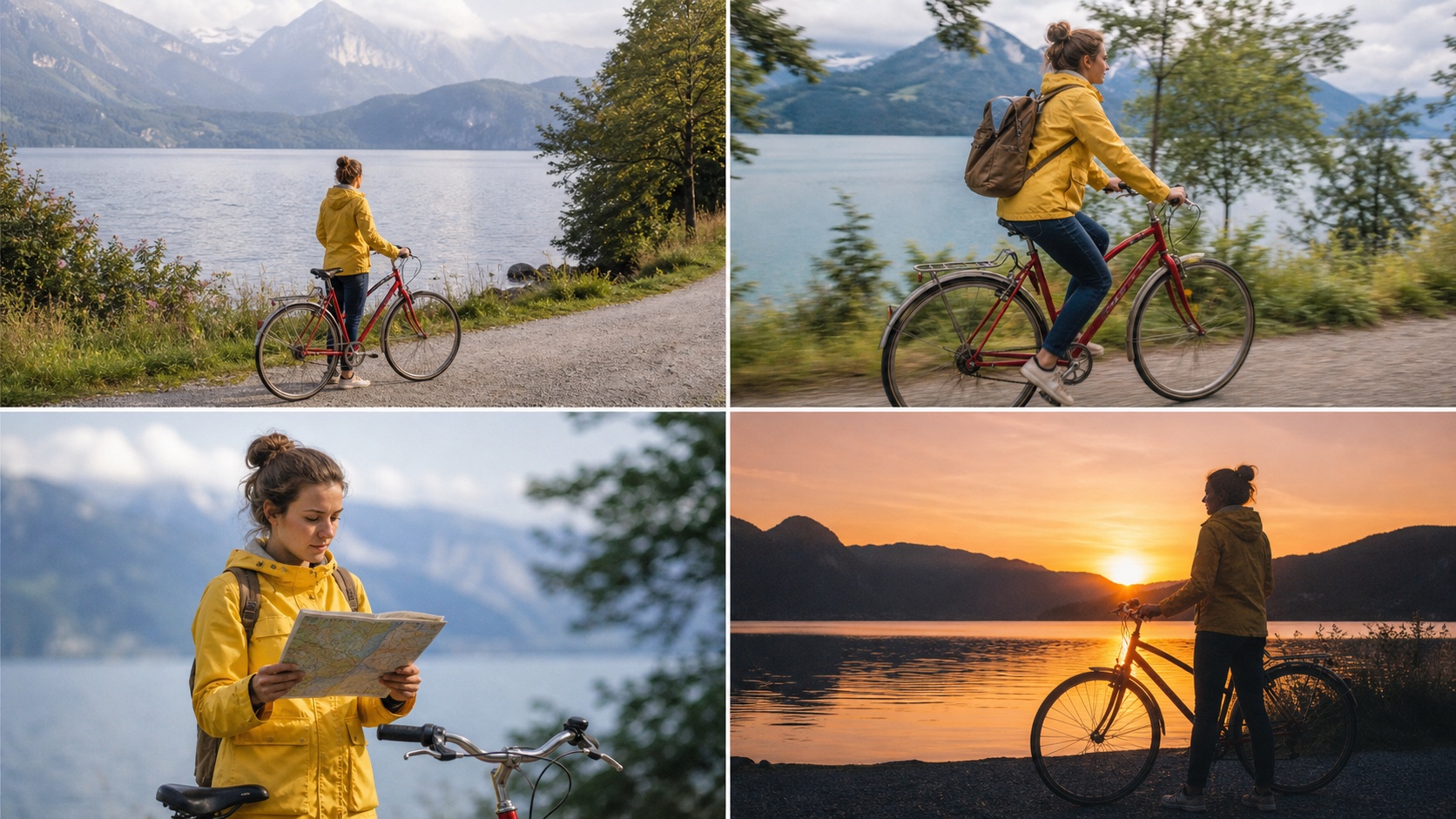
A beginner project succeeds when four clear shots form a readable story. Consistent subject, action, color, and pacing matter more than stacking every available effect.
Where new editors get stuck
Common friction points are project organization, preview quality, keyframes, audio levels, and export profiles. Keep source files in a stable folder and save versions before large changes. Moving imported files after saving can break their project links.
When you may outgrow it
OpenShot remains a good fit while speed and simplicity matter more than granular control. You may outgrow it when a job requires shared review, sophisticated audio routing, large multicamera assemblies, intensive compositing, or strict color-management pipelines. That is not a failure: an accessible editor can be the fastest tool for short work even when a different system handles the final campaign.
OpenShot 4.0 vs Shotcut
Choose OpenShot for accessibility
OpenShot makes the stronger first impression for an absolute beginner. Its workflow is visual, presets are discoverable, and version 4.0 brings recording and color correction closer to the same simple path. It is the easier recommendation for school projects, presentations, family videos, and quick creator edits.
Choose Shotcut for deeper technical control
Shotcut usually suits editors who want broader filter control, format options, scopes, and a more technical workflow without leaving free open-source software. That power brings a denser interface. Users comparing the two are really choosing between a faster learning curve and a higher control ceiling.
Decide with one controlled project
Install only official builds, then cut the same footage in both editors. Compare setup time, preview smoothness, keyframing, color, audio handling, export time, and the number of workarounds required. The winner is the editor that reaches an approved file with less friction on your machine—not the one with the longest feature list.
Conclusion
OpenShot 4.0 is a substantial upgrade for creators who want a free, approachable, and private desktop editor. The new Color View, separate recording sources, local subject masks, useful effects, and native timeline remove several reasons to leave the application during a simple production. It remains best for beginners and focused projects rather than every professional workflow, so test a representative timeline before moving a long edit. When you want to create original footage before cutting, start with the Seedance AI video generator.
Ready to create your own AI video?
Turn ideas, text prompts, and images into polished videos with Seedance. If this article helped, the fastest next step is to try the product.
Free credits on signup. Plans from $28/month.
Related Articles
More posts in the same locale you may want to read next.

Seedance App Preview Video Generator 2026: Create App Store and Product Launch Clips
Use Seedance to turn app screenshots, feature copy, and launch goals into App Store previews, Google Play promo videos, and product launch clips.
Read article
Best AI Video-to-Video Models in 2026
The best AI video-to-video models in 2026 for editing footage you already shot: Higgsfield Genjutsu, Seedance 2.x, Runway Aleph, Luma Modify and Kling Omni compared.
Read article
Kling 4.0 vs Seedance 2.5: Full Comparison
Kling 4.0 vs Seedance 2.5 compared by spec: 30-second clips, keyframes vs 50 references, audio, 4K and 10-bit color, editing, and which model fits which job.
Read article