
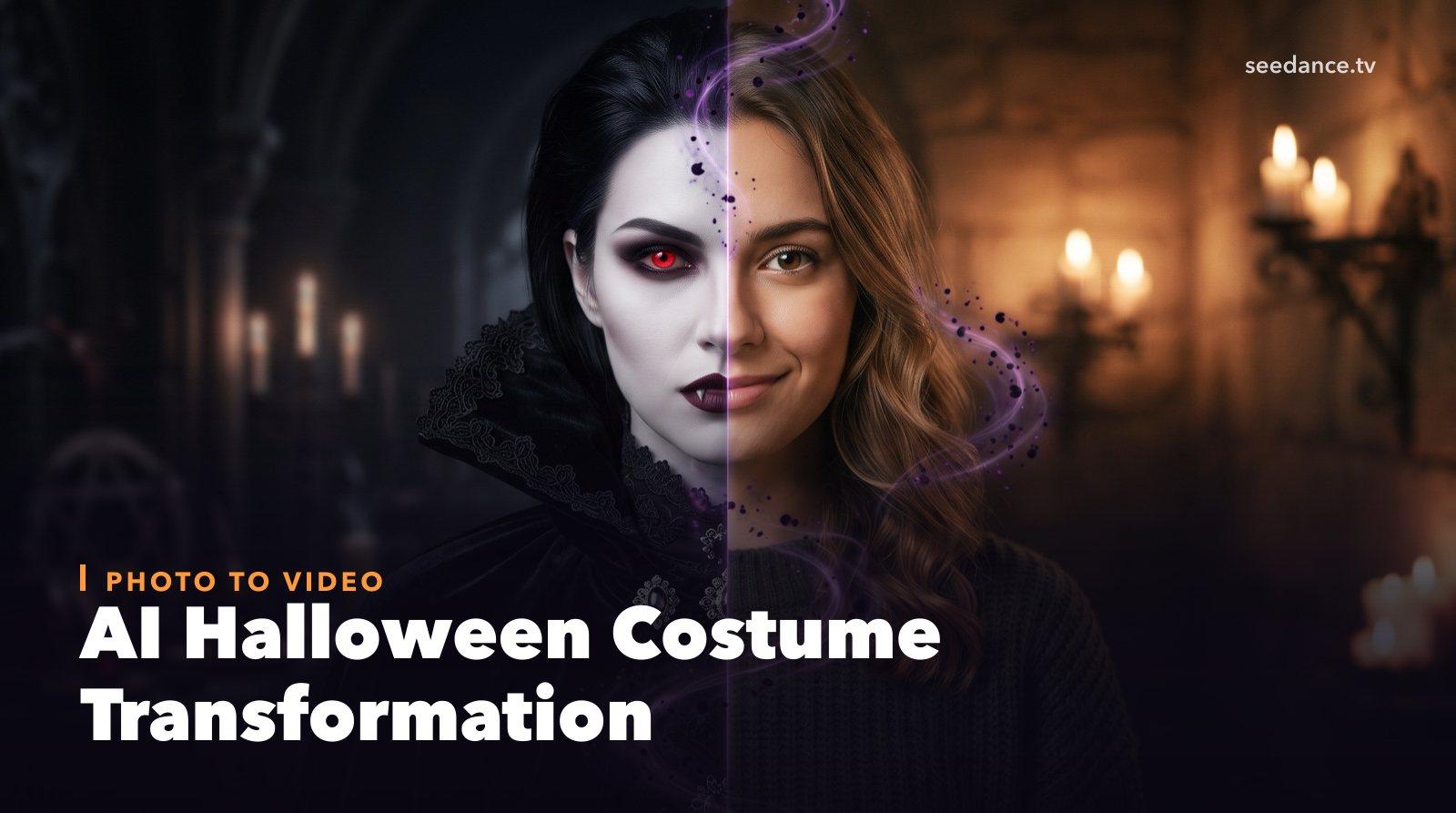
Quick Answer: Upload a clear photo of yourself, a friend, or a pet to an image-to-video tool, describe the costume transformation in one sentence, such as "slowly transforms into a pale vampire with red eyes," and generate a 5–10 second clip. For a cleaner result, create the "after" costume image first, then animate the change between the two.
The costume transformation video is one of the easiest Halloween trends to join. Someone stands still, the beat drops, and they turn into a vampire, a witch, or a skeleton. It used to take makeup, wardrobe, and a jump cut. With AI it takes one photo.
This guide covers three ways to make a Halloween transformation video with AI, plus 20 costume prompts you can copy.
What You Need
- A clear photo: face visible, good light, plain or simple background. A half-body shot works best for costume changes.
- An idea for the costume: vampire, witch, zombie, skeleton, ghost bride, werewolf, or Día de los Muertos makeup.
- A video tool: Image to Video for the transformation, and Text to Image or Image to Image if you want to design the "after" look first.
Method 1: One-Step Transformation (Fastest)
- Open Image to Video and upload your photo.
- Describe the change and the background in one prompt:
The person slowly transforms into a pale vampire, skin turns porcelain white, eyes glow red, sharp fangs appear as they smile, their clothes become a black high-collar cape, the room behind them turns into a candlelit gothic hall, smooth continuous transformation, static medium shot.
- Generate two or three versions and keep the smoothest one.
This works well for subtle changes like makeup, eyes, and skin. For big wardrobe changes, Method 2 gives more control.
Method 2: Design the "After" Look First (Best Quality)
- Upload your photo to Image to Image and describe the costume: "same person, same pose, dressed as an elegant witch with a tall pointed hat and dark lipstick, misty forest background, cinematic lighting."
- Pick the best result. This is your "after" frame.
- Open Image to Video and describe the transformation from the original photo, using the after image as a reference so the final costume matches your design.
Designing the end state first keeps the costume consistent and stops the face from drifting during the change.
Method 3: Beat-Drop Transformation for TikTok
The classic trend format is "normal → beat drop → costume." To make it:
- Generate a short clip of the person standing naturally with a small movement, such as a head tilt or a look at the camera.
- Generate the transformation clip from Method 1 or 2.
- Cut them together in CapCut or the TikTok editor so the switch lands exactly on the beat drop of a trending sound.
Seedance 2.5 can also generate sound with the video. Add "music builds, then a bass drop as the transformation happens" to the prompt if you want the timing built in.
20 Halloween Costume Transformation Prompts
Classic monsters
- The person slowly transforms into a vampire, porcelain skin, glowing red eyes, fangs appear in a slow smile, high-collar black cape, candlelit gothic hall background.
- The person transforms into a werewolf, fur spreads up from the neck, ears grow pointed, eyes turn amber, full moon rises behind them in a misty forest.
- The person turns into a zombie, skin fades to grey with cracks, eyes cloud over, clothes become torn and dusty, ruined city street at dusk behind them.
- The person becomes Frankenstein's creature, green-tinted skin, neck bolts, stitched scar on the forehead, lightning flashes in a stone laboratory.
- The person transforms into a mummy, bandages wrap around from the shoulders up, dust falls, torch-lit Egyptian tomb background.
Elegant and glam
- The person transforms into an elegant witch, a tall pointed hat appears, dark lipstick, flowing black dress, purple sparkles swirl around them, misty forest.
- The person's face transforms into a detailed sugar skull with colorful Día de los Muertos makeup, a flower crown of marigolds appears, warm candlelight.
- The person becomes a ghost bride, pale skin, a tattered white veil and lace dress, soft blue glow, abandoned chapel background.
- The person transforms into a dark fairy, black feathered wings unfold behind them, glitter makeup, moonlit enchanted forest.
- The person becomes a gothic vampire queen, a jeweled crown appears, deep red velvet gown, candelabras light up around them.
Skeleton and spooky-cute
- The person's skin fades to reveal a glowing skeleton underneath, then they wave at the camera, black background with neon purple rim light.
- The person transforms into a cute pumpkin-head character, a carved jack-o'-lantern with a soft glow replaces their head, autumn porch background.
- The person becomes a friendly cartoon ghost in a white sheet with big eyes, floating slightly, cozy living room with fairy lights.
- The person transforms into a black cat character with cat ears, whiskers drawn on, and green glowing eyes, full moon window behind them.
- The person becomes a scarecrow, straw hair, stitched smile, patched flannel shirt, cornfield at sunset.
Pets
- The dog in the photo is suddenly wearing a tiny vampire cape and fangs, it tilts its head, candlelit room, cute and funny.
- The cat in the photo puts on a tiny witch hat and its eyes glow green for a moment, candles behind it.
- The dog transforms into a little pumpkin, an orange pumpkin costume appears with a green stem hat, it wags its tail in autumn leaves.
Couples and groups
- The couple in the photo transforms into a vampire count and countess, matching red and black outfits, a gothic castle hall appears behind them.
- The friends in the photo transform into a classic monster squad: a vampire, a werewolf, a mummy, and a witch, misty graveyard behind them.
Tips for Better Transformations
- One photo, one person gives the most stable result. For groups, keep everyone facing the camera.
- Say "slowly" and "smooth continuous transformation." Fast changes tend to warp the face.
- Keep the pose. Describe the costume changing, not the person moving around.
- Describe the new background. A changing background makes the reveal feel bigger.
- Use your own photos, or photos of people who said yes. Don't transform someone else's face without permission.
FAQ
How do I make a Halloween transformation video from a photo?
Upload the photo to Image to Video, describe the costume change and the new background, and generate a 5–10 second clip. For the best quality, design the costume first with Image to Image.
Is there an AI Halloween filter for videos?
Instead of a fixed filter, image-to-video AI lets you describe any costume you want, from vampire and witch to skeleton and ghost bride, and applies it to your own photo as an animated transformation.
Can I do a costume transformation with my pet?
Yes. Use a clear, well-lit photo of your pet facing the camera and describe a small costume, such as a cape, a hat, or a pumpkin suit. Small additions look more natural on animals than full transformations.
Why does my face change too much in the video?
Big transformations can drift. Design the final costume as an image first, then use it as a reference, and add "keep the same face" to your prompt.
What's the best length for a transformation video?
5–10 seconds for the transformation itself. Add one or two seconds of "before" footage so the change lands on the beat.
Try Your Costume Glow-Up
Pick a photo, choose a costume from the list above, and generate your first clip in Image to Video. If you want to go further, turn your character into a full AI horror short film or make them dance with our AI Halloween dance video guide.
Start generating for free - no credit card required
Create videos with free signup credits, then scale with affordable plans whenever you need more generations.
Free credits on signup. Plans from $28/month.
Related Articles
More posts in the same locale you may want to read next.

Seedance App Preview Video Generator 2026: Create App Store and Product Launch Clips
Use Seedance to turn app screenshots, feature copy, and launch goals into App Store previews, Google Play promo videos, and product launch clips.
Read article
AI Halloween Dance Video: Skeleton & Zombie Dances
Make a viral AI Halloween dance video: dancing skeletons, zombie dance-offs, witches, and costume dance trends. Step-by-step with prompts and motion control.
Read article
How to Make an AI Horror Short Film (Seedance 2.5)
Make a 1–2 minute AI horror short film for Halloween with Seedance 2.5: story beats, shot list, consistent characters, sound design, and copy-ready prompts.
Read article