
How to Create AI Portrait Videos with Seedance (2026 Guide)
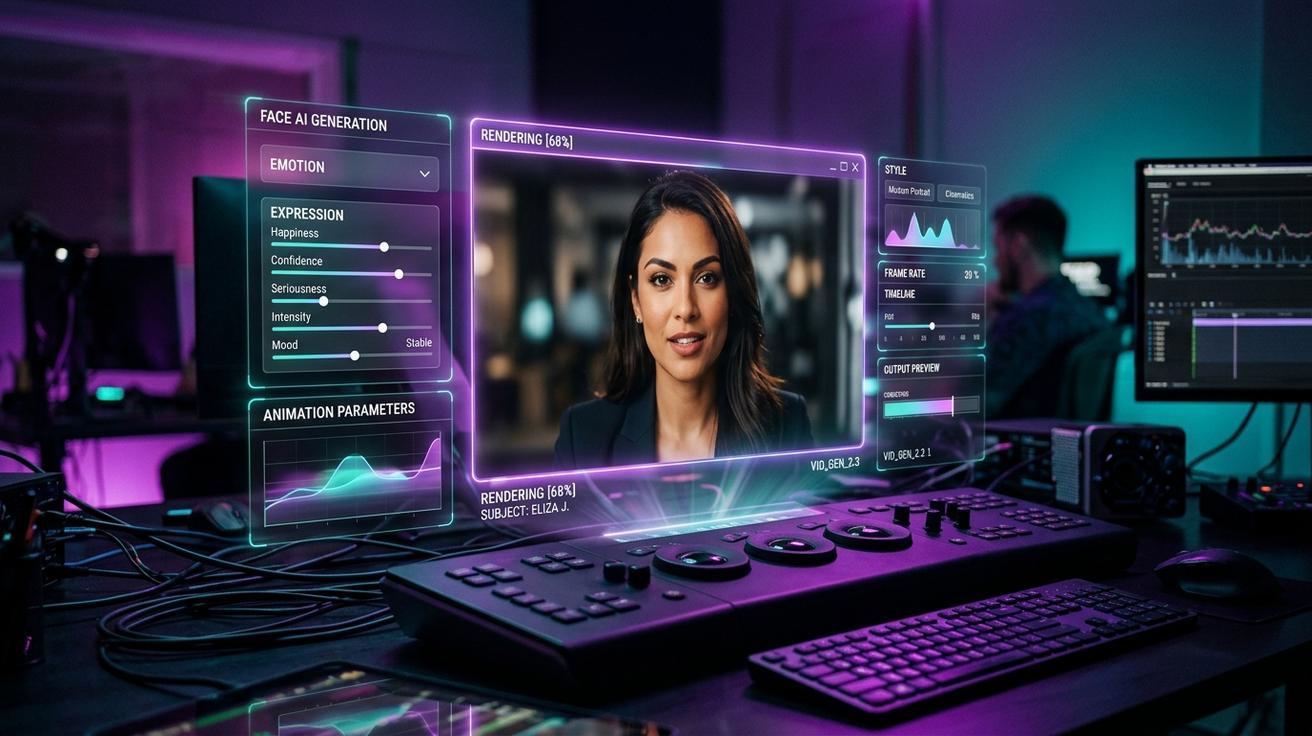
Portrait videos—close-up, character-focused clips with expressive motion—are one of the most engaging content formats on social media. Whether you're creating a talking head, a dramatic character moment, or a cinematic close-up for a campaign, Seedance AI portrait video generation lets you produce these clips from a single reference photo.
This guide covers the full workflow: source photo requirements, prompt structure, model selection, QA for facial consistency, and the best use cases where AI portrait video delivers the highest value.
What Is an AI Portrait Video?
An AI portrait video is a short clip centered on a human subject—typically from the shoulders up or waist up—where the character expresses emotion, performs subtle movement (head turn, blink, expression shift), or is placed in a dynamic environment.
Portrait videos are different from full-body or scene-level videos in their technical requirements: facial fidelity, expression consistency, and natural micro-movement are much harder for AI models to get right. Getting good results requires understanding how to frame your source asset and craft your prompt.
Seedance's image-to-video pipeline is well suited to portrait work because you can upload an existing photo of a subject and guide the model with a specific expression, movement, and environment prompt.
Why Seedance Works for AI Portrait Video
Image-to-video from a single photo. Upload a portrait reference and generate a video that animates the subject with controlled expression and camera movement. This is practical for creators, brands, and advertisers who need video content from existing photo shoots.
Multi-model comparison. Different models handle face rendering differently. Seedance lets you generate the same portrait prompt across Seedance 2.0, Veo 3, and Kling in one session, so you can pick the output with the most natural facial motion.
Camera movement control. Portrait videos benefit from subtle camera moves—a slow push-in, a slight dolly circle, a gentle rack focus. Seedance prompt control lets you specify these precisely without post-production.
Emotion and expression direction. You can guide the model to generate a confident smile, a contemplative gaze, a surprised reaction, or a neutral professional look through the prompt.
Source Photo Requirements for Portrait Video
Getting good portrait video output starts with the right source image:
Resolution: Use a minimum 1024×1024 photo. Higher resolution gives the model more facial detail to work with and generally produces better consistency.
Framing: A clean headshot or three-quarter shot with the face occupying at least 40% of the frame works best. Full-body shots where the face is small often produce blurry facial rendering.
Lighting: Well-lit faces with clear shadow-highlight separation generate cleaner motion. Harsh sidelighting, face-obscuring shadows, or extreme backlight increase the risk of facial distortion during animation.
Background: Simple or blurred backgrounds reduce the model's workload and help keep subject consistency. Complex backgrounds (crowds, detailed architecture) sometimes bleed into the subject during motion.
Expression in source: Start with a neutral or lightly positive expression in the source photo. Extreme expressions (wide mouth open, eyes closed) can create awkward transitions when the model tries to animate motion from that starting state.
How to Write a Portrait Video Prompt
Portrait video prompts need to be specific about four elements:
[Subject + expression] + [Action/micro-movement] + [Camera movement] + [Environment/Lighting]
Professional headshot animation:
A confident woman in her 30s, professional attire, slight smile. Subtle head tilt with a slow blink. Camera slowly pushes in. Clean office background, soft window light from the left. Cinematic portrait, shallow depth of field.
Lifestyle/social media portrait:
A young man outdoors at golden hour, relaxed and happy. Natural head movement, hair gently moves in a breeze. Camera holds steady with a very slight drift right. Bokeh background of trees. Warm natural light, authentic lifestyle feel.
Dramatic/editorial portrait:
A woman with a serious, intense gaze. Minimal movement—only subtle eye refocus and slight breath. Camera very slowly circles right. Dark moody background with a single rim light. Cinematic, high contrast, editorial fashion aesthetic.
Brand spokesperson / testimonial:
A middle-aged man, warm and trustworthy expression, business casual. Nods slightly while maintaining eye contact with the camera. Static camera, light zoom in. Neutral gradient background. Corporate video style, well-lit, approachable tone.
Step-by-Step: Portrait Video Generation in Seedance
Step 1: Upload Your Portrait Photo
Open Seedance and select image-to-video mode. Upload your portrait reference photo. Crop to the aspect ratio you need before uploading (9:16 for vertical social content, 1:1 for feed posts, 16:9 for widescreen use).
Step 2: Select Your Model
For portrait work, test these models:
- Seedance 2.0: Good for smooth, controlled micro-movement. Works well for professional and commercial portrait content.
- Veo 3: Strong facial realism for lifestyle and editorial portrait work.
- Kling: Often produces natural expression transitions; worth testing for emotional/expressive portraits.
Generate one version per model with the same prompt, then compare facial consistency and motion quality.
Step 3: Craft and Submit Your Prompt
Use the five-component structure above. Be specific about the camera move—"slow push in" versus "holds static" versus "gentle dolly circle" produce meaningfully different results. The model reads camera instruction as a meaningful input, not decoration.
Step 4: Generate 2–3 Versions
Always generate at least 2 versions of any portrait. Facial animation has inherent variability across runs—the first version may have a slightly odd blink or head motion while the second is smooth and natural. Getting multiple outputs costs only a minute of wait time and saves you from publishing a subpar result.
Step 5: QA Check for Portrait Consistency
Review each generated portrait clip for:
- Facial structure consistency: Does the face maintain its shape, proportions, and features throughout the clip? Look for melting jaw edges, shifting eye placement, or ear disappearance during movement.
- Eye behavior: Do blinks look natural? Are both eyes consistent throughout?
- Mouth: If the subject speaks or smiles, does the mouth movement match the expression intent or does it produce artifact smearing?
- Skin texture: Does skin tone and texture remain stable, or does it shift or flatten during motion?
- Hair: Hair movement is one of the most common failure points. Check that strands move in a physically plausible direction without morphing into the background.
- Clothing: Fabric near the collar and shoulders should move naturally. Watch for pixel-level crawling or texture bleeding at edges.
If any of these fail, adjust the prompt (slower motion, simpler camera move, neutral expression start) and regenerate.
Step 6: Export
Download the best version. For portrait social content, export in the highest available resolution. For TikTok, Instagram Reels, or YouTube Shorts, 1080p at 9:16 is the standard delivery format.
Best Use Cases for Seedance AI Portrait Video
Social media personal branding. Creators and professionals who want to produce polished headshot-level video content for LinkedIn, Instagram, or YouTube without a video shoot can generate portrait clips from existing profile photos.
Brand spokesperson content. Ad creatives that feature a brand spokesperson, customer testimonial style, or "face of the brand" segment can prototype portrait video quickly in Seedance before committing to a full shoot.
E-learning and course thumbnails. Course creators who want animated instructor thumbnails or intro-clip style portrait content for online platforms can generate from a single headshot.
Campaign mood prototypes. Before a full production day with talent, generate AI portrait video from reference photos to show the client or director what the lighting mood, expression, and camera style will look like. This shortens approval cycles significantly.
Digital avatar content. For brands using consistent digital spokesperson characters (not real individuals), portrait video generation provides a fast workflow for populating content calendars with character-driven short clips.
Limitations and What to Watch For
Identity consistency across multiple clips. AI portrait video models do not have persistent memory of a subject. If you need the same person to appear in 10 different videos, you'll need to generate each from the same source photo and accept some variation in output. This makes it challenging to build a multi-clip narrative with consistent facial identity.
Speaking / lip sync. Current Seedance generation does not synchronize lip movement to an audio track. For testimonial or talking-head style content where spoken words are visible, plan to either use voiceover without matching lip sync, or add captions in post-production without relying on mouth movement accuracy.
Real-person identity. Only generate portrait videos of real individuals when you have their explicit consent. Do not use public figures' images for commercial content without appropriate rights clearance.
Photorealism versus stylization. More photorealistic source photos tend to produce more realistic (and more visually demanding) outputs. If facial consistency is critical, test stylized or illustration-style portraits, which tend to produce more stable outputs with fewer uncanny motion artifacts.
Prompt Troubleshooting Guide
| Problem | Likely Cause | Fix |
|---|---|---|
| Face morphs during motion | Too much movement specified | Reduce camera speed; try "holds static" or "minimal drift" |
| Eyes look glassy or frozen | Expression too static in prompt | Add "natural blink, subtle eye refocus" to prompt |
| Hair creates background bleed | Complex background + hair movement | Simplify background prompt; reduce hair motion |
| Skin texture shifts | High motion + complex lighting | Reduce camera movement; simplify lighting descriptor |
| Mouth produces artifact smearing | Mouth movement over-specified | Use "mouth closed, slight smile" as starting state |
Conclusion
Seedance AI portrait video generation lets you produce character-focused, expressive clips from a single reference photo. The key to good results is a well-framed source image, a specific five-component prompt that names the expression, micro-movement, camera behavior, and environment, and a multi-version generation workflow that lets you compare outputs before committing to a final clip. For related workflows, see the Seedance prompt guide and character consistency guide for deeper coverage of subject identity across multi-clip projects.
Advanced Techniques for AI Portrait Video
Consistent Character Across Multiple Clips
If your project requires the same person appearing in several clips (a multi-part social series, a brand campaign), you need a subject consistency strategy:
- Use the same source photo for every clip in the series.
- Keep the background descriptor consistent across prompts—the model uses the environment as part of the scene context.
- Generate each clip from the same camera position and only vary the expression or micro-movement.
- Review all clips side-by-side before exporting; minor drift in skin tone or hairstyle is common across clips and needs to be accepted or regenerated.
For stricter subject consistency, Seedance's character consistency guide covers additional techniques for multi-clip projects.
Combining Portrait Clips in a Talking Head Format
Talking head videos—direct-to-camera delivery in a series of cuts—are a popular format for thought leadership, testimonials, and educational content. To produce a multi-clip talking head sequence in Seedance:
- Generate 4–6 clips from the same source photo with slight expression variation in each prompt.
- Export all clips and assemble them in CapCut, DaVinci Resolve, or Premiere.
- Add captions and audio (voiceover or text-to-speech) in post-production.
- Cut on expression changes—transitioning at the moment of a head turn or expression shift feels more natural.
This workflow produces a polished talking head video from a single photo without any recording setup.
Adding Depth with Background Motion
A static background can make portrait videos feel flat. To add depth:
- Specify a bokeh background with gentle motion: "Out-of-focus city lights with subtle bokeh drift in the background."
- Use environment movement: "Trees gently moving in wind in the background, subject is sharp in foreground."
- Try particle or light effects: "Golden particles slowly drifting across the frame, subject in sharp focus."
Background motion adds life to the clip without compromising the subject.
Portrait Video QA Checklist
Before exporting any portrait video, verify:
- [ ] Face shape consistent: The subject's facial proportions, jawline, and forehead shape remain stable across the clip.
- [ ] No eye artifacts: Eyes are open and clearly rendered; no blurring, merging, or disappearing.
- [ ] Natural blink if present: Blinks are realistic and not jerky or asymmetric.
- [ ] Hair movement plausible: Hair moves naturally with the head; no clipping or ghosting.
- [ ] Skin tone consistent: No sudden color shift or texture change mid-clip.
- [ ] Background separation: The subject remains clearly distinguished from the background throughout.
- [ ] Camera motion smooth: No jitter or sudden direction change in camera movement.
Best Use Cases for AI Portrait Video with Seedance
Social media profile content: Animate a professional headshot for a LinkedIn banner or animated profile feature. Provides a premium, dynamic look without a video shoot.
Brand spokesperson clips: Generate 5–10 second spokesperson clips from an approved brand ambassador photo for use in ads, landing pages, or email campaigns.
Testimonial content: Animate a customer headshot to add visual polish to case study pages and social proof sections.
Podcast and course thumbnails: Create animated versions of static speaker images for podcast artwork, YouTube thumbnails, or online course materials.
Product + person combination: Combine a portrait clip with a product clip in post-production—a person reacting to or holding a product, where both elements were generated separately and composited.
Event promotion: Animate speaker headshots for event announcement posts, conference programs, and social media event cards.
How AI Portrait Video Compares to Traditional Video Production
Traditional portrait video requires camera equipment, lighting setup, a subject available for filming, and editing time. AI portrait video with Seedance replaces the capture phase entirely—you generate from a photo reference. The tradeoffs are straightforward: AI generation is faster and cheaper for high-volume or early-stage content, while traditional production delivers higher fidelity for flagship brand films where authenticity and talent control are paramount. Most commercial workflows benefit from using both: AI-generated clips for social and test content, traditional shoots for hero campaigns.
Frequently Asked Questions
Can I use AI portrait video for real clients or commercial projects? Yes, provided you use approved talent photos or stock images where you hold the rights. Always confirm model release and usage rights before publishing any portrait video featuring a real person.
How many attempts does it take to get a clean portrait result? Plan for 2–3 attempts per clip. Portrait generation is one of the more technically demanding use cases for AI video; factoring in iteration time is realistic and normal.
Does Seedance add watermarks to portrait videos? Paid plans export without watermarks. Free tier clips include a watermark that is not suitable for commercial use. Check your current plan before exporting client-facing content.
Can I change the background completely? Yes—describe a different background in your prompt. The model will attempt to place the subject in the described environment. Results vary depending on how different the new background is from the source photo's original setting; simpler backgrounds tend to generate more cleanly.
Limitations to Know
Face generation is model-dependent: Not every generation produces a clean result. Budget for 2–4 generation attempts per portrait clip.
Extreme expressions distort: Avoid prompting for wide-open mouths, exaggerated shock, or heavy laughter in the source photo or prompt—these expressions are more likely to produce distortion.
Real person likeness: Always ensure you have rights to use a person's likeness before generating or publishing portrait video. Use stock photos, brand-approved talent shots, or your own image.
Text on screen: Do not prompt for visible text overlays in AI-generated portrait video—add captions and titles in post-production.
Conclusion
Seedance AI portrait video generation gives creators and brands a practical way to produce character-focused video content from existing photo assets. The workflow is straightforward: start with a clean, well-lit portrait photo, write a specific prompt that defines expression, micro-movement, camera behavior, and environment, generate across multiple models to compare facial quality, run QA on consistency, and export for your target platform. Whether you're producing professional headshot animations, brand spokesperson clips, or social media character content, Seedance portrait video delivers results in minutes rather than production days. For more on subject consistency in multi-clip projects, see the character consistency guide and the Seedance prompt guide.
Ready to try it yourself?
Put the steps from this guide into practice with Seedance and turn prompts or images into polished videos in minutes.
Free credits on signup. Plans from $28/month.
Related Articles
More posts in the same locale you may want to read next.

Seedance App Preview Video Generator 2026: Create App Store and Product Launch Clips
Use Seedance to turn app screenshots, feature copy, and launch goals into App Store previews, Google Play promo videos, and product launch clips.
Read article
How to Make a Talking AI Avatar You Can Reuse
Make a talking AI avatar with Seedance: design one consistent character, give it a voice, and make it speak in a talking photo or a full Seedance 2.5 scene, episode after episode.
Read article
Best AI Video-to-Video Models in 2026
The best AI video-to-video models in 2026 for editing footage you already shot: Higgsfield Genjutsu, Seedance 2.x, Runway Aleph, Luma Modify and Kling Omni compared.
Read article