
How to Use Seedance AI on Mobile: Complete Guide for iOS and Android 2026
AI video generation used to require a desktop computer with a powerful GPU. Seedance has changed that — the platform works fully on mobile browsers, letting you generate professional AI videos directly from your iPhone or Android device.
This guide covers everything you need to know about using Seedance on mobile: setup, workflow optimization, mobile-specific tips, and how to integrate Seedance into a mobile-first content creation workflow.
Does Seedance Work on Mobile?
Yes. Seedance runs entirely in the browser, which means it works on any device with a modern mobile browser — iPhone (Safari or Chrome), Android (Chrome or Firefox), and tablets. There's no app to download, no special setup required.
The mobile experience is fully functional: you can write prompts, generate videos, preview results, and download your clips directly to your camera roll.
Setting Up Seedance on Mobile
Getting started on mobile takes about two minutes:
Step 1: Open Safari (iOS) or Chrome (Android) and navigate to seedance.tv
Step 2: Create a free account with your email address. No credit card required.
Step 3: Verify your email and log in.
Step 4: You're ready to generate. The interface adapts to mobile screen sizes automatically.
Optional — Add to Home Screen: For faster access, add Seedance to your home screen:
- iOS: Tap the Share button → "Add to Home Screen"
- Android: Tap the three-dot menu → "Add to Home Screen"
This creates a shortcut that opens Seedance like a native app, without the browser address bar taking up screen space.
The Mobile Seedance Workflow
Generating videos on mobile follows the same process as desktop, with a few mobile-specific optimizations:
Writing Prompts on Mobile
The prompt input field is the most important part of the Seedance interface. On mobile, a few tips make prompt writing easier:
Use voice-to-text: Both iOS and Android have excellent voice-to-text keyboards. Tap the microphone icon on your keyboard and dictate your prompt. This is often faster than typing on a small screen.
Save prompts in Notes: Keep a note in Apple Notes or Google Keep with your best-performing prompts. Copy-paste from your notes app when you want to reuse or iterate on a prompt.
Keep prompts concise: On mobile, shorter prompts are easier to write and edit. Seedance 2.0's improved prompt understanding means you don't need to write exhaustive descriptions — 20-40 words is often enough.
Generating and Reviewing
After submitting your prompt, Seedance generates your video in the cloud. The generation process takes the same amount of time on mobile as on desktop — typically 15-45 seconds depending on server load.
While waiting, you can:
- Switch to another app (the generation continues in the background)
- Browse your previously generated clips
- Write your next prompt
When the video is ready, you'll see it in the interface. Tap to preview it full-screen.
Downloading to Camera Roll
To save a generated video to your phone:
iOS: Tap the download button → the video saves to your Photos app automatically.
Android: Tap the download button → the video saves to your Downloads folder or Gallery, depending on your device settings.
Once saved, you can edit the clip in any mobile video editor — CapCut, InShot, Adobe Premiere Rush, or the native Photos app.
Mobile-Optimized Prompt Strategies
Some types of content work particularly well when generated on mobile and used directly for mobile platforms:
Vertical Video (9:16)
Always include "vertical 9:16" in your prompt when creating content for Instagram Reels, TikTok, or YouTube Shorts. Seedance generates in the correct aspect ratio, saving you the step of cropping in your editor.
Example prompts for vertical video:
- "Sunrise over mountain peaks, slow aerial drift, golden tones, vertical 9:16, cinematic"
- "Coffee being poured in slow motion, steam rising, warm café atmosphere, vertical 9:16"
- "City street at night, neon lights, rain reflections, slow tracking shot, vertical 9:16"
Quick Social Content
For fast social media content creation on mobile:
Morning routine content: "Morning coffee ritual, golden light through kitchen window, slow zoom, warm and cozy, vertical 9:16"
Motivational backgrounds: "Abstract flowing particles, deep blue and gold, slow motion, looping feel, vertical 9:16"
Product showcases: "Skincare product on marble surface, water droplets, soft light, slow rotation, vertical 9:16, commercial quality"
Travel Content
Mobile is perfect for travel content creation — you can generate supplementary footage while you're actually traveling:
"Aerial view of [destination], golden hour, slow drone descent, cinematic wide" "[Landmark] at sunrise, mist in the valley, slow pan, travel photography style" "Busy [city] street, diverse crowd, slow motion, documentary style"
Integrating Seedance into a Mobile Content Workflow
The most efficient mobile content workflow combines Seedance with mobile editing apps:
The CapCut + Seedance Workflow
CapCut is the most popular mobile video editor, and it pairs well with Seedance:
- Generate clips in Seedance: Create 3-5 clips for your video concept
- Download to camera roll: Save all clips
- Import to CapCut: Create a new project and import your Seedance clips
- Edit and add audio: Trim, arrange, add music and text overlays
- Export and post: Export in the correct format for your platform
This workflow can produce a complete social media video in under 30 minutes, entirely on your phone.
The InShot + Seedance Workflow
InShot is another popular option, particularly for Instagram content:
- Generate vertical clips in Seedance (specify 9:16 in prompt)
- Download to camera roll
- Import to InShot: The vertical format is ready to use without cropping
- Add music, text, and transitions
- Export and post directly to Instagram
Batch Generation Strategy
For creators who post daily, batch generation is the most efficient approach:
Once a week: Spend 30-45 minutes generating all the clips you need for the week Organize by day: Create folders in your Photos app for each day's content Edit in advance: Edit all clips in CapCut or InShot and save as drafts Post on schedule: Use Instagram's or TikTok's built-in scheduling to post at optimal times
This approach means you're never scrambling for content — you always have a week's worth of videos ready.
Mobile Performance Tips
Stable Connection
Video generation requires a stable internet connection. For best results:
- Use WiFi when possible for faster preview loading
- If using cellular, 4G/LTE or 5G is sufficient
- Avoid generating videos in areas with poor signal — the generation may time out
Browser Performance
For the best mobile browser performance:
- Close other browser tabs before using Seedance
- Clear your browser cache if the interface feels slow
- Use Chrome on Android for the most consistent experience
- Use Safari on iOS (it's optimized for Apple hardware)
Battery Considerations
Video generation is processed in the cloud, so it doesn't drain your battery significantly. However, watching video previews and downloading files does use battery. If you're generating many clips in a session, keep your phone plugged in or at a high charge level.
Common Mobile Issues and Solutions
Video won't download: Check that your browser has permission to download files. On iOS, go to Settings → Safari → Downloads. On Android, check Chrome's download settings.
Interface looks wrong: Try rotating your phone to landscape mode and back. If the issue persists, try refreshing the page.
Generation seems stuck: If a generation takes more than 2 minutes, refresh the page. Your generation history is saved, so you won't lose previous clips.
Can't log in: Make sure cookies are enabled in your browser. Seedance uses cookies for authentication.
Seedance Mobile vs Desktop: What's Different?
The core functionality is identical between mobile and desktop. The main differences are:
Screen size: The desktop interface shows more information at once. On mobile, you scroll more.
Keyboard: Typing long prompts is easier on desktop. Use voice-to-text on mobile to compensate.
Download location: Desktop downloads go to your Downloads folder. Mobile downloads go to your camera roll or gallery.
Multitasking: On desktop, you can have Seedance open in one window and your editor in another. On mobile, you switch between apps.
For most content creators, mobile is sufficient for the entire Seedance workflow. The quality of generated videos is identical regardless of whether you're using mobile or desktop.
Frequently Asked Questions
Is there a Seedance mobile app? Seedance runs in the mobile browser — no app download required. You can add it to your home screen for an app-like experience.
Does Seedance work on iPad? Yes. Seedance works on iPad with Safari or Chrome. The larger screen makes the interface more comfortable to use.
Can I generate videos offline? No. Seedance requires an internet connection because video generation happens in the cloud.
Is the quality the same on mobile? Yes. Video quality is determined by the Seedance servers, not your device. The output is identical whether you generate on mobile or desktop.
How much data does Seedance use? Each video preview uses approximately 5-15MB of data. If you're on a limited data plan, use WiFi for Seedance sessions.
Start creating AI videos on your phone at seedance.tv →
Advanced Mobile Tips for Power Users
Batch Generation Strategy
On mobile, batch generation is the most efficient approach:
- Plan your content calendar for the week (Sunday evening works well)
- Write all prompts in your Notes app — aim for 10-15 prompts per session
- Generate in sequence: Submit one prompt, while it generates write the next
- Download in bulk: Save all clips to camera roll at the end of the session
- Edit throughout the week: Use your saved clips as needed
This approach means you spend 30-45 minutes generating content once a week, then have a library of clips to draw from for daily posting.
Using Seedance During Commutes
Mobile generation is perfect for commute time:
- Write prompts during your commute
- Submit generations and let them run in the background
- Review and download when you arrive at your destination
A 30-minute commute can produce 5-8 clips with this approach.
Managing Your Clip Library
As you generate more content, organization becomes important:
iOS: Create a dedicated album in Photos called "Seedance Clips" and save all generated videos there.
Android: Create a dedicated folder in your Gallery for Seedance content.
Cloud backup: Enable iCloud Photos or Google Photos to automatically back up your generated clips. This also makes them accessible on desktop for more complex editing.
Prompt Templates for Mobile
Keep these templates in your Notes app for quick access:
Lifestyle: "[Subject] [action], [environment], [lighting], vertical 9:16, warm cinematic" Product: "[Product] on [surface], [lighting], slow rotation, commercial quality, vertical 9:16" Nature: "[Natural subject], [time of day], slow [camera movement], cinematic, [color tone]" Urban: "[City element], [time of day], [weather], slow [camera movement], cinematic"
Fill in the brackets and you have a complete prompt in seconds.
Seedance Mobile vs Desktop: What's Different?
The core functionality is identical between mobile and desktop. The main differences are:
Screen size: The preview is smaller on mobile, but you can tap to full-screen any clip.
Typing: Prompts are easier to type on desktop, but voice-to-text on mobile compensates.
Downloading: Mobile downloads go directly to camera roll, which is convenient for mobile-first workflows.
Multitasking: On desktop, you can have Seedance in one window and your editor in another. On mobile, you switch between apps.
For most mobile content creators, these differences are minor. The workflow is smooth and the output quality is identical regardless of which device you use to generate.
Seedance on Tablet
If you have an iPad or Android tablet, you get the best of both worlds:
- Larger screen for easier prompt writing and clip preview
- Touch interface for intuitive interaction
- Portable for on-the-go generation
- Keyboard support for faster typing (with a Bluetooth keyboard)
The iPad experience in particular is excellent — the larger screen makes the Seedance interface feel more like a desktop app while maintaining the portability of mobile.
Frequently Asked Questions
Does Seedance have a native iOS or Android app? Not currently. Seedance runs in the mobile browser, which works well for most use cases. Add it to your home screen for an app-like experience.
Can I generate videos offline on mobile? No. Seedance requires an internet connection for video generation, as the processing happens on Seedance's servers.
Does mobile generation use more of my data plan? Downloading generated videos uses data — each clip is typically 5-15MB. On Wi-Fi, this is not a concern. On cellular, be mindful of your data plan if you're generating many clips.
Is the quality the same on mobile as desktop? Yes. The generation happens on Seedance's servers, not on your device. The output quality is identical regardless of which device you use to submit the prompt.
Can I edit Seedance videos on mobile? Yes. Download the clips to your camera roll and edit them in any mobile video editor — CapCut, InShot, Adobe Premiere Rush, or the native Photos app.
Does Seedance work on older phones? Seedance works on any phone with a modern browser (Safari 14+, Chrome 90+). Older phones may have slower preview performance, but generation quality is unaffected.
Start generating AI videos on your phone at seedance.tv →
The Bottom Line
Seedance on mobile is a genuinely capable tool for content creators who work primarily on their phones. The browser-based approach means no app to download, no updates to manage, and full access to all features from any device.
For mobile-first creators — those who shoot, edit, and post entirely from their phones — Seedance fills a critical gap: high-quality AI video generation that fits into a mobile workflow. Combined with CapCut or InShot for editing, you have a complete professional content production pipeline in your pocket.
The free tier with commercial rights makes it risk-free to start. Generate your first clip today and see how AI video fits into your mobile content workflow.
Try Seedance free on your phone at seedance.tv →
Real Creator Stories: Mobile Seedance in Practice
Understanding how other creators use Seedance on mobile can inspire your own workflow:
The Travel Blogger: Generates destination B-roll while traveling — airport lounges, hotel rooms, anywhere with Wi-Fi. Arrives home with a library of AI-generated supplementary footage to complement real photos and videos.
The Fitness Influencer: Creates motivational background videos for Instagram Stories and Reels during morning coffee. Generates 5-6 clips per session, has content ready for the week.
The Small Business Owner: Creates product showcase videos for Instagram and TikTok without hiring a videographer. Generates professional-looking product content in minutes.
The Podcast Host: Creates visual content for audiogram posts — abstract backgrounds, waveform-style visuals, and topic-relevant imagery — entirely on mobile.
The Course Creator: Generates concept visualization videos for online courses while commuting. Arrives at the office with new course assets ready to review.
These use cases share a common thread: Seedance on mobile removes the barrier between having a creative idea and producing professional visual content. The gap between "I should make a video about this" and "I have a video ready to post" shrinks from days to minutes.
Start with one use case that fits your content style, master the prompt patterns that work for it, then expand to other content types as you build confidence with the tool.
The mobile content creation landscape in 2026 rewards creators who can produce high-quality content consistently and quickly. Seedance on mobile is one of the most powerful tools available for meeting that demand — free, watermark-free, and ready to use from any device.
Whether you're a solo creator, a small business, or a marketing team looking to scale content production, the combination of Seedance's AI generation capabilities and your mobile device creates a workflow that was simply not possible a few years ago. The future of content creation is mobile-first, and Seedance is built for it.
Ready to try it yourself?
Put the steps from this guide into practice with Seedance and turn prompts or images into polished videos in minutes.
Free credits on signup. Plans from $28/month.
Related Articles
More posts in the same locale you may want to read next.

Seedance App Preview Video Generator 2026: Create App Store and Product Launch Clips
Use Seedance to turn app screenshots, feature copy, and launch goals into App Store previews, Google Play promo videos, and product launch clips.
Read article
Kling 4.0 vs Seedance 2.5: Full Comparison
Kling 4.0 vs Seedance 2.5 compared by spec: 30-second clips, keyframes vs 50 references, audio, 4K and 10-bit color, editing, and which model fits which job.
Read article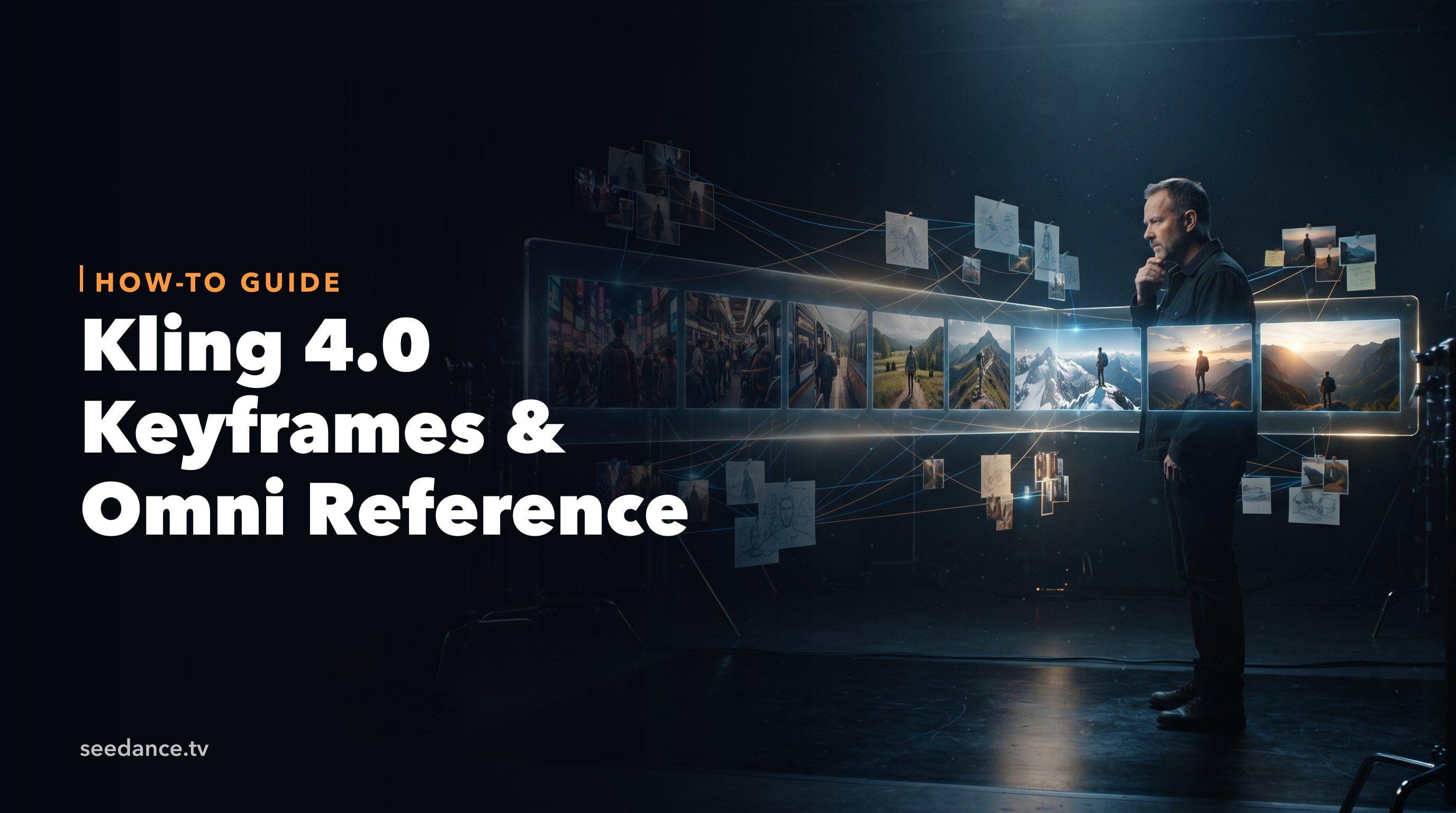
Kling 4.0 Keyframes & Omni Reference Guide
Learn how Kling 4.0 uses up to 10 keyframes and 15 Omni Reference assets in one 30-second video, with 3 worked plans, common mistakes, and Seedance 2.5 tips.
Read article