
Seedance for MiriCanvas Designs: Turn Static Templates into AI Videos
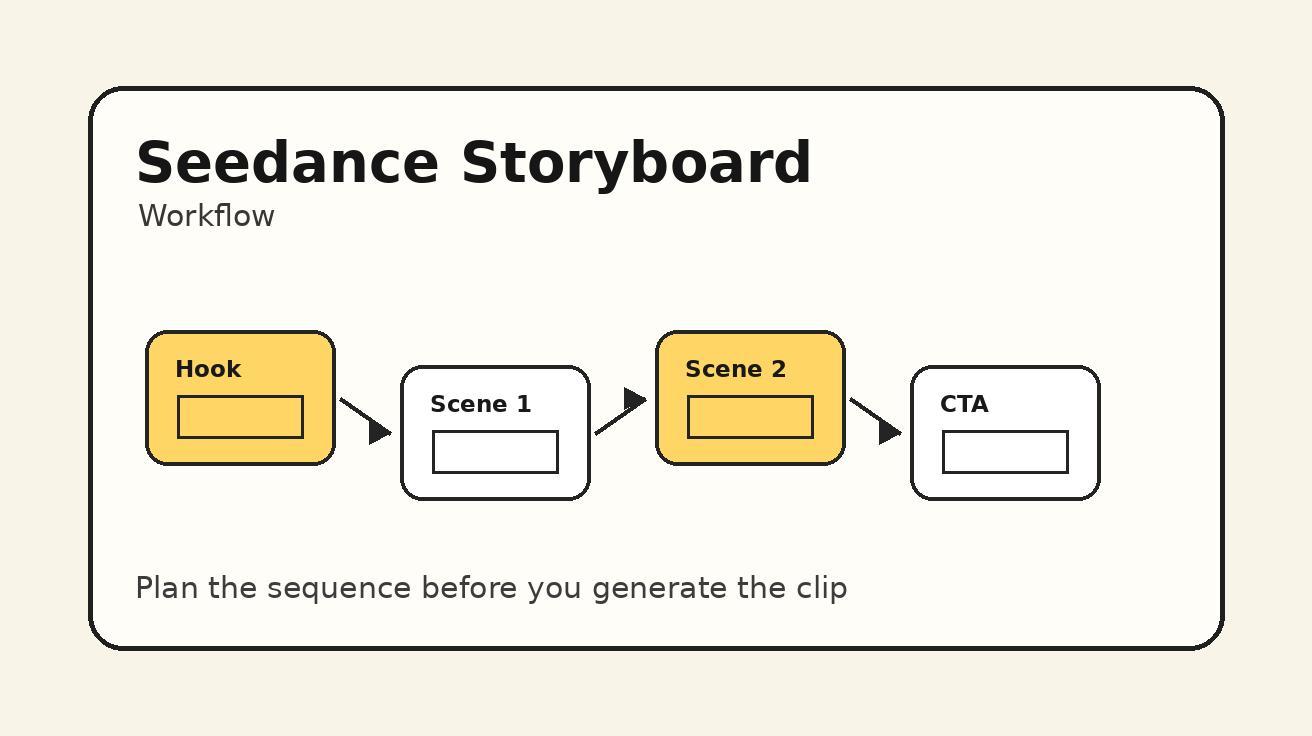

MiriCanvas is useful when you need clean social graphics, presentation slides, promo posters, thumbnails, banners, and campaign templates quickly. The challenge comes after the static design is approved: the same asset often needs to move. A still poster needs to become a Reel opener. A product card needs to become a short ad. A presentation cover needs to become an animated intro. A campaign graphic needs a lightweight motion version for TikTok, YouTube Shorts, Instagram Reels, website hero sections, and paid social testing.
That is where a Seedance MiriCanvas image to video workflow becomes practical. Instead of rebuilding the design in a motion editor from scratch, you can export a clean MiriCanvas design and use Seedance to turn the static template into a short AI video scene. The goal is not to replace design judgment. The goal is to preserve the layout, brand idea, color direction, and message from MiriCanvas while adding camera movement, depth, product motion, atmosphere, transitions, and a stronger first frame.
This guide explains how to move from MiriCanvas to Seedance without losing the marketing purpose of the original design. It covers export settings, prompt structure, animation choices, quality control, social formatting, use cases, and a repeatable review checklist. It is written for marketers, creators, ecommerce teams, educators, designers, and small teams that already use templates but want faster video output.
The workflow is simple: design the static asset in MiriCanvas, export the strongest version, prepare the visual hierarchy, upload the design to Seedance image-to-video, prompt the motion layer, generate controlled variations, then edit the best output with captions and sound. When done carefully, the result feels like a designed video rather than a random AI clip.
Quick Answer: How Do You Turn a MiriCanvas Design into a Video with Seedance?
Export your MiriCanvas design as a high-resolution image, then use Seedance image-to-video to animate the scene. Keep the original design simple, write a prompt that describes motion without changing the core layout, and generate short variations for social formats. Use Seedance when you want the poster, slide, card, thumbnail, or product graphic to gain depth, camera movement, transitions, or environmental energy.
A practical workflow looks like this:
- Choose one MiriCanvas design with a clear message.
- Remove unnecessary small text and clutter.
- Export the design at the highest useful resolution.
- Upload it to Seedance image-to-video.
- Prompt motion that supports the design instead of replacing it.
- Generate three to five variations.
- Select the most readable version and trim it for the target platform.
- Add captions, voiceover, music, or CTA in your editor.
If the static design contains a product, use /image-to-video to keep the product visible. If you are converting a written campaign idea without a finished design, start with /text-to-video. If you want to understand the model capabilities before building a repeatable workflow, review /seedance-2-0.
Why MiriCanvas Designs Need a Different AI Video Workflow
A MiriCanvas template is not a raw photo. It already has a design system: typography, spacing, color, illustration, graphic shapes, product placement, hierarchy, and a message. That makes it more valuable than a generic prompt, but it also creates constraints. If the AI video model changes the layout too aggressively, the output may look more cinematic but less useful. If it moves every element at once, the message becomes unreadable. If it invents new text, the video can become risky for ads or brand publishing.
The best Seedance workflow respects the design first. Think of the MiriCanvas export as an art board that needs motion direction. You are not asking Seedance to redesign the campaign. You are asking it to animate the design idea: a subtle push-in, a clean parallax reveal, a product glow, a paper-card lift, a background light sweep, a cursor-style transformation, a slide transition, or a before-and-after reveal.
This matters because static design templates often perform well for clarity. They are built to communicate quickly. Video performs when it adds attention and emotion without destroying clarity. The sweet spot is controlled motion: enough movement to stop the scroll, not so much that the viewer cannot read the offer.
For many marketing teams, this workflow saves time in three places. First, it avoids building a full motion design file for every small campaign. Second, it lets non-video designers test video concepts from assets they already understand. Third, it creates a bridge between design production and performance creative testing. One template can become multiple video openings, story ads, product reveals, and campaign teasers.
Best MiriCanvas Assets to Animate with Seedance
Not every template should become an AI video. The strongest candidates have one clear subject, a readable message, and enough visual space for motion. If the design is already crowded, animation will usually make it worse. Before exporting, choose assets that can survive movement.
Good MiriCanvas candidates include:
- product announcement cards
- sale posters and campaign covers
- event banners
- YouTube thumbnail concepts
- Instagram carousel covers
- course lesson covers
- app feature cards
- restaurant menus with one hero item
- real estate listing cards
- presentation title slides
- invitation designs
- brand mood boards
The common pattern is simple: one focal point, one message, one visual style. A product card with a clean background is easier to animate than a dense price list. A title slide with large type is easier to animate than a paragraph-heavy deck page. A poster with one hero image is easier to animate than a collage of ten elements.
If you want to animate a complex design, create a simplified video version inside MiriCanvas first. Duplicate the template, remove secondary text, keep the headline, preserve the product or hero graphic, and leave enough breathing room around important elements. Seedance can add depth and motion, but it cannot always rescue an asset that was designed only for close reading.
Export Settings and Pre-Flight Checklist
Before you upload a MiriCanvas export into Seedance, prepare the file like a video reference image. Use the cleanest version of the design, not a screenshot from a browser tab. Export at high resolution. Avoid tiny legal text, QR codes, dense pricing tables, and small interface details unless they are essential and you plan to keep the final video large enough for readability.
Use this pre-flight checklist:
| Check | Why it matters | What to do |
|---|---|---|
| Clear focal point | Seedance needs to understand what should move | Keep one hero product, object, or message |
| Readable headline | Motion can reduce legibility | Use large type and short copy |
| Safe margins | Video crops differently across platforms | Keep text away from edges |
| Simple background | Parallax needs visual depth | Use layers, gradients, or open space |
| No tiny details | AI motion may distort small text | Move legal details to caption or landing page |
| Strong contrast | Social feeds compress video | Avoid low-contrast text and busy backgrounds |
For aspect ratio, start from the platform you care about. A 9:16 vertical design works for TikTok, Reels, Shorts, and story placements. A 1:1 design works for feed experiments. A 16:9 design works for YouTube intros, website sections, presentations, and landing pages. If you need several formats, do not rely on one crop. Create separate MiriCanvas exports for each ratio, then animate each one in Seedance.
Prompt Formula for Seedance MiriCanvas Videos
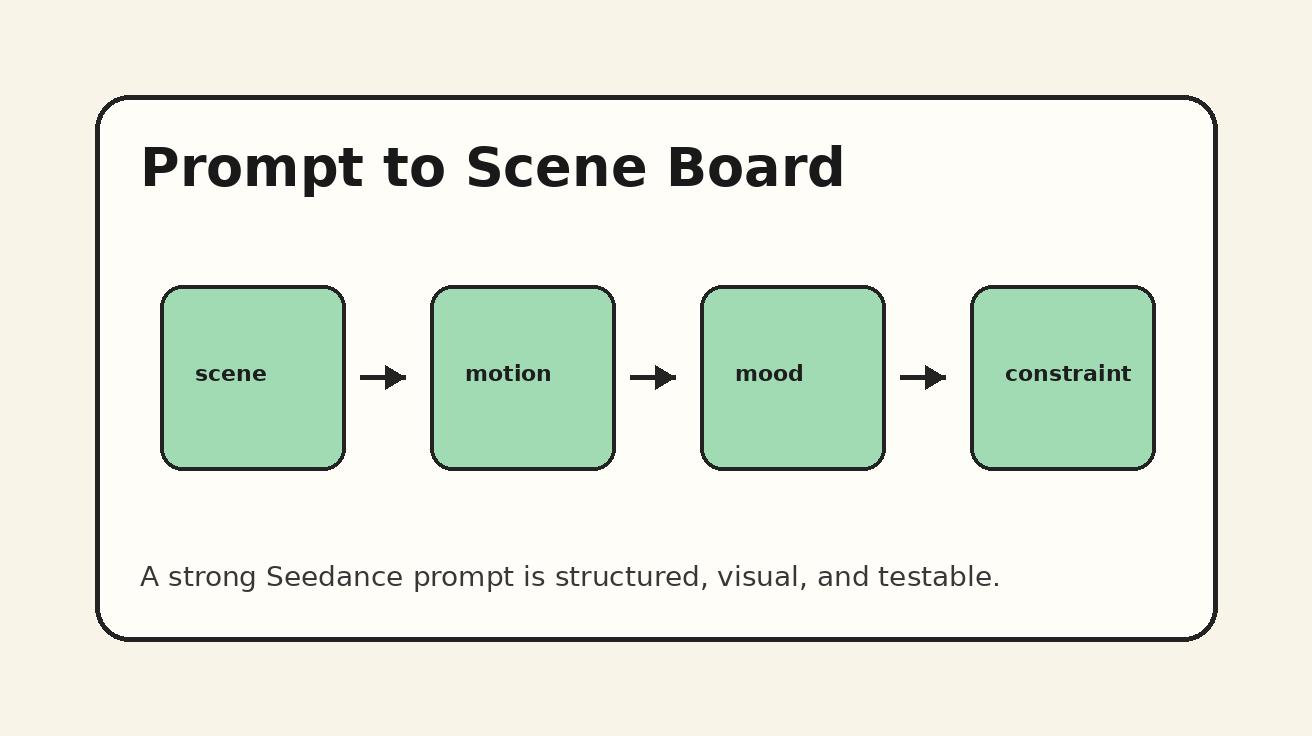
A good prompt should protect the design while adding motion. The mistake is to describe a new scene that ignores the reference image. The better approach is to describe the existing design as the visual source and tell Seedance which type of movement to add.
Use this formula:
Animate this MiriCanvas design into a short [platform/use case] video. Preserve the original layout, typography, color palette, product placement, and main message. Add [motion type] with [camera movement], [background depth], and [mood]. Keep all text readable. Do not replace the design. Do not invent new words.
Example for a product sale card:
Animate this MiriCanvas product sale design into a five-second vertical social ad. Preserve the layout, headline, discount badge, product image, and warm beige color palette. Add a slow camera push-in, gentle product lift, soft background light sweep, and subtle floating paper texture. Keep the text readable and do not change the words.
Example for an event poster:
Turn this MiriCanvas event poster into a short announcement video. Keep the title, date, and visual hierarchy intact. Add a smooth parallax reveal, slight camera drift, animated spotlight glow, and elegant entrance motion for the background shapes. Maintain a premium editorial style and avoid changing any text.
Example for a course slide:
Animate this MiriCanvas lesson cover as a clean educational intro. Keep the headline and instructor name fixed and readable. Add gentle depth, a slow zoom, floating notebook elements, and a calm studio-light effect. The final video should feel polished, minimal, and suitable for an online course opening.
The most important instruction is “preserve.” For template-to-video workflows, preservation is a feature, not a limitation. You want Seedance to add motion around the design system, not create a new campaign by accident.
Motion Styles That Work Well for Static Templates
Different MiriCanvas templates need different motion styles. A discount poster needs energy. A professional presentation needs restraint. A restaurant menu needs appetite appeal. A SaaS feature card needs clarity. Choose the motion style before generating, so the prompt has a clear direction.
1. Subtle Parallax
Parallax is the safest starting point. The foreground stays readable while the background shifts slightly, creating depth. Use it for posters, slides, social cards, and product graphics. Prompt language: “subtle parallax depth,” “foreground remains stable,” “background elements drift gently,” and “text stays sharp.”
2. Camera Push-In
A slow push-in can make a static template feel more cinematic without changing the layout. It works for sale announcements, thumbnails, course covers, and hero graphics. Prompt language: “slow camera push-in,” “centered composition,” “no sudden motion,” and “preserve all typography.”
3. Product Lift or Reveal
If the design includes a product image, ask for the product to lift, rotate slightly, catch light, or reveal a small shadow. Keep the effect restrained. Prompt language: “product gently lifts from the card,” “soft shadow expands,” “small highlight passes over the product,” and “do not change product shape.”
4. Background Light Sweep
A light sweep adds energy while leaving text alone. It is useful for premium ads, app launches, event posters, and ecommerce banners. Prompt language: “soft light sweep across the background only,” “headline remains static,” “brand colors preserved,” and “clean commercial motion.”
5. Paper or Card Animation
Many MiriCanvas templates look like cards, boards, stickers, notes, or paper layers. Seedance can animate those layers as if they are physical objects. Prompt language: “paper-card layers separate slightly,” “gentle floating motion,” “clean shadow depth,” and “no text morphing.”
6. Before-and-After Transformation
For templates about redesigns, makeovers, workflow improvements, or product results, a transformation can work. Use this carefully because it can change the design. Prompt language: “the static design transforms into a polished video preview while keeping the main headline visible,” “before-to-after motion,” and “controlled reveal, not chaotic.”
Use Case 1: Social Media Post to Short Video Ad
A common workflow is turning a MiriCanvas Instagram or TikTok post into a short paid-social creative. The static version already has the offer. Seedance adds the attention layer. Start with a vertical template, keep the headline short, and make the product or result visually dominant.
Prompt the opening as a five-second ad, not a full story. The first second should show the product or problem. The second and third seconds should add motion. The final seconds should hold long enough for the caption or CTA. If the generated video is beautiful but the offer disappears, reject it. Social ad videos need clarity more than decoration.
Use this prompt structure:
Create a five-second vertical video from this MiriCanvas ad design. Preserve the headline, product image, offer badge, and color palette. Add a quick but smooth attention-grabbing push-in, a subtle product lift, and a clean background light sweep. Keep the design readable for mobile viewers. Do not add new text.
After generation, bring the output into your editor. Add a caption like “Turn static campaign graphics into motion in minutes” or “Template to video: first draft ready.” Keep the caption outside any important design text. If you are running ads, test several hooks: product lift, background sweep, before-and-after reveal, and fast zoom.
Use Case 2: Presentation Slide to Video Intro
MiriCanvas presentation templates are useful for webinars, online courses, internal training, and pitch videos. A title slide can become a polished intro clip with Seedance. The key is restraint. A presentation intro should feel professional, not chaotic.
Start with the title slide only. Remove body paragraphs. Keep the title, subtitle, presenter name, logo, and maybe one illustration. Export a 16:9 design for video or a 9:16 design for mobile lessons. In Seedance, ask for a slow camera move, subtle depth, and gentle animation around background elements.
Prompt example:
Animate this MiriCanvas presentation title slide as a seven-second professional video intro. Keep the title and subtitle readable, preserve the blue and cream color palette, and add subtle depth to the illustration. Use a slow camera push-in and soft studio lighting. No new text, no dramatic transitions, no distortion.
This works especially well for educational brands because it upgrades static slides without forcing a full editing workflow. The final output can open a lesson, introduce a module, or become a short teaser for social posts.
Use Case 3: YouTube Thumbnail Concept to Animated Hook
A MiriCanvas thumbnail design can be turned into an animated hook for Shorts, Reels, or a YouTube intro. The thumbnail already contains the visual promise. Seedance can animate it into the first few seconds of the video.
For this workflow, simplify the thumbnail before exporting. Keep the face, product, object, or bold headline. Remove small secondary labels. Ask Seedance to animate depth, expression, environment, or reveal motion while keeping the headline readable. This is especially useful when you want a consistent visual language between thumbnail and video opening.
Prompt example:
Turn this MiriCanvas thumbnail concept into a four-second YouTube Shorts opening. Preserve the main headline and visual subject. Add a fast but clean camera push-in, slight background motion, and a dramatic light reveal. Keep the composition bold and readable on a phone screen. Do not change the words.
Then edit the generated clip before the main footage. The viewer sees the same promise in motion, which can make the transition from thumbnail to content feel more coherent.
Use Case 4: Brand Campaign Template to Multi-Platform Video Set
One of the biggest advantages of combining MiriCanvas and Seedance is versioning. A campaign can start as one design system and become a set of short videos. Create separate static exports for vertical, square, and widescreen formats. Then generate one Seedance variation for each format.
Do not simply crop one video into every placement. Cropping can cut off text, logos, or focal objects. Instead, create platform-specific MiriCanvas exports with safe margins. Then use the same motion direction across all versions. This keeps the campaign consistent while respecting each placement.
A campaign set might include:
- 9:16 launch teaser for Reels and Shorts
- 1:1 feed video for Instagram and LinkedIn
- 16:9 website hero loop
- 4:5 paid social creative
- 16:9 presentation opener
Use a shared prompt vocabulary: “same brand color palette,” “same headline,” “same product position,” “subtle parallax,” “soft commercial lighting,” and “clean premium motion.” This gives the set a consistent look.
Quality Control: What to Reject
AI video generation is fast, but you still need a rejection system. Do not publish the first output just because it moves. Review the clip like a designer and a performance marketer.
Reject a Seedance output if:
- the main text becomes unreadable
- the model changes the headline
- the product shape is distorted
- the logo is warped
- the design becomes too busy
- motion distracts from the offer
- important elements are cropped
- the video adds fake claims or new information
- the first frame is weaker than the original static design
Accept an output when the design remains recognizable, the message is readable, and motion improves attention. The best generated clip usually feels like the original designer intentionally made a motion version.
Editing the Seedance Output
After choosing the best Seedance variation, finish the video in an editor. Add captions, music, voiceover, logo outro, CTA, subtitles, or product screenshots as needed. Seedance creates the motion asset; the final edit turns it into a publishable marketing video.
For short social ads, keep the clip tight. Trim the first half-second if it starts too slowly. Hold the final frame long enough for the CTA. If the original MiriCanvas design has text, do not cover it with extra captions. If the generated video has no sound, add music or a simple sound effect that matches the motion.
For website hero loops, avoid aggressive motion. Export a clean loop or a short silent clip. Prioritize loading speed, readability, and brand fit. For presentations, use the Seedance video as a short opener rather than a background behind detailed information.
Prompt Examples by Template Type
Ecommerce Product Card
Animate this MiriCanvas ecommerce product card into a five-second vertical ad. Preserve the product image, headline, price badge, and warm color palette. Add a gentle product lift, soft shadow depth, and a premium light sweep across the background. Keep all text readable and do not invent new claims.
Event Poster
Turn this MiriCanvas event poster into a six-second announcement video. Keep the title, date, venue, and visual hierarchy fixed. Add a smooth parallax reveal, subtle spotlight movement, and elegant background motion. Make it feel modern, clean, and suitable for social promotion.
Restaurant Menu Feature
Animate this MiriCanvas restaurant feature card as a short food promo. Preserve the dish name, photo, and price placement. Add steam, warm light, a slight camera push-in, and gentle table depth. Keep the typography sharp and avoid changing menu text.
SaaS Feature Card
Convert this MiriCanvas SaaS feature graphic into a clean product video opener. Preserve the headline, UI card layout, and brand colors. Add a smooth interface reveal, subtle cursor-like movement, and background depth. Keep the motion minimal and professional.
Course Lesson Cover
Animate this MiriCanvas course cover as a calm seven-second lesson intro. Keep the title, module number, and instructor name readable. Add slow camera drift, floating paper notes, and soft studio lighting. Preserve the educational design style.
Common Mistakes
The first mistake is prompting Seedance to create a completely new video instead of animating the existing design. If the reference image is important, make preservation explicit. The second mistake is using too much text. Static designs can hold more text than video. If you plan to animate the design, simplify the copy first. The third mistake is ignoring aspect ratio. A square template may not work as a vertical Reel without redesign.
Another mistake is asking for every element to move. Motion hierarchy matters. Usually the background can move more than the text. The product can move slightly. The headline should often remain stable. If everything floats, rotates, glows, and zooms, the video feels like an effect demo rather than a campaign asset.
Finally, do not treat AI video as the final marketing decision. Generate variations and compare them. The winning output should serve the message, audience, and platform. A clip that looks impressive but fails to communicate is not a good ad.
Recommended Workflow for Teams
For teams, the strongest system is a weekly template-to-video sprint. Choose five MiriCanvas designs from current campaigns. Simplify each one for video. Generate three Seedance variations per design. Score them for readability, attention, brand fit, and platform readiness. Publish the best two or three. Save the prompt patterns that worked.
Over time, this creates a motion library. You will know which templates animate well, which prompt language preserves text, which aspect ratios produce better results, and which creative patterns drive better engagement. The workflow becomes faster because designers, marketers, and editors share the same vocabulary.
Keep a small prompt bank with labels such as “product lift,” “poster parallax,” “course intro,” “website hero loop,” “thumbnail hook,” and “campaign teaser.” When a new MiriCanvas design is ready, choose the closest prompt and adapt it instead of starting from scratch.
FAQ
Can Seedance animate a MiriCanvas template directly?
Yes. Export the MiriCanvas design as an image, then use Seedance image-to-video to animate it. The best results come from simple designs with one clear focal point and readable text.
Will Seedance keep the text exactly the same?
Seedance can preserve the design direction, but small text and complex typography may shift during generation. Use large headlines, reduce tiny copy, and include prompt instructions such as “keep all text readable” and “do not change the words.”
What type of MiriCanvas design works best for image to video?
Product cards, event posters, course covers, social graphics, and presentation title slides work well because they have clear hierarchy. Dense menus, legal text, and complex multi-column designs are harder to animate cleanly.
Should I use vertical or horizontal exports?
Choose the aspect ratio based on the final platform. Use 9:16 for TikTok, Reels, Shorts, and stories; 1:1 or 4:5 for feed posts; and 16:9 for YouTube, presentations, and website hero videos.
Is this workflow better than motion design software?
It is faster for first drafts, social experiments, and lightweight campaign motion. Motion design software is still better when you need exact frame-level control, brand-safe typography animation, or complex edits.
How many Seedance variations should I generate?
Generate at least three variations for any important MiriCanvas asset. Compare readability, product accuracy, motion quality, and platform fit before editing the final clip.
Final Takeaway
MiriCanvas helps teams create clean static designs quickly. Seedance helps turn those static assets into motion without rebuilding every campaign from zero. The best workflow is not random animation. It is controlled design preservation plus purposeful motion.
Start with a simple MiriCanvas template, export a clean image, use Seedance image-to-video, protect the layout, add one clear motion style, and finish the best clip in your editor. With that process, a single static design can become a social ad, story opener, website loop, course intro, or campaign teaser while still feeling like part of the same brand system.
Ready to create your own AI video?
Turn ideas, text prompts, and images into polished videos with Seedance. If this article helped, the fastest next step is to try the product.
Free credits on signup. Plans from $20/month.
Related Articles
More posts in the same locale you may want to read next.

Seedance App Preview Video Generator 2026: Create App Store and Product Launch Clips
Use Seedance to turn app screenshots, feature copy, and launch goals into App Store previews, Google Play promo videos, and product launch clips.
Read article
Best Resolution for AI Video on Facebook Reels (2026)
Use the best resolution for AI video on Facebook Reels with a practical 1080x1920 preset, 9:16 safe zones, frame-rate guidance and upload QA.
Read article
Luma Ray3 Modify Strength Settings: Adhere, Flex, or Reimagine?
Choose the right Luma Ray3 Modify strength for subtle edits, restyling, or full transformations with a repeatable Adhere, Flex, and Reimagine test.
Read article