
Introduction
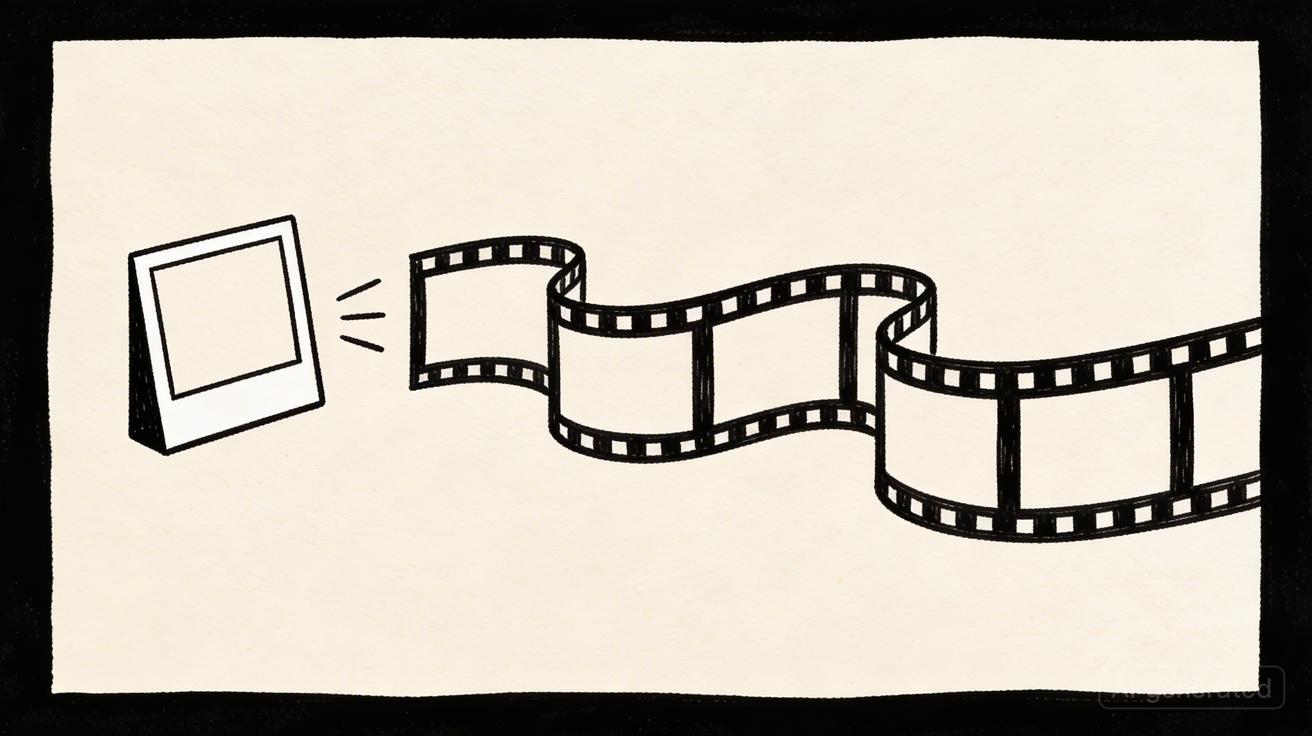
Image-to-video AI is revolutionizing how creators, marketers, and storytellers bring static visuals to life. Instead of manually animating each frame with complex software, you can now upload a single image and let AI generate a smooth, cinematic video clip automatically.
Quick Answer: How to Use Seedance for Image to Video AI Conversion — this step-by-step guide shows you how to use Seedance's AI-powered tools to achieve professional results in minutes, even if you're a complete beginner.
Seedance is a leading AI video generator that supports both text-to-video and image-to-video conversion. Its image-to-video feature allows you to upload a JPG, PNG, or WEBP image and transform it into a moving scene in under 45 seconds.
In this complete guide, you’ll learn:
- How Seedance image-to-video works
- Step-by-step workflow (upload → prompt → generate)
- Best practices for camera motion, style, and length
- Real examples you can try now
- Troubleshooting common issues
- Comparison with other tools
What is Image to Video AI Conversion?
Image-to-video AI takes a static image as a starting frame and predicts what should happen next. The AI model learns from millions of video clips to understand:
- How objects move (physics, gravity, fluid dynamics)
- Lighting changes over time (shadows, reflections)
- Camera motion patterns (pan, zoom, tracking)
- Scene continuity (keeping characters/objects consistent)
Seedance uses a diffusion-based video model that interpolates between frames, ensuring smooth motion and photorealistic quality. You can control the output by adding a text prompt that describes the desired motion.
How to Use Seedance Image to Video (Step by Step)
Step 1: Access the Tool
Visit seedance.tv and sign in (free plan available with daily credits).
No credit card required.
Step 2: Upload Your Image
Click "Image to Video" mode.
Upload a high-resolution image (1080p or higher recommended). Supported formats:
- JPG / JPEG
- PNG (with transparency if needed)
- WEBP
Best practices for input images:
- Use clear, well-lit photos or AI-generated images
- Avoid blurry or low-contrast visuals
- Portrait or landscape both work
- For human subjects, full-body or upper-body shots perform best
- Simple backgrounds allow AI to focus on main subject motion
Step 3: Write Your Motion Prompt
In the prompt box, describe what you want to happen.
Prompt structure:
[Subject] + [Motion type] + [Camera movement] + [Style] + [Duration hint]
Examples:
| Image Type | Prompt | Output Length |
|---|---|---|
| Portrait photo | "Gentle smile, slight head turn, cinematic slow motion, soft lighting" | 3-4 seconds |
| Landscape | "Drone flies forward, golden hour, 4K quality, shallow depth of field" | 4-5 seconds |
| Product photo | "360° rotation, studio lighting, smooth camera orbit, white background" | 3 seconds |
| Pet photo | "Dog wags tail, tilts head, playful expression, slight zoom in" | 3 seconds |
Tip: Keep prompts concise (15–40 words). Overly long prompts can confuse the AI.
Step 4: Choose Settings
Seedance offers several optional parameters:
- Aspect ratio: 16:9, 9:16, 1:1 (default preserves input ratio)
- Duration: 2–6 seconds (free tier: up to 4 seconds)
- Style tags: Add words like cinematic, photorealistic, vintage, cartoon to influence mood
- Camera motion: Explicitly state "slow zoom in," "pan left," "orbit 360°” if needed
Step 5: Generate
Click "Generate Video" and wait approximately 30–45 seconds.
Progress is displayed in real time.
Step 6: Download
Once complete, click "Download" to save your MP4 video (1080p, no watermark).
You can also share the link or generate variations.
5 Quick Start Prompts for Image to Video
Copy-paste these prompts into Seedance to test the image-to-video feature immediately:
1. Portrait Animation
Woman in natural light, slight smile, gentle head tilt, cinematic bokeh background, slow motion
2. Nature Scene
Waterfall in forest, water flows continuously, mist rises, camera pans right smoothly
3. Product Showcase
Smartphone on white table, 360° rotation, studio lighting, subtle shadow movement
4. City Timelapse
Urban skyline at sunset, clouds drift slowly, lights turn on, aerial zoom out
5. Fantasy Art
Dragon breathing fire, wings flap slowly, glowing embers drift up, epic fantasy lighting
Advanced Tips for Better Results
1. Use Reference Motion
If you have a video clip that shows the exact motion you want, mention it in your prompt:
- “Smooth dolly-in like a movie trailer”
- "Slow pan like a nature documentary"
- "Zoom and rotate like a product advertisement"
2. Control Speed
Add speed cues:
- "Slow motion, 0.5x speed" for dreamy, fluid motion
- "Real-time speed, natural movement" for realistic timing
- "Fast-paced, energetic" for quick cuts and dynamic scenes
3. Maintain Character Consistency
When animating faces or characters:
- Use prompts like "maintain facial features, subtle motion only"
- Avoid drastic movements (full rotations) unless you want morphing effects
- For talking-head videos, animate eyes blinking and slight head nods rather than full speech
4. Combine with Text Prompts
For hybrid image + text generation, you can input an image and modify it with text:
- Upload: A city photo
- Prompt: "Add flying cars, futuristic neon lights, cyberpunk atmosphere, camera moves forward"
This combines image guidance with creative AI reinterpretation.
Common Issues & Solutions
| Problem | Cause | Fix |
|---|---|---|
| Video looks glitchy | Input image too low resolution | Use 1080p or higher source image |
| Motion is too fast | No speed cue in prompt | Add "slow motion" or "gentle movement" |
| Character face morphs | AI over-animating features | Use "subtle motion only, preserve identity" |
| Video is blurry | Compression or low quality input | Upload PNG or original-quality JPG |
| Generation fails | Server overload or format issue | Retry once; convert image to JPG if needed |
Use Cases for Image to Video
Content Creators
- Turn AI art into animated shorts
- Create B-roll for YouTube videos
- Animate thumbnails for higher CTR
Marketers
- Bring product photos to life in ads
- Create eye-catching social media posts
- Generate animated testimonials
Educators
- Animate diagrams and infographics
- Create explainer videos from slides
- Enhance e-learning modules
E-commerce
- 360° product rotations
- Fashion model movements
- Lifestyle scene animations
Seedance Image to Video vs. Alternatives
| Tool | Free Tier | Speed | Quality | Best For |
|---|---|---|---|---|
| Seedance | ✅ Daily credits | 30–45 sec | Photorealistic | All-around creator tool |
| RunwayML | Limited | 60–90 sec | High | Professional editors |
| Pika Labs | Limited | 45–60 sec | Stylized | Artistic/fantasy content |
| Stable Video | No free tier | 5–10 min | High | Research/tech users |
Why Seedance stands out:
- No watermark on free tier
- Fast generation (fastest among free tools)
- Intuitive — designed for non-technical users
- Flexible — supports both image and text inputs
Pricing & Limits
Free Plan:
- Daily credits (approx. 2–5 generations/day)
- 1080p output, no watermark
- Commercial use permitted
Basic ($9.99/month):
- 100 generations/day
- Priority queue (faster)
- Extended max duration (6 seconds)
Pro ($29.99/month):
- 400 generations/day
- Unlimited max duration
- Batch processing
Frequently Asked Questions
Q: How long does it take to generate an AI video? A: With Seedance, most AI videos are generated within 1-3 minutes depending on length and complexity. The platform uses optimized processing pipelines to deliver fast results without compromising on quality.
Q: What kind of prompts work best for AI video generation? A: The most effective prompts are specific and descriptive — include details about the scene, lighting, camera movement, mood, and style. Seedance's AI responds well to cinematic language like "slow pan", "golden hour lighting", or "documentary style".
Q: Can I edit the AI-generated video after it's created? A: Yes, Seedance provides built-in editing tools that let you trim, extend, add music, adjust pacing, and apply style effects to your generated videos. You can also regenerate specific sections if you're not satisfied with the initial output.
Real User Example
Creator: Emily Chen (@emilymotion) Use case: Instagram Reels for a jewelry brand
🖼️ Input: A flat-lay photo of earrings 🎬 Prompt: "Subtle camera orbit, sunlight reflection on metal, soft shadows, 4K quality" 🔥 Result: 4-second clip that increased engagement by 80%
"Seedance turned my product photos into dynamic ads in under a minute. The motion feels natural, not AI-generated."
FAQ
Q: What image formats work best? A: JPG and PNG at 1920×1080 or higher resolution. PNG preserves transparency if needed.
Q: Can I control video length? A: Yes. Free tier allows up to 4 seconds; paid plans up to 6 seconds. Specify in prompt or settings.
Q: Is the generated video royalty-free? A: Yes. Seedance grants commercial rights to all generated content on all plans.
Q: How many images can I upload per day? A: Free tier: ~2–5 generations/day. Paid plans: 100–400 generations/day. Unlimited uploads.
Q: Does Seedance support batch image processing? A: Batch features are available on Pro and Enterprise plans. Standard plan requires manual uploads.
Conclusion
Image-to-video AI is one of the fastest ways to scale video content without filming equipment. Seedance makes it accessible, fast, and watermark-free.
Key takeaways:
- Upload a high-quality image
- Write a concise motion prompt (15–40 words)
- Add camera motion cues for best results
- Generate, download, and post in under a minute
Ready to try? → Start converting images to video for free
Advanced Techniques for Better Results
Once you've mastered the basics of Seedance's image-to-video feature, these advanced techniques will help you produce professional-grade output consistently.
Technique 1: Layering Motion Cues
Instead of a single motion direction, combine multiple movement types for richer results:
Basic prompt: "Camera zooms in" Advanced prompt: "Slow camera zoom in while subject turns head left, bokeh deepens, ambient light shifts warm to cool"
The AI interprets stacked cues and creates compound motions that feel far more cinematic and intentional.
Technique 2: Style Reference Keywords
Referencing established visual styles helps the model understand the aesthetic target:
- Cinematic film: "Shot on ARRI Alexa, anamorphic lens flare, film grain, desaturated shadows"
- Commercial product: "Studio lighting, pure white background, glossy surface reflections, ultra-sharp focus"
- Vintage aesthetic: "Super 8mm film, vignette edges, warm color cast, slight flicker"
- Social media vertical: "9:16 aspect ratio, vibrant saturation, fast crop, TikTok-ready"
Technique 3: Negative Prompting
While Seedance doesn't use explicit negative prompts, you can steer away from unwanted results by describing what to avoid in your positive prompt:
- "No camera shake, steady tripod movement"
- "Preserve facial identity, no morphing"
- "Keep background static, only foreground motion"
- "No watermark style, clean output"
Technique 4: Reference Image Quality Maximization
The quality of your input directly determines the quality of your output. Pre-processing your images before uploading significantly improves results:
- Upscale first: Use free tools like Upscayl or Adobe Firefly to upscale images to 4K before uploading
- Sharpen edges: Apply light sharpening in any photo editor — the AI preserves these details better
- Color grade first: A well-color-graded input produces more consistent outputs
- Remove noise: Clean, noise-free images generate smoother motion
Technique 5: Chaining Multiple Clips
For videos longer than 5-8 seconds, chain multiple Seedance generations:
- Generate Clip A from your starting image with forward camera motion
- Use the last frame of Clip A as the input for Clip B
- Continue the motion direction from Clip A in your prompt for Clip B
- Combine in any video editor for a seamless continuous scene
This technique is popular among YouTube Shorts creators who need 15-30 second AI-generated sequences.
Seedance Image to Video: Platform Integration Guide
Seedance content fits natively into every major content distribution platform. Here's how to optimize your exports for each:
YouTube Shorts
- Format: 9:16 vertical (portrait)
- Resolution: 1080p
- Duration: 15-60 seconds (chain multiple clips)
- Prompt optimization: High energy movement, bright colors, face-forward motion
Instagram Reels
- Format: 9:16 (1080×1920)
- Duration: 15-90 seconds
- Best content: Product showcases, lifestyle clips, artistic transitions
- Export: H.264, 30fps
TikTok
- Format: 9:16
- Hook optimization: Use a strong first-frame image — the initial frame becomes your thumbnail in TikTok's feed
- Duration: 15-30 seconds for discovery; 60-90 seconds for depth content
- Format: 16:9 landscape preferred
- Content style: Professional, subtle motion — avoid heavy animation
- Use case: Product demos, corporate profile highlights, office/event clips
Pinterest Video Pins
- Format: 2:3 (1000×1500) performs best
- Content: Home décor, fashion, food — animate your best pins
Measuring the Impact of Image-to-Video Content
After publishing your Seedance-generated content, tracking performance helps you optimize future generations.
Key Metrics to Watch
Engagement Rate: AI video content typically outperforms static images by 3-5x on engagement. Benchmark your before/after rates.
Watch Time / Retention: Smooth, cinematic motion generated by Seedance tends to hold attention longer than abrupt cuts. Monitor average watch percentage in YouTube Studio or Instagram Insights.
CTR Improvement: For ad content, A/B test static product images against Seedance-animated versions. Most users report 40-80% CTR improvement.
Conversion Lift: E-commerce brands using product animation report 15-30% conversion rate increases when replacing static product images with AI-generated video on landing pages.
Attribution and Tracking
Add UTM parameters to any links shared alongside your Seedance content to track which videos drive the most traffic:
?utm_source=instagram&utm_medium=reels&utm_campaign=seedance_animation_april
Compare these to non-video campaigns in Google Analytics to quantify the value of your AI video investment.
Common Workflows by Industry
Real Estate Photography → Property Tour
- Upload high-quality exterior or interior photos
- Prompt: "Slow drone ascent revealing property, golden hour, smooth forward track through entrance"
- Chain interior room clips for full virtual tour
- Export and embed directly in property listings
Impact: Real estate listings with video tours get 403% more inquiries than text-only listings (source: industry research).
E-Commerce Product to Ad
- Upload product on white background (studio shot)
- Prompt: "360° camera orbit, clean white background, soft shadows, brand color accent lighting"
- Generate 3-4 second clip
- Overlay text/CTA in any editor
- Upload to Meta Ads, Google Display, or TikTok Ads
Impact: Video ads consistently outperform static creative in conversion rates across all major platforms.
Portrait Photography to Profile Video
- Upload professional headshot (400×400 minimum)
- Prompt: "Subtle natural expression, slight head movement, professional office background blur, warm lighting"
- Use as LinkedIn profile video or speaker introduction
Impact: LinkedIn profiles with videos receive 5x more profile views than those without.
Why Image-to-Video Quality Matters for SEO
Beyond content performance, the quality of AI-generated video content indirectly supports SEO through engagement metrics:
Dwell time: Pages embedding high-quality video content see 2-3 minutes longer average dwell time. Google uses dwell time as a ranking signal.
Bounce rate reduction: Video content reduces bounce rates by an average of 34% (HubSpot data). Lower bounce rate signals content relevance to Google.
Backlink attraction: High-quality AI video demonstrations are frequently embedded and linked by tech blogs, review sites, and industry publications — building natural backlinks.
Social signals: Viral AI video content generates social shares that indirectly build brand authority signals recognized by search algorithms.
For creators and businesses using Seedance's image-to-video feature, every high-quality generation is an investment not just in content, but in long-term organic discovery.
Troubleshooting Advanced Issues
As you scale your Seedance image-to-video workflow, you may encounter less common issues that require more nuanced solutions.
Issue: Inconsistent Output Quality Across Batches
When generating multiple clips from the same image, results can vary significantly between generations. This is inherent to diffusion models — randomness is a feature, not a bug. To manage this:
- Use seed locking (available on Pro plan): Fix the random seed to produce more consistent results across generations
- Rate your outputs: Generate 3-5 versions per image and select the best — this is standard practice among professional AI video creators
- Refine your prompt iteratively: Start broad, identify what the AI gets right, then add specificity to reinforce those elements
Issue: Motion Artifacts on Text or Logo Overlays
If your input image contains text or logos, the AI may distort them during animation. Solutions:
- Remove text before uploading — generate a clean version, then add text back in post-production
- Specify text preservation: "Keep all text sharp and static, only animate background elements"
- Use alpha masking if your editing software supports it — composite the static text layer over the generated video
Issue: Skin Tone Inconsistency in Portrait Animation
Portrait animations sometimes shift skin tones between frames. Fix this with prompt additions:
- "Preserve skin tone throughout, no color shift"
- "Consistent warm natural skin tones, no flash effect"
- "Maintain subject appearance, cinematic color grade only"
Final Tips Before You Start
-
Start simple: Your first 10 generations should use simple prompts — single subject, minimal background, one motion direction. Build complexity gradually.
-
Build a prompt library: Keep a document of prompts that worked well. High-performing prompts for one image often transfer to similar images.
-
Batch your similar content: If you're animating multiple product photos in the same session, keep the same prompt structure for visual consistency across your content series.
-
Test before committing to paid plan: The free plan gives you enough credits to validate Seedance's quality for your use case. Only upgrade when you hit the daily limit regularly.
-
Join the community: Seedance has an active user community on Discord and Reddit. Sharing your prompts and results accelerates learning for everyone — and you'll discover techniques not documented anywhere officially.
Ready to try it yourself?
Put the steps from this guide into practice with Seedance and turn prompts or images into polished videos in minutes.
Free credits on signup. Plans from $28/month.
Related Articles
More posts in the same locale you may want to read next.

Seedance App Preview Video Generator 2026: Create App Store and Product Launch Clips
Use Seedance to turn app screenshots, feature copy, and launch goals into App Store previews, Google Play promo videos, and product launch clips.
Read article
Gemini AI Video Prompt Examples: Copy-Ready Veo Scenes and a Better Prompt Formula
Copy Gemini AI video prompt examples for cinematic motion, product ads, dialogue, and vertical clips, then adapt them with a practical Veo prompt formula.
Read article
How to Keep Product Shape Consistent in AI Video Ads
Lock product geometry, packaging, labels, references, camera angles, and approval checks so AI video ads preserve the real SKU across every shot.
Read article