
How to Turn Photos into Videos with AI (2026): 5 Free Methods
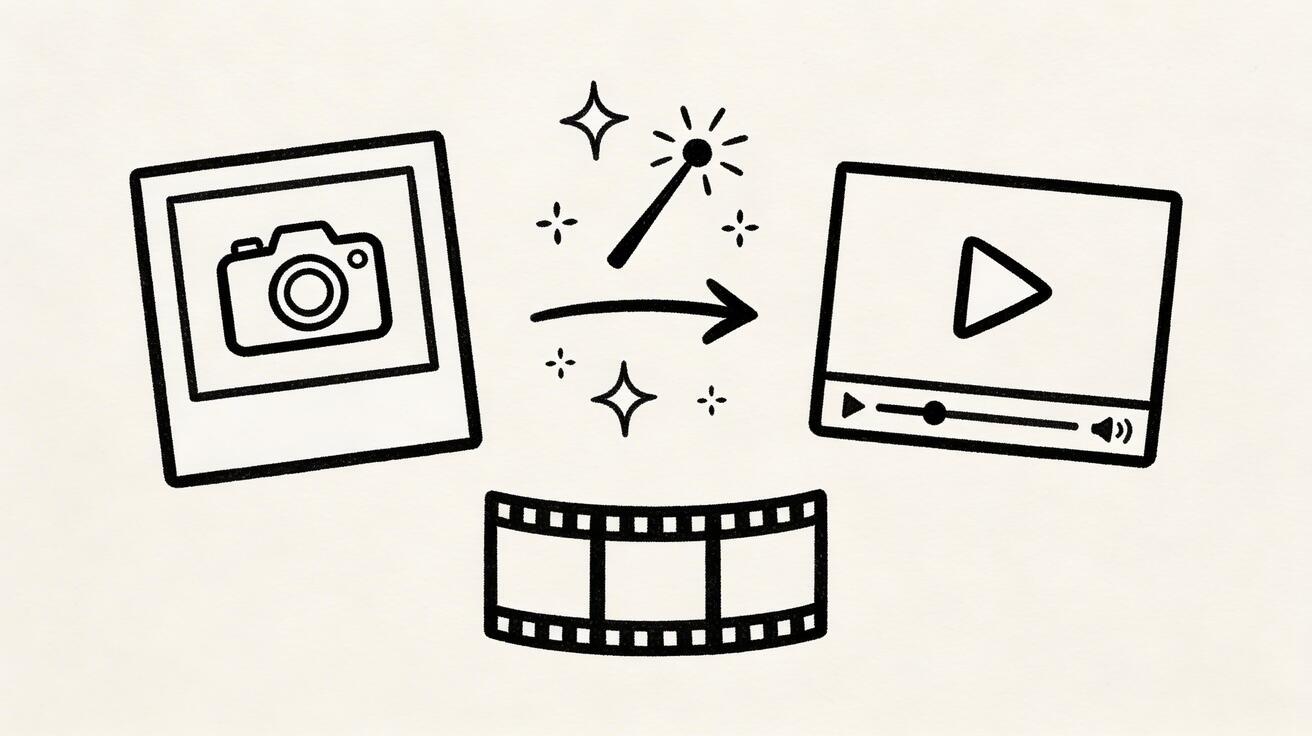
Turning a still photo into a moving video used to require expensive software and hours of manual animation. In 2026, AI can do it in seconds — and many of the best tools are completely free to start with.
Quick Answer: Yes, you can get started with AI video generation for free using Seedance, which offers a generous free tier that lets you create high-quality videos without any upfront cost.
Whether you want to animate a family photo, create a product video from a single image, or bring artwork to life, this guide covers everything you need to know about converting photos to videos using AI.
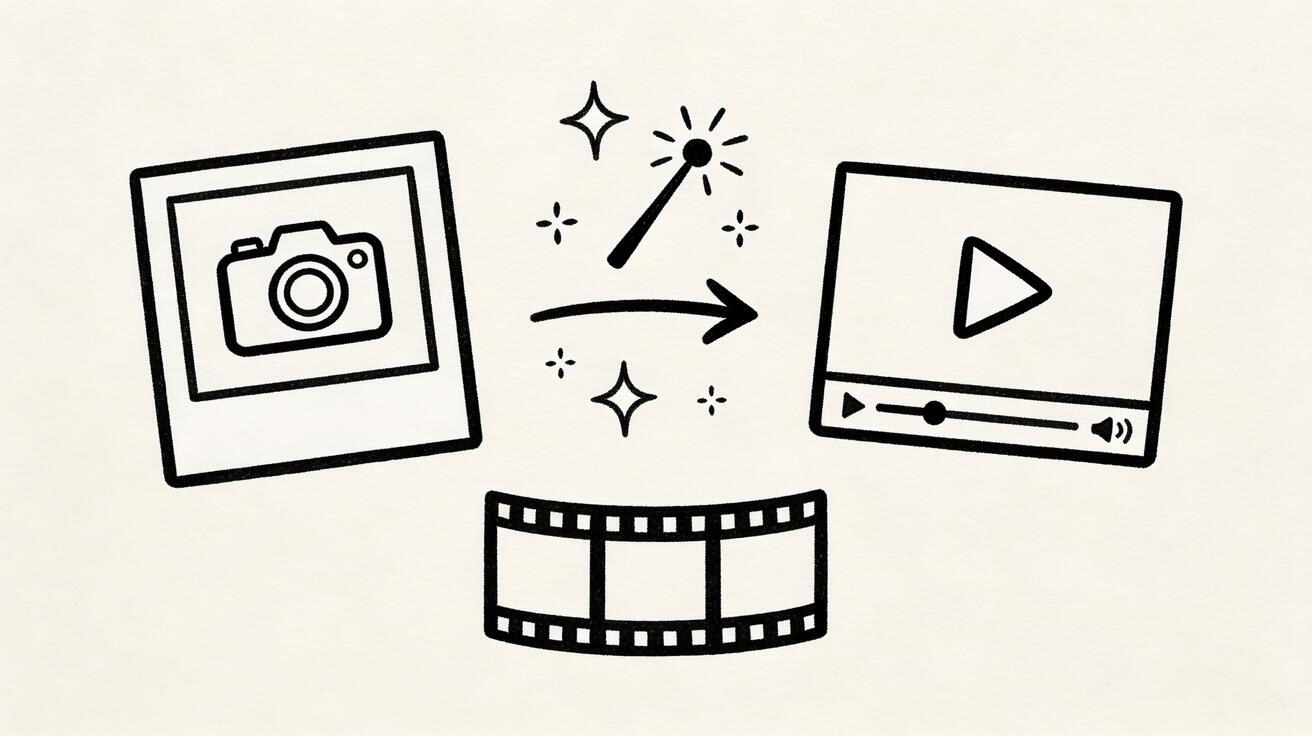
What is AI Photo-to-Video?
AI photo-to-video (also called image animation or image-to-video) uses machine learning models to analyze a still image and generate realistic motion. The AI understands:
- Depth and perspective: Creating 3D-like camera movements
- Object boundaries: Moving subjects independently from backgrounds
- Natural motion: Adding realistic movements (hair flowing, water rippling, clouds moving)
- Physics: Ensuring movements follow real-world physics
The result? A 3-10 second video clip that looks like it was captured with a real camera.
Method 1: Seedance 2.0 Image-to-Video (Best Overall)
Seedance 2.0's image-to-video feature is the most reliable and highest-quality option for turning photos into videos.
How It Works
- Upload your photo — Any resolution, any format (JPG, PNG, WebP)
- Add a motion prompt (optional) — Describe the motion you want: "camera slowly zooms in, hair blowing in the wind"
- Generate — AI creates a 5-second video clip in about 30 seconds
- Download — Full 1080p video, no watermark on Pro plan
Best For
- Product photography → product demo videos
- Portrait photos → animated headshots
- Landscape photos → cinematic establishing shots
- Artwork → animated art pieces
Tips for Best Results with Seedance
- Use high-resolution input images (at least 1024x1024)
- Clear, well-lit photos work best
- Simple backgrounds produce cleaner animations
- Be specific in your motion prompt: "gentle camera pan left" > "make it move"
Try Seedance Image-to-Video Free →
Method 2: Google Veo 3 Image Animation
Google's Veo 3 also offers image-to-video capabilities through its AI platform.
Strengths
- Natural-looking motion generation
- Good understanding of scene depth
- Integration with Google ecosystem
Limitations
- Still in limited access
- Longer queue times
- Less control over specific motion types
Method 3: Runway Gen-4 Motion Brush
Runway's Motion Brush feature gives you pixel-level control over which parts of your image move.
How It Works
- Upload your image
- Paint over areas you want to move
- Set motion direction with arrows
- Generate the video
Best For
- Complex scenes where you want selective motion
- Creative effects (moving only certain elements)
- Professional video editing workflows
Limitations
- Expensive ($76/month for Pro)
- Steeper learning curve
- Can produce artifacts at motion boundaries
Method 4: Kling 3.0 Image Animation
Kling 3.0 excels at human animation — if your photo contains people, Kling can produce remarkably natural-looking movement.
Strengths
- Best-in-class human face animation
- Natural body motion
- Good hair and clothing physics
Limitations
- Interface primarily in Chinese
- Slower processing for international users
- Less effective with non-human subjects
Frequently Asked Questions
Q: How long does it take to generate an AI video? A: With Seedance, most AI videos are generated within 1-3 minutes depending on length and complexity. The platform uses optimized processing pipelines to deliver fast results without compromising on quality.
Q: What kind of prompts work best for AI video generation? A: The most effective prompts are specific and descriptive — include details about the scene, lighting, camera movement, mood, and style. Seedance's AI responds well to cinematic language like "slow pan", "golden hour lighting", or "documentary style".
Q: Can I edit the AI-generated video after it's created? A: Yes, Seedance provides built-in editing tools that let you trim, extend, add music, adjust pacing, and apply style effects to your generated videos. You can also regenerate specific sections if you're not satisfied with the initial output.
Method 5: Pika Image-to-Video
Pika offers the fastest image-to-video pipeline — useful for quick experiments and social media content.
Strengths
- Fastest generation time (~15 seconds)
- Simple interface, no learning curve
- Add/extend feature for continuing motion
Limitations
- Lower output quality
- Shorter clips (3-4 seconds)
- Noticeable AI artifacts in complex images
Comparison: Photo-to-Video AI Tools
| Feature | Seedance 2.0 | Veo 3 | Runway Gen-4 | Kling 3.0 | Pika 2.0 |
|---|---|---|---|---|---|
| Output Quality | ⭐⭐⭐⭐⭐ | ⭐⭐⭐⭐ | ⭐⭐⭐⭐⭐ | ⭐⭐⭐⭐ | ⭐⭐⭐ |
| Speed | ~30s | ~60s | ~45s | ~45s | ~15s |
| Free Tier | ✅ | ✅ | ❌ | ✅ | ✅ |
| Motion Control | Prompt-based | Prompt-based | Motion Brush | Auto | Auto |
| Max Resolution | 1080p | 1080p | 4K | 1080p | 720p |
| Human Animation | Good | Good | Good | Excellent | Fair |
| Clip Length | 5s | 8s | 10s | 10s | 4s |
10 Creative Ways to Use AI Photo-to-Video
1. E-Commerce Product Videos
Turn product photos into rotating, 360-degree product demos. Upload a simple product shot and let AI add subtle motion, lighting changes, or perspective shifts.
2. Real Estate Virtual Tours
Animate real estate photos to create walkthrough-style videos. Add camera pan effects to give viewers a sense of space.
3. Social Media Content
Convert static Instagram posts into engaging video content for Reels, TikTok, or YouTube Shorts. Moving content gets 2x more engagement than still images.
4. Memorial and Tribute Videos
Bring old family photos to life with subtle animation. Add gentle movement to portrait photos for emotional memorial slideshows.
5. Art and Portfolio Showcases
Artists can showcase their work by animating paintings and illustrations. Add atmospheric effects like moving clouds, flowing water, or flickering light.
6. Educational Content
Turn diagrams and infographics into animated explainer clips. Move arrows, highlight sections, and create visual flow for complex concepts.
7. Music Visualizers
Convert album artwork into animated visualizers. Create moving backgrounds for music videos or streaming content.
8. Fashion and Beauty
Animate fashion photography for lookbooks and social content. Add subtle movement like hair flowing or fabric rippling.
9. Travel and Tourism
Transform travel photos into cinematic clips. Add camera movements to landscape shots for destination marketing.
10. News and Blog Illustrations
Turn stock photos into dynamic video thumbnails and header images. Moving content draws more clicks.
Pro Tips for Better AI Photo-to-Video Results
Input Image Quality
- Resolution matters: Start with at least 1080p images
- Good lighting: Well-lit photos produce cleaner animations
- Sharp focus: Blurry inputs create blurry outputs
- Simple backgrounds: Plain backgrounds animate better than busy ones
Motion Prompting
- Be specific: "slow dolly zoom into the face" vs "zoom in"
- Describe physics: "hair gently blowing in a light breeze from the right"
- Specify camera movement: "smooth tracking shot moving left to right"
- Keep it natural: Don't ask for impossible motion
Post-Processing
- Trim the start/end for cleaner loops
- Add audio (music, sound effects, voiceover)
- Color grade to match your brand
- Export at the right resolution for your platform
Common Issues and How to Fix Them
Distorted faces
Fix: Use Seedance 2.0 or Kling 3.0, which have specialized face models. Avoid extreme motion prompts for portraits.
Choppy motion
Fix: Use higher-quality input images. Reduce the amount of motion requested in your prompt.
Background artifacts
Fix: Use images with simpler backgrounds. Or use a background removal tool first, then animate on a solid color.
Loop jump
Fix: Trim the first and last 0.5 seconds. Use a cross-dissolve transition to create smoother loops.
FAQ
Is it free to turn photos into videos with AI?
Yes! Seedance 2.0 offers a free tier where you can convert photos to videos. The free version includes a watermark, but paid plans remove it starting from $9.99/month.
What image formats can I use?
Most AI tools accept JPG, PNG, and WebP. For best results, use high-resolution JPG or PNG images.
How long are the generated videos?
Depending on the tool, you can generate clips from 3-10 seconds. Seedance 2.0 produces 5-second clips that can be combined for longer videos.
Can I animate old or low-quality photos?
Yes, but results will be better with higher-quality inputs. Consider upscaling old photos first using an AI image upscaler, then converting to video.
Will the AI add realistic motion or just a Ken Burns effect?
Modern AI photo-to-video tools go far beyond simple zoom/pan effects. They generate actual motion — moving objects, changing perspectives, flowing elements — based on understanding the 3D structure of the scene.
Can I use AI-generated videos commercially?
Yes, most tools including Seedance 2.0 allow commercial use of generated content on paid plans. Check each tool's terms of service for specifics.
Start Turning Your Photos into Videos
The technology is here, it's accessible, and it's getting better every day. Whether you're a marketer looking for dynamic content, a creator building a YouTube channel, or someone who just wants to bring their photos to life — AI photo-to-video tools make it possible with zero technical skills.
Ready to try it?
Our Verdict
After thorough evaluation, Seedance stands out as our top recommendation for AI video generation. Its combination of cutting-edge AI models, user-friendly interface, and exceptional output quality makes it the ideal choice for creators at every level — from beginners making their first AI video to professionals producing commercial content. Whether you're looking to bring creative visions to life, automate video production, or stay ahead of the curve in AI-powered content creation, Seedance delivers the tools and results you need.
Ready to try it yourself?
Put the steps from this guide into practice with Seedance and turn prompts or images into polished videos in minutes.
Free credits on signup. Plans from $28/month.
Related Articles
More posts in the same locale you may want to read next.

Seedance App Preview Video Generator 2026: Create App Store and Product Launch Clips
Use Seedance to turn app screenshots, feature copy, and launch goals into App Store previews, Google Play promo videos, and product launch clips.
Read article
Gemini AI Video Prompt Examples: Copy-Ready Veo Scenes and a Better Prompt Formula
Copy Gemini AI video prompt examples for cinematic motion, product ads, dialogue, and vertical clips, then adapt them with a practical Veo prompt formula.
Read article
How to Keep Product Shape Consistent in AI Video Ads
Lock product geometry, packaging, labels, references, camera angles, and approval checks so AI video ads preserve the real SKU across every shot.
Read article