
How to Download & Save Your Seedance 2.0 Videos (2026 Guide)
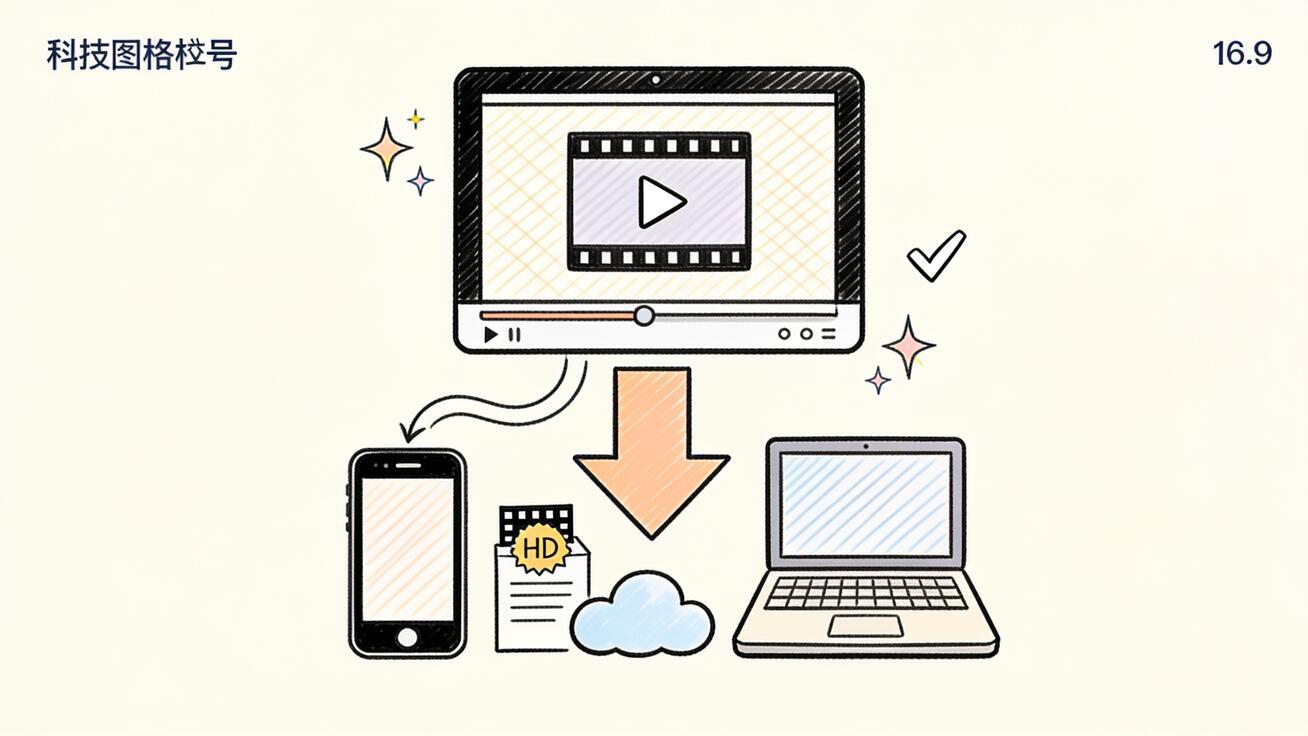
You spent ten minutes crafting the perfect prompt, picked the right model, and Seedance finally rendered the clip you wanted. Now comes the part nobody explains clearly: getting that file off the screen and onto your phone, laptop, or cloud drive in a format you can actually use. This guide covers the full Seedance 2.0 download process — how to save your generated videos as clean MP4 files, which resolution to export, how to handle the watermark question, and where to store clips so you can edit, post, or archive them without losing quality.
This is not a "how to install the app" article. Seedance runs in your browser, so there is nothing to download to start creating. What people actually search for when they type "seedance 2.0 download" is how to export and save the video they already generated. That is exactly what we'll solve here.
Quick Answer: How to Download a Seedance 2.0 Video
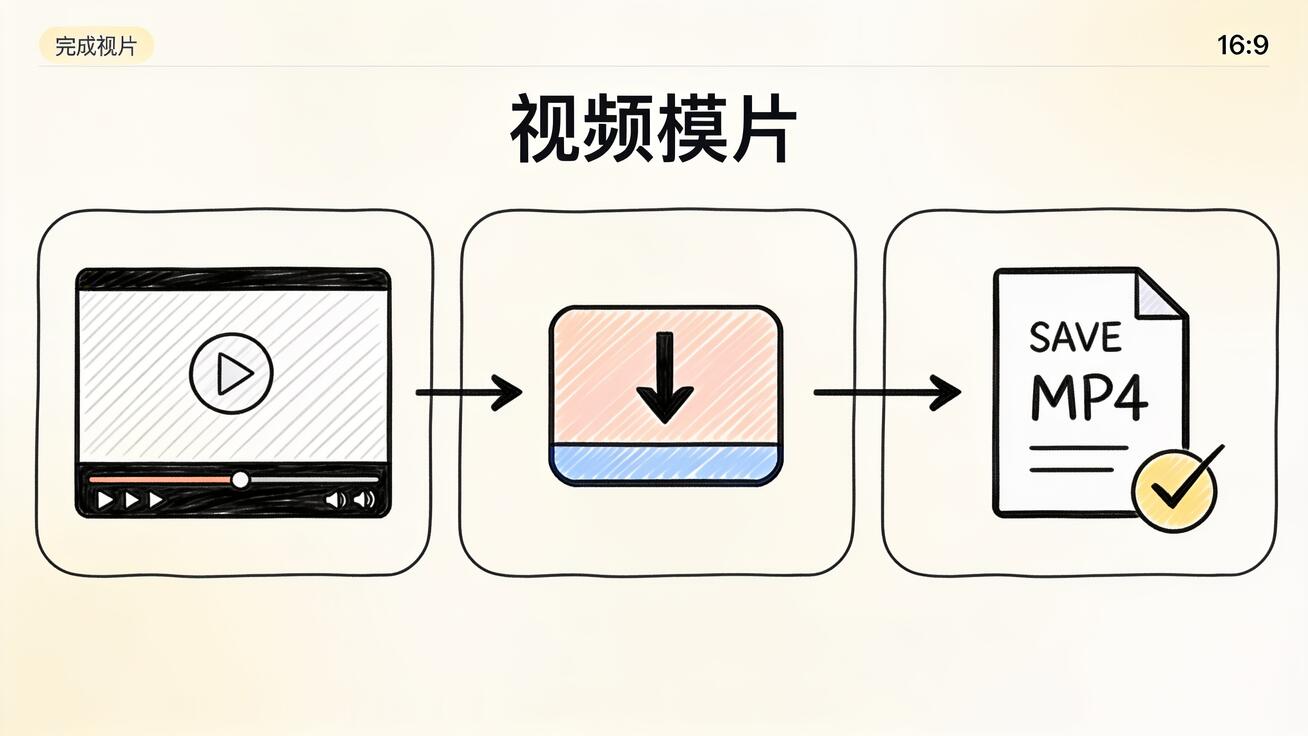
After your clip finishes rendering, open it from your generation history, click the download control on the result, and Seedance saves an MP4 file to your device. On desktop it lands in your browser's Downloads folder; on mobile it saves to your camera roll or Files app. Choose the highest resolution your plan allows (1080p is the standard export tier), confirm the file plays back correctly, then move it to cloud storage if you need to edit or share it across devices.
That is the 30-second version. The rest of this guide explains each decision — format, resolution, watermark, storage, and batch exports — so your downloaded videos are ready for TikTok, YouTube, a client deliverable, or your own archive.
Step-by-Step: Saving Your Generated Seedance Video
The download flow is short, but a couple of choices affect the quality and usability of the final file. Here is the full sequence.
1. Find your finished clip
Every video you generate stays in your account's history or output gallery. If you just rendered the clip, it appears at the top of your results. If you're coming back later, open your library and scroll to the project you want. Seedance keeps your renders so you don't have to regenerate — that history is your source file, so treat it like one.
2. Open the result at full size
Click the clip to expand it to the full player rather than the thumbnail. This matters: exporting from the full-size view gives you the actual rendered resolution, and it lets you preview the clip end-to-end before you commit to saving it. Watch the whole thing once. Check the last frame, the motion, and any text or faces — it's much faster to catch a problem here than after you've posted it.
3. Use the download control
On the expanded result, look for the download or export button (usually a downward-arrow icon near the play controls). Click it and Seedance prepares the MP4. For a short clip this is near-instant; longer or higher-resolution renders take a few seconds to package.
4. Choose your resolution
If your plan offers more than one export tier, pick the highest one you have access to. 1080p (Full HD) is the standard target for social platforms and looks crisp on phones and most screens. Only step down to 720p if you specifically need a smaller file for fast uploads or messaging. We go deeper on this choice in the resolution section below.
5. Confirm the file saved and plays
On desktop, the MP4 appears in your Downloads folder — open it once to confirm it plays start to finish with no corruption. On mobile, check your camera roll or Files app. This 5-second check saves you from discovering a half-downloaded file right when you're about to publish.
That's the core workflow. If you only generate one clip at a time, you're done. If you produce videos in volume, keep reading for batch tips.
What Format Does Seedance Export?
Seedance exports standard MP4 video using H.264 encoding — the most universally compatible video format there is. That matters because MP4/H.264 plays natively on essentially everything: iPhone and Android, Windows and macOS, every major social platform, and every video editor from CapCut to Premiere Pro.
You do not need to convert anything. The file you download is upload-ready for:
- TikTok, Reels, and Shorts — vertical and square clips drop straight into the native editors.
- YouTube — both Shorts and standard landscape uploads.
- Editing timelines — import the MP4 directly into CapCut, DaVinci Resolve, Premiere, or Final Cut.
- Presentations and websites — embed the MP4 in a landing page hero, a product demo, or a slide.
If a specific platform ever rejects a file, it's almost never the format — it's usually the aspect ratio or duration limit for that platform, not the MP4 itself. Plan your aspect ratio at generation time (vertical 9:16 for TikTok, landscape 16:9 for YouTube) so you don't have to re-crop after download.
Which Resolution Should You Download?
Resolution is the single biggest quality decision in the download step, and it's worth getting right because re-rendering costs you time and credits.
Pick 1080p for almost everything. Full HD is the sweet spot: sharp on every phone, clean on laptops and TVs, and accepted at full quality by every social platform. For client work, product demos, and anything that represents a brand, 1080p is the floor you want.
Use 720p only when the file size genuinely matters — for example, embedding a background loop on a web page where you're optimizing load time, or sending a quick preview over a messaging app. 720p is lighter but visibly softer on large screens.
A few practical notes on resolution:
- The export resolution can't exceed what the model rendered. If you generated at a lower setting, downloading "1080p" won't add detail that was never there — set your target resolution before you generate.
- Higher resolution means a bigger file. A short 1080p clip is still small enough to handle easily, but a batch of them adds up — plan your storage accordingly.
- If you need to upscale further for a large display, do that in a dedicated editor after download rather than expecting the export step to do it.
For a full breakdown of Seedance's resolution and clip-length options and how they interact with each model, see our Seedance video length and resolution guide. If you're specifically chasing crisp Full HD output, the Seedance 2.0 1080p workflow walks through getting the cleanest possible HD render.
The Watermark Question: Downloading Clean Videos
This is the part people most want answered before they download, especially for anything public-facing or commercial.
Whether your exported clip carries a watermark depends on your plan and export settings, not on some hidden trick. Free tiers across most AI video tools tend to add a small watermark; paid tiers generally give you a clean export. So the honest answer is: check your export options before you download, and if a clean file is what you need, that's a plan-level setting rather than something you remove after the fact.
A few guidelines:
- Don't crop the watermark out. Cropping wrecks your aspect ratio and framing, and it's a worse outcome than just exporting clean in the first place.
- Don't run downloaded clips through sketchy "watermark remover" sites. They re-compress your video (quality loss), and you're handing your content to a third party.
- Do decide before you generate. If the clip is going on a brand channel or to a client, confirm you're exporting from a tier that gives you a clean file before you spend credits rendering it.
We cover the full picture — what's watermarked, when, and how to plan around it — in the Seedance watermark guide, and the cleanest free export path in the Seedance no-watermark export workflow.
Saving to Phone, PC, and Cloud
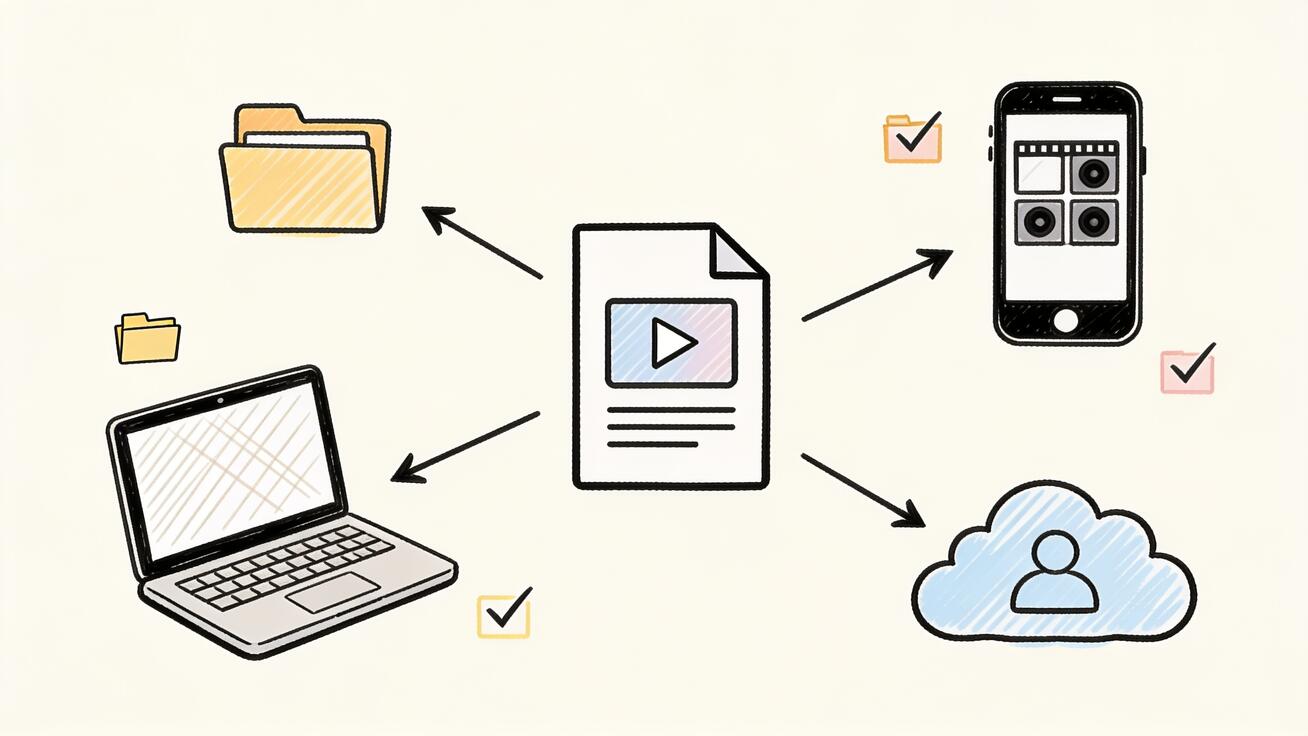
Where your downloaded Seedance video ends up determines how easily you can edit and share it. Here's how to handle each destination.
Saving to your computer (PC or Mac)
This is the simplest case. The download lands in your browser's Downloads folder as an MP4. From there:
- Drag it straight into your editor's media bin.
- Or move it into a project folder so you don't lose track of it among other downloads.
Pro tip: rename the file immediately. Seedance and most tools export with a generic or hashed filename. Renaming it to something like product-demo-hero-1080.mp4 saves you from hunting through a pile of similar files later.
Saving to your phone
Because Seedance runs in the browser, you can generate and download directly on mobile without installing anything. After you tap download:
- On iPhone: the file typically saves to your Files app, or you can save it to Photos to get it into your camera roll for direct posting to TikTok or Instagram.
- On Android: it saves to your Downloads folder, and from there you can move it to your Gallery or open it directly in the TikTok/Reels uploader.
If you do most of your creating on a phone, our Seedance mobile guide for iOS and Android covers the full mobile generation and export flow, and how to use Seedance on mobile walks through the browser-based mobile workflow end to end.
Saving to the cloud
If you work across devices — generate on desktop, edit on a laptop, post from your phone — push your downloads to cloud storage so every clip is available everywhere.
- Download the MP4 to whichever device you're on.
- Upload it to Google Drive, Dropbox, iCloud, or your team's shared storage.
- Organize by project or campaign so a teammate (or future you) can find the right clip fast.
Cloud storage is also your backup. Your Seedance history is convenient, but a clip you'll reuse for a client deliverable or an ad campaign belongs in storage you control. Download it, back it up, and you never have to worry about regenerating it.
Downloading Multiple Videos Efficiently
If you generate in volume — say you rendered three variations of a product clip to A/B test — a few habits keep your downloads organized instead of chaotic.
- Generate variations, then review before downloading. Open each version full-size, compare motion and consistency, and only download the keepers. There's no reason to clutter your Downloads folder with rejects.
- Download the winners at full resolution. For the variations you're keeping, export each at 1080p so you have production-ready files, not previews.
- Rename as you go.
tiktok-ad-v1.mp4,tiktok-ad-v2.mp4, and so on. Future you will be grateful. - Move finished files into a project folder or cloud folder immediately instead of letting them pile up in Downloads.
This A/B workflow — generate several versions from the same prompt or source image, compare, then export the best — is one of the most useful habits in AI video, and it starts with treating the download step as deliberate rather than an afterthought.
Reusing what you've downloaded
A downloaded clip isn't only a finished deliverable — it's raw material. Once the MP4 is on your device, you can pull it into an editor to trim the head and tail, stack two clips into a longer sequence, add captions or a logo, or drop a music track underneath. Because the export is a clean MP4, every editor treats it like any other piece of footage, so there's no special handling required. Keep your best renders in one cloud folder per campaign and you'll build a small library you can recut for new platforms without spending fresh credits. The clip you saved for a TikTok ad this week can become the hero loop on a landing page next month — but only if you actually downloaded it and stored it somewhere you control rather than leaving it in your generation history.
A Quick Word on Generating Download-Ready Clips
The cleanest download starts before you ever click export. A couple of choices at generation time make the saved file immediately usable:
- Set your aspect ratio for the destination. Vertical 9:16 for TikTok and Reels, landscape 16:9 for YouTube, square 1:1 for feed posts. Getting this right at generation means no re-cropping after download.
- Choose your model and resolution for the output you need. Seedance 2.0, the lightweight Seedance Mini, and other available models render differently — pick the one that fits your clip's purpose, and set the highest resolution you'll want before you generate.
- Write a prompt that nails it on the first pass so you're not re-rendering. For example:
"A handheld product shot of a matte-black water bottle on a kitchen counter, soft morning light from a window, slow push-in camera move, shallow depth of field, photoreal, 5 seconds."
A specific prompt like that — subject, setting, lighting, camera move, length — gets you a clip worth downloading the first time. You can build clips from a text prompt with text to video, or animate an existing photo or product shot with image to video. Either way, once the render lands, the download steps above apply identically.
Troubleshooting Downloads
A few issues come up often. Here's how to clear them fast.
- The download button does nothing. Make sure the clip has fully finished rendering — you can't export a video that's still processing. Refresh the page and reopen the clip from your history if it seems stuck.
- The file won't play after downloading. It probably didn't finish downloading. Delete the partial file and download again on a stable connection.
- The clip won't upload to a platform. Check that platform's duration and aspect-ratio limits — the MP4 format is fine, but the clip may be too long or the wrong shape for that specific app. Fix this at generation time by setting the right aspect ratio.
- The quality looks soft. You likely exported below 1080p, or the clip was generated at a lower resolution than you exported. Re-render at a higher resolution setting; the export step can't add detail the render didn't capture.
- You can't find the file on mobile. Check your Files/Downloads app, not just your camera roll — on some browsers the MP4 saves to Files first, and you move it to Photos manually.
FAQ
Do I need to download an app to use Seedance 2.0? No. Seedance runs in your browser on desktop and mobile, so there's nothing to install to start creating. The "download" that matters is saving the video you generate as an MP4, which is what this guide covers.
What format are Seedance videos saved in? Standard MP4 (H.264), which plays and uploads everywhere — phones, computers, social platforms, and every major video editor — with no conversion needed.
Can I download Seedance videos in 1080p? Yes. 1080p (Full HD) is the standard export target and the right choice for nearly all social and client work. Set your resolution before generating, since the export can't exceed the rendered resolution.
Will my downloaded video have a watermark? That depends on your plan and export settings. Check your export options before downloading; if you need a clean file for a brand or client, export from a tier that provides one rather than trying to remove a watermark afterward.
Where do my downloaded Seedance videos go? On desktop, to your browser's Downloads folder. On mobile, to your Files app or camera roll. From there, move clips to a project folder or cloud storage so they're backed up and easy to find.
Can I save Seedance videos to my phone directly? Yes. Because Seedance works in the mobile browser, you can generate and download right on your phone — the MP4 saves to Downloads or Photos and is ready to post.
Conclusion
The Seedance 2.0 download step is short, but the choices around it decide whether your saved file is production-ready or a soft, watermarked preview you have to redo. Open your finished clip at full size, export it as a 1080p MP4, confirm it plays, and move it to cloud storage if you'll reuse it. Decide on aspect ratio, resolution, and watermark before you generate, so the file you download is ready to post or edit the moment it lands.
Got a clip you're happy with? Open it, hit download, and save it clean. Ready to make the next one — try Seedance free and turn a prompt or a photo into a video worth keeping.
Ready to try it yourself?
Put the steps from this guide into practice with Seedance and turn prompts or images into polished videos in minutes.
Free credits on signup. Plans from $28/month.
Related Articles
More posts in the same locale you may want to read next.

Seedance App Preview Video Generator 2026: Create App Store and Product Launch Clips
Use Seedance to turn app screenshots, feature copy, and launch goals into App Store previews, Google Play promo videos, and product launch clips.
Read article
Gemini AI Video Prompt Examples: Copy-Ready Veo Scenes and a Better Prompt Formula
Copy Gemini AI video prompt examples for cinematic motion, product ads, dialogue, and vertical clips, then adapt them with a practical Veo prompt formula.
Read article
How to Keep Product Shape Consistent in AI Video Ads
Lock product geometry, packaging, labels, references, camera angles, and approval checks so AI video ads preserve the real SKU across every shot.
Read article