
Seedance No-Watermark Video Generator 2026: Free Export Workflow
If you are searching for a Seedance no watermark workflow, you are probably trying to solve a practical production problem: you need AI video clips that look clean enough to send to a client, post on a landing page, test in paid social, or reuse across Reels, TikTok, Shorts, and YouTube without an accidental badge in the corner. The goal is not to remove somebody else's watermark or bypass a paid license. The goal is to plan a clean, compliant export path from the first prompt to the final master file.
That distinction matters. A watermark-free video is only useful if it is also rights-safe, brand-safe, and technically clean. You need to control what Seedance generates, avoid fake logos or unreadable text inside the frames, export from an editor that does not add its own mark, inspect the final file outside the browser, and keep a clean archive. This guide gives you a free export workflow that teams can repeat without turning every video into a manual rescue job.
Seedance is especially useful for this because the model is strong at short, polished, visually coherent clips. You can start with a text prompt in the Seedance text-to-video workflow, animate product or lifestyle assets through Seedance image-to-video, and use the newer motion and consistency improvements covered in the Seedance 2.0 guide. When the prompt, review, edit, and export steps are handled correctly, Seedance can become the creative engine behind a clean no-watermark publishing pipeline.
What “Seedance no watermark” should mean in 2026
For production work, “no watermark” should not mean “download a trial clip and erase the logo.” That is risky and usually unnecessary. A better definition is:
A Seedance no-watermark workflow is a planned process for generating, editing, exporting, and verifying clean AI video files without visible platform branding, unauthorized logo removal, or hidden licensing problems.
This definition protects you in three ways.
First, it keeps the creative process compliant. If a tool adds a watermark by design, do not remove it with a crop, blur, inpaint, or overlay trick unless the platform explicitly permits that use. Use a plan, tier, editor, or export path that gives you clean files legitimately.
Second, it keeps your output professional. Even if a watermark is gone, a clip can still look cheap if Seedance generated random corner text, fake UI labels, glitchy brand marks, or unreadable signage. A clean export starts inside the prompt, not at the download button.
Third, it keeps the workflow repeatable. A freelancer can get lucky with one clip. A growth team needs a repeatable system: prompt template, generation notes, file naming, editor settings, export presets, and final QA.
Throughout this article, “Seedance no watermark” refers to that repeatable, rights-safe workflow.
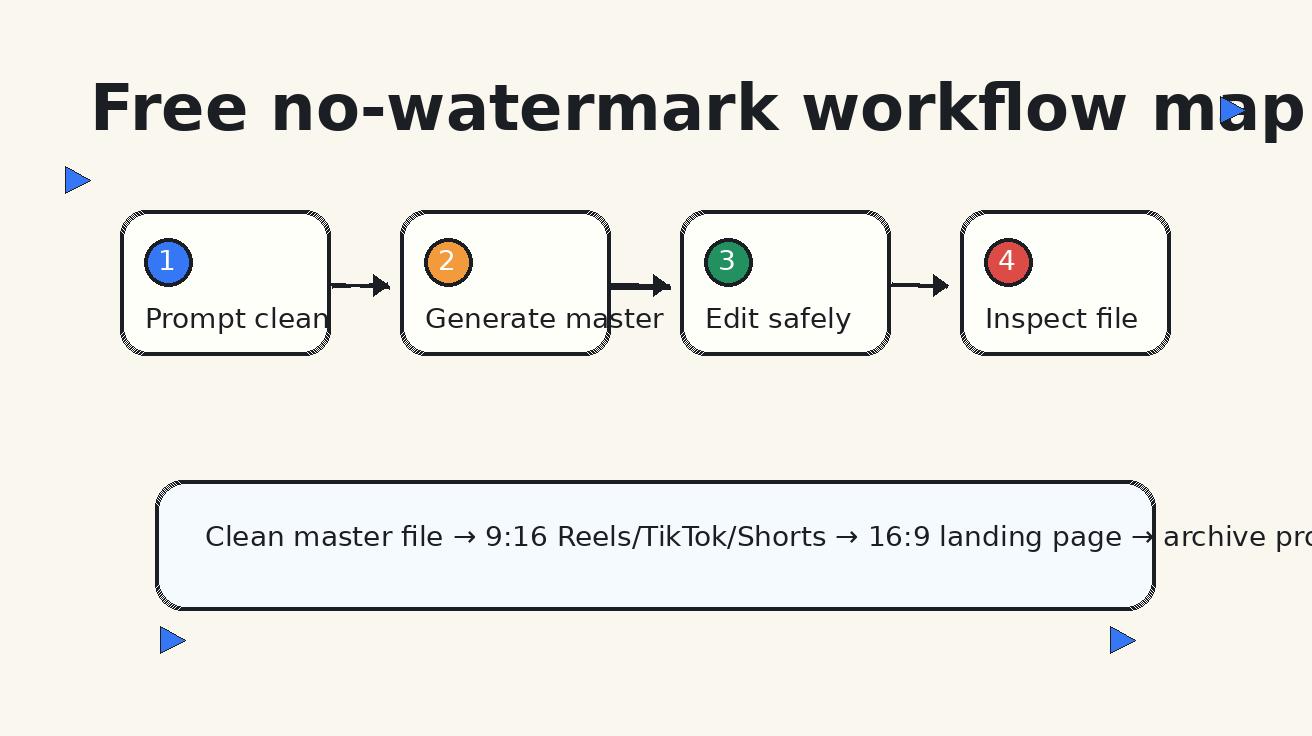
Quick workflow summary
Use this checklist when you need a clean Seedance export quickly:
- Write a clean prompt that says no logos, no badges, no platform UI, no watermarks, no lower thirds, and no random text.
- Generate the Seedance clip in the aspect ratio you actually need, rather than cropping heavily later.
- Review the raw output frame by frame for accidental text, fake brand marks, and corner artifacts.
- Edit only in a no-watermark editor that you have tested with your account and export settings.
- Export a clean master file first, then create platform-specific versions.
- Open the exported file outside the editor and inspect all corners, first frames, last frames, and transitions.
- Archive the raw clip, project file, clean master, and platform exports so the team can prove what was used.
That is the short version. The rest of the guide explains how to make each step reliable.
Step 1: Start with a watermark-safe Seedance prompt
The easiest watermark problem to fix is the one you prevent before generation. AI video models can sometimes invent text-like marks because they have learned visual patterns from screens, ads, subtitles, stock footage, social videos, or product shots. If your prompt simply says “make a cinematic product ad,” the model may decide that a corner logo, interface label, or decorative caption belongs in the scene.
Add explicit negative instructions to every Seedance prompt when the final file must be clean.
Use wording like:
Create a clean commercial video clip with no watermark, no logo, no badge, no platform UI, no lower-third graphic, no captions, no random text, no unreadable letters, no stickers, and no corner marks. Keep the scene natural and uncluttered.
For product or marketing clips, add:
Do not invent brand names, package labels, claims, prices, ratings, platform icons, app screens, or certification badges. Use only the product details provided in the reference image or prompt.
For social videos, add:
Leave safe empty space for captions that will be added later in the editor. Do not generate embedded subtitles or overlay text.
This makes the Seedance output easier to reuse. Add text, captions, logos, callouts, disclaimers, and offer details later in an editor where the team can control spelling, placement, and legal review.
Step 2: Choose the right Seedance entry point
A no-watermark workflow is not only about export settings. The generation path affects how much cleanup you need.
Text-to-video for concepts and scenes
Use Seedance text-to-video when you need a new scene: a cinematic product setup, a lifestyle clip, a travel shot, a SaaS demo metaphor, a background plate, or a social hook. Text-to-video is flexible, but it also needs stronger prompt control because the model invents the whole scene.
Best use cases:
- Brand-safe lifestyle clips without visible logos
- Generic product-use scenes
- Explainer backgrounds
- Ad hooks and mood shots
- Landing page hero loops
Text-to-video is best when the visual concept matters more than exact product identity.
Image-to-video for products and assets
Use Seedance image-to-video when the source image must remain recognizable. This is usually the safer option for ecommerce, app previews, real estate, hospitality, creator thumbnails, and paid social tests. You can start with a product image, screenshot, room photo, or designed creative, then ask Seedance to add motion.
Best use cases:
- Product clips where the object must stay consistent
- App or dashboard previews where the UI should not be reinvented
- Listing photos turned into short motion clips
- Before-and-after shots
- Creator or brand asset animation
For no-watermark exports, image-to-video also makes review easier because you know what the source should look like. If a corner mark, fake label, or strange text appears, it is easier to catch.
Seedance 2.0-style workflows for motion consistency
For more advanced clips, use Seedance workflows that emphasize motion, camera direction, subject consistency, and scene coherence. This is helpful when you need multiple clean exports from the same creative system: three hooks, two aspect ratios, and several CTA variants.
The key is to separate generation from finishing. Let Seedance create the clean motion. Let the editor add approved text and branding. Let the export QA confirm that no platform mark appears.
Step 3: Build a free export folder structure
A clean workflow becomes much easier when files are organized before editing begins. Use a simple folder structure for every Seedance project:
project-name/
  01-prompts/
  02-seedance-raw/
  03-editor-project/
  04-clean-master/
  05-platform-exports/
  06-qa-screenshots/
The 01-prompts folder should include the final prompt, negative instructions, aspect ratio, target use case, and any source-image notes. This helps you repeat successful Seedance settings later.
The 02-seedance-raw folder stores original downloads. Never overwrite these files. If a clip later fails QA, you need the raw file to understand whether the problem came from generation, editing, compression, or platform upload.
The 03-editor-project folder stores your project file. This could be a free editor project, timeline file, or working asset folder. The important rule is simple: use an editor that you have personally tested for clean exports. Some free tools add marks on certain export resolutions, templates, stock assets, or account tiers. Test before you build a client workflow around the tool.
The 04-clean-master folder contains the highest-quality no-watermark file. This is the version you inspect and approve before making social crops.
The 05-platform-exports folder contains 9:16, 1:1, and 16:9 versions. Do not treat a platform crop as the master. Keep the master clean and generate derivatives from it.
The 06-qa-screenshots folder stores proof: first frame, last frame, corner checks, and the final file opened in a separate media player.
Step 4: Review the raw Seedance clip before editing
Do not wait until the final export to discover that the raw clip has visual noise. Open the Seedance output and inspect it before you spend time editing.
Check these areas:
- Top-left corner
- Top-right corner
- Bottom-left corner
- Bottom-right corner
- First second of the clip
- Last second of the clip
- Any bright wall, sky, desk, screen, package, sign, or clothing area
- Any transition, zoom, or camera pan
Look for:
- Fake watermarks
- Random letters
- Stock-footage-style badges
- Brand-like marks
- Social platform UI
- Embedded captions
- Unreadable text
- Product labels that were not in the source
- Accidental pricing or discount claims
If the clip fails, regenerate before editing. It is tempting to fix a small artifact in post, but repeated post-production cleanup makes the workflow slower and less reliable. A clean Seedance source file is the fastest path to a clean final export.
Step 5: Edit without adding a new watermark
Many teams focus on whether Seedance adds a mark, then accidentally add one during editing. The editor is part of the no-watermark chain.
Before using an editor for live work, run a one-minute test:
- Import a simple Seedance clip.
- Add one cut and one caption.
- Export at the target resolution.
- Open the final file outside the editor.
- Check every corner and the end card.
If the editor adds a mark, badge, outro, branded transition, template credit, or stock asset watermark, do not use that export path for client or commercial work. Pick a clean export option instead.
For free workflows, the safest pattern is usually simple editing: trim, crop, color, captions, audio, and platform-safe resizing. Avoid free templates, stock overlays, music libraries, and animated packs unless you know their license and export behavior. A watermark-free editor can still produce a watermarked file if a template or stock asset requires attribution.
Keep your Seedance clip visually clean and add only elements you control.
Step 6: Export a clean master before social versions
A common mistake is exporting only the final TikTok or Reels file. That makes reuse painful. Export a clean master first.
A good master file should be:
- No watermark
- No platform UI
- No burned-in caption unless the caption is part of the approved creative
- High enough resolution for future crops
- Named with version, date, aspect ratio, and status
- Stored separately from compressed platform uploads
Example file names:
seedance-no-watermark-product-demo_v01_master_16x9_approved.mp4
seedance-no-watermark-product-demo_v01_reels_9x16_approved.mp4
seedance-no-watermark-product-demo_v01_shorts_9x16_approved.mp4
seedance-no-watermark-product-demo_v01_landing_16x9_approved.mp4
Why does this matter? Because a platform upload can compress the file, add metadata, crop edges, or show interface elements in previews. The clean master is your source of truth. If a stakeholder asks for a different cut tomorrow, you do not have to regenerate the Seedance clip or pull a compressed file back from a social platform.
Step 7: Inspect the final file outside the browser
Never approve a Seedance no watermark export based only on the editor preview. Browser previews can hide compression issues, overlays, end frames, or account-specific marks. Download the file and open it in a separate media player.
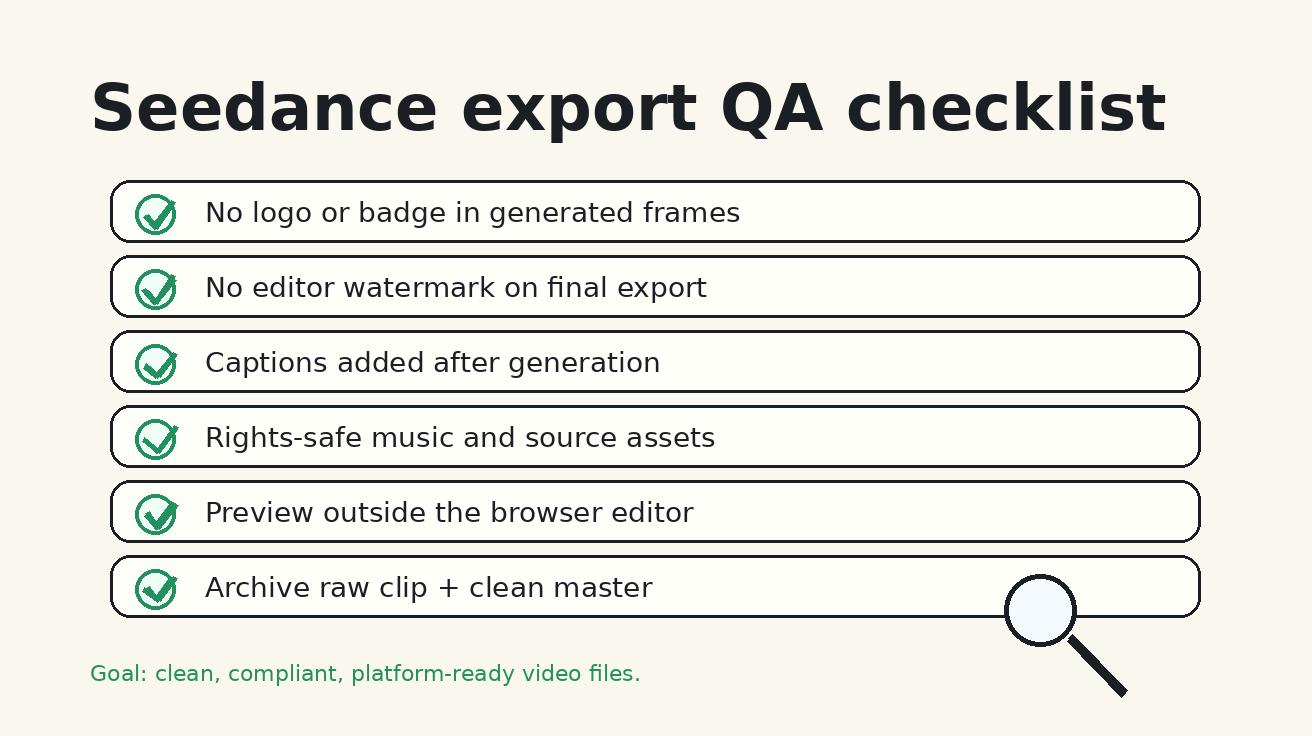
Use this final QA checklist:
- Does the downloaded file open correctly?
- Is the first frame clean?
- Is the final frame clean?
- Are all four corners clean during motion?
- Is there any editor mark, platform badge, template credit, or stock watermark?
- Did captions render correctly?
- Did the aspect ratio crop important content?
- Is there any random text Seedance generated in the scene?
- Are logos, claims, products, and prices accurate?
- Is music licensed or cleared?
- Is the file name marked as approved only after QA?
For paid social, add a second reviewer if possible. One person should inspect visual quality; another should inspect claims, compliance, and brand safety. The workflow is still fast, but the risk drops sharply.
Prompt templates for clean Seedance exports
Use these Seedance prompt templates as starting points.
Product demo prompt
Create a clean 6-second product demo video for [product]. Show the product on a bright desk with soft natural light, a gentle camera push-in, and realistic motion. No watermark, no logo, no badge, no platform UI, no lower-third graphic, no captions, no random text, no unreadable letters, no stickers, and no corner marks. Do not invent prices, reviews, certifications, or claims. Leave empty space for captions that will be added later.
Social hook prompt
Create a fast, polished vertical video hook about [topic]. The scene should feel modern, clean, and creator-friendly, with dynamic but natural camera motion. No watermark, no social media UI, no fake app buttons, no subtitles, no stickers, no random letters, and no corner branding. Keep the background uncluttered so captions can be added in editing.
Landing page hero prompt
Create a smooth 8-second landing page hero loop for [brand or use case]. Use cinematic lighting, simple motion, and a premium visual style. No watermark, no logos other than approved source assets, no generated text, no UI chrome, no badges, and no lower thirds. The video should loop cleanly and leave safe space for website copy outside the video.
Image-to-video prompt
Animate the provided image into a clean short video. Preserve the main product, layout, colors, and important visual details. Add subtle camera motion and realistic depth. Do not add a watermark, logo, platform UI, random text, fake labels, extra badges, or captions. Keep the output clean for later editing and export.
These templates do not guarantee every generation will be perfect, but they reduce common failure modes. If a prompt produces repeated artifacts, simplify the scene, remove text-heavy details, switch to image-to-video, or shorten the motion request.
Common mistakes that create watermark problems
Mistake 1: Asking Seedance to generate text inside the video
Generated text can look like a watermark even when it is not. If you need a headline, price, CTA, subtitle, or disclaimer, add it in the editor after the Seedance clip is approved.
Mistake 2: Cropping out a watermark from another tool
Do not build a workflow around cropping or covering marks. It can violate terms, damage composition, and create client risk. Use clean exports from the start.
Mistake 3: Using free templates without checking licenses
Some editors export clean files for basic cuts but add marks when you use premium templates, stock clips, soundtracks, stickers, or animated captions. Test the exact features you plan to use.
Mistake 4: Approving from a preview window
The preview is not the final file. Download the export and inspect the file itself.
Mistake 5: Ignoring platform crops
A file can be clean in 16:9 but show an unwanted edge artifact after a 9:16 crop. Create platform versions intentionally and inspect each one.
Recommended workflow by use case
For ecommerce product videos
Use image-to-video when you have product photos. Keep the product consistent, avoid generated labels, and add price or promo text later. Export a clean master, then make 9:16 and 1:1 versions for ads and organic posts.
For SaaS and app videos
Use screenshots carefully. If the UI must be accurate, animate a controlled screenshot rather than asking Seedance to invent a dashboard. Never let the model generate fake metrics, fake customer names, fake logos, or fake compliance badges. Add annotations in the editor.
For creators and social media
Use text-to-video for hooks and b-roll, but keep captions outside the generation. This gives you reusable clean clips that can be remixed for TikTok, Reels, Shorts, and YouTube without platform-specific marks.
For landing pages
Use a clean 16:9 or wide hero loop with no embedded claims. Let the page HTML handle text, CTA buttons, schema, and localization. This keeps the video evergreen and easier to translate.
Seedance no-watermark QA table
| Stage | What to check | Pass condition |
|---|---|---|
| Prompt | Negative instructions included | No logos, badges, random text, UI, or watermarks requested |
| Seedance raw clip | Corners, first frame, last frame, moving areas | No accidental marks or generated text |
| Editor | Account, template, stock assets, export tier | Export path does not add a mark |
| Master export | File opened outside browser | Clean corners, correct ratio, correct captions |
| Platform versions | 9:16, 1:1, 16:9 crops | No hidden edge artifacts or text cuts |
| Archive | Raw, project, master, exports, QA screenshots | Future edits can start from clean files |
How to explain this workflow to clients
If you create videos for clients, be direct. Tell them that Seedance is used for generation, but final delivery goes through a clean export and QA process. A simple client-safe explanation is:
We generate the motion with Seedance, then export approved clean master files through a no-watermark editing workflow. We do not remove unauthorized watermarks. We inspect every final file for visible branding, generated text artifacts, and platform-safe formatting before delivery.
This language builds trust. It also prevents unrealistic expectations. Clients should understand that “no watermark” is one part of production quality, not a loophole.
FAQ
Can Seedance create videos with no watermark?
Seedance can fit into a no-watermark workflow when the generation, editing, and export steps all produce clean files. Always test your account, download path, and editor because visible branding can depend on product access, export settings, and the tools used after generation.
What is the safest free Seedance export workflow?
Generate a clean Seedance clip, inspect the raw file, edit only in a tested no-watermark editor, export a clean master, then inspect the downloaded file outside the browser. Keep the raw clip, project file, clean master, platform exports, and QA screenshots in one archive.
Should I remove a watermark from a trial export?
No. If a service adds a watermark by design, use a licensed clean export option or choose a different tool path. Removing or hiding watermarks from files you are not cleared to use can violate terms and create client risk.
How do I stop Seedance from generating fake logos or text?
Add explicit negative instructions: no watermark, no logo, no badge, no platform UI, no lower thirds, no captions, no random text, no unreadable letters, and no corner marks. Add captions, logos, claims, and CTAs later in an editor where you control them.
Which aspect ratio should I use for no-watermark social exports?
Use 9:16 for Reels, TikTok, and Shorts; 1:1 for feed tests; and 16:9 for landing pages, YouTube, and blog embeds. Export a clean master first, then create platform-specific versions so you do not rely on compressed social downloads.
Is a no-watermark file automatically safe for commercial use?
No. You still need rights to source assets, safe prompts, accurate product claims, licensed music, platform-compliant formatting, and client approval. A clean visual file is necessary, but it is not the whole compliance review.
Final takeaway
A reliable Seedance no watermark workflow is not a trick at the end of production. It is a system: clean prompt, clean generation, clean editor, clean master, clean platform exports, and documented QA. When you separate Seedance generation from final text, branding, and export review, you get better-looking videos and fewer last-minute problems.
Use Seedance for the creative motion. Use your editor for controlled finishing. Use the QA checklist before anything goes live. That is the safest way to turn Seedance into a practical no-watermark video generator for 2026 content teams.
Ready to create your own AI video?
Turn ideas, text prompts, and images into polished videos with Seedance. If this article helped, the fastest next step is to try the product.
Free credits on signup. Plans from $28/month.
Related Articles
More posts in the same locale you may want to read next.

Seedance App Preview Video Generator 2026: Create App Store and Product Launch Clips
Use Seedance to turn app screenshots, feature copy, and launch goals into App Store previews, Google Play promo videos, and product launch clips.
Read article
How to Keep Product Shape Consistent in AI Video Ads
Lock product geometry, packaging, labels, references, camera angles, and approval checks so AI video ads preserve the real SKU across every shot.
Read article
How to Make AI Video Follow a Multi-Step Action
Plan atomic actions, state transitions, timing, continuity, and shot handoffs so an AI video completes a sequence in the intended order.
Read article