
ElevenLabs Voice Changer Video Tutorial: Replace a Voice and Keep the Performance
AI Overview
Can ElevenLabs Voice Changer process a video file?
Yes. The web Voice Changer accepts recorded or uploaded audio and video files, then returns transformed speech that you can place back under the original picture.
Does Voice Changer preserve timing and emotion?
It is designed to preserve the source performance, including pacing, emphasis, accents, whispers, laughs, and emotional delivery, while changing the perceived speaker voice.
How long can one Voice Changer segment be?
ElevenLabs currently documents a five-minute maximum segment for Voice Changer. Split longer scenes into controlled sections and keep handles for clean edits.
Is Voice Changer the same as dubbing or text to speech?
No. Voice Changer transfers an existing spoken performance; dubbing translates and adapts speech, while text to speech creates delivery from written text.
Plan the Video Voice Replacement Before Uploading
An ElevenLabs voice changer video workflow has two separate jobs: transform a performance, then synchronize the new audio with picture. Voice Changer changes recorded speech into a selected voice while retaining much of the original timing and expression. It does not automatically finish your video mix, repair every lip mismatch, or decide which breaths and room sounds belong in the scene. Treat the downloaded result as a new dialogue stem that must be reviewed and edited.
Start with a short scene and write an acceptance note before touching the audio. Identify the speaker, language, target voice, emotional intention, exact in and out points, and whether the shot shows a close mouth. A wide instructional shot tolerates more timing drift than a close dramatic line. Preserve the original clip, a clean dialogue export, the transformed take, and the final synchronized video as separate files.
Voice rights are part of production, not a cleanup task. Use your own performance, a voice you are authorized to use, or a properly licensed library voice. Do not present a transformed voice as a real person's endorsement. If the target is a recurring character, record the voice ID and approved settings so the next scene begins from the same baseline.
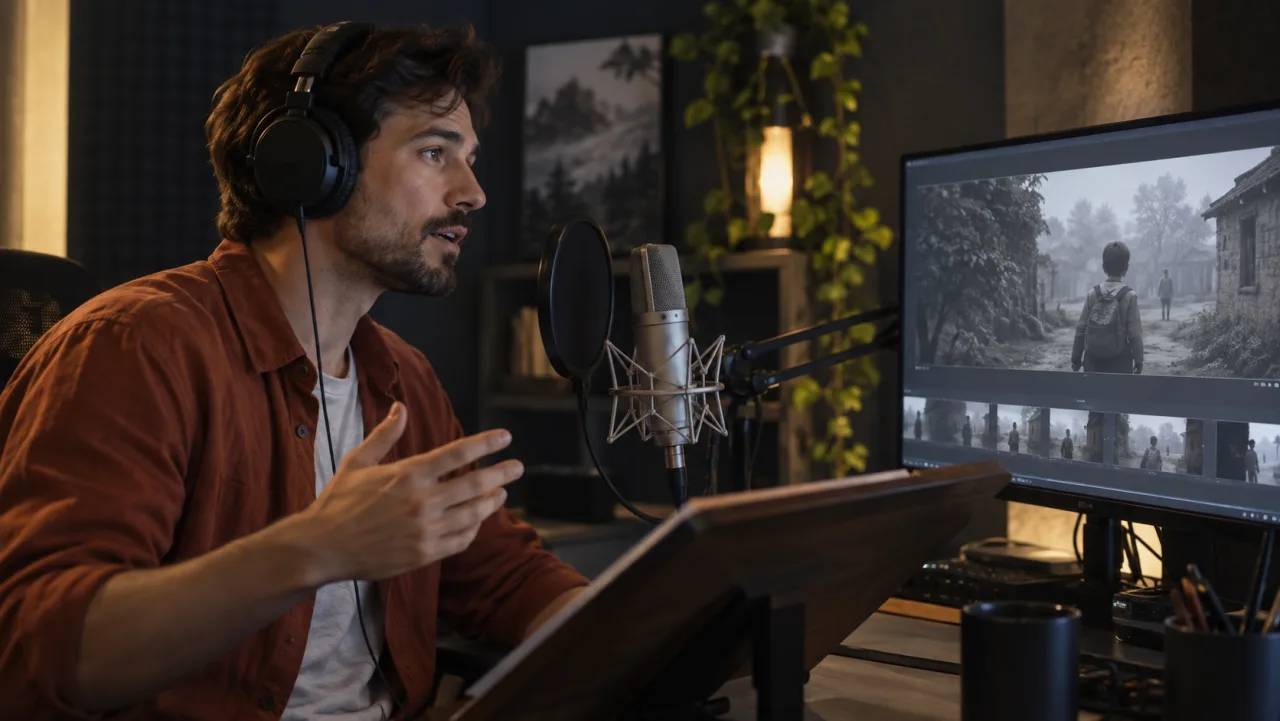
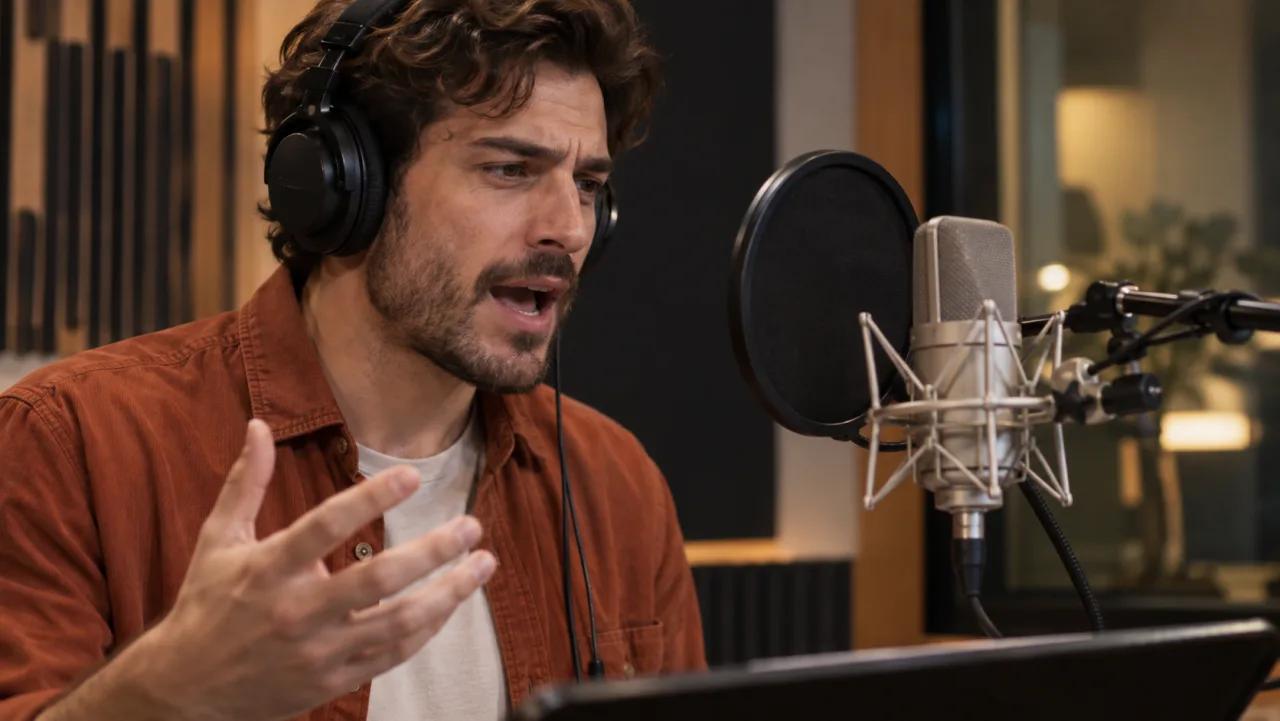
Original illustrative production still. Record a controlled performance while watching picture, and keep the unprocessed take as the timing reference.
If the video itself still needs a stable character performance, build that first in the image-to-video workspace. For a complete project with many clips, use the video creation workspace to keep picture decisions separate from voice revisions.
Export a Clean Source Performance From the Video
The source performance drives timing, emotion, pronunciation, and pauses, so audio preparation matters more than chasing settings later. Export only the dialogue range you need. Use a common format that preserves enough quality for processing, avoid repeated lossy exports, and leave short handles before and after the line for crossfades.
Listen for music, sound effects, reverb, other speakers, and background noise. Voice conversion can reinterpret anything that reaches the speech track. If your video contains a mixed soundtrack, isolate dialogue first or return to the project timeline and export the speaker alone. ElevenLabs documents a background-noise removal option, but that should not replace a clean source when you control the edit.
Record with steady microphone distance and moderate level. Clipped consonants cannot be restored by changing voices, and aggressive noise gates can cut quiet syllables or breaths. Preserve useful performance detail: a laugh, whisper, pause, or strained delivery may be exactly what Voice Changer is meant to carry into the target voice.
For scenes longer than five minutes, split at natural pauses rather than at arbitrary time limits. Add one or two seconds of overlap when possible, then choose the cleaner transition after conversion. Keep a cue sheet with file name, source timecode, line text, intended emotion, and target voice. This prevents a corrected line from being inserted into the wrong shot.
Transform the Voice in ElevenLabs
Open Voice Changer, record directly or upload the prepared audio or video, and select the authorized target voice. ElevenLabs currently describes the product as speech-to-speech: it transfers an existing performance into another voice rather than generating a new performance from a script. The official capability guide recommends the multilingual speech-to-speech model for many use cases and documents 29 supported languages for that model.
Use a representative test line before processing the whole scene. It should contain the speaker's normal pitch, one emotional peak, a quiet phrase, and the hardest proper name. Generate the take and compare it with the source for word accuracy, cadence, breath position, consonant clarity, and emotional shape. A convincing timbre is not enough if the delivery has become flatter or the final syllable lands after the cut.
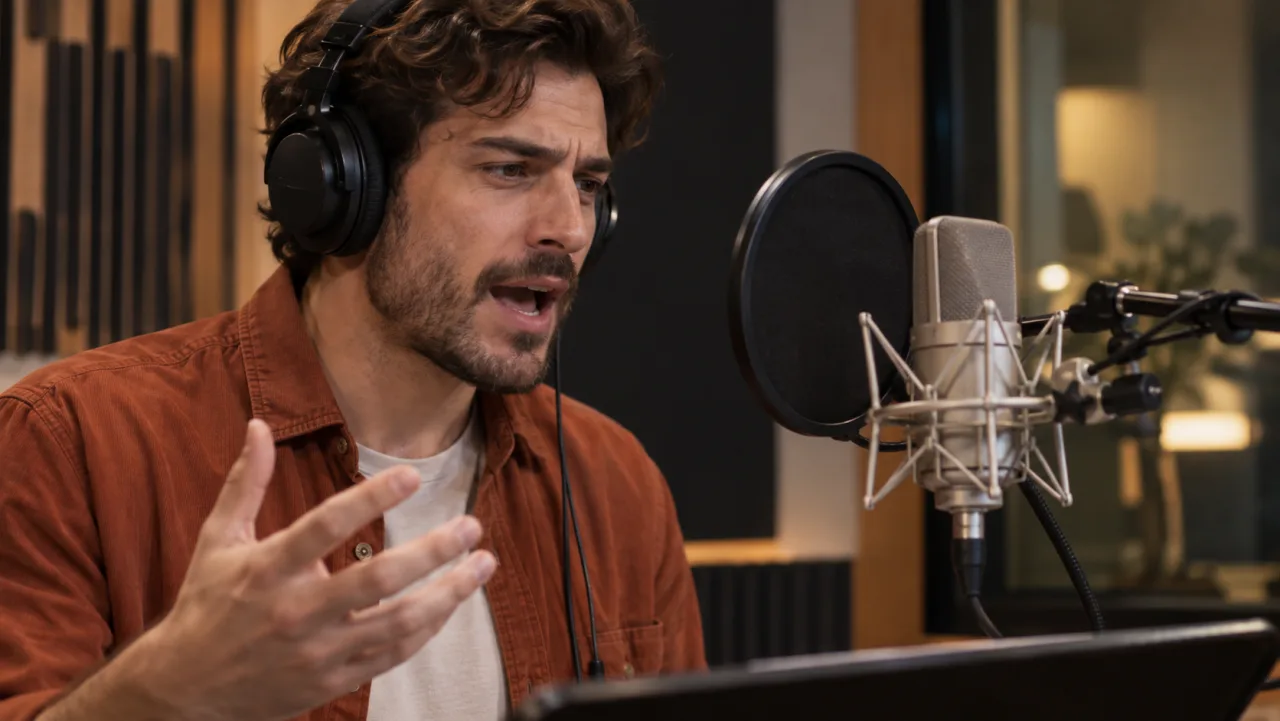
Illustrative performance setup. Give the model the pacing and emotion you want through the source delivery instead of expecting the target voice to invent them.
Change one variable at a time. First confirm the target voice and model. Then compare background-noise removal only if noise is present. Avoid running a weak performance through many settings; rerecording a clear, intentional delivery is usually easier to evaluate. Download every accepted output with a version name that includes scene, line, voice, language, and take number.
Replace the Original Dialogue and Restore Sync
Import the transformed file into your editor on a new track directly below the original dialogue. Align the first clear consonant or transient, not merely the start of the file. Mute the original, watch the mouth through the whole line, and place markers wherever sync begins to drift.
Do not time-stretch the entire take immediately. First trim leading silence, check whether the source export changed sample rate, and align internal pauses. Small regional adjustments are less damaging than forcing the full sentence to a new duration. Split at breaths or closed-mouth frames, move the later phrase, and use short equal-power crossfades. If a word remains visibly wrong, regenerate that phrase from a source performance with matching duration.
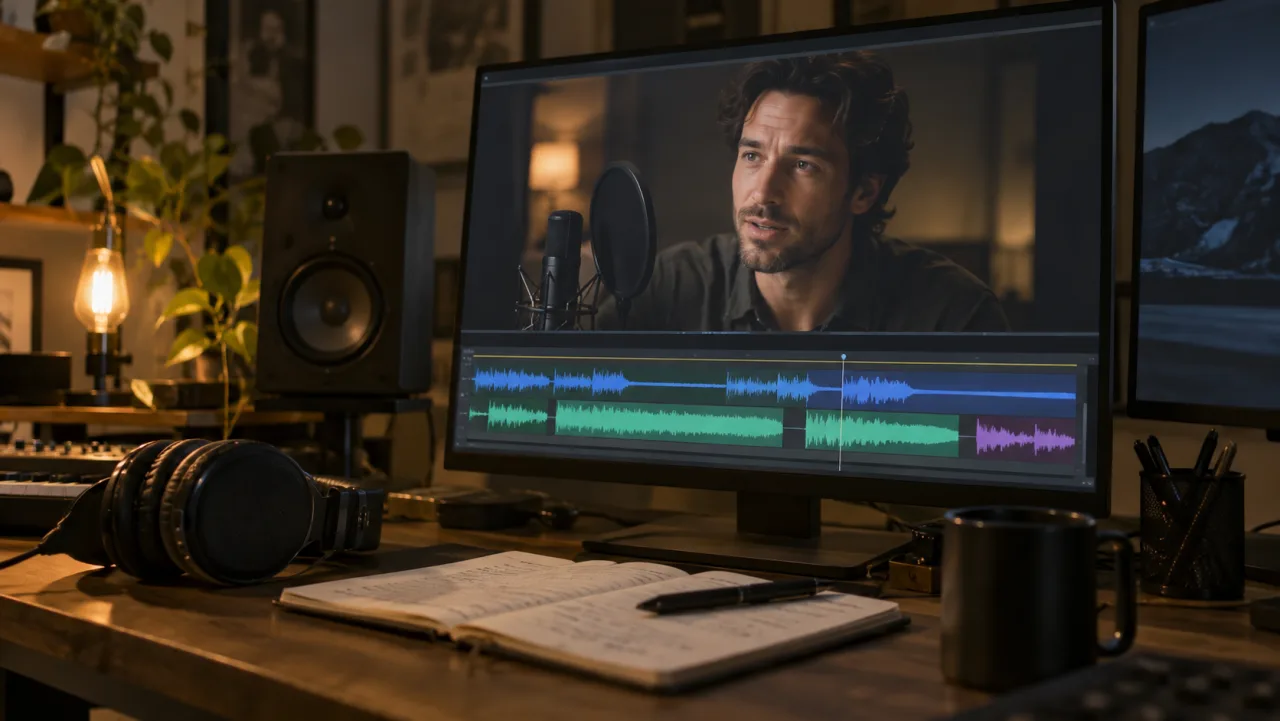
Illustrative finishing view, not an ElevenLabs interface. Align speech to picture in the editor, then restore ambience and effects around the approved dialogue stem.
This is a real Seedance motion example, not an ElevenLabs Voice Changer result. Use it to practice checking mouth closure, syllable timing, head motion, and room tone against moving picture.
Restore the non-dialogue sound after sync is stable. Add the original room tone underneath, rebuild breaths only where they serve the performance, and return music and effects on separate tracks. A perfectly clean transformed voice placed in a noisy room will sound detached unless the ambience, perspective, and reverb match the shot.
Match Voice, Scene, and Mix Across Multiple Clips
Consistency is a production system. Keep the same approved target voice and baseline model across a scene. Record similar microphone distance and performance intensity for pickups. Loud, close delivery in one source and quiet distant delivery in another can produce outputs that feel like different recordings even when the voice identity is nominally the same.
Match loudness after editing, not by crushing every generation with a limiter. Compare dialogue tone, room perspective, sibilance, breath level, and noise floor. Use light equalization and compression only after the accepted voice take is in sync. Check headphones, small speakers, and phone playback because harsh consonants and mismatched room tone often reveal themselves on limited speakers.
For multilingual work, decide whether the goal is voice replacement in the same language or translation. Voice Changer preserves a performed line; it does not replace the planning needed for translated script length and lip movement. If you need translated dialogue, review the separate video dubbing workflow and budget time for adapted wording and speaker-by-speaker approval.
Use a comparison grid for each clip: source intelligibility, target identity, emotion, pronunciation, sync, ambience, and rights status. Mark one rejection reason instead of writing vague notes such as “sounds wrong.” That makes the next recording or conversion purposeful.
Troubleshoot common Voice Changer video problems.
If words sound smeared, return to the clean source and check clipping, overlap, heavy reverb, and background music. If emotion disappears, record a more explicit performance rather than increasing processing at random. If the voice changes character between clips, verify the same voice, model, language, and source style were used.
For timing drift, measure where it begins. A constant offset is an alignment issue; increasing drift suggests a duration or sample-rate problem; one bad phrase calls for a local edit or rerecord. When the mouth is visible, choose natural closed-mouth cut points and avoid stretching consonants. When the speaker is off screen, prioritize rhythm and sound continuity.
Background-noise removal can help a noisy source, but listen for missing breaths, metallic tails, and clipped quiet words. Compare it against a clean manual dialogue export. If another speaker leaks into the clip, isolate or rerecord the line rather than hoping one conversion will separate and transform only the intended person.
The audio-generation troubleshooting guide provides a useful decision pattern for separating generation failures from editing problems. For lip-focused finishing, the lip-sync tutorial explains how to inspect mouth timing rather than judging audio alone.
Review, Version, and Deliver the Finished Video
Watch once for story and once for defects. In the defect pass, inspect the hardest proper name, emotional peak, quietest phrase, fastest mouth movement, first frame after each edit, and the transition into room tone. Then compare the finished mix against the original at matched loudness. A different voice can feel more impressive simply because it is louder.
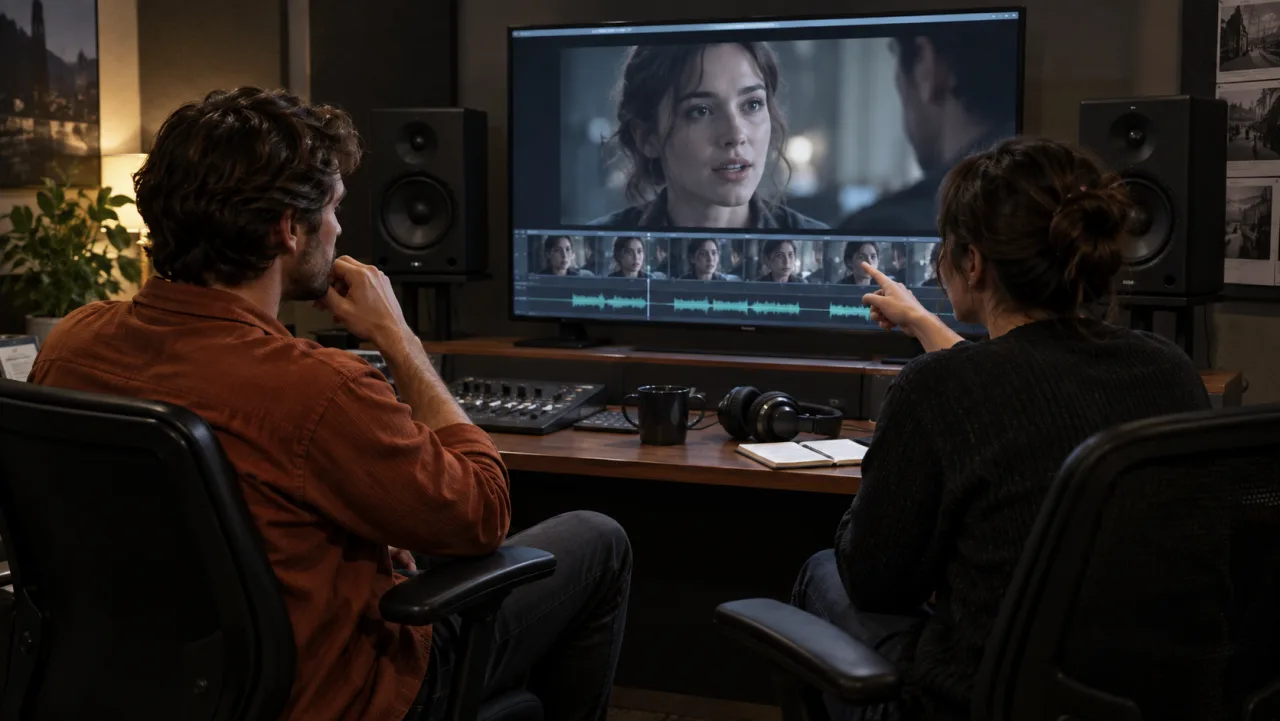
Illustrative approval session. Review voice identity, intelligibility, lip timing, ambience, and disclosure before exporting the final video.
Keep the original media, isolated source, transformed stem, session file, final mix, and approval record. Record the target voice, model, language, rights basis, processing date, and editor.
For campaigns with many scenes, Seedance Agent can organize references, cue sheets, voice versions, reviewer decisions, and selective reruns. It does not grant voice rights or certify a perfect sync, but it keeps the production trail visible and prevents an old take from quietly returning to the final cut.
Conclusion
A reliable ElevenLabs Voice Changer video workflow starts with an authorized target voice and a clean, intentional source performance. Transform a short representative line, preserve the accepted settings, align the new stem to picture, repair drift locally, restore room tone, and review identity, emotion, pronunciation, and lip timing separately. Keep every source and approval traceable so later revisions do not break continuity. To coordinate voice takes, scene references, approvals, and final assembly across a larger production, build the workflow with Seedance Agent.
Ready to try it yourself?
Put the steps from this guide into practice with Seedance and turn prompts or images into polished videos in minutes.
Free credits on signup. Plans from $28/month.
Related Articles
More posts in the same locale you may want to read next.

Seedance App Preview Video Generator 2026: Create App Store and Product Launch Clips
Use Seedance to turn app screenshots, feature copy, and launch goals into App Store previews, Google Play promo videos, and product launch clips.
Read article
15 Faceless YouTube Channel Ideas You Can Make with AI (2026)
15 faceless YouTube channel ideas for 2026, with the format, a sample AI video prompt and difficulty for each, plus how to make them with Seedance AI.
Read article
How to Use Seedance in Claude: MCP Setup and Automated Video Workflows
Use Seedance 2.5 inside Claude: connect the Seedance MCP server, generate videos by chat, batch variations and schedule daily video jobs with Claude scheduled tasks.
Read article