
Seedance 2.0 Animation Guide: How to Make Pixar-Style & 2D Cartoon Videos
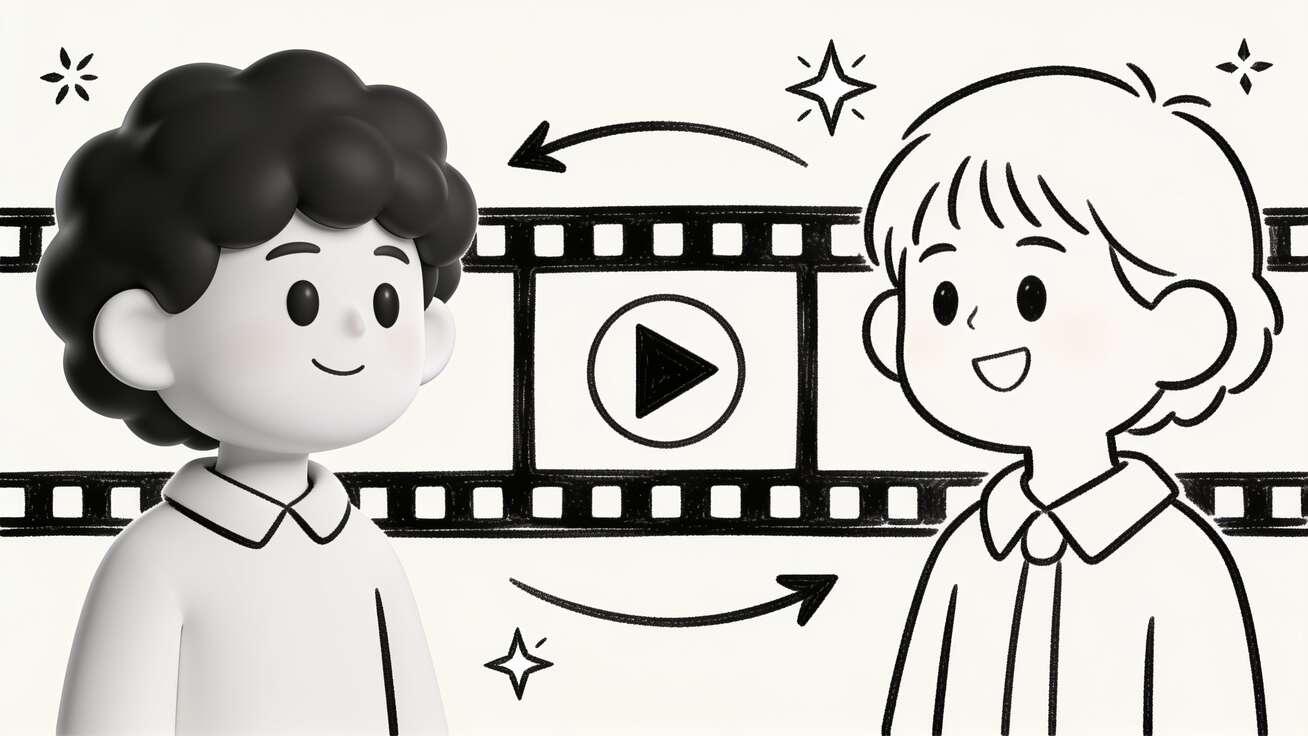
Most "make a cartoon with AI" tutorials stop at a single still image. You wanted a moving clip, and you got a picture. This Seedance 2.0 animation guide is about the part that actually matters: turning a style idea into a short animated video — a glossy Pixar-style 3D shot or a flat 2D cartoon scene — that holds together when it starts to move.
Seedance 2.0 handles this through prompt-driven style control plus image-to-video animation, so you are not locked into one look. The same workflow that produces a soft, rounded Pixar-style character can produce a hard-lined 2D cartoon or a cel-shaded anime frame, depending on how you describe it. Below is the full workflow: how the styles differ in practice, the exact steps for each, copy-ready prompts, camera and consistency control, real use cases, and an honest QA pass so your clips do not fall apart at the edges.
One framing note up front, because it keeps you out of trouble: this is about Pixar-style and cartoon-style technique — the rounded shapes, the lighting, the exaggerated motion that read as "animated film." It is not about recreating copyrighted characters or scenes. Build your own cast in that visual language and the work is yours to use.
Quick Answer: Can Seedance 2.0 Make Pixar-Style and 2D Cartoon Videos?
Yes. Seedance 2.0 generates short animated video clips in a 3D Pixar-style look or a 2D cartoon/anime look, driven entirely by your prompt and (optionally) a reference image. You do not switch tools between styles — you change the style vocabulary in the prompt.
The fastest reliable path is image-to-video: design or generate a single strong character frame in the exact style you want, upload it, then prompt the motion you need. Seedance 2.0 animates that frame instead of inventing a look from scratch, which keeps the style locked. Text-to-video works too and is great for quick ideation, but image-to-video gives you far more control over character design and consistency.
As of mid-2026, Seedance 2.0 sits inside a multi-model hub on the Seedance 2.0 platform, so you can also generate the same prompt with another model and compare which renders your cartoon style more cleanly. That compare step is part of the workflow, not an afterthought.
What "Pixar-Style" and "2D Cartoon" Actually Mean in a Prompt
Seedance 2.0 does not have a "Pixar button." It responds to descriptive style vocabulary, so the single biggest quality lever is knowing the words that pull the model toward each look. Get the vocabulary right and the rest of the workflow gets easy.
Pixar-style (stylized 3D): rounded, soft-edged characters; large expressive eyes; subtle subsurface skin and soft global illumination; clean studio lighting; gentle depth of field; "feature animation" finish. Keywords that work: stylized 3D animation, soft rounded character design, expressive eyes, warm cinematic lighting, subsurface scattering, polished 3D render, family-film look.
2D cartoon (flat / vector): bold outlines, flat color fills, limited shading, snappy poses, simple backgrounds. Keywords: 2D cartoon, flat vector illustration style, bold clean outlines, flat color shading, Saturday-morning cartoon, hand-drawn 2D animation.
Anime / cel-shaded: sharper line art, cel shading with hard light/shadow steps, expressive hair and eyes, dynamic angles. Keywords: anime style, cel-shaded, crisp line art, hard-edged shadows, dynamic anime composition.
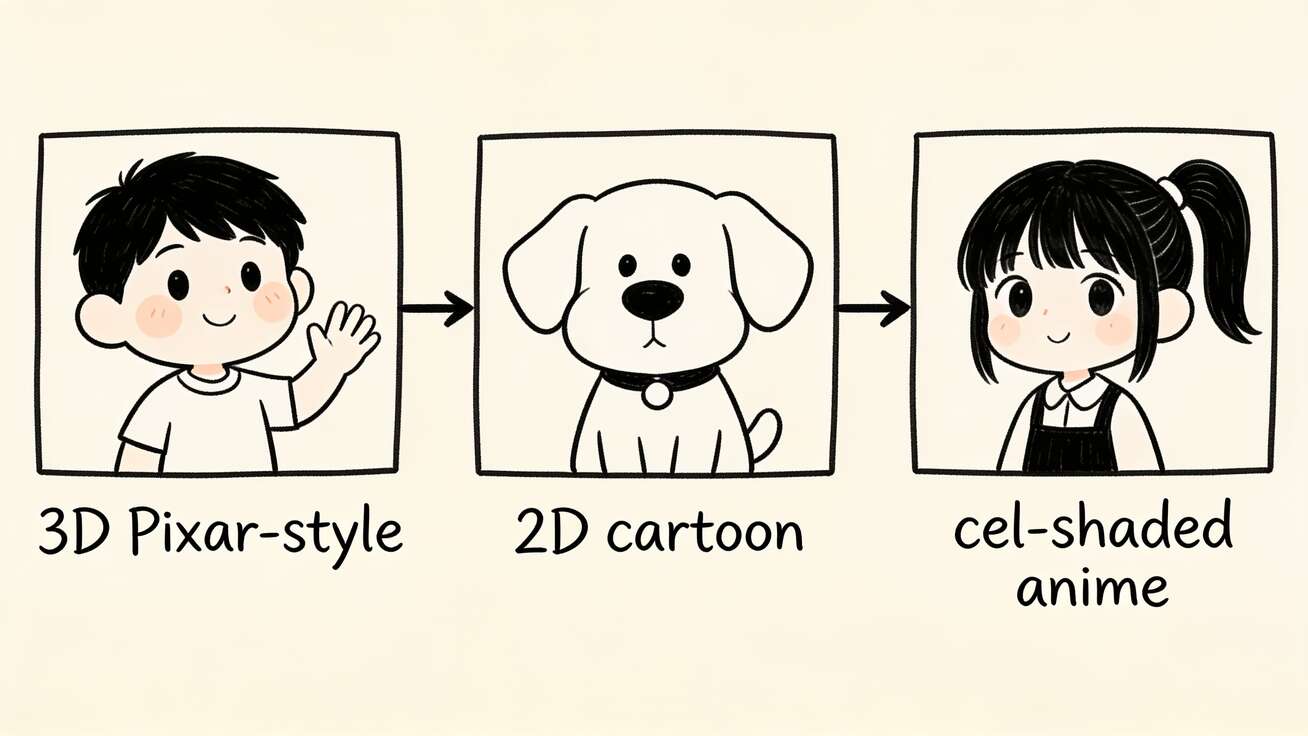 The three style families you steer Seedance 2.0 toward with prompt vocabulary — pick one primary look per clip.
The trap is mixing all three at once. If you ask for "Pixar-style flat 2D anime," Seedance averages the instructions and gives you something muddy. Pick one primary style per clip and let the supporting words reinforce it. This is the same discipline that makes Seedance 2.0 camera movement prompts work — one clear lead instruction beats five competing ones.
Two Ways to Start: Text-to-Video vs Image-to-Video
You have two entry points into a Seedance 2.0 animation, and choosing correctly saves you a lot of regeneration.
Text-to-video is best for fast exploration. Type a prompt, generate a few versions, see which style direction lands, then commit. It is the right call when you do not yet have a character locked and you are still scouting a look. If you mostly write from words, the Seedance 2.0 text-to-video guide covers prompt phrasing in more depth.
Image-to-video is best for control and consistency. You start from one finished character frame — designed in your tool of choice or generated as a still — and Seedance 2.0 animates that exact design. The style, the character's face, the color palette, the proportions all come pre-locked in the image, so the model spends its effort on motion instead of re-guessing the look every frame. For any project where the same character appears more than once, start here. The full mechanics live in the image-to-video AI guide.
Rule of thumb: ideating a style → text-to-video. Producing a character you will reuse → image-to-video.
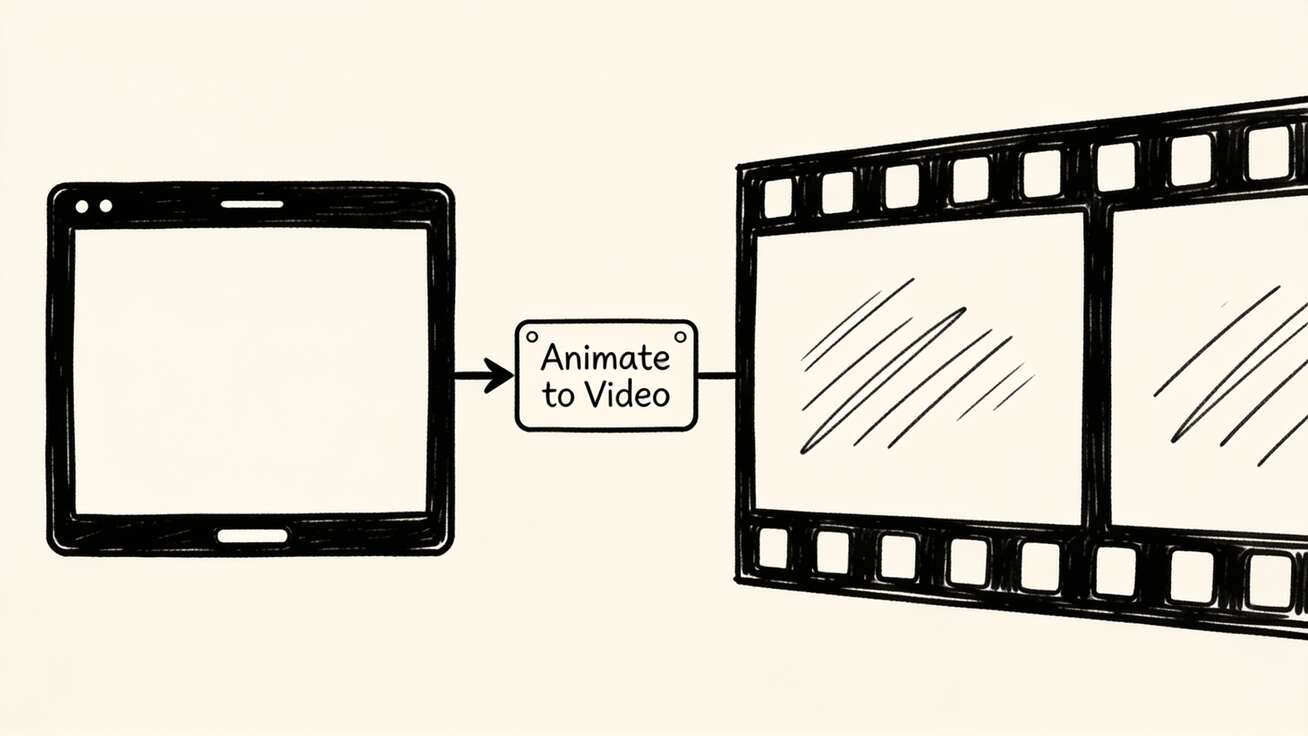 Image-to-video animates one locked character frame, so Seedance 2.0 spends its effort on motion instead of re-guessing the style.
Step-by-Step: A Pixar-Style 3D Animated Clip
Here is the concrete workflow for a polished, stylized-3D shot. Each step maps to a real action in Seedance 2.0.
- Lock the character first. Generate or design a single hero frame: a rounded, expressive 3D character in soft cinematic light, neutral pose, clean background. Get this still exactly right before any motion — it is your style anchor.
- Open image-to-video on the Seedance 2.0 platform and upload that frame.
- Write a motion-led prompt. Describe what moves and how, not just what the scene looks like (the image already carries the look). Lead with one camera or character action.
- Choose Seedance 2.0 as the model. If you want a comparison, queue the same prompt on another available model in the hub.
- Generate 2–3 versions. Animated styles are sensitive to seed; a second or third pass often fixes a wobbly face or stiff motion for free.
- Inspect for the animation-specific failure modes (covered in the QA section): face warping, sliding feet, flicker, melting hands.
- Export and reuse the best take. If it is part of a sequence, keep the same source frame for the next shot to hold the character steady.
Copy-ready Pixar-style prompt (image-to-video):
Animate this character: she tilts her head, blinks slowly, then breaks into a warm smile as soft light catches her face. Gentle hair movement. Slow push-in. Stylized 3D feature-animation look, soft global illumination, shallow depth of field, calm and heartfelt mood.
Step-by-Step: A 2D Cartoon or Anime Clip
The 2D path is nearly identical, but the style vocabulary and motion expectations change. Flat cartoons read best with snappier, more exaggerated motion; subtle realism looks wrong on them.
- Design a flat, bold-outline character frame — strong outlines, flat fills, simple background. Or generate one with the 2D keywords above.
- Upload to image-to-video in Seedance 2.0.
- Prompt punchy, readable motion. 2D cartoons thrive on clear, slightly exaggerated actions — a big wave, a bounce, a head turn with personality — rather than micro-realism.
- Keep backgrounds simple. Busy backgrounds fight the flat style and invite flicker.
- Generate versions and pick the cleanest line stability — wobbling outlines are the most common 2D artifact.
- Export for your platform.
Copy-ready 2D cartoon prompt (image-to-video):
Animate this 2D cartoon character: he waves both hands, bounces once on his heels, and gives a big cheerful grin. Bold clean outlines, flat color shading, snappy exaggerated cartoon motion, simple background, bright and playful energy.
Copy-ready anime prompt (image-to-video):
Animate this anime character: wind moves her hair and scarf, she turns to face the camera, eyes sharp with determination. Cel-shaded, crisp line art, hard-edged shadows, subtle dramatic lighting shift, dynamic composition.
Prompt Templates You Can Reuse
A repeatable prompt formula keeps your output consistent across a project. For animation in Seedance 2.0, this order works well:
[Style anchor] + [subject + one lead action] + [secondary motion] + [camera move] + [mood/lighting].
Fill-in templates:
- Storybook / claymation feel: "Stylized handcrafted animation, soft clay-like textures. [Character] [action], then [reaction]. Slow gentle camera drift. Warm storybook lighting, cozy mood."
- Mascot / explainer cartoon: "Flat 2D vector cartoon, bold outlines. [Mascot] [points/gestures] toward [object], nods. Static camera. Bright clean brand colors."
- Action anime beat: "Cel-shaded anime, dynamic angle. [Character] [dashes/turns/draws], hair and cloth reacting to motion. Quick push-in. High-contrast dramatic light."
- Heartfelt 3D moment: "Stylized 3D feature-film look, soft lighting. [Character] [small emotional action — blink, smile, look up]. Slow dolly-in. Shallow depth of field, tender mood."
Keep one lead action per clip. If you need a wave and a walk and a spin, that is three shots, not one prompt — and three shots is also how you keep motion clean.
Which Animation Style Fits Your Goal?
Style is not just taste — it decides production cost and how clean your clips come out, so pick by goal, not by what looks coolest in isolation.
- Need warmth and emotion (kids' content, heartfelt ads, storytelling): stylized 3D Pixar-style. Soft motion forgives small errors, and the look reads as premium.
- Need clarity and brand recognition (explainers, mascots, product demos): flat 2D cartoon. Bold outlines and simple backgrounds keep the message readable and the render stable.
- Need energy and a fan/youth audience (teasers, action shorts): cel-shaded anime. It carries the most personality but is also the least forgiving, so budget extra versions and keep clips short.
- Need it fast and disposable (concept animatics, A/B testing a hook): start text-to-video in whichever style, generate several, and only move to image-to-video once a direction wins.
When you are unsure, render the same character in two styles and compare — Seedance 2.0 makes that a two-prompt experiment, not a re-shoot.
Camera Movement and Motion for Animated Clips
Animated styles live or die on motion intent, and camera language is where most clips improve fastest. A slow push-in adds warmth to a Pixar-style moment; a snappy whip-pan suits cartoon energy; a static lock keeps an explainer mascot readable.
Two practical rules carry most of the weight. First, let one camera move lead and keep it simple — Seedance 2.0 executes a single clear move far better than a stacked combo. Second, match the camera energy to the style: gentle for heartfelt 3D, punchy for 2D cartoon, dramatic for anime. The full move library — dolly, orbit, crane, push-in, and when each one helps — is in the Seedance 2.0 camera movement prompts guide, and it applies directly to animated content.
For character motion specifically, describe the timing: "blinks slowly, then smiles" reads better than "is happy." Verbs and sequence give the model something concrete to animate.
Keeping the Same Character Across Multiple Shots
The moment your cartoon needs more than one clip, consistency becomes the hard problem — a character whose face subtly changes between shots breaks the illusion instantly. This is exactly why image-to-video matters for animation: when every shot starts from the same source frame, the design stays locked.
Practical consistency workflow in Seedance 2.0:
- Reuse one master character frame as the image input for every shot in a sequence.
- Keep style keywords identical across prompts; only change the action and camera.
- Change one variable at a time between shots so drift is easy to spot.
- Generate a couple of versions per shot and pick the take that matches your master frame most closely.
For longer sequences and recurring casts, the Seedance 2.0 character consistency guide goes deeper on holding a face, outfit, and palette steady across a whole project.
Best Use Cases for Seedance 2.0 Animation
This workflow is not a novelty — it maps onto real content jobs where animated video outperforms live action or stills.
- Explainer and product videos: a flat 2D mascot walking through a feature is friendlier and cheaper than a live shoot, and it scales to every release.
- Social shorts (TikTok, Reels, YouTube Shorts): Pixar-style character moments and punchy cartoon clips earn watch-time; export vertical and keep clips short.
- Kids' / storybook content: soft 3D or storybook-clay styles fit read-along and lullaby formats.
- Ads and brand mascots: a consistent cartoon character across a campaign builds recognition — consistency workflow above is doing the heavy lifting.
- Anime-style teasers and fan-original shorts: cel-shaded clips for original characters and concept reels.
- Pitch and concept animatics: rough out a scene's motion and timing before committing to full production.
If you are weighing Seedance against another tool for stylized motion specifically, the Seedance vs Kling AI 2026 comparison breaks down where each one lands on cartoon and 3D-style output.
Limitations and a QA Checklist You Should Actually Run
Honest expectations save you hours. Seedance 2.0 produces strong animated clips, but stylized motion has specific, predictable failure modes — and short clips with one clear action almost always beat long, busy ones.
Known limitations as of mid-2026:
- Hands and fast complex motion can distort, especially in 2D where outlines wobble.
- Long single takes drift more than short ones; build sequences from short shots.
- Tiny background text and logos often render unreliably — keep them out of the frame or add them in post.
- Over-stacked prompts (multiple styles or many simultaneous actions) average into mush.
Run this QA pass on every clip before you publish:
- [ ] Face stability — does the character's face stay on-model the whole clip, with no warping on turns?
- [ ] Feet and contact — no sliding or floating where feet meet the ground?
- [ ] Hands — no melting or extra fingers during gestures?
- [ ] Line/edge stability (2D) — outlines steady, not crawling or flickering?
- [ ] Style consistency — does it match your intended look, not drift toward realism?
- [ ] Consistency across shots — same face, outfit, and palette as the previous clip?
- [ ] Motion intent — does the camera and character motion read as deliberate, not random drift?
- [ ] Export specs — correct aspect ratio and length for the target platform?
If a clip fails, the fastest fix is usually to simplify: fewer simultaneous actions, one lead camera move, a cleaner source frame — then regenerate two or three versions. For a broader feature overview before you start a project, the Seedance 2.0 features guide is a useful reference.
FAQ
Can Seedance 2.0 make videos that look like a specific animated movie? You can target the general style — stylized 3D, flat 2D cartoon, cel-shaded anime — with your own original characters. Recreating copyrighted characters or specific film scenes is not the goal here; build your own cast in that visual language.
Do I need a reference image, or can I start from text? Both work. Text-to-video is great for exploring a look fast. For a character you will reuse or any multi-shot sequence, start from a reference frame with image-to-video so the style and face stay locked.
Why does my animated character's face change between clips? Each generation re-interprets the prompt slightly. Reuse the same source frame as the image input across shots and keep style keywords identical — that is the single most effective consistency fix.
Which style is easiest to get clean results in? Stylized 3D and simple flat 2D with one clear action are the most forgiving. Highly detailed anime with fast motion and complex hands is the hardest, so keep those clips short and run extra versions.
How long should each animated clip be? Short. Short clips with one lead action hold style and motion far better than long, busy takes — build sequences from several short shots rather than one long one.
Conclusion
Making Pixar-style and 2D cartoon videos in Seedance 2.0 comes down to three habits: pick one clear style and use its vocabulary, start from a locked character frame with image-to-video when consistency matters, and keep each clip to one lead action with one camera move. Do that, run the QA checklist, and your animated clips will hold together instead of melting at the edges.
The best way to learn the feel of it is to animate one frame and watch what the prompt changes. Pick a character, write a motion-led prompt, and try it now with Seedance 2.0 image-to-video — then compare a couple of versions and keep the take that moves with intent. That short loop, repeated, is how a single still becomes a finished Seedance 2.0 animation.
Ready to try it yourself?
Put the steps from this guide into practice with Seedance and turn prompts or images into polished videos in minutes.
Free credits on signup. Plans from $28/month.
Related Articles
More posts in the same locale you may want to read next.

Seedance App Preview Video Generator 2026: Create App Store and Product Launch Clips
Use Seedance to turn app screenshots, feature copy, and launch goals into App Store previews, Google Play promo videos, and product launch clips.
Read article
How to Keep Product Shape Consistent in AI Video Ads
Lock product geometry, packaging, labels, references, camera angles, and approval checks so AI video ads preserve the real SKU across every shot.
Read article
How to Make AI Video Follow a Multi-Step Action
Plan atomic actions, state transitions, timing, continuity, and shot handoffs so an AI video completes a sequence in the intended order.
Read article