
How to Remove Objects from Video: 4 Methods That Actually Work
To remove objects from video, do not start by choosing a tool. Start by choosing the right repair method. A small object on a plain background can often be removed with an AI object remover. A moving person crossing a complex scene may need manual masking, tracking, and compositing. A replaceable B-roll shot may look cleaner if you regenerate it instead of repairing the original.
Seedance fits that last case. It does not erase objects from existing footage frame by frame. Use it when the goal is to create a clean alternative shot from a prompt or reference image, not when you must preserve the exact original clip.
AI Takeaway
- For a small object against a simple background, an AI object remover is usually the fastest option.
- To remove a moving person or object, mask it, track it through the clip, and let video inpainting rebuild the hidden background.
- Blur and flicker usually appear when the object hides important details, shadows, reflections, or changing light.
- Valuable footage with complex overlaps is safer to edit manually in software such as After Effects, DaVinci Resolve, or a professional compositing workflow.
- If the shot is replaceable B-roll, a product scene, or an AI-generated clip, creating a clean new version may look better than repairing the original.
Choose the Right Way to Remove an Object from Video
The best method depends on one question: does the original footage need to stay exactly the same?
A wedding moment, interview, client recording, or legal/product documentation cannot simply be replaced. A generic office shot, product scene, street view, room interior, or landscape often can.
Use this quick guide before opening an editor:
| Method | Best for | Avoid when |
|---|---|---|
| AI object remover | Short clips, small distractions, visible backgrounds, simple camera movement | The object covers faces, text, hands, reflections, or complex motion |
| Manual masking and compositing | Important footage, moving cameras, objects crossing another subject | Speed matters more than precision |
| Crop, blur, or cover | Private information, small edge distractions, fast delivery | You need the object to disappear naturally |
| Regenerate or reshoot | Replaceable B-roll, product scenes, AI-generated clips | The original moment must stay unchanged |
Automatic removal estimates what should exist behind the unwanted object. It works best when nearby frames show enough clean background. If you are also considering a replacement shot, the Seedance 2.0 complete features guide explains common product, B-roll, and AI video workflows.
How to Remove Unwanted Objects from Video with an AI Tool
Most online AI removers follow the same workflow. Start with a short copy of the clip instead of uploading a long original file.
Step 1: Trim the clip
Cut the video to the section that needs repair. Short clips process faster and reduce tracking drift. Keep the untouched source file so you can return to it if the repair fails.
Step 2: Select the object
Use a brush, mask, or box to mark the unwanted object. Keep the selection close to its edges, but include motion blur and any shadow that must disappear. Text instructions can be convenient, but manual masks are usually more precise.
Step 3: Track and preview
Track the selection across the clip, then watch the full result. Check entry and exit frames for shimmering edges, remaining reflections, sudden background changes, or repeated texture patterns.
Step 4: Export at the original resolution
Compare the export with the source at normal speed and full screen. If the repair draws attention, tighten the mask, split the clip into shorter passes, or switch to manual editing.
How to Remove a Moving Object Without Flicker
A moving object creates a different reconstruction problem in every frame. A good result depends on stable tracking and enough visible background.
Keep the mask tight, but include motion blur
A mask that is too small leaves fragments around hands, hair, wheels, or fast-moving edges. A mask that is too large forces the AI to invent more of the scene than necessary. Expand it only enough to cover the full silhouette and natural motion blur.
Give the tool clean background frames
If the editor supports a clean plate, choose a frame where the background is visible without the object. Extending the clip before or after the object appears may also provide missing texture.
Split difficult motion into separate passes
One long mask may fail when an object changes direction, moves closer, or passes behind another subject. Split the clip and adjust the mask for each movement. Clean joins usually look better than constant flicker.
Why Removed Objects Leave Blur, Shadows, or Broken Backgrounds
The software must generate new pixels and keep them consistent across frames. A clean result becomes less likely as the hidden area grows or the scene becomes more complex.
Common causes of visible artifacts include:
- Hidden details: The object covers text, faces, hands, patterned walls, or other information the software cannot recover.
- Shadows and reflections: Removing a person does not automatically remove their shadow on the floor or reflection in a window.
- Camera motion: Handheld movement, zooms, rapid pans, and parallax constantly change the missing background.
- Long occlusion: There may be no clean frame showing what exists behind the object.
- Low-quality source video: Compression blocks and motion blur give the model less reliable detail to work with.
A static trash can against a plain wall is easy. A person walking through a crowd while reflected in windows is not. If the first preview looks unnatural, a manual composite, different crop, or replacement shot is often better.
Regenerate a Clean Shot When Removal Breaks the Scene
Some clips are valuable because of what actually happened in them. Others exist only to set a mood, show a product, or bridge two parts of a story. When a replaceable shot develops obvious blur or flicker, generating a new clean version can save time.
Seedance can create a new shot from a written description or reference image. It does not erase objects from original footage, so use it when the goal is a clean alternative rather than an exact repair.
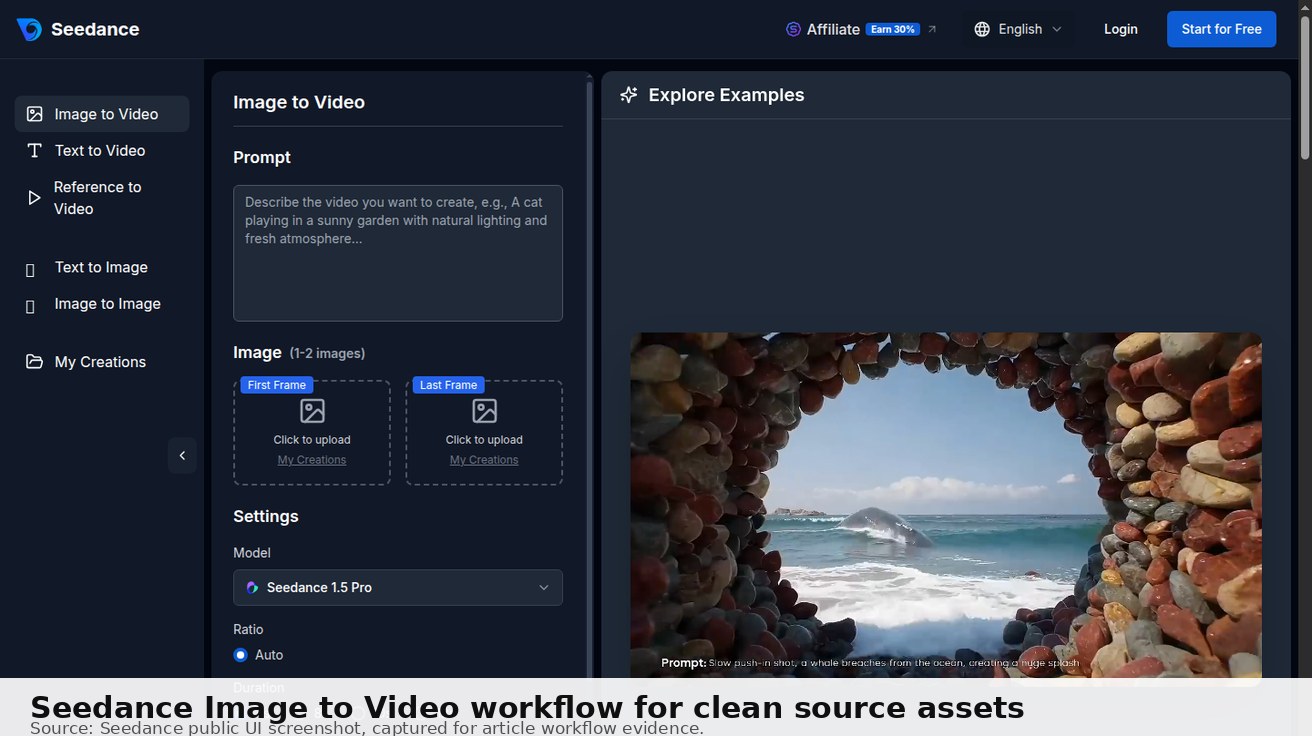
Create object-free B-roll from a text prompt
Describe one main subject, the setting, a simple action, and the camera movement. State what the scene should contain instead of relying only on a long list of negatives.
Example prompt:
Slow cinematic dolly shot through a quiet luxury hotel lobby at sunrise, polished marble floor, soft natural light, empty and uncluttered, no guests, luggage carts, or visible logos.
This kind of prompt can create establishing shots, social cutaways, or generic B-roll without filming a crowded location. Use Text to Video when you only have a scene idea.
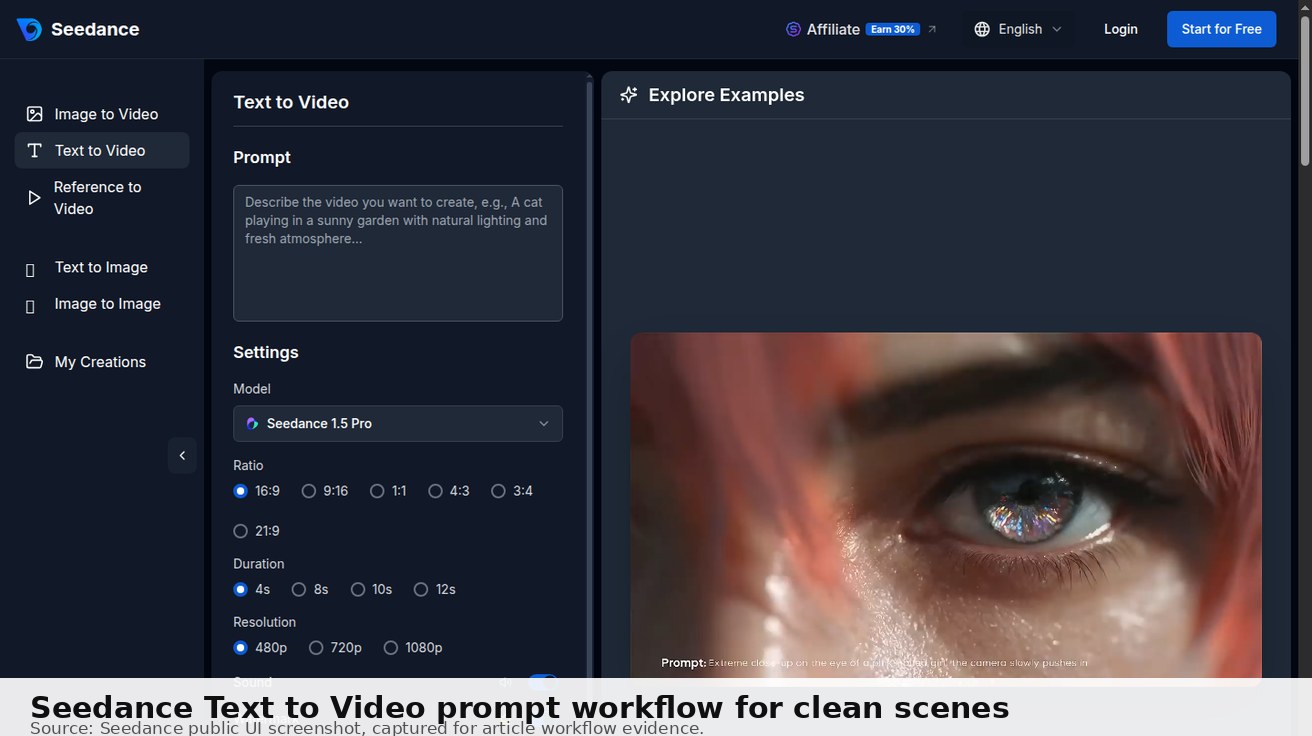
Rebuild a scene from a reference image
For more control, first create or edit a still image with the distraction removed. Then animate that clean source with a simple motion prompt so the product, room, or main subject stays close to the reference.
This works well for product shots, clean interiors, concept videos, and AI-generated clips with an unwanted extra object. For replaceable product shots, a clean still can become a controlled new clip through Seedance Image to Video. Keep the source composition simple and describe only the motion you want.
Common Object Removal Scenarios and the Best Fix
Different distractions call for different solutions. Choosing the right method first is usually faster than trying to force one tool to handle everything.
| Object or problem | Best starting method | Watch for |
|---|---|---|
| Person or passerby | AI removal with motion tracking | Shadows, reflections, and overlap with other people |
| Small background clutter | Brush-based AI removal | Repeating textures and moving camera angles |
| Text or logo you have permission to edit | Fixed mask, crop, or content-aware fill | Background movement behind the text |
| Object crossing a face or product | Manual compositing or reshoot | Lost facial or product details |
| Distracting object in replaceable B-roll | Regenerate or reshoot the scene | Matching the surrounding style and lighting |
| AI-generated clip with an unwanted extra prop | Regenerate with stricter prompt constraints | Prompt drift and inconsistent subject details |
Only remove logos, watermarks, or ownership marks from material you own or have permission to modify. If the purpose is simply to hide private information, a stable blur or solid cover is often more reliable than trying to reconstruct the background.
Quality Checklist Before You Publish
Before using the repaired or regenerated video in ads, client work, ecommerce, or public campaigns, check:
- the object is gone at normal playback speed, not only on one paused frame;
- edges do not shimmer when the subject moves;
- shadows and reflections do not reveal the removed object;
- product shape, logos, UI text, and faces remain stable;
- the output resolution matches the original delivery requirement;
- watermark, export, credits, and commercial-use rules are acceptable.
For regenerated clips, also check the current pricing, export, watermark, and usage rules in the Seedance interface before publishing outputs.

FAQ
Can Seedance remove an object from an existing video?
Not in the traditional editing sense. Seedance is better for generating a new clean video from a prompt or reference image. If you must preserve the exact original clip and delete one object from it, use a dedicated object remover or editor.
What is the fastest way to remove a small object from video?
For a small object on a simple background, use an AI object remover with a tight mask and short clip. Preview the full result before exporting.
Why does object removal create blur or flicker?
Blur and flicker usually appear when the object hides important background detail, casts a shadow, creates a reflection, or moves across complex patterns.
When should I regenerate the video instead of repairing it?
Regenerate when the clip is replaceable B-roll, a product scene, or an AI-generated shot. Do not regenerate footage that must preserve a real moment, exact person, or original camera timing.
Conclusion
A reliable way to remove objects from video starts with choosing the least complicated method that protects what matters in the clip. Small, clearly defined objects against visible backgrounds are good candidates for automatic removal. Valuable footage, complex motion, and overlapping subjects deserve manual editing. Replaceable B-roll and generated scenes may be cleaner to rebuild from scratch.
Test the repair on a short section and judge it at normal playback speed, not on a single frame. When removal creates a bigger distraction, a clean replacement shot may be more natural. The Seedance 2.0 prompt guide offers practical structures for describing that new shot.
Ready to create your own AI video?
Turn ideas, text prompts, and images into polished videos with Seedance. If this article helped, the fastest next step is to try the product.
Free credits on signup. Plans from $28/month.
Related Articles
More posts in the same locale you may want to read next.

Seedance App Preview Video Generator 2026: Create App Store and Product Launch Clips
Use Seedance to turn app screenshots, feature copy, and launch goals into App Store previews, Google Play promo videos, and product launch clips.
Read article
How to Make a Talking AI Avatar You Can Reuse
Make a talking AI avatar with Seedance: design one consistent character, give it a voice, and make it speak in a talking photo or a full Seedance 2.5 scene, episode after episode.
Read article
Best AI Video-to-Video Models in 2026
The best AI video-to-video models in 2026 for editing footage you already shot: Higgsfield Genjutsu, Seedance 2.x, Runway Aleph, Luma Modify and Kling Omni compared.
Read article