
Talking Photo AI: Turn Any Photo into a Talking Video with Seedance
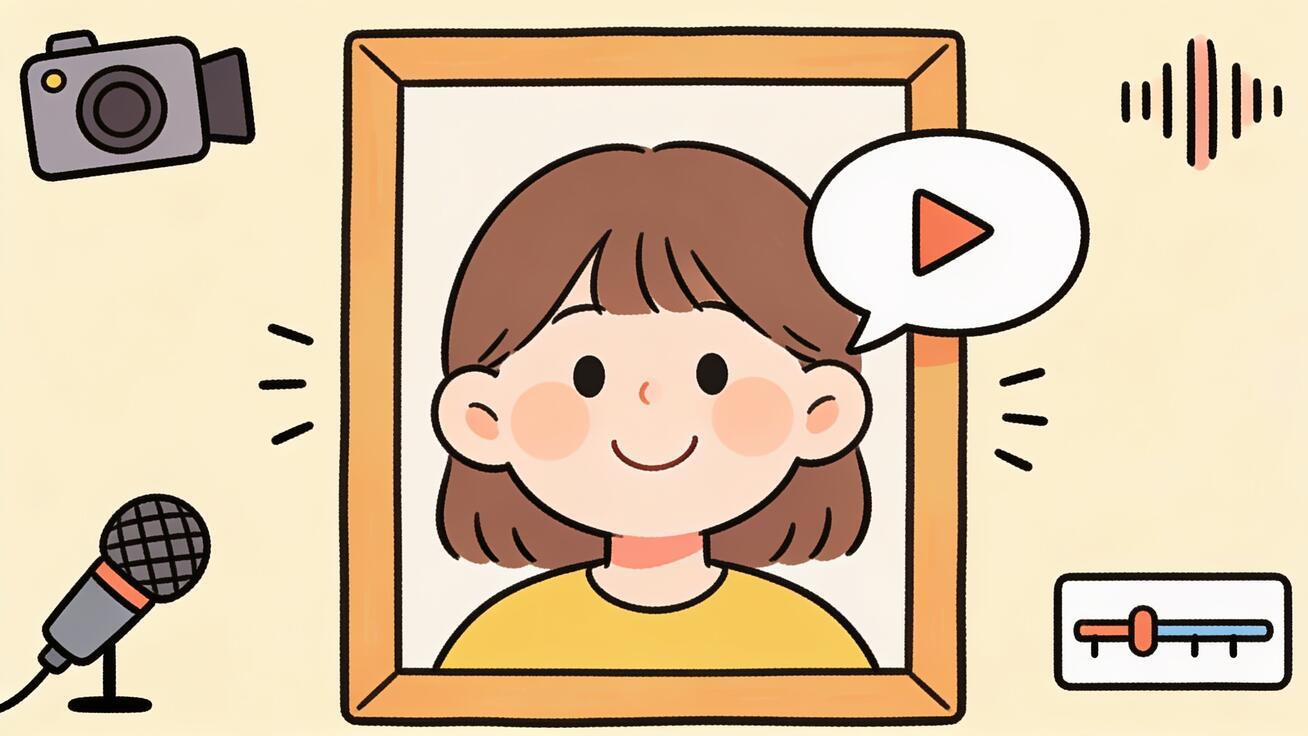
<p>Want to turn a still portrait into a clip where the subject actually speaks? A <strong>talking photo</strong> takes a single image — a headshot, a character illustration, a historical portrait you have the rights to — and animates the face so it blinks, moves, and lip-syncs to a voice. With Seedance you can do this without a camera, an actor, or a video shoot: you upload the photo, add motion and a voice line, and generate a short talking-portrait video you can drop into an explainer, a product update, a social post, or a course module.</p>
<p>This guide is a practical, step-by-step walkthrough of how to make a <strong>talking photo AI</strong> video in Seedance. It focuses on one specific intent — photo in, talking portrait out — and it covers the full workflow: preparing the source image, animating the face with image-to-video, adding lip-sync to a script or audio, fixing the most common artifacts, and exporting for the platform you publish on. It also covers the part most "best AI talking photo generator" roundups skip: how to use this responsibly, because animating a face is exactly the kind of capability that needs a consent rule.</p>
<h2>Quick answer: how to turn a photo into a talking video with Seedance</h2>
<p>The short version, for people who just want the workflow:</p>
<ol> <li><strong>Upload your portrait</strong> to Seedance's image-to-video tool. Use a clear, front-facing photo where the face is well lit and unobstructed.</li> <li><strong>Add a motion prompt</strong> describing subtle head movement, blinking, and a natural speaking pose so the still image comes alive instead of looking frozen.</li> <li><strong>Add the voice</strong> — either upload a voice recording or supply the script line you want the subject to "say" — and let Seedance lip-sync the mouth to the audio.</li> <li><strong>Generate two or three versions</strong> from the same photo and compare. Talking-face generation is sensitive to lighting and angle, so variants matter.</li> <li><strong>Check the result</strong> for lip alignment, identity drift, and weird mouth artifacts, then <strong>export</strong> in the aspect ratio your platform needs.</li> </ol>
<p>That's the whole loop. The rest of this guide explains each step in enough detail that your first talking photo looks intentional, not uncanny.</p>
<h2>What a "talking photo" actually is (and what it isn't)</h2>
<p>A talking photo is a face-driven animation. The AI keeps the identity, framing, and style of your original image, then generates new frames where the head moves slightly and the mouth shapes match a voice track. The result is a short video — usually a few seconds to tens of seconds — that reads as "this person is speaking to me."</p>
<p>It is not a full body animation, and it is not a face swap. A talking photo generator is best at the head-and-shoulders region: eyes, brows, mouth, and small head rotation. If your source image is a wide shot with a tiny face, or a heavily stylized illustration with no clear mouth, the model has less to work with and the talking effect gets weaker. The closer your photo is to a clean portrait crop, the better Seedance can drive the face.</p>
<p>This matters for expectations. People searching for the <strong>best AI talking photo generator</strong> sometimes expect a photo to turn into a cinematic performance. What you actually get is a believable speaking portrait: good enough for an avatar intro, a narrated explainer, an FAQ answer, a memorial tribute, or a character voice in a story — not a replacement for filming a real spokesperson in motion. Knowing that up front saves you a lot of re-generation.</p>
<h2>Why use Seedance for talking-photo videos</h2>
<p>Seedance is an AI video generation platform built around two things you need here: <strong>image-to-video</strong> animation and <strong>lip-sync</strong>. Instead of bolting a mouth animation onto a static frame, the image-to-video engine generates real motion from your photo — head tilt, blinks, breathing — and the lip-sync step aligns the mouth to your voice line. Used together, they're what turns a frozen headshot into a talking portrait.</p>
<p>A few things make Seedance practical for this specific job:</p>
<ul> <li><strong>One photo is enough.</strong> You don't need a video reference of the person or a 3D rig. A single clean portrait is the input.</li> <li><strong>Multiple models in one place.</strong> Seedance lets you pick from different generation models, so if one model renders a stiff or distorted face you can regenerate with another without leaving the workflow.</li> <li><strong>Prompt control over motion.</strong> You can describe how much the head should move and how expressive the speaker should be, which keeps the result from looking either dead-still or jittery.</li> <li><strong>Fast iteration.</strong> Because talking-face quality depends on source lighting and angle, being able to generate variants quickly and compare them is worth more than any single "perfect" setting.</li> </ul>
<p>If you've already used Seedance's <a href="https://seedance.tv/blog/image-to-video-ai-guide">image-to-video workflow</a> to animate landscapes or products, a talking photo uses the same upload-and-prompt loop — you're just pointing it at a face and adding a voice.</p>
<h2>Step 1 — Choose and prepare the right source photo</h2>
<p>The single biggest factor in talking-photo quality is the input image. Spend your effort here and you'll re-generate far less.</p>
<h3>What makes a good talking-photo source</h3>
<ul> <li><strong>Front-facing or near-front angle.</strong> A face turned slightly toward the camera animates cleanly. Strong profile shots are hard because the model has to invent the hidden side of the face.</li> <li><strong>Even, soft lighting.</strong> Harsh shadows across the mouth or one half of the face cause flicker when the head moves. Flat, even light is your friend.</li> <li><strong>Unobstructed mouth and eyes.</strong> Avoid hands on the chin, a microphone over the lips, hair across the eyes, or sunglasses. The model drives exactly these regions.</li> <li><strong>Reasonable resolution.</strong> A sharp image where the face occupies a good portion of the frame gives the model more detail to preserve. A blurry, low-res face tends to smear during motion.</li> <li><strong>Neutral starting expression.</strong> A closed or slightly open mouth and a relaxed face is the easiest base to animate into speech. A wide laugh or extreme expression fights the lip-sync.</li> </ul>
<h3>Crop before you upload</h3>
<p>If your photo is a wide shot, crop to a head-and-shoulders portrait before uploading. This makes the face the dominant element and gives Seedance a cleaner region to animate. A 3:4 or square crop around the face usually works well for talking-portrait output, and you can always re-frame on export. For more on getting still images ready for animation, the <a href="https://seedance.tv/blog/turn-photos-into-videos-ai">turn photos into videos</a> guide covers source-image prep that applies here too.</p>
<h2>Step 2 — Upload to Seedance and animate the face with image-to-video</h2>
<figure><img src="https://r2.seedance.tv/blog/seedance-talking-photo-video-workflow.jpeg" alt="Seedance talking photo workflow: upload photo, animate face, add voice and lip-sync, export video" /><figcaption>The talking-photo loop in Seedance: upload a portrait, animate the face, add a voice and lip-sync, then export.</figcaption></figure>
<p>Open Seedance's <a href="https://seedance.tv/image-to-video">image-to-video tool</a> and upload your prepared portrait. Before you even add a voice, your first job is to give the face natural motion. A talking photo that doesn't move its head at all reads as a creepy mask with a moving mouth; subtle head and eye motion is what sells it as a real speaker.</p>
<p>Write a motion prompt that describes small, human movements. You're not directing an action scene — you're asking for the micro-motions a person makes while talking. Good talking-photo motion prompts look like this:</p>
<blockquote> <p><em>"A person speaking calmly to the camera, subtle natural head movement, gentle blinking, slight shoulder shift, soft studio lighting, steady eye contact, realistic facial expression."</em></p> </blockquote>
<blockquote> <p><em>"Friendly presenter talking to the viewer, small head nods, relaxed smile between phrases, natural eye blinks, even lighting, professional headshot framing, minimal background motion."</em></p> </blockquote>
<p>Notice what these prompts avoid: big camera moves, fast cuts, dramatic zoom. For a talking portrait you want the camera and background calm so all the believable motion lives in the face. Keep "minimal background motion" or "static background" in the prompt to stop the model from animating the wall behind your subject in distracting ways.</p>
<p>Generate a first pass and watch only the motion — ignore the mouth for now. You're checking three things: does the head move a little but not warp? Do the eyes blink naturally? Does the identity stay stable across the whole clip? If the face melts or the person "becomes someone else" partway through, that's an identity-drift problem you fix by regenerating, lowering motion intensity, or switching models — covered below.</p>
<h2>Step 3 — Add the voice and lip-sync</h2>
<p>Now make the portrait talk. Seedance's <a href="https://seedance.tv/blog/seedance-lip-sync-ai-guide-2026">lip-sync workflow</a> aligns the mouth shapes to an audio track, so the subject's lips form the right shapes for the words. You generally have two ways to provide the voice:</p>
<ul> <li><strong>Upload a voice recording.</strong> If you already have narration — your own voice, a voice actor, a licensed audio clip — upload it and let Seedance match the mouth to it. This gives you the most control over tone and pacing.</li> <li><strong>Provide a script line.</strong> Supply the text you want spoken and pair it with a generated voice, then lip-sync to that. This is the fastest path when you don't have a recording ready.</li> </ul>
<h3>Write speakable lines</h3>
<p>Lip-sync looks best with natural, spoken-style sentences. Keep lines short, use everyday words, and read them aloud before you commit — if a line is hard for you to say without stumbling, it'll be hard for the model to sync convincingly. For a talking-photo intro, something like:</p>
<blockquote> <p><em>"Hi, I'm Maya. In the next 30 seconds I'll show you how our onboarding works — it's simpler than you think."</em></p> </blockquote>
<p>…syncs far more cleanly than a dense, comma-heavy paragraph. If you need the subject to deliver a long message, break it into a few short clips and stitch them, rather than asking for one long take where lip drift accumulates.</p>
<h3>Match energy between voice and motion</h3>
<p>One subtle thing that makes talking photos believable: the head motion and the voice should have the same energy. A calm, low-key voice over big animated head bobs feels wrong; an excited, fast voice over a stiff, barely-moving head feels equally off. If your voice line is upbeat, nudge the motion prompt toward "expressive, animated speaker." If it's measured and serious, keep "subtle, calm" in the prompt. This alignment is what separates an intentional talking photo from an uncanny one.</p>
<h2>Step 4 — Generate variants and compare</h2>
<p>Talking-face generation is probabilistic and sensitive to the source image, so don't judge the tool on one render. Generate two or three versions of the same photo-plus-voice combination and compare them side by side. You're looking for the version with:</p>
<ul> <li><strong>Tight lip alignment</strong> — mouth shapes that actually match the consonants and vowels, especially on "m", "b", "p" (lips closing) and open vowels.</li> <li><strong>Stable identity</strong> — the same person from first frame to last, no morphing of facial features.</li> <li><strong>Natural eyes</strong> — blinking that isn't too fast or too rare, and a gaze that doesn't drift cross-eyed.</li> <li><strong>Clean mouth interior</strong> — teeth that don't smear or multiply, which is the most common talking-photo artifact.</li> </ul>
<p>If one model gives you stiff results, switch models inside Seedance and regenerate from the same photo. Different models handle faces differently, and the "best" one for a given portrait often depends on its lighting and style. This compare-and-pick step is exactly why generating multiple versions beats hunting for one magic setting.</p>
<h2>Step 5 — Fix the common talking-photo artifacts</h2>
<p>Even good talking photos hit predictable problems. Here's how to handle the ones you'll actually see:</p>
<h3>Mouth and teeth smearing</h3>
<p>If the teeth blur, double, or look like a dark smudge during fast speech, your line is probably too fast or your source mouth was too far open. Slow the delivery, choose a source photo with a relaxed closed or slightly-open mouth, and regenerate. Shorter lines also reduce accumulated mouth error.</p>
<h3>Identity drift</h3>
<p>If the face slowly stops looking like the original person, reduce motion intensity in your prompt (less head movement = less room to drift) and keep the clip short. Long clips give drift more time to compound, so multiple short talking clips beat one long one.</p>
<h3>Dead, frozen face</h3>
<p>The opposite problem: the mouth moves but nothing else does, so it looks like a mask. Add explicit "natural blinking, subtle head movement, small shoulder shift" to the motion prompt. A talking photo needs life around the mouth, not just at it.</p>
<h3>Background warping</h3>
<p>If the background ripples or objects behind the head bend, add "static background, minimal background motion" to your prompt and prefer source photos with a simple, clean backdrop. Busy backgrounds give the model more to (incorrectly) animate.</p>
<h2>Step 6 — Export for your platform</h2>
<p>Once you've picked the best variant, export in the aspect ratio and length your destination needs:</p>
<ul> <li><strong>Vertical 9:16</strong> for TikTok, Reels, and Shorts — keep the face centered and crop tight.</li> <li><strong>Square 1:1</strong> for in-feed social posts and avatars.</li> <li><strong>Horizontal 16:9</strong> for YouTube intros, course modules, landing-page explainers, and embedded help videos.</li> </ul>
<p>For talking-portrait avatars that introduce a product or a person, a short 9:16 or 1:1 clip of 10–20 seconds usually performs best — long enough to deliver one clear message, short enough to keep lip-sync tight. If you need a longer narrated piece, produce several short talking clips and edit them together with your other footage.</p>
<h2>Best use cases for Seedance talking photos</h2>
<p>A talking photo is most valuable when filming a real person on camera is impractical, expensive, or unnecessary. Strong, wholesome use cases include:</p>
<ul> <li><strong>Avatar intros and explainers.</strong> Turn a brand headshot or a custom illustrated mascot into a presenter that introduces a feature, welcomes new users, or narrates a how-to.</li> <li><strong>Course and training content.</strong> Give a consistent on-screen narrator to e-learning modules without re-filming every update — you regenerate the talking photo with new audio instead.</li> <li><strong>Social and marketing snippets.</strong> Produce short talking-portrait clips for announcements, FAQ answers, or product tips, sized for Reels and Shorts.</li> <li><strong>Storytelling and characters.</strong> Bring an original illustrated character to life so it can speak a line in a story, a game promo, or a children's-content style explainer.</li> <li><strong>Memorial and tribute videos.</strong> With the family's permission, gently animate a portrait of a loved one for a tribute — one of the most common and meaningful talking-photo requests.</li> <li><strong>Localization.</strong> Keep the same portrait and swap the audio per language, generating one talking photo per locale instead of re-filming a spokesperson in every language.</li> </ul>
<p>In each of these, the value is the same: one photo, plus a voice, becomes a reusable speaking clip you can update by changing the audio.</p>
<h2>Talking-photo prompt templates you can copy</h2>
<p>Use these as starting points and adjust the energy to match your voice line. Keep them paired with a clean front-facing portrait.</p>
<h3>Calm professional presenter</h3> <blockquote> <p><em>"Professional presenter speaking to the camera, subtle natural head movement, gentle blinking, relaxed confident expression, soft even studio lighting, static background, steady eye contact, realistic skin texture."</em></p> </blockquote>
<h3>Friendly social intro</h3> <blockquote> <p><em>"Friendly person talking warmly to the viewer, small head nods, light smile between phrases, natural eye blinks, casual upbeat energy, clean simple background, vertical portrait framing."</em></p> </blockquote>
<h3>Storytelling character</h3> <blockquote> <p><em>"Animated illustrated character speaking expressively, lively eyebrow and mouth movement, subtle head tilt, consistent art style, soft lighting, minimal background motion, clear facial features."</em></p> </blockquote>
<h3>Gentle tribute portrait</h3> <blockquote> <p><em>"Portrait speaking softly and calmly, very subtle head movement, slow natural blinking, warm gentle expression, soft diffused lighting, still background, preserve original identity and details."</em></p> </blockquote>
<p>Notice every template names the lighting, the background behavior, and the energy level. Those three controls do most of the work in talking-photo quality. If you're new to writing these, the <a href="https://seedance.tv/blog/ai-video-prompts-for-beginners">AI video prompts for beginners</a> guide explains how to structure subject, motion, and setting cues so the model follows them.</p>
<h2>Responsible and consent-first use (read this)</h2>
<p>Animating a face is powerful, which is exactly why it needs a rule. The line is simple: <strong>only animate photos you have the right to use, and only make a person "say" things they would consent to.</strong></p>
<ul> <li><strong>Get consent.</strong> For any real, identifiable person, you need their permission to animate their likeness — and for tribute videos, the family's. "I found the photo online" is not permission.</li> <li><strong>No impersonation or deception.</strong> Don't make public figures, executives, or anyone else appear to say things they didn't say. Talking photos must not be used for fake endorsements, fake announcements, scams, or political deception.</li> <li><strong>No non-consensual or harmful content.</strong> No sexual, harassing, or defamatory talking-photo content of real people. This isn't a gray area.</li> <li><strong>Label when it matters.</strong> If a talking photo could be mistaken for genuine footage in a context where that matters, disclose that it's AI-generated. Clear labeling protects your audience and your brand.</li> <li><strong>Use originals and licensed assets.</strong> Your own photos, your team's headshots (with their sign-off), licensed stock portraits, and original illustrations are all safe sources. Random photos of strangers are not.</li> </ul>
<p>Used this way, talking photos are a creative, legitimate tool — for avatars, education, storytelling, and tributes. Used the wrong way, they're a deepfake. Seedance is built for the former, and keeping consent at the center of your workflow is what keeps your content on the right side of that line.</p>
<h2>Frequently asked questions</h2>
<h3>Do I need a video of the person to make a talking photo?</h3> <p>No. A single clear portrait is enough. Seedance's image-to-video and lip-sync steps generate the motion and mouth shapes from that one image plus your voice line — you don't need any existing video of the subject.</p>
<h3>What kind of photo works best?</h3> <p>A front-facing, well-lit, unobstructed head-and-shoulders portrait at decent resolution. Avoid strong profiles, harsh shadows, sunglasses, and anything covering the mouth. Crop wide shots down to the face before uploading.</p>
<h3>Can I make an illustrated character or cartoon talk, not just a photo?</h3> <p>Yes. As long as the image has clear facial features — eyes and a defined mouth — Seedance can animate an illustration or stylized character. Add "consistent art style" to your motion prompt so the look stays stable while it speaks.</p>
<h3>How long should a talking-photo clip be?</h3> <p>Keep individual clips short — roughly 10–20 seconds for an intro. Short clips keep lip-sync tight and reduce identity drift. For longer messages, generate several short talking photos and edit them together.</p>
<h3>Why does the mouth or teeth look smeared?</h3> <p>Usually the line is too fast or the source mouth was too open. Slow the delivery, start from a relaxed closed-mouth portrait, shorten the line, and generate a couple of variants to pick the cleanest one.</p>
<h3>Is it legal to animate any photo I find?</h3> <p>No. Only animate photos you own or are licensed to use, and only animate a real person's likeness with their consent. Don't impersonate people or create deceptive content. Treat consent as a hard requirement, not a nice-to-have.</p>
<h2>Conclusion</h2>
<p>Turning a photo into a talking video used to mean a camera, an actor, and an edit. With Seedance it's a tight loop you can run in minutes: upload a clean portrait, animate the face with an image-to-video motion prompt, add a voice and lip-sync it, generate a few variants, fix the obvious artifacts, and export for your platform. The whole point of a <strong>talking photo AI</strong> workflow is reuse — one good portrait plus swappable audio becomes an avatar, an explainer narrator, a localized spokesperson, or a gentle tribute, all without re-filming.</p>
<p>Start with a front-facing, evenly lit photo, keep your lines short and speakable, and match the head motion to the energy of the voice. Generate two or three versions and pick the one with the tightest lip-sync and the most stable identity. And keep consent at the center: animate only what you have the right to, and never make someone appear to say what they didn't. Do that, and your first Seedance talking photo will look intentional and trustworthy — ready to <a href="https://seedance.tv/image-to-video">try the image-to-video workflow</a> on your own portrait today.</p>
Ready to try it yourself?
Put the steps from this guide into practice with Seedance and turn prompts or images into polished videos in minutes.
Free credits on signup. Plans from $28/month.
Related Articles
More posts in the same locale you may want to read next.

Seedance App Preview Video Generator 2026: Create App Store and Product Launch Clips
Use Seedance to turn app screenshots, feature copy, and launch goals into App Store previews, Google Play promo videos, and product launch clips.
Read article
How to Keep Product Shape Consistent in AI Video Ads
Lock product geometry, packaging, labels, references, camera angles, and approval checks so AI video ads preserve the real SKU across every shot.
Read article
How to Make AI Video Follow a Multi-Step Action
Plan atomic actions, state transitions, timing, continuity, and shot handoffs so an AI video completes a sequence in the intended order.
Read article