
Seedance Multi-Camera Storytelling and Native Audio Guide 2026
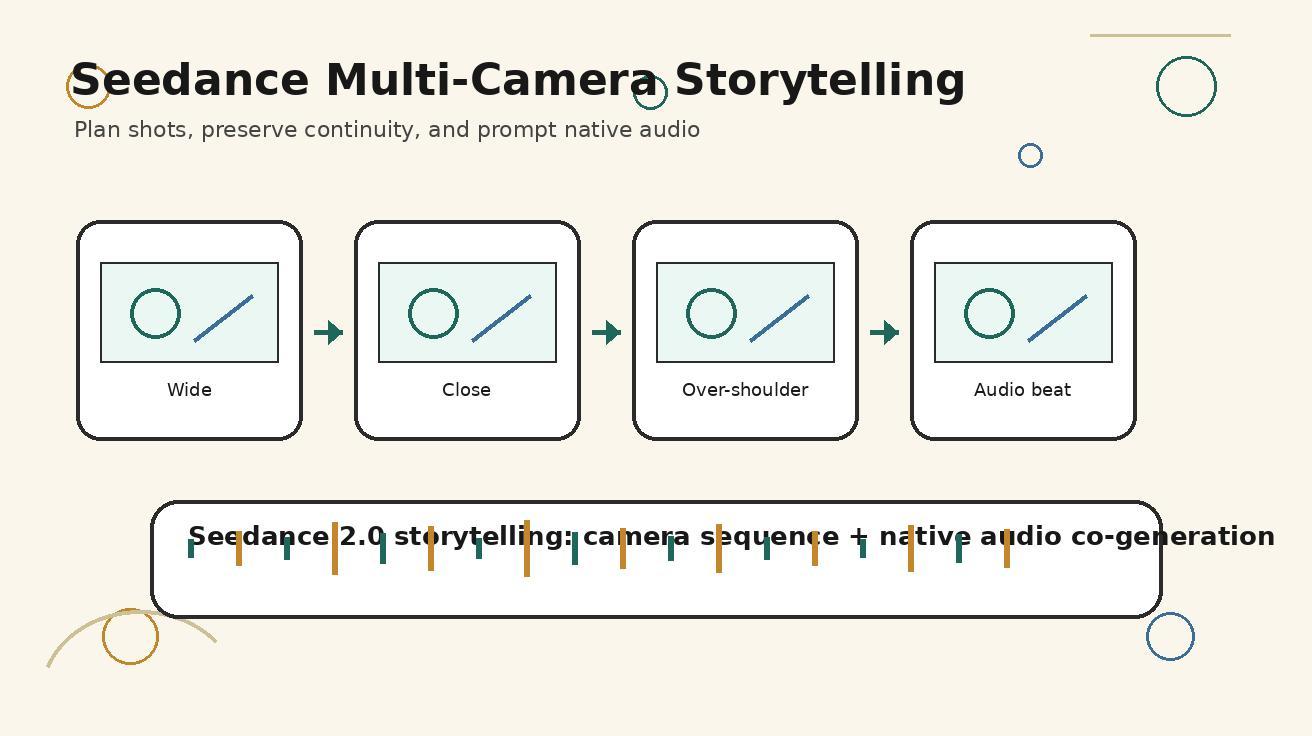
Seedance is no longer only a fast way to turn a prompt or reference image into a single attractive clip. For teams planning campaigns in 2026, the more important opportunity is Seedance multi-camera storytelling: building a video as a sequence of shots, camera perspectives, visual beats, and native audio cues that feel planned instead of randomly generated. That matters because most AI video failures do not come from weak image quality. They come from broken continuity, confusing camera intent, mismatched sound, and scenes that look impressive in isolation but do not tell a coherent story.
This guide explains how to use Seedance for multi-camera AI video planning and native audio prompting. It is written for marketers, founders, creators, product teams, agencies, and SEO teams that need reliable video assets rather than one-off demos. You will learn how to structure a Seedance 2.0 storytelling workflow, plan camera angles before generation, write native audio prompts, preserve scene continuity, test outputs, and turn the process into reusable prompt templates.
The timing is important. Higgsfield's recent Seedance 2.0 positioning highlights multi-camera storytelling and native audio co-generation as a practical creative direction, while creator communities are still discussing how Seedance handles voice, action, pacing, and camera control. That means the winning content angle is not simply “AI video generator.” The useful angle is how Seedance can help a team direct a short video like a miniature production: shot by shot, beat by beat, and sound by sound.
Quick answer: what is Seedance multi-camera storytelling?
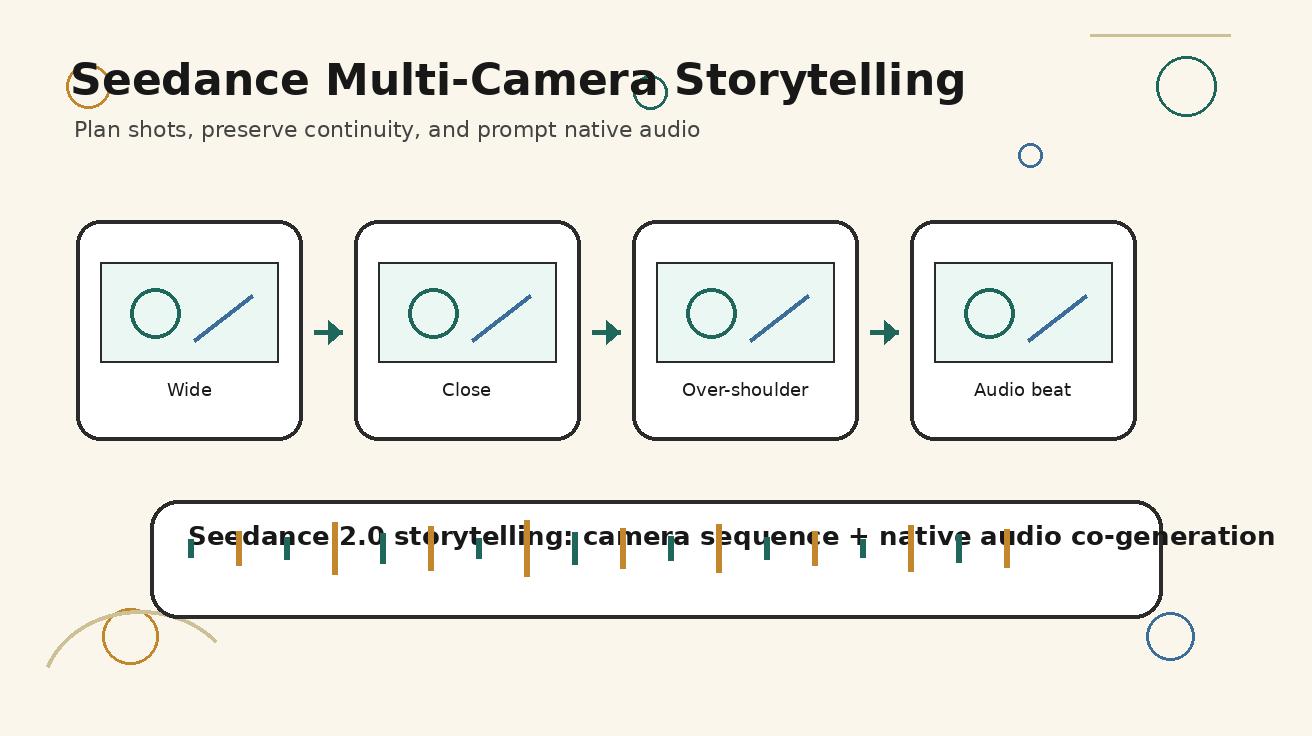
Seedance multi-camera storytelling is the process of prompting a Seedance video as a planned sequence of camera perspectives rather than a single generic scene. Instead of asking for “a product video with a happy customer,” you define a wide establishing shot, a medium action shot, a close-up detail, a reaction shot, and a final result shot. Each camera angle has a purpose. Together, the shots create meaning.
The native audio part adds another layer. A native audio video generator workflow asks Seedance to co-generate or account for sound cues such as footsteps, keyboard clicks, ambient room tone, a product beep, a natural voice line, a subtle whoosh, or music energy. Even when final mixing happens in an editor, writing audio intent into the prompt helps the scene feel directed. The viewer understands not only what they see, but also what they are supposed to feel.
For practical production, use Seedance multi-camera storytelling when you need videos that feel like short ads, product explainers, tutorial intros, narrative social clips, launch teasers, app previews, educational shorts, or brand stories. If you need a single abstract motion background, multi-camera planning may be unnecessary. If you need a sequence that guides attention, it becomes essential.
Why single-shot AI video often feels unfinished
Many AI videos look technically impressive but emotionally incomplete. The model may render beautiful lighting, smooth motion, and cinematic depth, yet the video still feels like a moving poster. The reason is simple: a story needs change. A single camera angle rarely provides enough information to show setup, action, response, and outcome.
Human directors solve this with coverage. They capture the same moment from different perspectives: a wide shot to establish space, a medium shot to show action, a close-up to show detail, and a reaction shot to show meaning. Seedance users can borrow that logic without running a physical production. The prompt becomes the shot list.
Single-shot prompting also creates continuity risk. If you ask for everything at once, the model decides what matters. It may move the camera when you wanted stability, change the object between frames, cut away from the key action, or add background elements that compete with the message. A multi-camera AI video workflow reduces this problem because each generation has a smaller job.
Sound is another reason single-shot videos feel unfinished. A silent clip can work for a background loop, but story-driven video usually needs audio cues. Native audio prompting gives the model a sense of rhythm. A close-up of a coffee cup feels different when the prompt includes a soft ceramic tap. A product reveal feels clearer when the prompt includes a subtle confirmation chime. A city scene feels more real with low traffic ambience instead of generic music.
When to use Seedance native audio
Use Seedance native audio when sound helps explain the scene, sell the emotion, or make the video feel complete on platforms where audio matters. TikTok, Instagram Reels, YouTube Shorts, product launch videos, app preview videos, educational explainers, and cinematic landing page assets can all benefit from audio planning.
Native audio is especially useful in four scenarios. First, product demos need small confirmation sounds that show progress: a tap, a click, a notification, or a completed task chime. Second, narrative ads need environmental sound that makes the world believable. Third, creator videos need dialogue or voice-like timing, even if the final voiceover is produced elsewhere. Fourth, tutorial clips need rhythm so cuts and captions feel intentional.
Do not rely on generated audio for every final deliverable. For regulated industries, brand campaigns, or precise voiceover, you may still need post-production review, licensed music, and controlled voice assets. The goal is to prompt audio intent early so the visual generation, pacing, and edit direction all point toward the same story.
The Seedance 2.0 storytelling structure
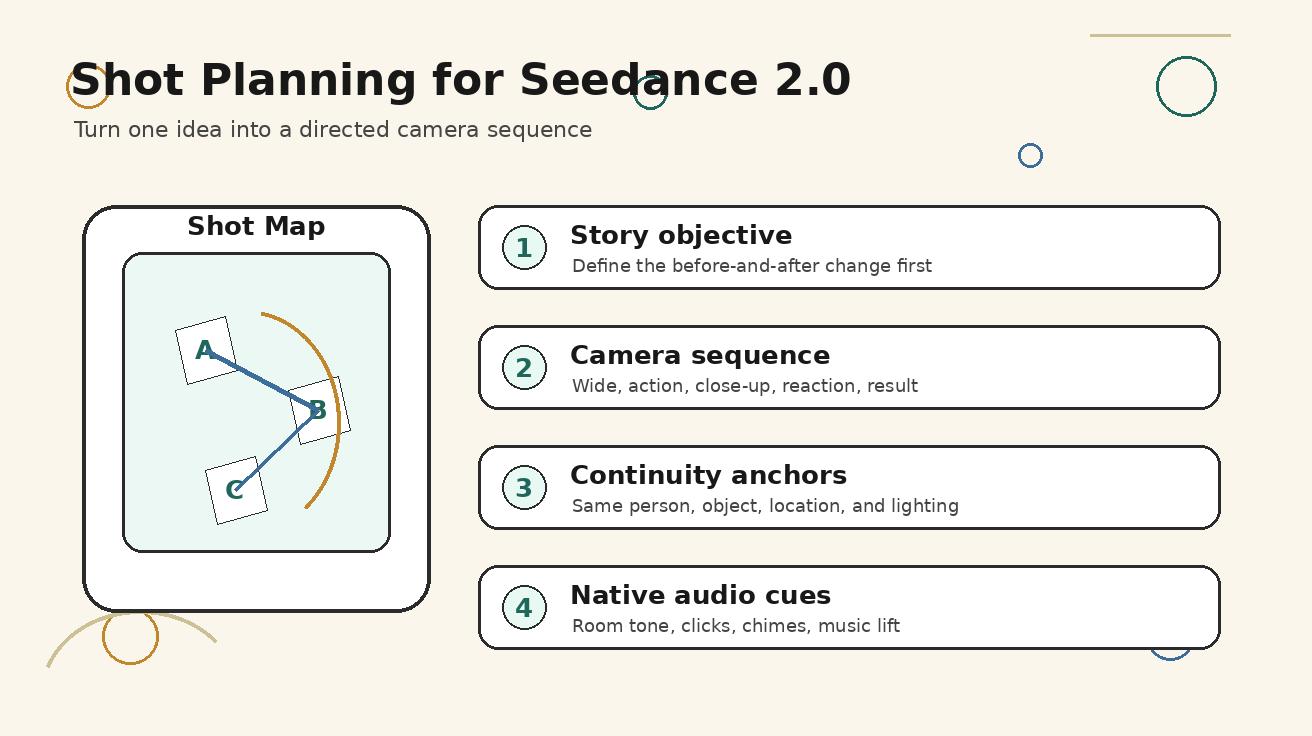
A reliable Seedance 2.0 storytelling prompt usually starts with a four-part structure: story objective, camera plan, continuity anchors, and audio cues. This structure keeps the model focused and gives your team a repeatable review checklist.
1. Story objective
Write one sentence that states what changes in the video. A weak objective says, “show a startup founder using an app.” A strong objective says, “show a founder moving from launch stress to confidence after creating a campaign video in Seedance.” The second version creates a before-and-after arc.
2. Camera plan
List the camera sequence. Example: “Shot 1: wide desk scene; Shot 2: over-the-shoulder screen view; Shot 3: close-up of prompt being reviewed; Shot 4: reaction shot; Shot 5: final video preview.” The words “shot” and “sequence” are useful because they tell Seedance that camera movement has structure.
3. Continuity anchors
Continuity anchors are details that must remain stable: the same person, same outfit, same workspace, same product screen, same object color, same time of day, same brand mood, and same narrative goal. Without anchors, a multi-camera prompt can create a new world in every shot.
4. Audio cues
Audio cues define what the viewer should hear and when. They can be simple: “soft room tone, gentle keyboard clicks, subtle notification chime when the preview completes, no loud music.” For a more cinematic clip, include “light synth pulse building during the camera move, natural footsteps, quiet city ambience, final warm chord.”
How to plan multi-camera shots before prompting
Planning does not need to be complicated. Create a five-row table before you open Seedance. Each row is one shot. The columns are purpose, camera angle, visual anchor, motion, and audio cue. This turns a vague idea into a production plan.
| Shot | Purpose | Camera angle | Continuity anchor | Motion | Audio cue |
|---|---|---|---|---|---|
| 1 | Establish the user problem | Wide shot | Same workspace and person | Slow push-in | Quiet room tone |
| 2 | Show the key action | Over-the-shoulder | Same laptop and interface | Gentle cursor movement | Keyboard clicks |
| 3 | Emphasize detail | Close-up | Same prompt, same product color | Macro focus shift | Soft UI tap |
| 4 | Show response | Medium reaction | Same person and lighting | Small camera drift | Confirmation chime |
| 5 | Deliver result | Clean product preview | Same brand mood | Smooth reveal | Warm music lift |
This table does two things. It clarifies the story for the writer, and it gives the reviewer a standard way to judge the output. If the close-up shot does not actually emphasize detail, it fails. If the reaction shot changes the actor, it fails. If the audio cue is distracting, it fails.
For product videos, keep camera movement modest. Seedance can create dramatic motion, but onboarding, SaaS, ecommerce, and tutorial clips usually perform better when the camera guides attention rather than showing off. A slow push-in, controlled pan, over-the-shoulder angle, close-up insert, and result reveal are often enough.
Prompt pattern for a complete multi-camera Seedance scene
Use this template when you want Seedance to understand the full sequence:
Create a short Seedance-style multi-camera AI video for [audience] about [story objective]. Shot 1: [wide establishing shot]. Shot 2: [medium action shot]. Shot 3: [close-up detail]. Shot 4: [reaction or result shot]. Keep the same [person/object/location/style] across every shot. Use [lighting/style]. Camera motion should be smooth and purposeful, not chaotic. Native audio: [ambient sound], [action sound], [transition sound], [final audio cue]. No random text, no extra logos, no distorted hands, no scene jumps.
Here is a filled example for a product launch clip:
Create a short Seedance-style multi-camera AI video for a SaaS founder launching a new product feature. Shot 1: wide shot of a calm modern desk before launch. Shot 2: over-the-shoulder view of the founder reviewing a campaign prompt on a laptop. Shot 3: close-up of the generated video preview appearing on screen, interface kept abstract with no readable fake text. Shot 4: medium reaction shot as the founder relaxes and prepares to publish. Keep the same founder, navy sweater, wooden desk, warm morning light, and clean startup workspace across every shot. Camera motion should be smooth and purposeful. Native audio: soft room tone, gentle keyboard clicks, subtle UI confirmation chime, light warm synth lift at the end. No random text, no extra logos, no distorted hands, no scene jumps.
The wording is specific without trying to micromanage every pixel. It tells Seedance what the story means, what the camera should do, what must stay consistent, and what audio should support.
Native audio prompt patterns that work
Native audio prompts should be concrete. “Good music” is too vague. “Soft electronic pulse at low volume, building slightly during the reveal” is more useful. “Realistic office sound” is weaker than “quiet room tone, gentle keyboard clicks, soft mouse tap, subtle notification chime.”
Use these patterns:
Product action audio
Native audio: subtle keyboard clicks as the user writes the prompt, quiet mouse tap when the generation starts, soft confirmation chime when the preview appears, low room tone, no loud music.
This works for app walkthroughs, product onboarding, and SaaS clips. It makes the interface feel responsive without turning the clip into a noisy ad.
Cinematic brand audio
Native audio: low cinematic ambience, soft riser during the camera push-in, gentle whoosh on the cut to close-up, warm final chord, no aggressive drums.
This works for launch teasers, landing page hero clips, and premium brand stories. The audio should support polish without overpowering the message.
Human story audio
Native audio: natural indoor ambience, light footsteps, chair movement, quiet breath before the reveal, soft laugh or relieved exhale after success, no unnatural robotic voice.
This works when the video includes a person reacting to an outcome. It helps the scene feel human while avoiding exaggerated acting.
Tutorial rhythm audio
Native audio: clean minimal beat at low volume, soft tap for each step, gentle transition whoosh between shots, final success chime, keep narration space clear.
This works for educational shorts where you may add captions or voiceover later. The phrase “keep narration space clear” is helpful when you do not want music to compete with a voice track.
How to preserve scene continuity in Seedance
Continuity is the biggest practical challenge in multi-camera AI video. The more shots you request, the more chances the model has to change the actor, object, layout, or mood. You can reduce the risk with continuity anchors and conservative shot design.
Start by defining the character or object in repeatable language. Do not write “a person.” Write “the same young founder in a navy sweater, short dark hair, seated at a wooden desk.” Do not write “a laptop.” Write “the same silver laptop on a wooden desk with a small black notebook on the left.” These anchors are not just descriptive; they are constraints.
Next, keep the environment stable. If shot one is a warm morning desk scene and shot two is a neon night office, the viewer feels a jump unless the story explains it. For most Seedance storytelling clips, use one location, one time of day, and one lighting style.
Third, separate the shots when accuracy matters. If the interface, product, or character consistency is critical, generate shots individually and edit them together. A single prompt can describe the whole sequence, but separate generations often give you better control. Use the same reference image or the same written anchors across all shots.
Fourth, avoid overloading the prompt. Too many details can fight each other. If you ask for a drone shot, macro product close-up, handheld documentary style, animated UI, dialogue, a crowd, and a logo reveal in eight seconds, the output will likely drift. Choose the most important visual job for each shot.
Image-to-video versus text-to-video in this workflow
Seedance offers different strengths depending on what you feed it. Use Seedance text-to-video when you need to create a context scene, narrative opening, human reaction, or abstract brand moment from a written idea. Use Seedance image-to-video when you need to preserve a product screenshot, reference frame, character, packaging, or visual style.
For multi-camera storytelling, the best workflow often mixes both. Text-to-video creates the emotional frame: the creator planning, the founder preparing, the customer using the result. Image-to-video preserves the product reality: the same screen, the same object, the same interface layout. If you are explaining Seedance 2.0 capabilities, this hybrid workflow also makes the article or campaign feel more credible because it shows how the model fits into real production rather than only abstract visuals.
A useful rule: when accuracy matters, start from an image. When mood matters, start from text. When both matter, create a reference frame first, then animate it with a narrow prompt.
Workflow: from story brief to publishable clip
Step 1: write the one-line story
Before prompting, write the story in one line. Example: “A marketer turns a messy launch idea into a polished product video using Seedance.” This gives every shot a role. If a shot does not support the sentence, remove it.
Step 2: build the shot table
Use the five-row table above. Do not skip the audio column. Even if you replace the final audio later, the audio column forces you to think about timing and emotion.
Step 3: gather reference frames
For product clips, capture screenshots or mockups. For brand clips, create a style frame. For people-based clips, choose a reference image that defines wardrobe, lighting, and environment. The goal is not to make Seedance less creative. The goal is to keep the creativity pointed in the right direction.
Step 4: generate the hardest shot first
The hardest shot is usually the close-up detail or interface action. Generate that first. If Seedance cannot produce the key action clearly, the rest of the video will not save the concept. Once the hardest shot works, build the supporting shots around it.
Step 5: review for continuity and audio fit
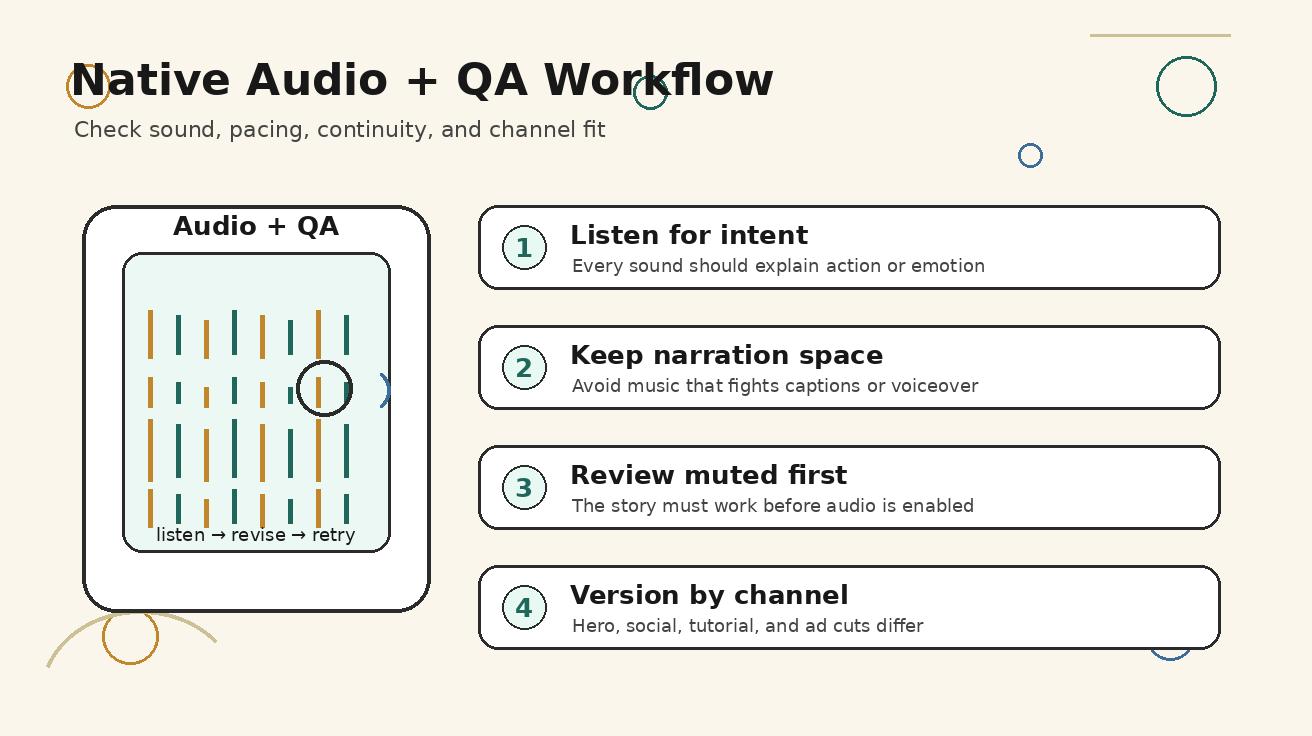
Review the output with two passes. First watch without sound and check whether the story makes sense visually. Then watch with sound and check whether the audio supports the action. If the audio is distracting, revise the native audio prompt or plan to replace it in editing.
Step 6: edit and version by channel
A 45-second website hero cut, a 20-second social cut, and a 10-second ad cut can use the same Seedance generations. Edit for placement. A landing page clip can be slower and cleaner. A social clip needs the result earlier. An onboarding clip needs less drama and more clarity.
QA checklist for Seedance multi-camera AI video
Use this checklist before publishing any Seedance native audio or multi-camera video:
- Does the first shot clearly establish the story problem or goal?
- Does each camera angle have a different purpose?
- Does the same character, object, workspace, or product remain consistent?
- Are the hands, screens, logos, and important objects believable?
- Does the close-up show a useful detail rather than random motion?
- Does the final shot deliver a clear outcome?
- Does the audio match the visible action?
- Are sound effects subtle enough for captions or voiceover?
- Is there any fake readable text that could mislead users?
- Is the clip short enough for the intended channel?
- Could the same footage be versioned into a shorter cut?
- Does the result still make sense if autoplay starts muted?
This checklist is intentionally practical. It protects the viewer experience and the brand. A clip can be visually beautiful and still fail if the story is unclear, the audio is noisy, or the camera movement distracts from the message.
Prompt templates for common use cases
Seedance multi-camera product demo
Create a Seedance multi-camera product demo for [product category]. The story is [user achieves outcome]. Shot 1: wide shot of the user facing the problem. Shot 2: over-the-shoulder view of the product interface, stable screen, no fake readable text. Shot 3: close-up detail of the key action. Shot 4: clean result preview. Keep the same user, device, desk, lighting, and brand color across all shots. Native audio: quiet room tone, soft keyboard clicks, subtle UI tap, confirmation chime on result. Smooth camera motion, no chaotic cuts.
Seedance native audio social clip
Create a short social video with native audio for [audience]. Begin with a quick visual problem, cut to a focused action, then reveal the result. Camera plan: wide hook, medium action, close-up detail, final reaction. Audio: low rhythmic beat, soft whoosh between shots, clear action tap, warm success chord. Keep visuals clean and captions-friendly. No random text, no extra logos.
Seedance 2.0 storytelling ad
Create a Seedance 2.0 storytelling ad showing [character] moving from [before state] to [after state]. Multi-camera sequence: cinematic wide shot, handheld medium action shot, macro close-up, final confident reaction. Keep continuity across wardrobe, location, lighting, and object placement. Native audio: realistic ambience, gentle riser, subtle transition whoosh, final calm music lift. Premium but practical tone.
Seedance tutorial intro
Create a tutorial intro for explaining [workflow]. Use a clean multi-camera sequence: wide context shot, close-up of the tool, over-the-shoulder action, final preview. Native audio should leave room for voiceover: low background texture, soft taps, minimal whooshes, no loud music. Keep the scene stable, clear, and educational.
Common mistakes to avoid
The first mistake is asking Seedance for too many camera angles without assigning purpose. “Multiple cameras” is not a strategy. A wide shot, close-up, and reaction shot should each answer a different viewer question.
The second mistake is treating native audio as decoration. Audio is part of the story. If the prompt says “epic music” for a quiet product walkthrough, the clip may feel inflated. Match audio to the user's state and the channel.
The third mistake is ignoring muted playback. Many users will first see the clip without sound. The video still needs visual clarity, captions, or obvious action. Native audio improves the experience for users who listen, but it cannot carry the whole message.
The fourth mistake is letting the model invent UI details. If the screen matters, use references and avoid readable generated text. Add exact captions, product labels, and interface annotations in post-production where you control accuracy.
The fifth mistake is publishing the first good-looking output. Review the video as a user would. Can you tell what happened? Do you trust the action? Does the sound feel natural? If not, revise.
Final recommendation
Seedance multi-camera storytelling is most powerful when you treat the prompt like a compact production brief. Define the story objective, plan the camera sequence, anchor continuity, and write native audio cues that support the action. This approach turns Seedance from a one-shot visual generator into a practical storytelling workflow for product videos, launch clips, tutorials, and social campaigns.
Start small. Build one four-shot video around one message. Use text-to-video for the human or brand context, image-to-video for accurate product moments, and Seedance native audio prompts for timing and emotion. Then review with the QA checklist before publishing. The result will feel less like a random AI clip and more like a directed story.
FAQ
What is Seedance multi-camera storytelling?
Seedance multi-camera storytelling is a workflow where you prompt a video as a planned sequence of camera angles, such as wide shot, medium action shot, close-up, reaction shot, and result shot. The goal is to make the AI video feel directed and coherent.
How does Seedance native audio help AI videos?
Seedance native audio helps by adding or guiding sound cues that match the visual action, such as keyboard clicks, ambient room tone, transition whooshes, confirmation chimes, or music lifts. This makes the clip feel more complete and easier to edit.
Is multi-camera AI video better than a single-shot prompt?
It is better when the video needs to tell a story or guide attention. A single-shot prompt can work for simple loops, but multi-camera planning is stronger for product demos, launch videos, tutorials, narrative ads, and social clips.
Should I generate all Seedance shots in one prompt?
You can describe the full sequence in one prompt, but for important product or brand work it is often better to generate shots separately. Separate shots give you more control over continuity, interface accuracy, and replacement of weak scenes.
What should I include in a native audio prompt?
Include ambient sound, action sound, transition sound, and final emotional cue. For example: quiet room tone, soft keyboard clicks, subtle tap when the preview starts, gentle whoosh between shots, and warm confirmation chime at the end.
Can I use Seedance for product videos with real interfaces?
Yes, but use reference screenshots or image-to-video when interface accuracy matters. Avoid asking Seedance to invent readable UI text, buttons, or product claims. Add exact labels and captions during editing.
Ready to try it yourself?
Put the steps from this guide into practice with Seedance and turn prompts or images into polished videos in minutes.
Free credits on signup. Plans from $20/month.
Related Articles
More posts in the same locale you may want to read next.

Seedance App Preview Video Generator 2026: Create App Store and Product Launch Clips
Use Seedance to turn app screenshots, feature copy, and launch goals into App Store previews, Google Play promo videos, and product launch clips.
Read article
Seedance in Firefly: Why Real Faces Are Blocked and What to Do
Firefly rejected a face-bearing Seedance reference? Learn what Adobe's rule covers, how to identify the blocked asset, and three compliant ways to finish your video.
Read article
Kling AI Credits per Video: A Practical Cost Calculator for 5s and 10s Clips
Calculate Kling VIDEO 3.0 credits for 5- and 10-second clips, compare audio and resolution settings, and budget for the cost of an approved video.
Read article