The Essential Seedance 2.0 Prompt Guide for AI Video

on 6 days ago

Welcome to the world of AI-powered video, where your words are all you need to become a director, editor, and cinematographer, all rolled into one. This guide to Seedance 2.0 is designed to take you beyond the usual generic tips. We're going to dive deep into practical strategies and actionable insights that will help you create incredible 1080p AI videos and unlock the full cinematic power of this tool.

Crafting Cinematic AI Video: Your Practical Guide

Young man types on laptop with a 'Prompt' displayed, interacting with a video call amidst creative digital elements.

In 2024, knowing how to write a good AI prompt isn't just a party trick; it's a fundamental creative skill. Tools like Seedance 2.0 are completely changing the game, removing the old roadblocks of time, budget, and technical skill that used to get in the way for so many creators and marketers. This guide focuses on giving you actionable methods for turning your ideas into polished, professional videos in minutes.

The shift is particularly noticeable here in the UK. A massive 96% of UK marketers now see video as a crucial part of their strategy, so the pressure to produce quality content is immense. Yet, 44% of businesses say production time is their biggest headache. This is exactly where Seedance 2.0 comes in, allowing you to turn a few lines of text into a finished video, effectively cutting down on production time and costs.

Before we get into the nitty-gritty, let's look at the core building blocks you'll be working with. Think of these as your basic ingredients for every prompt you write.

Seedance 2.0 Core Prompting Elements

Element Purpose Quick Example
Shot Type Sets the camera distance and framing. medium shot, close-up, wide shot
Subject & Action Defines who or what is in the scene and what they're doing. a woman jogging through a park at sunrise
Setting/Environment Describes the background and overall location. a bustling futuristic cityscape at night
Cinematic Style Influences the visual mood, colour, and overall aesthetic. cinematic, dramatic lighting, 35mm film
Camera Movement Instructs the virtual camera on how to move. dolly zoom, pan left, tracking shot

Mastering these five elements is the first step towards getting consistent, high-quality results from the AI. Now, let's explore how to put them into practice.

Unlocking Your Creative Potential

Jumping into AI video generation can feel a bit overwhelming at first, but the core idea is simple: what you get out is directly related to what you put in. A well-written prompt is like handing a film crew a detailed storyboard and shot list. A vague one is just asking them to "make something cool" and hoping for the best.

Actionable Insight: The difference between a generic clip and a compelling scene lies in your ability to translate creative vision into specific, machine-readable instructions. Your prompts need to be deliberate and structured.

This guide is built to show you exactly how to do that. We'll be focusing on practical, real-world advice you can start using straight away. You'll learn how to:

  • Craft multi-shot stories with consistent characters and locations.
  • Control camera angles, lighting, and film style using specific keywords.
  • Fix common problems and fine-tune your prompts for even better results.

If you ever feel stuck for an idea before you even start prompting, you might find that using the best AI for brainstorming can help get your creative juices flowing.

My goal here is to give you a solid framework for creating predictable, high-calibre video content. Whether you're a marketer making a product demo, a filmmaker storyboarding a short, or a teacher developing learning materials, mastering the art of the prompt is your key to success. And if you want to jump right in and start playing around, check out our guide on using a free AI video generator to experiment without any commitment.

Building Your Core Prompt Anatomy

To get consistently stunning videos from Seedance 2.0, you first need to learn how to structure your ideas. A well-built prompt isn't just a sentence; it's a blueprint. By organising your instructions in a specific order, you tell the AI exactly what to prioritise, which dramatically cuts down on unpredictable results.

Think of it as the DNA of your video. A strong prompt has five core components: the Subject, the Action, the Context, the Environment, and the Style. Getting this structure right is the key to turning a creative vision into a clear, machine-readable instruction set that delivers. This framework is a cornerstone for anyone serious about mastering Seedance 2.0.

The Five Pillars of a Seedance Prompt

The order of these elements is absolutely crucial. From what we've seen, placing the subject first acts as a centre of gravity for the AI, stopping it from getting distracted by other details. Following up with a clear action then grounds the scene's movement before any stylistic flair gets added.

Here’s a practical breakdown you can use as a template:

  • 1. Subject: Who or what is the focus? Be specific. Instead of "A person," try "A 30-year-old woman with vibrant red hair."
  • 2. Action: What is the subject doing? Use strong, present-tense verbs. Instead of "is seen walking," use "walks purposefully down the street."
  • 3. Context & Environment: Where is this all happening? Describe the immediate surroundings and the broader location. Practical example: in a busy cafe with steam rising from her cup.
  • 4. Camera & Shot: How are we seeing the scene? Get specific with the shot type (medium close-up), camera movement (slow dolly-in), and angle (low angle).
  • 5. Style: What's the overall aesthetic? This is where you define the mood, colour palette, and visual texture. Actionable insight: Referencing a specific film style like in the style of Wes Anderson, symmetrical composition works better than vague adjectives.

By following this sequence, you build your scene logically. You ensure the core elements are locked in before you start layering on the stylistic details. It’s a methodical approach that's far more effective than just throwing a list of keywords at the model and hoping for the best.

From Vague Ideas to Precise Instructions

Let's walk through how this works in a real-world scenario. Imagine you need to create a short, moody clip for a marketing campaign. A rookie mistake would be to write a prompt like this: "A car driving in a city at night, cinematic."

Sure, Seedance might produce something interesting, but you're leaving everything to chance. It could be any car, any city, and "cinematic" can mean a thousand different things.

Now, let's rebuild it using our five-pillar anatomy into an actionable prompt.

Subject: A sleek, black self-driving car. Action: Glides smoothly through a street. Context & Environment: A rain-slicked Tokyo street at midnight, neon signs reflecting on the wet asphalt and windshield. Camera & Shot: Low-angle tracking shot, following alongside the car. Style: Blade Runner aesthetic, high contrast, deep shadows, vibrant cyan and magenta hues.

Full Prompt Example: A sleek, black self-driving car glides smoothly through a rain-slicked Tokyo street at midnight, neon signs reflecting on the wet asphalt. Low-angle tracking shot, following alongside the car. Blade Runner aesthetic, high contrast, deep shadows, vibrant cyan and magenta hues.

See the difference? This detailed prompt leaves very little to interpretation. The AI now has a precise set of instructions to execute, giving you a video that actually matches your vision. If you're keen to learn more about how to structure your commands, digging into how different tools process text for videos can offer some fantastic insights.

Why Word Order and Specificity Matter

The AI model reads your prompt sequentially. This means the first things you mention carry the most weight. If you lead with stylistic keywords like "cinematic, dramatic, moody," the AI might focus on creating that atmosphere at the expense of accurately rendering your subject and its action. It gets its priorities mixed up.

Let's look at a practical example for a simple product shot:

  • Prompt A (Less Effective): Cinematic, soft natural light, a white ceramic mug on a wooden table, steam rising from it, slow zoom in.
  • Prompt B (More Effective): A matte white ceramic mug on a dark oak table. Steam gently rises from the mug. Slow dolly-in, close-up shot. Soft morning window light, peaceful and calm mood.

Prompt B will give you a better result almost every time. It establishes the subject and setting first, giving the AI a solid foundation to build on. The action is clear, the camera move is specific (dolly-in is more precise than zoom in), and the style is described as a lighting condition, which is far more actionable for the AI than the vague term "cinematic."

This structured approach is the difference between hoping for a good shot and directing one.

Crafting a Narrative: Multi-Shot Storytelling in Seedance 2.0

Making a single, stunning video clip is one thing. But what about directing a complete story that flows across multiple scenes? This is where Seedance 2.0 really starts to shine, letting you move beyond one-off shots and build a real narrative with a beginning, middle, and end.

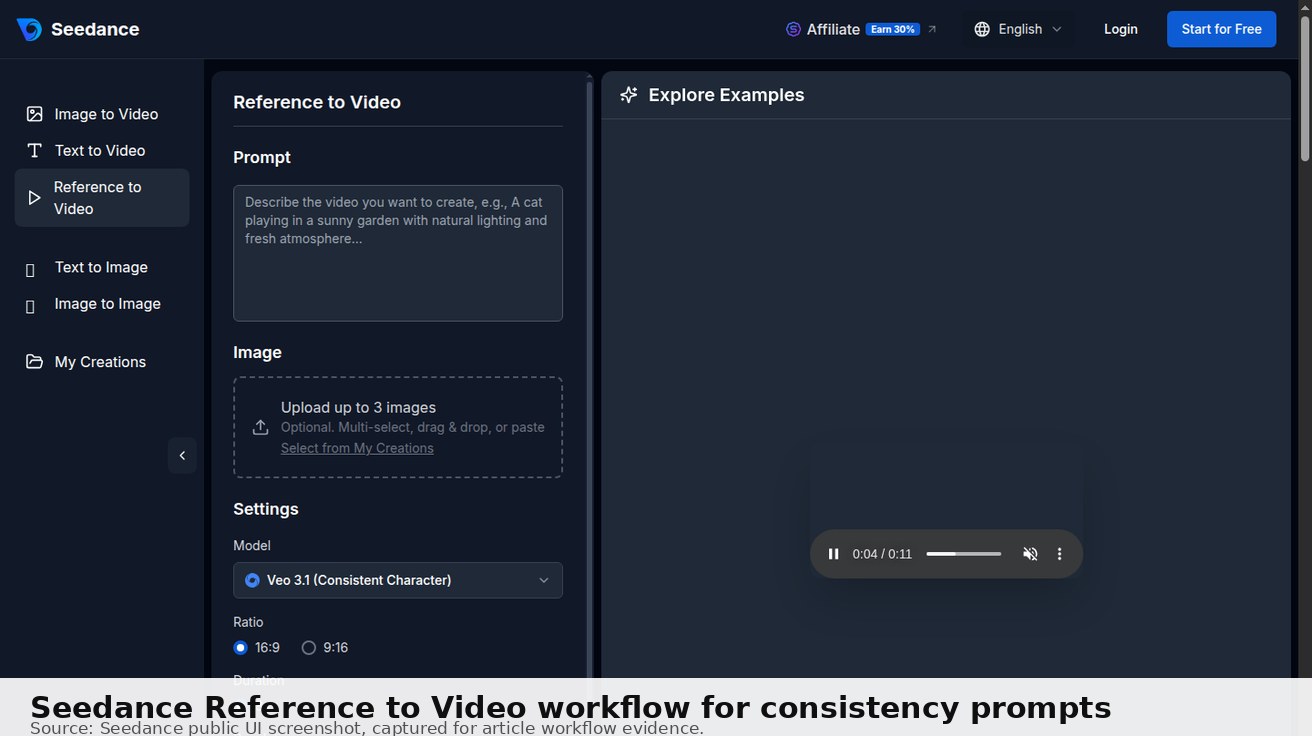
The secret to pulling this off is consistency. Your character has to look the same from one clip to the next—same face, same clothes, same hairstyle. Your location needs to stay consistent, too. Seedance 2.0 gives you the tools to manage this with a combination of what I call descriptive anchors and its powerful Character ID system, which lets you "lock in" a character's appearance for your entire project.

Keeping Your Character Consistent

There's nothing more frustrating than seeing your main character suddenly become a completely different person in the next shot. It's a classic AI video problem. To prevent this, you have to be intentional. The AI has a memory, but you need to give it the right details to remember.

Here are two actionable techniques to lock in your character's look:

  • Character ID (CID): Once you've generated a character you’re happy with, Seedance 2.0 can assign them a unique Character ID. Think of it like a digital casting number for your AI actor. You can then use this ID in later prompts to bring that exact character back on screen.
  • Descriptive Anchors: These are very specific, unique details you repeat in every single prompt for that character. Instead of just "a baker," you'd write "a baker with a faint flour smudge on her left cheek and a blue-striped apron." These anchors constantly remind the AI of the exact look you’re going for.

Actionable Insight: For the best results, use both. Start with strong descriptive anchors to create your character. Once you’ve generated that first shot, grab the Character ID and use it in every subsequent prompt.

This two-pronged approach dramatically cuts down on character "drift" between scenes, letting your story unfold without any jarring visual distractions.

Directing a Cohesive Scene: A Practical Example

Let’s walk through a real-world scenario. Imagine you’re creating a short promotional film about a local artisan baker. The story is simple: it’s about her dedication, her relationship with customers, and the quiet satisfaction she feels at the end of a long day.

To tell this story, we'll need three distinct shots.

Before we start, remember that a well-structured prompt is the foundation of every good shot. It’s all about building your scene logically, layer by layer.

A 'Core Prompt Anatomy' diagram illustrating prompt construction steps: Subject, Action, Context, Environment, and Style.

As you can see, a logical flow—from the core subject all the way to the final stylistic touches—is what gives you predictable, high-quality results time and time again.

Shot 1: The Opening

First, we need to introduce our baker and her environment. This is where we'll lean heavily on those descriptive anchors to create a memorable character.

Prompt Example: Medium shot of a woman in her late 30s with her hair in a messy bun, wearing a blue-striped apron with a faint flour smudge on her left cheek. She is energetically kneading dough on a rustic wooden table in a warmly lit bakery. Soft morning light from a window. Cinematic, gentle film grain.

Once we generate a shot we love, we save the character and get our CID. For this example, let's say it's id_baker_123.

Shot 2: The Interaction

Now, let's show her connecting with a customer. We’ll use our Character ID and repeat the key descriptive anchors, but we’ll change the action and the camera shot to move the story forward.

Prompt Example: Close-up shot of Character ID id_baker_123, a woman in her late 30s with a faint flour smudge on her left cheek and a blue-striped apron. She smiles warmly at a customer just out of frame. The bakery is bright in the background. Eye-level shot, shallow depth of field.

See how the core descriptors are still there? They reinforce the character’s appearance while letting the narrative progress. This is a fundamental part of a solid Seedance 2.0 prompt guide.

Shot 3: The Closing

Finally, the end of her day. We’ll bring everything together for one last consistent shot to close out our story.

Prompt Example: Wide shot of Character ID id_baker_123, a woman wearing a blue-striped apron, as she turns off the lights and hangs the 'Closed' sign on the bakery door. The street outside is dark, with a warm glow from the shop's interior. Locked-off shot.

Prompting for Seamless Transitions

A good story is more than just a sequence of clips; it's about how those clips connect. You can actually direct transitions in Seedance 2.0 by adding simple commands to your prompts. Think of them as editing notes for the AI.

Here's a practical guide to creating common transitions:

  • Hard Cut: This is the default. Simply write a new prompt for your next shot, and the AI will create a standard cut. No special command needed.
  • Dissolve: To blend one scene smoothly into the next, add dissolve to: at the start of your next prompt. Practical Example: dissolve to: Wide shot of the bakery exterior at dusk.
  • Whip Pan: For a fast, energetic transition between two actions in the same location, use whip pan right to: followed by the description of the new scene. Practical Example: whip pan right to: a close-up of a fresh loaf of bread on the counter.

By mastering character consistency and directing your transitions, you can go from simply generating clips to becoming a true AI storyteller. You now have the tools to create complete, compelling narratives, all from a few lines of text.

Advanced Controls for Cinematic Style

A camera with a lens and studio light, featuring Rembrandt and soft morning lighting techniques.

Once you've got the basics of prompt anatomy down, the real fun begins. True directorial control in Seedance 2.0 comes from mastering its advanced style and camera commands. This is how you move from just making a clip to truly setting a mood. It’s the difference between asking for a “sad scene” and specifying "a look inspired by the desaturated, melancholic colour palette of a Tarkovsky film."

To nail a specific look, you've got to speak the language of cinematography. Vague terms like 'cinematic' or 'dramatic' just don't cut it; they’re too broad for the AI. You'll get far better results by giving it concrete instructions that reference real-world filmmaking techniques.

Commanding Light and Colour

Lighting is the very soul of a video. It shapes the mood, guides the viewer’s eye, and sculpts everything in the frame. Instead of just prompting for good lighting, you can call on specific setups that carry their own distinct visual signature.

Here are a few powerful lighting keywords and practical examples:

  • Rembrandt Lighting: Creates a dramatic, moody portrait. Prompt example: A close-up of a detective's face, Rembrandt lighting, casting deep shadows.
  • Soft Morning Light: Great for a calm, peaceful, or optimistic feeling. Prompt example: A kitchen scene, soft morning light filtering through the window, peaceful mood.
  • Golden Hour: Ideal for romantic or nostalgic shots. Prompt example: A couple walking on a beach, golden hour, warm and romantic glow.
  • Ominous Top-Down Spotlight: Creates a sense of interrogation or isolation. Prompt example: A man sitting on a chair in a dark room, lit by an ominous top-down spotlight.
  • Neon-Soaked: Conjures a futuristic or cyberpunk vibe. Prompt example: A street in Tokyo, neon-soaked, vibrant and futuristic.

Actionable Insight: Replace abstract mood words with specific lighting descriptions. Instead of 'a scary scene', try 'a character in a dark alley lit only by a single, flickering streetlight, casting long shadows'.

This level of detail gives the AI a clear visual target, which leads to a much more intentional and professional-looking result. In the same way, you can direct the colour grading with prompts like muted colour palette, vibrant Technicolor, or bleach bypass effect for that high-contrast, desaturated look.

Directing the Virtual Camera

Your control doesn’t stop at lighting. Seedance 2.0 lets you direct the camera work with impressive precision, but there’s a trick to it. You need to use established filmmaking terminology for shot types, angles, and movements. A vague request like 'make it look dynamic' often just gives you chaotic, unpredictable motion.

Being specific, on the other hand, gives you reliable results. Here are practical examples of precise camera direction:

Shot Type & Movement Prompt Example Cinematic Effect
Low-Angle Tracking Shot Dynamic low-angle tracking shot, following a character as they run down a city street. Makes the subject seem powerful and dominant. The movement adds energy.
Extreme Close-Up Extreme close-up on the character's nervous eyes, darting back and forth. Focuses entirely on emotion and fine detail, creating intense intimacy or tension.
Sweeping Drone Shot Sweeping drone shot revealing a vast mountain range at sunrise. Establishes incredible scale and provides a breathtaking establishing shot.
Whip Pan Whip pan from a character's shocked face to the object they are looking at. A rapid, blurry pan that creates a jarring, energetic transition between two points.

Notice how each prompt combines a specific shot type (low-angle, extreme close-up) with a clear action (tracking shot, whip pan). This combination is worlds more effective than just asking for a 'cool shot'.

As you get more comfortable, you can start layering these elements for even greater control. For instance, you could request a handheld medium shot with Rembrandt lighting, which would produce a result that feels both intimate and dramatically tense. Exploring different video effects and learning their prompt language will seriously expand your creative toolkit. The more specific your vocabulary becomes, the closer Seedance 2.0 can get to bringing the exact image in your mind to life.

Even with the most perfectly crafted prompt, Seedance 2.0 will sometimes throw you a curveball. That’s just the nature of working with generative AI. Don't see it as a failure; think of it as a learning opportunity. Each weird output is a clue that helps you understand how the model "thinks" and how you can sharpen your instructions.

This section is your field manual for turning those frustrating, unexpected results into fantastic videos.

<iframe width="100%" style="aspect-ratio: 16 / 9;" src="https://www.youtube.com/embed/pwWBcsxEoLk" frameborder="0" allow="autoplay; encrypted-media" allowfullscreen></iframe>

You’ll inevitably run into common issues. Maybe the AI completely misunderstands your subject, generates a character with a distorted face, or creates chaotic, ‘soupy’ motion that makes no sense. These are just hurdles, and the good news is, they're usually easy to fix once you know what to look for. With a few troubleshooting tricks up your sleeve, you can diagnose and solve these problems fast.

Decoding Unwanted Results

When a video doesn't pan out, the first thing to do is figure out why. Did the AI get the subject wrong, or did it get tangled up in your style instructions? Pinpointing the problem is half the battle.

Most issues tend to fall into a few common buckets:

  • Subject Misinterpretation: The AI generates the wrong object entirely or a bizarre version of your character. This often happens when a subject description is too complex or ambiguous.
  • Chaotic Motion: The camera movement is jerky, unnaturally fast, or just plain nonsensical. This is a classic symptom of using vague motion words like ‘dynamic’ instead of specific camera directions.
  • Style Inconsistency: The colour palette or lighting shifts randomly between shots, breaking the visual continuity you were aiming for.
  • Artifacts and Glitches: You'll spot visual oddities like mangled hands, melting objects, or floating text that you never asked for.

By simply recognising which of these problems you're facing, you can apply a targeted fix instead of just hitting "regenerate" and hoping for the best.

Common Seedance 2.0 Prompting Issues And Fixes

Getting the hang of troubleshooting is what separates good results from great ones. When your video generation goes off the rails, it's usually down to a handful of common prompt mistakes. This table is a quick reference guide to help you identify the likely cause and apply a practical fix right away.

Problem Potential Cause Actionable Solution (Prompt Example)
Distorted Faces or Hands The model is struggling with anatomical details, often in close-ups or with complex poses. Use a negative prompt to forbid deformities. Example: shot of a woman smiling --no distorted face, deformed hands, extra fingers
"Soupy" or Blurry Motion The prompt lacks clear motion commands, or the style (e.g., "dreamlike") is overriding the structure. Add specific camera movements and use a negative prompt to reduce blur. Example: slow panning shot of a forest --no motion blur, blurry
Wrong Subject Appears The subject description is too ambiguous, or keywords are conflicting with each other. Be more specific and simplify. Instead of mythical beast, try a majestic griffin with eagle wings and lion body.
Inconsistent Style The prompt doesn't have a strong, consistent style anchor, or you're using conflicting artistic terms. Reinforce the style with in the style of and keep it consistent across shots. Example: a city street, in the style of Blade Runner 2049
Unwanted Text/Watermarks The AI is pulling from its training data, which includes images with text, logos, or watermarks. Add a direct negative prompt to remove them. Example: a beautiful landscape --no text, no logos, no watermarks, no signatures

Think of this as your first-aid kit for prompting. A small, targeted tweak is almost always more effective than starting over from scratch.

Using Negative Prompts for Precision

One of the most powerful tools in your troubleshooting kit is the negative prompt. This is where you explicitly tell Seedance 2.0 what not to include in your video. It acts like a set of guardrails, steering the AI away from common unwanted elements.

Actionable Insight: Negative prompts are your first line of defence against visual noise. They work best when they are specific and targeted at a recurring issue.

For example, if your character generations frequently have six fingers, you can make it a habit to add --no extra fingers, deformed hands to your character prompts. It's a simple, proactive fix that saves a ton of time.

Practical Example: A beautiful portrait of a woman --no ugly, deformed, disfigured, text, watermark

This command directly tells the model to avoid generating those common unwanted flaws, giving you a cleaner result from the start.

The Art of Prompt Iteration

When a prompt isn’t quite landing, the answer is usually iteration. This means making small, methodical changes until you nail the result. Instead of tearing up the whole prompt and starting again, just tweak one element at a time. This scientific approach helps you understand exactly which change made the difference.

Here's an actionable workflow:

  1. Identify the Problem: Is the video too bland? Too chaotic?
  2. Hypothesize a Fix: "Maybe adding a specific lighting style will improve the mood."
  3. Tweak One Thing: Add dramatic Rembrandt lighting to your prompt.
  4. Regenerate and Compare: Is the new video better? If so, you've learned something. If not, undo the change and try tweaking another element, like the camera angle.

On the other hand, if your video feels bland or generic, it likely needs more specific instructions. Don't just say "a car"—say "a vintage red sports car." Instead of "daytime," try "golden hour sunlight filtering through trees." Each little detail you add gives the AI a clearer picture to work from, guiding it closer and closer to your vision. This iterative process is a core skill you'll use to master any AI tool.

Your Seedance 2.0 Prompting Questions Answered

As you dive into Seedance 2.0, a few questions will inevitably pop up. We've all been there! Here are some straightforward answers and practical examples for the most common queries I hear from creators.

How Long Should My Seedance Prompts Be?

Precision is far more valuable than length. While you can write a lot, the best results often come from concise, well-structured prompts.

Actionable Insight: Aim for a prompt length of around 60-80 words. This forces you to be clear about your core idea. Place your most important elements—Subject and Action—right at the start, as Seedance 2.0 pays the most attention to the beginning of the prompt.

Practical Example (Good): A grizzled astronaut gazes out a spaceship window at a swirling nebula. Medium close-up, reflective helmet visor, style of 2001: A Space Odyssey. This is focused and clear.

Practical Example (Less Effective): An old, wise astronaut who has seen many things in his long career in space is now looking out the window of his spaceship at the beautiful, colourful, swirling cosmic dust and gas of a nebula in deep space, and he is feeling thoughtful and a bit sad. This is too long and uses emotional words the AI may struggle to interpret visually.

Can I Create Videos for Different Aspect Ratios?

Absolutely. You must tailor your content for specific platforms, and Seedance 2.0 makes this incredibly easy. You can set the aspect ratio directly in your prompt.

Here are the essential commands and their use cases:

  • --ar 9:16 for TikTok, Instagram Reels, and YouTube Shorts
  • --ar 16:9 for classic widescreen videos on YouTube
  • --ar 1:1 for square Instagram feed posts
  • --ar 4:5 for taller vertical feed posts

Practical Example: Medium shot of a chef expertly plating a dish, top-down angle, in a professional kitchen. Soft studio lighting, cinematic. --ar 9:16

With that simple --ar command, you’ve told the AI not just what to create, but how to frame it perfectly for a vertical video.

Why Does the AI Struggle with Specific Objects or Brands?

This is a big one. Seedance 2.0 has guardrails to respect copyright, so it's designed to avoid generating protected logos or easily identifiable branded products. If you ask for a "can of Coca-Cola," it will almost always give you a generic red can.

Actionable Insight: The trick is to describe the look of the object, not its name. Think like an art director giving visual cues, not a shopper writing a list.

Let's use a practical example for specific trainers.

This won't work well: A person tying the laces of their Nike Air Max 90s.

Try this instead (Actionable Example): Close-up on a person's hands tying the laces of white and grey athletic trainers with a visible transparent air bubble unit in the heel.

By describing the key visual features, you're giving the AI a clear blueprint to create something that fits your vision without asking it to copy a protected design. Getting the hang of this is a game-changer.


Ready to stop troubleshooting and start creating? With Seedance, you can turn your ideas into high-quality, cinematic videos in minutes. Explore advanced storytelling, precise camera controls, and stunning visual styles today by visiting https://www.seedance.tv.