Entfernen Sie hinzugefügten Text
Laden Sie das Bild mit dem hinzugefügten Text hoch.
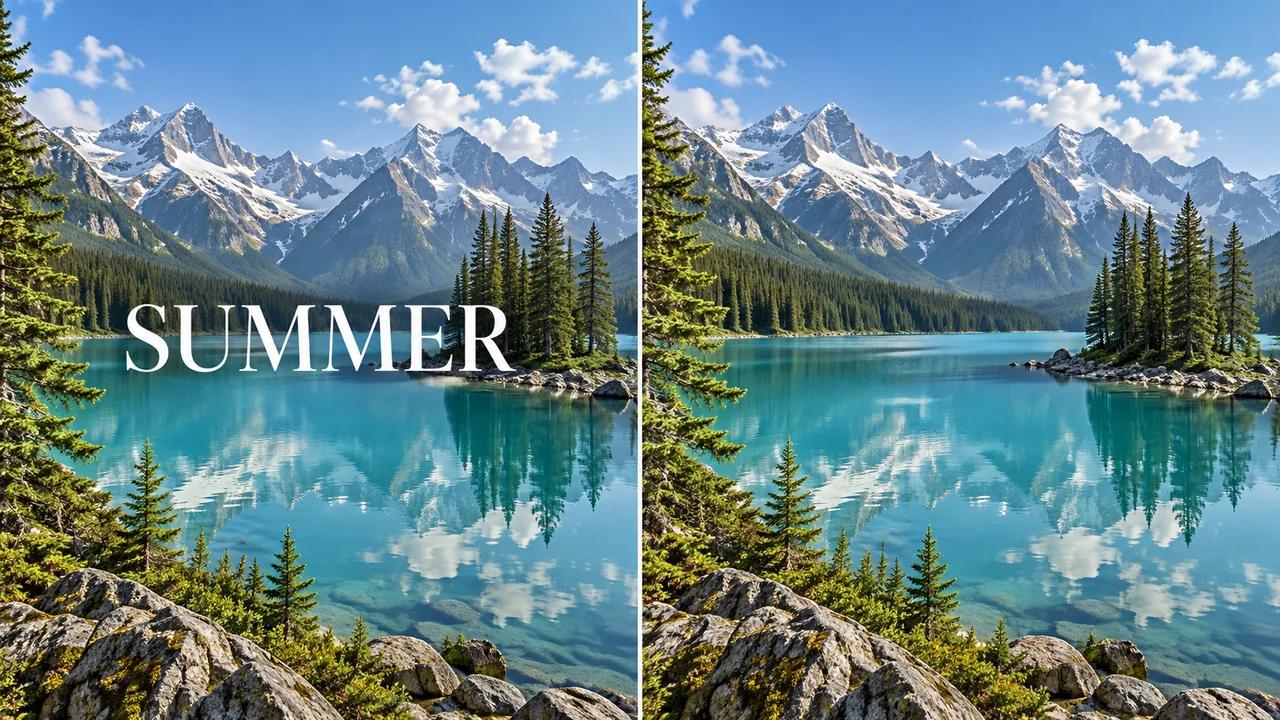
Entfernen Sie hinzugefügte Bildunterschriften, Datumsstempel und Textüberlagerungen aus Bildern mit Seedance. Schaffen Sie einen sauberen Ausgangspunkt für ein neues Layout, ohne jeden Buchstaben manuell nachzubearbeiten.
Entfernen Sie Text aus Ihrem Bild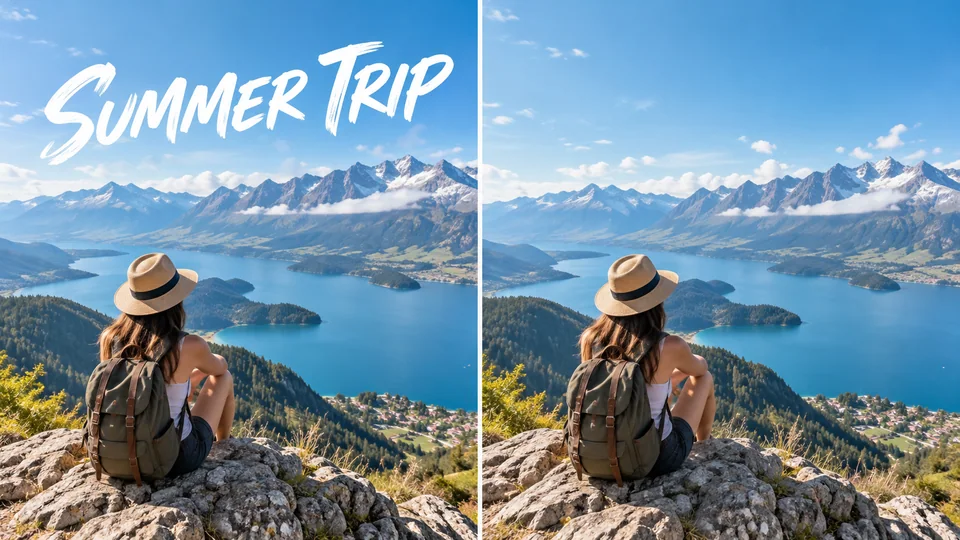
Laden Sie das Bild mit dem hinzugefügten Text hoch.
Überprüfen Sie die angezeigte Kreditkostenangabe und generieren Sie die Textentfernung.
Prüfen Sie den rekonstruierten Hintergrund und laden Sie Ihr bearbeitetes Bild herunter.
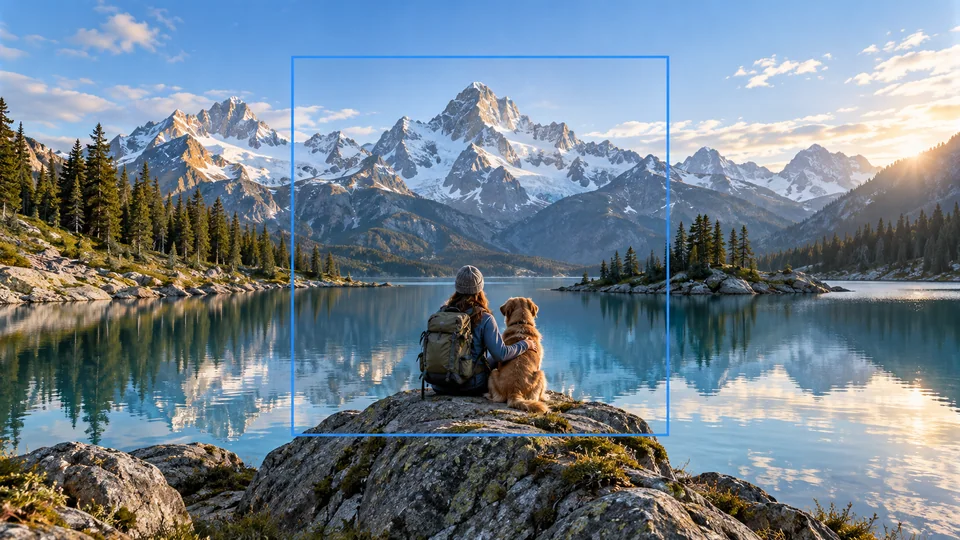
Ein Reisefoto kann weiterhin nützlich sein, nachdem eine überlagerte Überschrift veraltet ist. Die Textentfernung stellt den durch hinzugefügten Text abgedeckten Bereich wieder her. Bewahren Sie das Original auf und prüfen Sie Himmelshelligkeitsverläufe sowie feine Details rund um den entfernten Text.
Entfernen Sie Text aus Ihrem Bild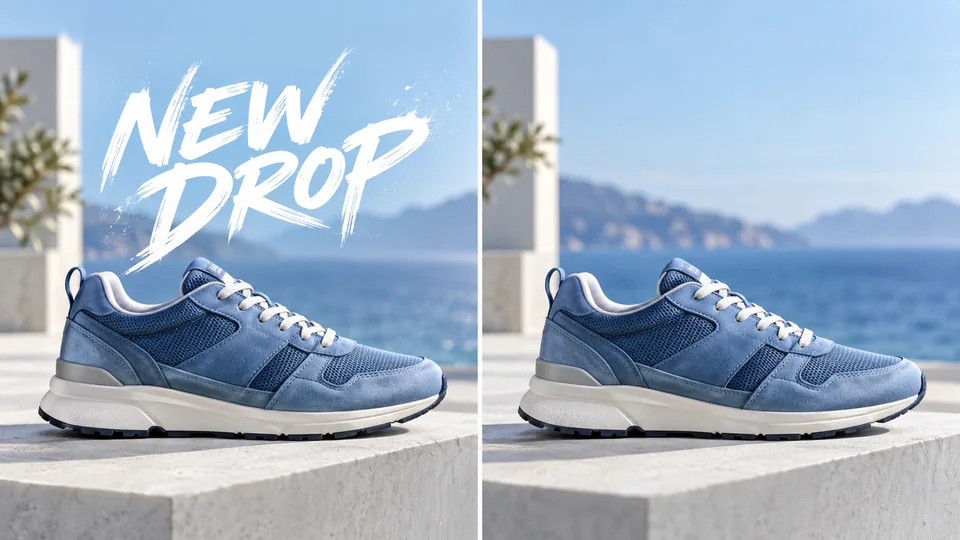
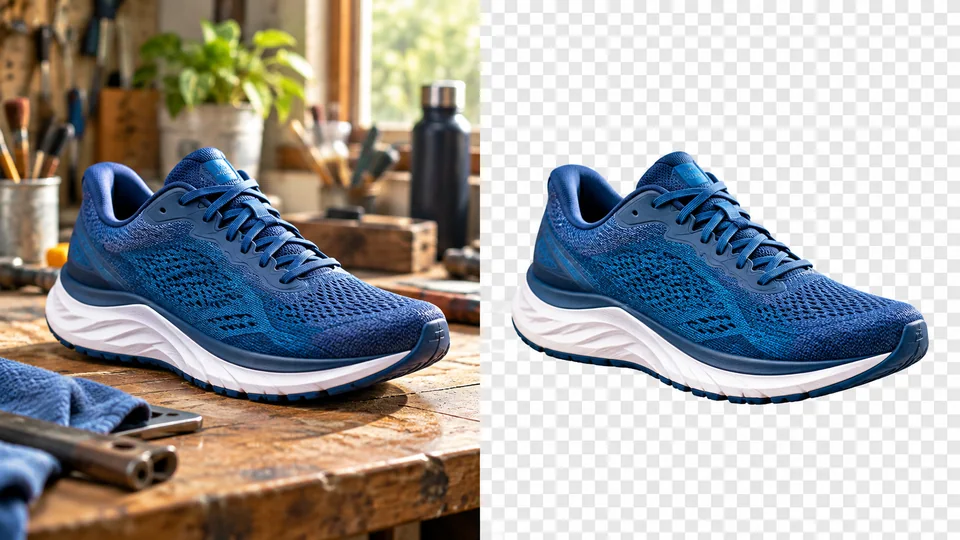
Entfernen Sie eine alte Werbeunterschrift, bevor Sie eine neue Kampagne vorbereiten. Die Funktion zielt auf über das Bild hinzugefügten Text ab, nicht auf auf dem Produkt gedruckten Text. Überprüfen Sie Etiketten und Verpackung, damit das bearbeitete Bild weiterhin das gewünschte Produkt korrekt darstellt.
Entfernen Sie Text aus Ihrem Bild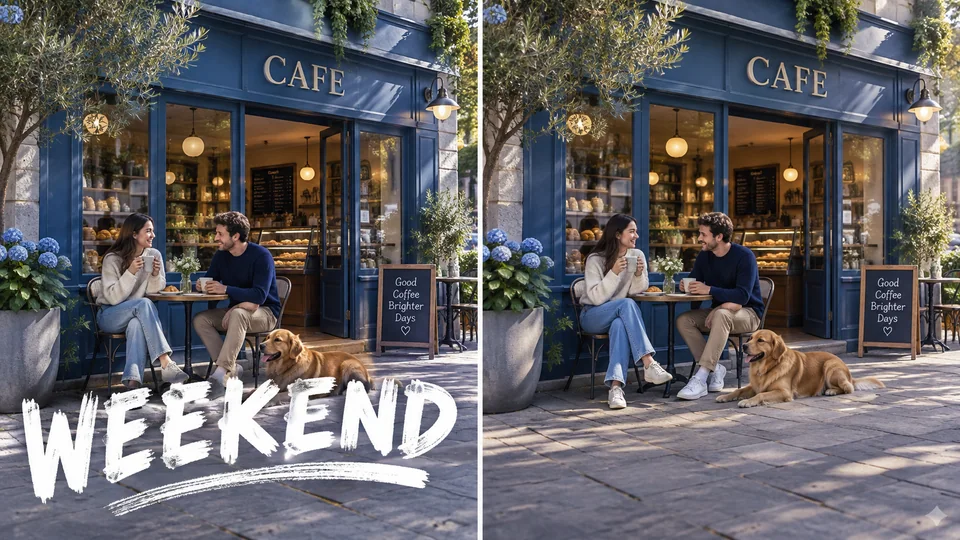
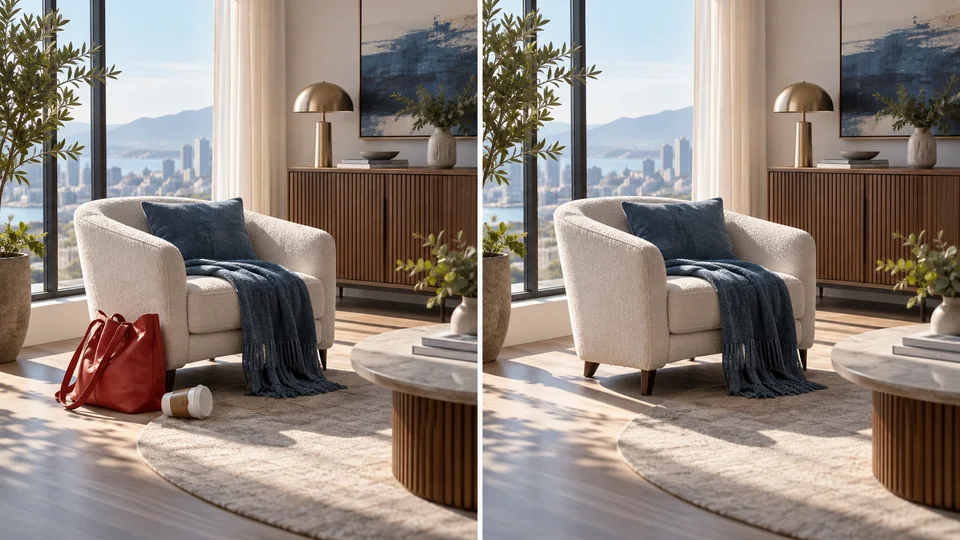
Eine Unterschrift am unteren Bildrand unterscheidet sich von einem Laden-Schild innerhalb der Szene. Dieses Tool wurde entwickelt, um hinzugefügten Text zu entfernen, während das Foto selbst erhalten bleibt. Prüfen Sie beide Arten von Text anschließend, da generative Bearbeitung immer noch kleine Details verändern kann.
Entfernen Sie Text aus Ihrem Bild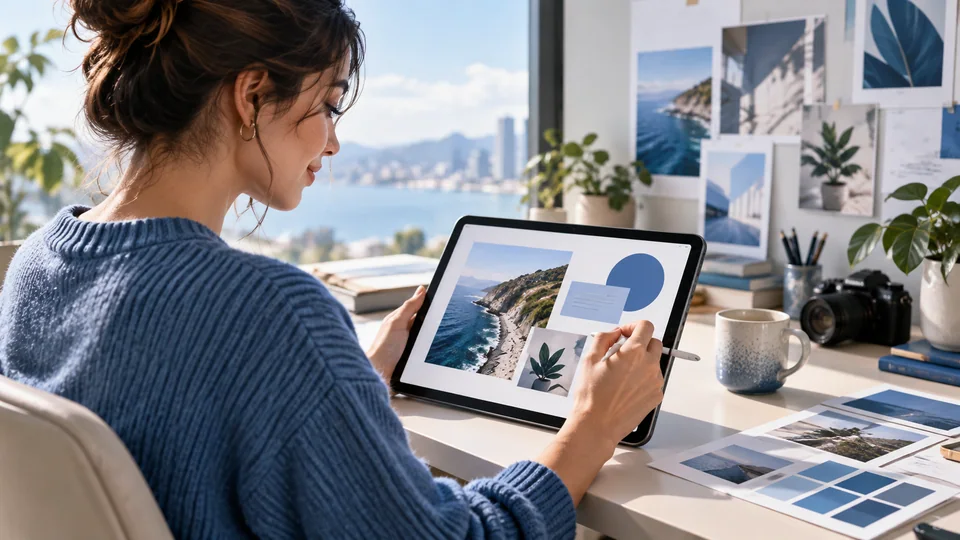
Fügen Sie nach der Bildreinigung die nächste Überschrift als separate Textebene in Ihrem Editor hinzu. Dadurch werden Übersetzungen und Kampagnenaktualisierungen einfacher. Die KI füllt abgedeckte Bereiche mit plausibler Textur auf; sie kann jedoch keine Wiederherstellung der ursprünglichen Pixel garantieren.
Entfernen Sie Text aus Ihrem Bild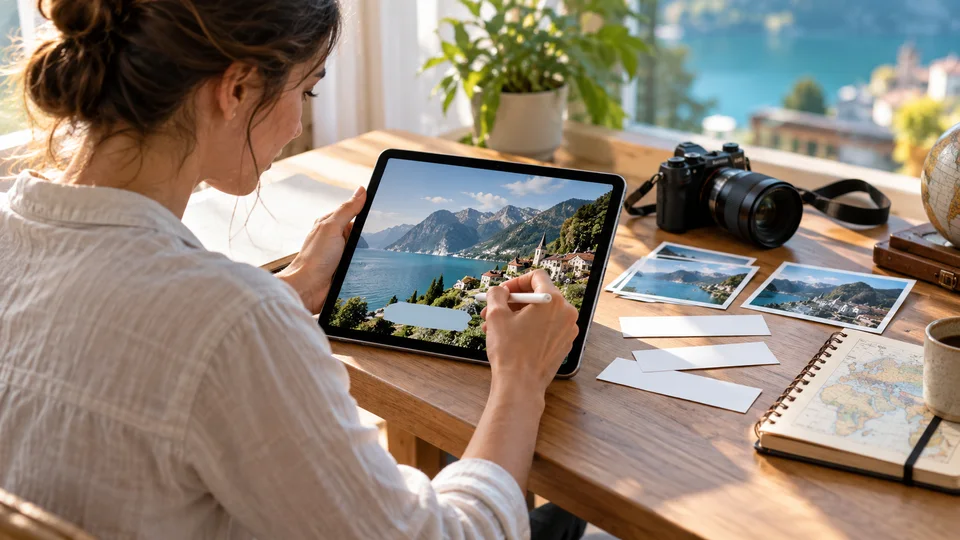
Entfernen Sie eine veraltete Bildunterschrift und platzieren Sie neuen Text als separate, bearbeitbare Ebene. Prüfen Sie den sauberen Hintergrund, bevor Sie den Beitrag abschließen.
Entfernen Sie ein überlagertes Angebot, während Sie echte Produktetiketten bewahren. Stellen Sie vor der Veröffentlichung sicher, dass das Produkt weiterhin mit der Quelle übereinstimmt.
Verwenden Sie ein sauberes Bild und platzieren Sie jede Sprache in separaten Textebenen. Dieses Tool entfernt Text, anstatt ihn zu übersetzen.
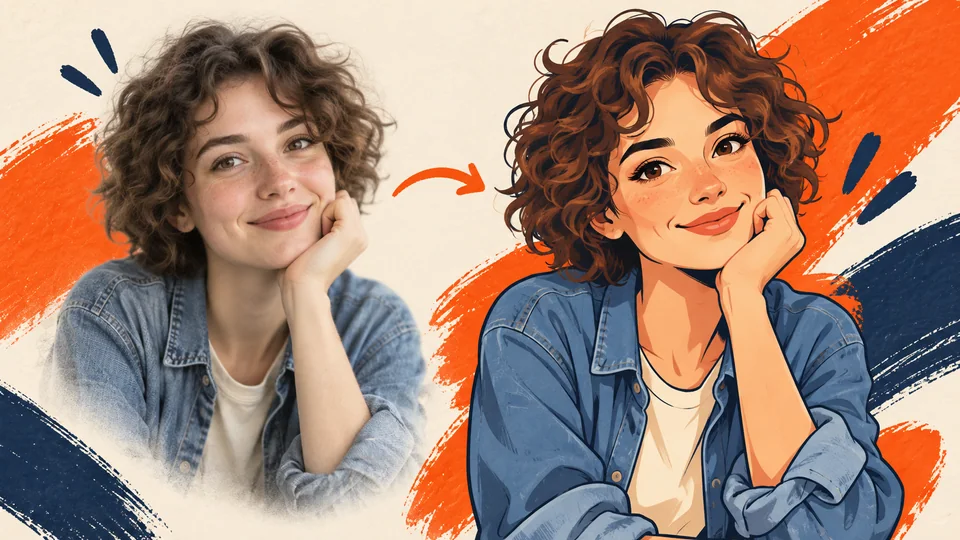
Erstellen Sie eine saubere Kopie Ihres persönlichen Bildes mit hinzugefügtem Titel oder Zeitstempel. Bewahren Sie das Original für den Kontext auf.
Laden Sie das Bild mit dem hinzugefügten Text hoch.
Überprüfen Sie die angezeigte Kreditkostenangabe und generieren Sie die Textentfernung.
Prüfen Sie den rekonstruierten Hintergrund und laden Sie Ihr bearbeitetes Bild herunter.
Entfernen Sie hinzugefügte Bildunterschriften, Datumsstempel und Textüberlagerungen aus Bildern mit Seedance. Schaffen Sie einen sauberen Ausgangspunkt für ein neues Layout, ohne jeden Buchstaben manuell nachzubearbeiten.
Dieser Workflow zielt automatisch auf überlagerten Text im hochgeladenen Bild ab. Er bietet keine Einzelwortauswahl oder Pinselmaske.
Die Textentfernung löscht die Überlagerung; sie übersetzt oder ersetzt sie nicht. Fügen Sie nach dem Herunterladen des Ergebnisses den neuen Text mithilfe eines Gestaltungs- oder Textbearbeitungstools hinzu.
Laden Sie das Bild mit dem hinzugefügten Text hoch. Prüfen Sie die angezeigte Kreditkostenangabe und generieren Sie die Textentfernung. Prüfen Sie den rekonstruierten Hintergrund und laden Sie Ihr bearbeitetes Bild herunter.
Dieses Tool nutzt Ihre Seedance-Kredite. Prüfen Sie die im Generator angezeigte Kostenangabe vor der Übermittlung; der Betrag hängt vom Modell und den Einstellungen ab. Ihr bestehender Seedance-Tarif und Ihr Kreditstand gelten weiterhin.
Die folgenden Beispiele sind KI-generierte Illustrationen möglicher Anwendungen, keine gemessenen Ausgaben dieses Tools. Ihr Ergebnis hängt vom Quellbild und den Generierungseinstellungen ab.
Vergleichen Sie die Ausgabe mit Ihrem Original in voller Größe. Prüfen Sie Gesichter, Text, Kanten und wichtige Details und stellen Sie sicher, dass Sie das Recht haben, das Bild zu bearbeiten und zu veröffentlichen.