
Générateur et éditeur d’images GPT Image 2.5
D’une idée écrite à une image finale : générez des images, modifiez des photos de référence et affinez les détails avec GPT Image 2.5. Commencez par Flare pour une exploration rapide ou choisissez Sunburst pour un travail créatif précis, avec des options de sortie en 1K, 2K et 4K sur Seedance.
Génération Flare
 GPT Image 2.5 Flare
GPT Image 2.5 Flare contre Sunburst : choisissez votre flux de travail
Flare constitue un point de départ pratique pour des brouillons rapides et des variations créatives. Sunburst convient mieux aux travaux où les détails précis méritent davantage de temps. Les deux offrent la génération d’images à partir de texte et l’édition d’images de référence sur Seedance.
Créez et éditez avec plus de contrôle dans GPT Image 2.5
Édition d’images de référence avec sujets reconnaissables
Intégrez un portrait, un personnage ou un produit dans une nouvelle scène tout en conservant ses détails caractéristiques. Les flux de travail image-à-image de GPT Image 2.5 sont utiles pour assurer la cohérence des personnages, explorer des tenues alternatives ou modifier l’arrière-plan d’un produit. Comparez le résultat obtenu avec votre image de référence afin de vérifier les détails essentiels. Pour une série de portraits de personnages ou d’animaux familiers, téléversez une photo source claire et identifiez les traits qui définissent le sujet. Décrivez ensuite séparément la nouvelle tenue ou la nouvelle scène. Cette méthode s’avère également utile pour explorer des mascottes de marque, des portraits personnalisés ou des personnages visuels récurrents au sein d’une collection d’images.
| Photo de référence | Ce qu’il faut rechercher | Résultat GPT Image 2.5 |
|---|---|---|
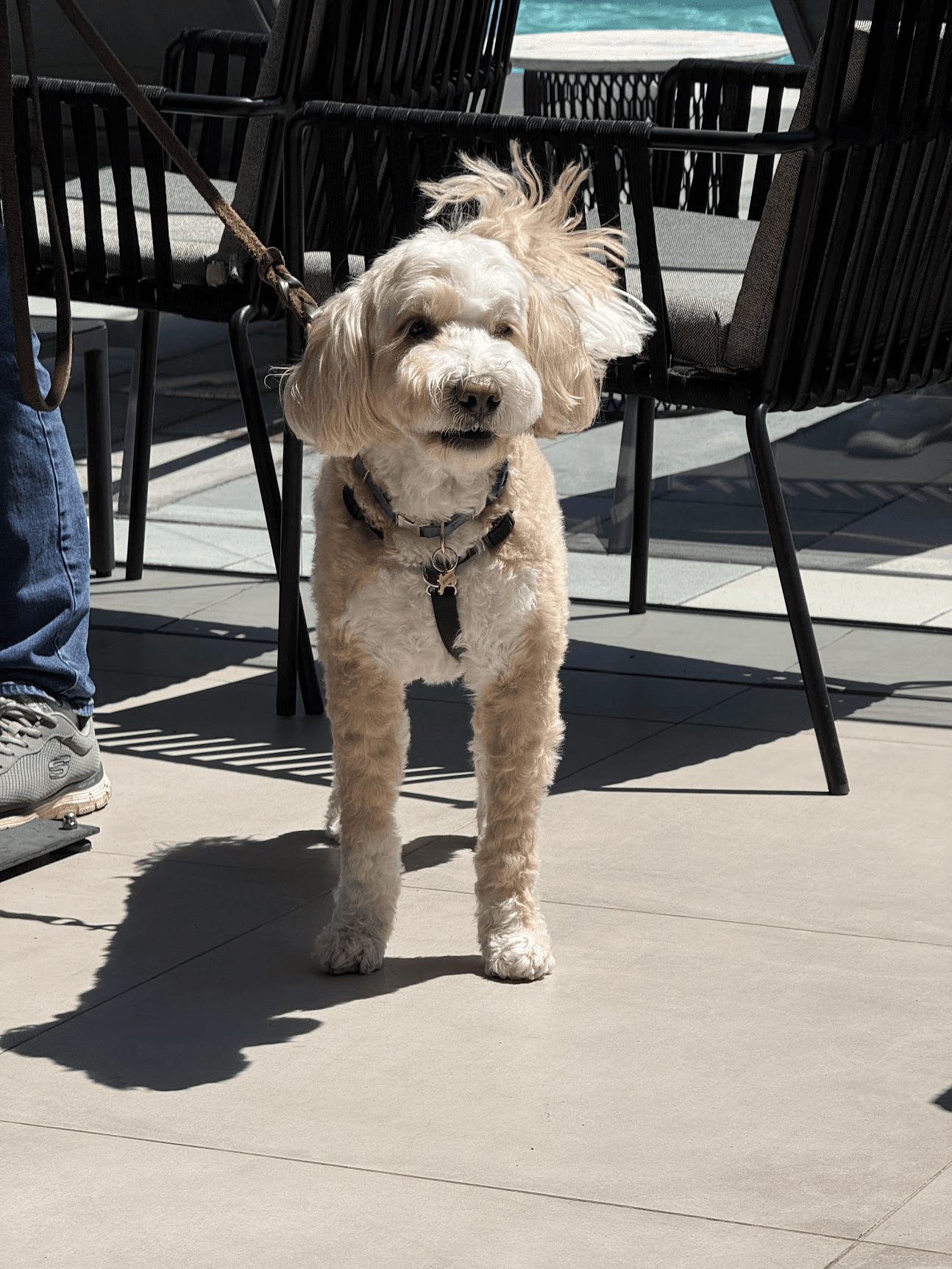 | L’exemple d’OpenAI ajoute un costume de cascadeur et un casque tout en conservant l’apparence reconnaissable du chien et son cadre de terrasse. Comparez la fourrure, le visage, la posture et les chaises environnantes pour observer comment les détails issus de la référence se transposent dans un nouveau traitement créatif. | 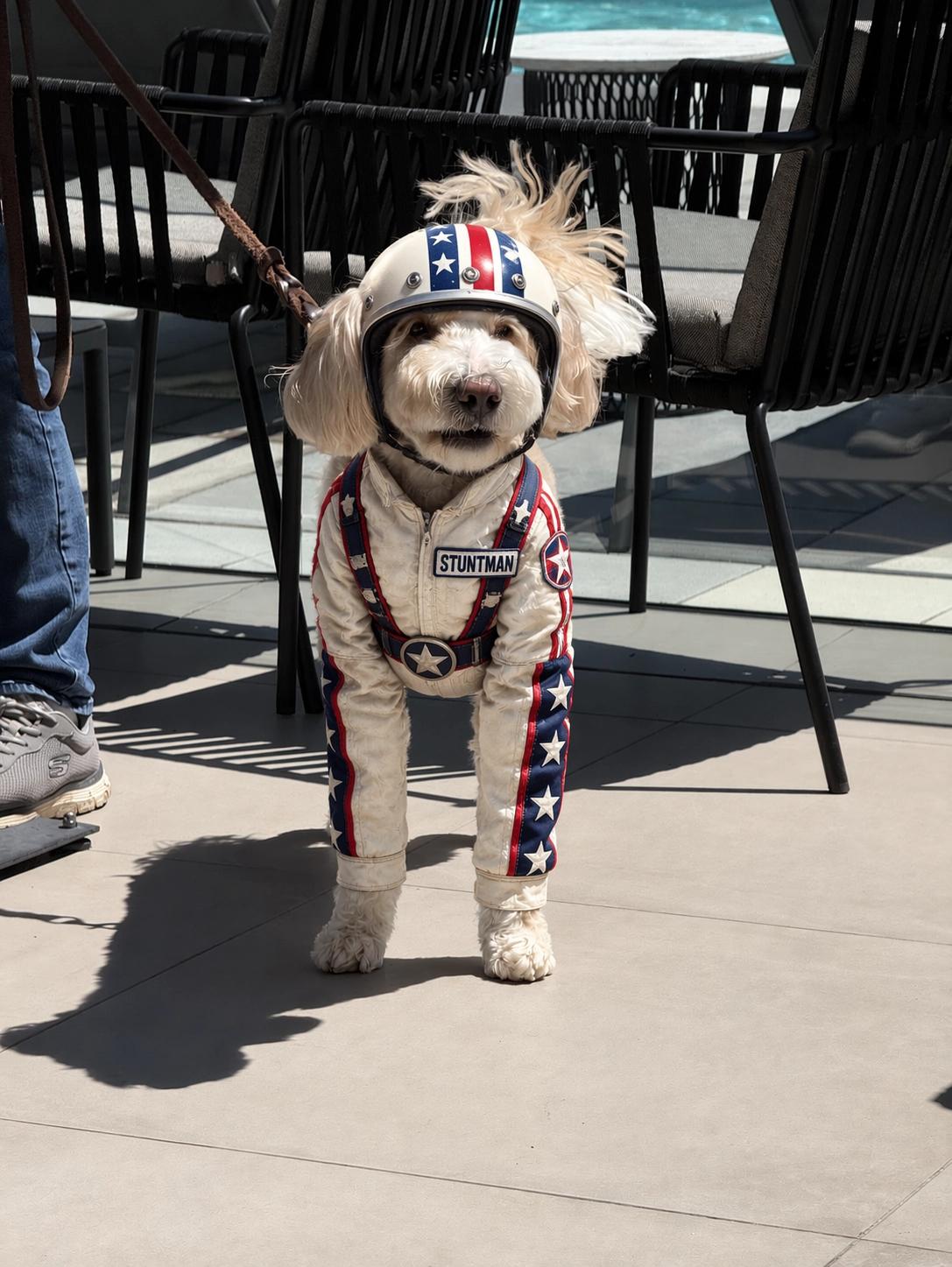 |
Effectuez des retouches photographiques précises, détail par détail
Décrivez l’objet, le matériau, la couleur ou l’arrière-plan que vous souhaitez modifier, puis nommez les éléments à conserver. Cela fournit à l’éditeur d’images IA une consigne ciblée pour des tâches telles que le remplacement de vêtements ou l’ajustement d’une scène produit, sans demander une composition entièrement nouvelle. Une instruction d’édition utile comporte deux parties : la modification à apporter et les contraintes à respecter. Par exemple, demandez un nouveau vêtement tout en conservant l’expression et l’arrière-plan, ou une nouvelle surface tout en préservant l’étiquette du produit. Ce flux de travail convient à la retouche photo, aux concepts vestimentaires et aux variantes d’images e-commerce où la continuité est primordiale.
| Avant | Instruction | Après |
|---|---|---|
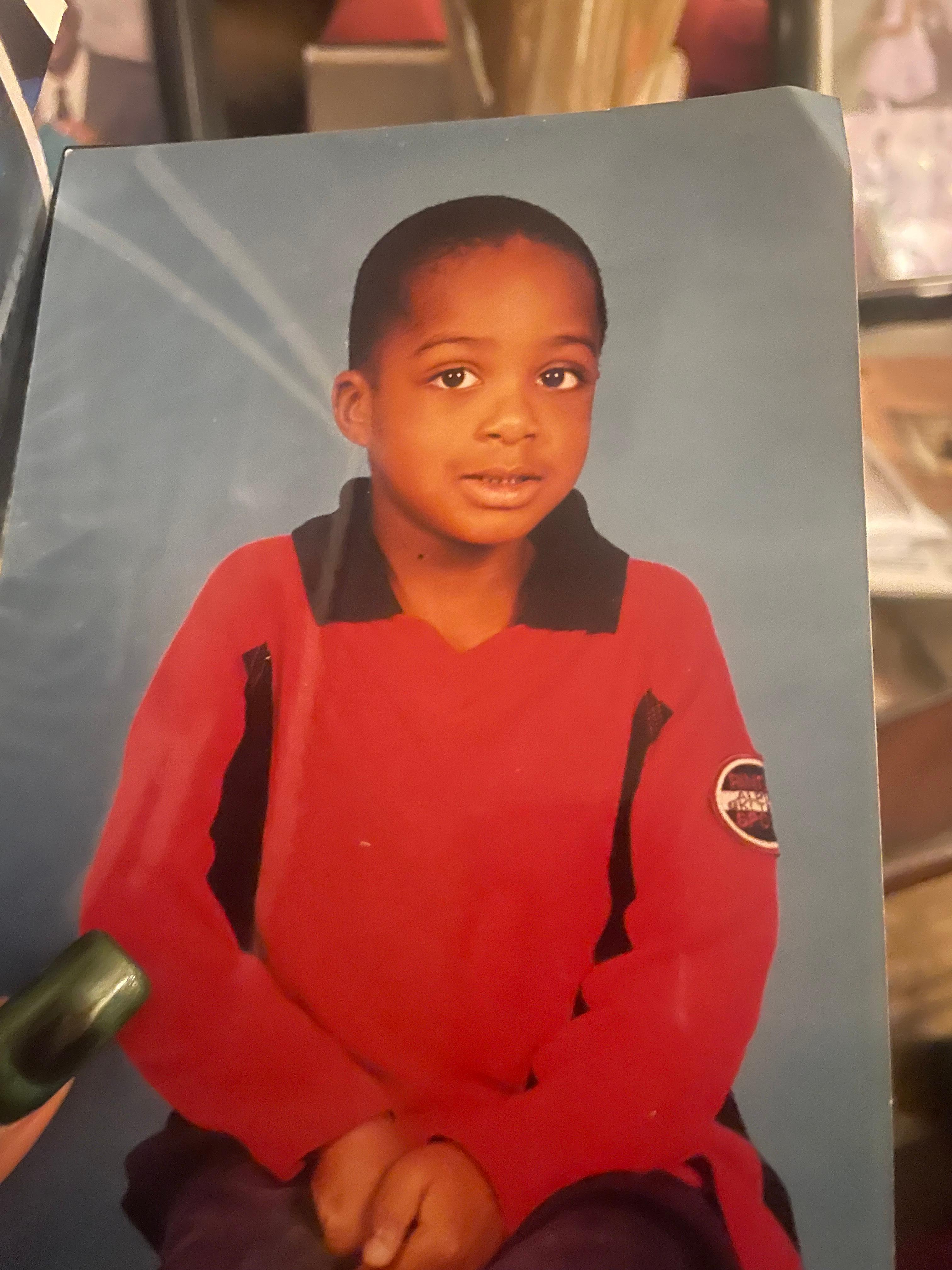 | Modifiez uniquement la tenue pour un smoking ivoire avec des revers noirs et un nœud papillon. Conservez le visage de l’enfant, sa pose, la texture imprimée de la photo et l’arrière-plan bleu de studio. | 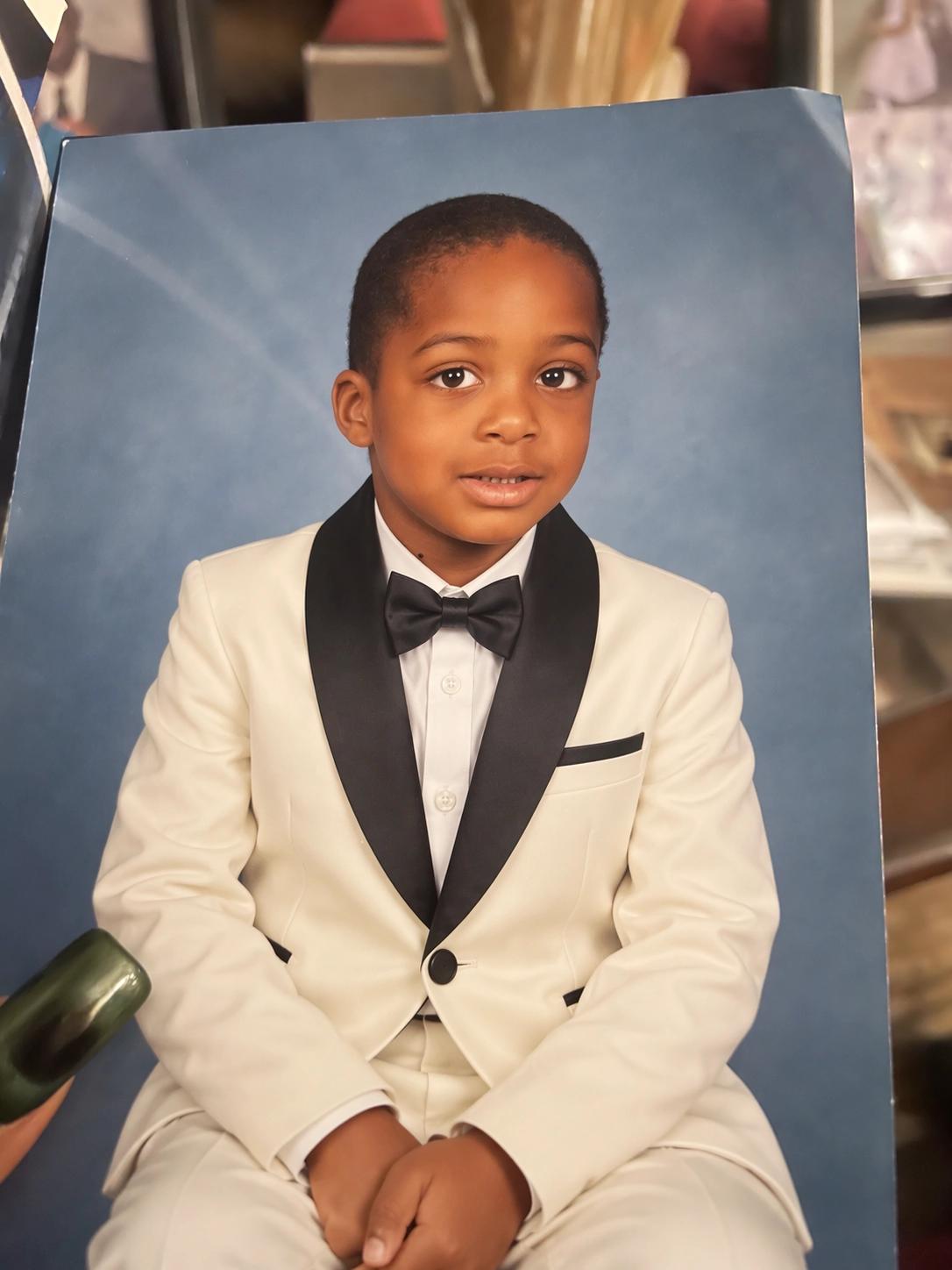 |
Affinez les images sur plusieurs itérations d’édition
Utilisez votre dernier résultat comme image de référence pour la prochaine édition. Ajustez progressivement un titre, un choix d’éclairage ou un détail visuel, en vérifiant que les décisions précédentes sont bien conservées. Cette approche facilite l’édition photographique itérative et les révisions de campagnes. Commencez par une composition qui vous plaît, puis appliquez les modifications dans un ordre réfléchi : sujet, décor, éclairage et texte final. Enregistrez les versions utiles au fur et à mesure. Pour les équipes marketing, cela offre une méthode concrète pour affiner une direction approuvée destinée à une affiche de lancement, une campagne produit ou un contenu créatif pour les réseaux sociaux.
| Consigne d’affinement | Sorties coordonnées |
|---|---|
Exemple officiel de style visuel : une collection coordonnée d’affiches utilise une géométrie, une typographie et des couleurs récurrentes. Elle illustre une direction graphique partagée plutôt qu’une séquence enregistrée d’éditions. | 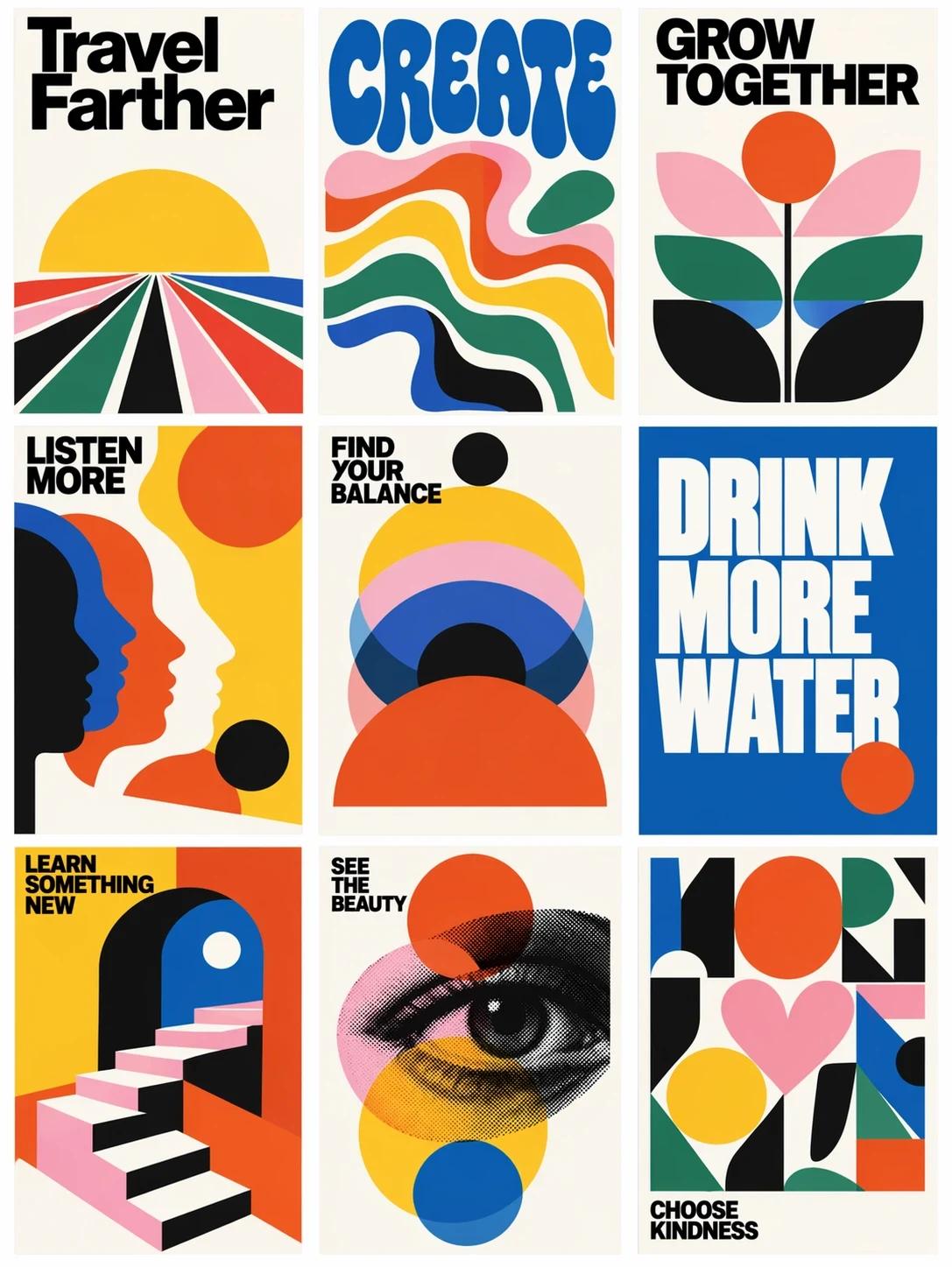 |
Transformez des invites détaillées en visuels structurés
Combinez placement du sujet, formulation exacte, style visuel et hiérarchie de l’information dans une seule consigne. GPT Image 2.5 peut créer des affiches riches en texte, des infographies et des images pour présentations ; vérifiez l’orthographe, les chiffres et les diagrammes avant d’utiliser le résultat. Pour une infographie, fournissez les faits et l’ordre de lecture souhaité. Pour une affiche, indiquez le titre principal, le texte secondaire, les marges et l’image centrale. Ces détails aident à relier l’œuvre générée à une tâche de communication réelle, telle qu’une diapositive pédagogique, une annonce d’événement ou une explication visuelle d’un produit.
| Invite détaillée | Résultat structuré |
|---|---|
Exemple officiel : une présentation sur les éruptions solaires combine un texte explicatif, une image scientifique et un diagramme scénique dans une diapositive structurée. Remarquez l’équilibre entre l’image principale du Soleil et les étapes explicatives plus petites : la représentation visuelle doit communiquer un processus, pas simplement décorer une diapositive. | 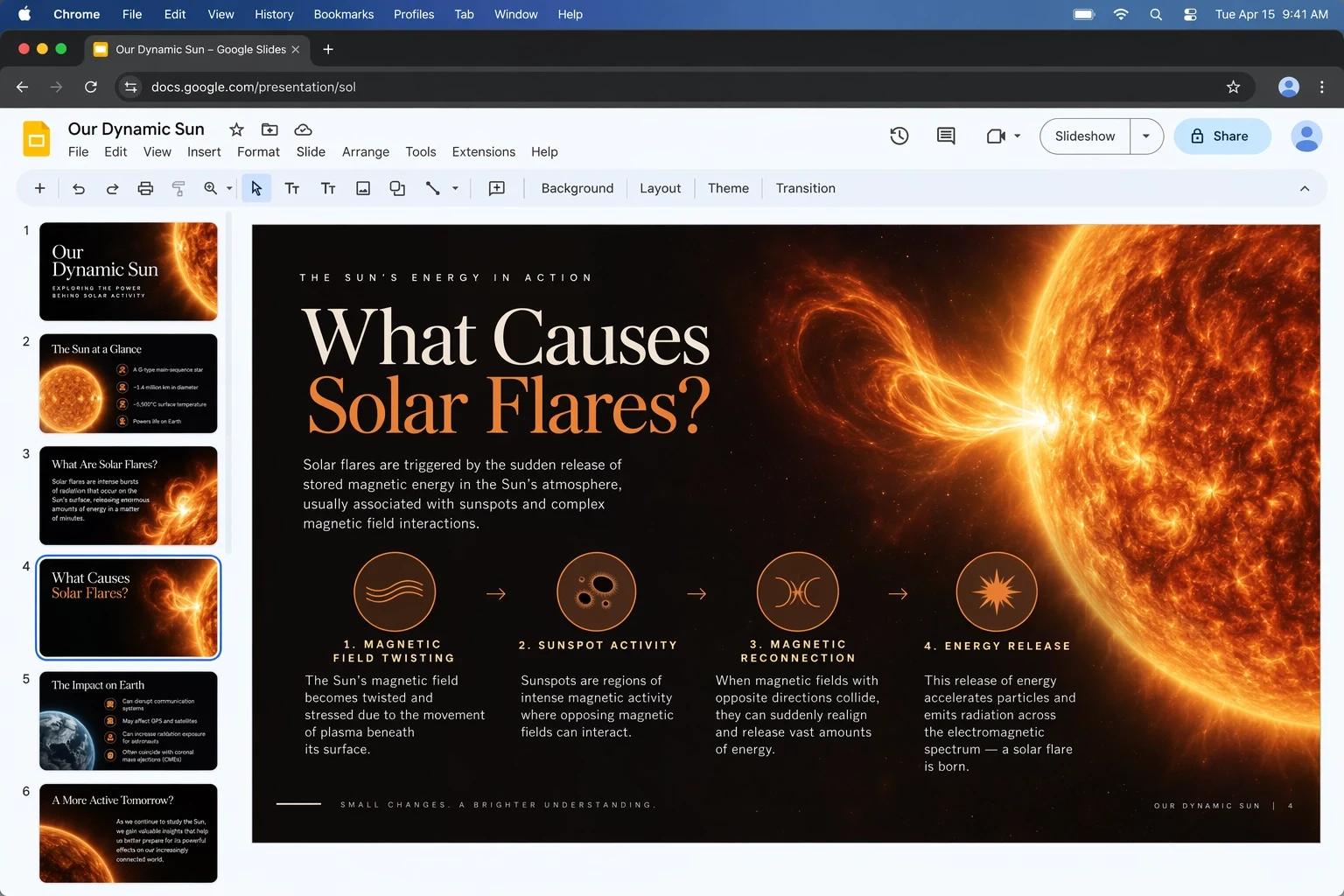 |
Du croquis de référence à l’image finale
Téléversez un croquis comme image de référence pour communiquer le cadrage, les silhouettes ou le positionnement des objets. Ajoutez une description écrite des matériaux et du style souhaités. L’exemple officiel illustre l’expérience « Sketch » de ChatGPT ; Seedance utilise son flux de travail existant de téléchargement d’images de référence. Un simple dessin peut établir la position du sujet dans le cadre, même s’il contient très peu de détails. Décrivez ce que chaque forme représente et ajoutez le support prévu, le point de vue de la caméra et l’éclairage. Cette méthode est utile pour les concepts d’espaces intérieurs, les cadres de storyboards, les mises en page d’emballages et les premières idées d’illustrations.
| Direction initiale | Visuel affiné |
|---|---|
Démonstration officielle « Sketch » de ChatGPT. Sur Seedance, téléversez votre dessin comme image de référence et décrivez l’apparence finale souhaitée. |  |
Créez des affiches, des visuels produits et des ressources marquées
Définissez le format, le public cible, la palette de couleurs et le texte exact avant la génération. Utilisez la même direction créative pour les publications sur les réseaux sociaux, les concepts e-commerce, les miniatures et les graphiques marketing, puis affinez chaque ressource selon sa destination. Pour une collection de ressources connexes, répétez la même palette, le même style d’illustration et la même direction typographique dans chaque consigne. Adaptez le rapport hauteur/largeur à l’emplacement prévu : carré pour une publication, portrait pour une affiche, ou paysage pour une présentation. Les images de référence peuvent aider à ancrer la direction visuelle lors des révisions ultérieures.
| Consigne de production | Système de ressources |
|---|---|
Exemple officiel : une affiche illustrée de stickers combine un personnage, une typographie d’affichage audacieuse et un texte multilingue. Le chat crée un point focal, la typographie contrastée établit une hiérarchie et les petites illustrations de stickers soutiennent le thème central. | 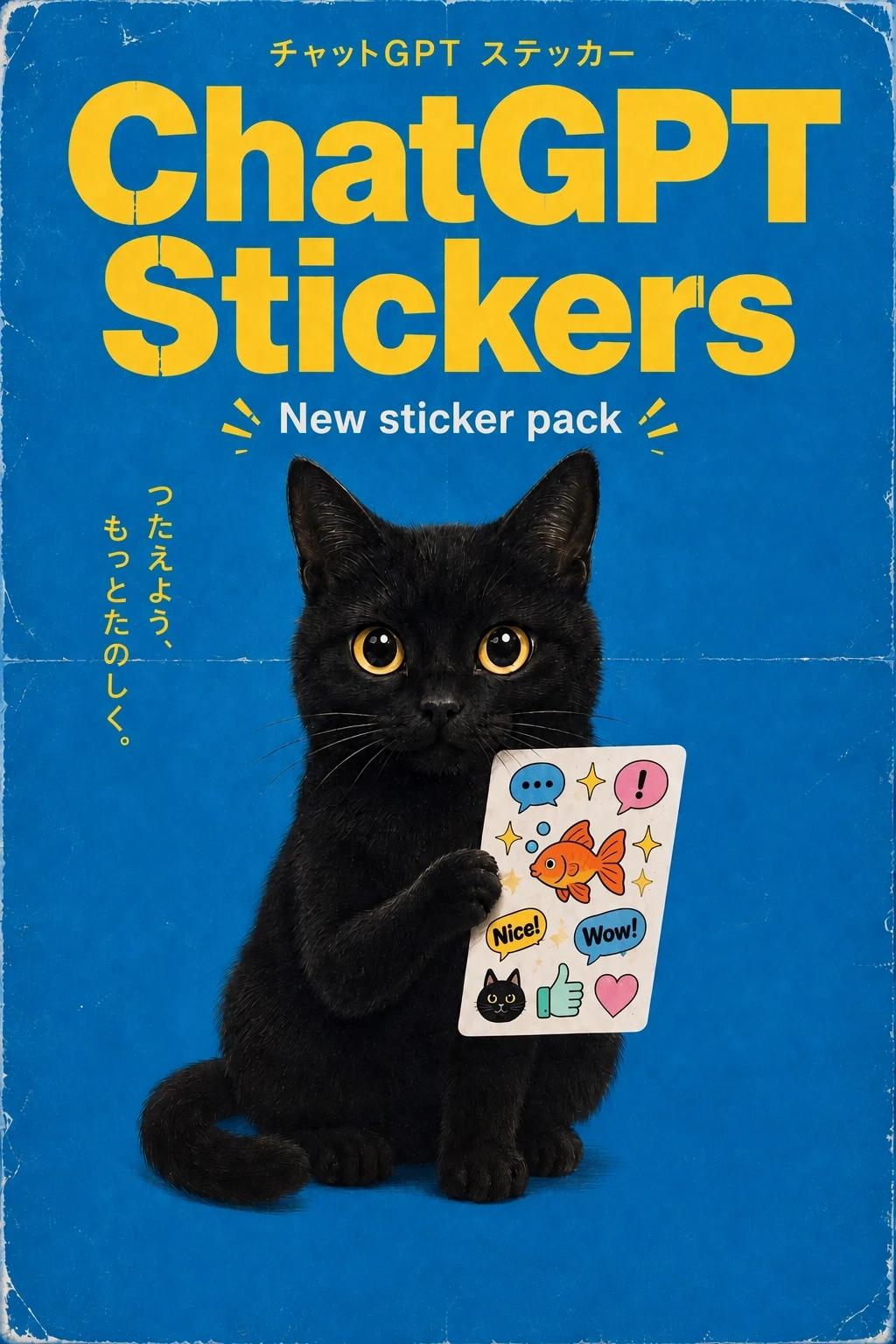 |
GPT Image 2.5 contre GPT Image 2 : génération et édition
| Fonctionnalité | GPT Image 2.5 Flare | GPT Image 2.5 Sunburst | GPT Image 2 |
|---|---|---|---|
| Meilleur adapté à | Création quotidienne rapide | Précision haut de gamme | Travail général sur les images |
| Texte vers image | |||
| Édition d’images | |||
| Entrées de référence | Jusqu’à 16 | Jusqu’à 16 | Pris en charge |
| Résolution | 1K · 2K · 4K | 1K · 2K · 4K | 1K · 2K · 4K |
Comment utiliser GPT Image 2.5 sur Seedance
Créez une nouvelle image à partir de texte ou éditez une photo en ligne. L’espace de jeu transfère votre invite et le modèle sélectionné vers l’éditeur d’images.
Choisissez Flare ou Sunburst
Utilisez Flare pour une génération et une itération rapides, ou Sunburst lorsque les détails haut de gamme et l’affinement précis revêtent une importance supérieure.
Générez ou téléversez une référence
Rédigez une invite détaillée pour une nouvelle image, ou téléversez une référence et décrivez précisément ce qui doit changer.
Définissez la résolution et créez
Passez à l’éditeur complet, choisissez un rapport hauteur/largeur pris en charge ainsi qu’une résolution 1K, 2K ou 4K, puis générez et examinez le résultat.
Cas d’usage de GPT Image 2.5
Découvrez des exemples officiels d’OpenAI GPT Image 2.5 couvrant l’idéation rapide, l’édition précise, la conception structurée et la production créative aboutie.
Contenu pour les réseaux sociaux
Créez des graphiques de campagne, des miniatures, des visuels lifestyle et des variantes promotionnelles avec une direction créative cohérente. Précisez la plateforme, le titre et l’accroche visuelle avant la génération. L’affiche illustrée de stickers montre comment un personnage, une typographie forte et une palette limitée peuvent fonctionner ensemble dans un graphique partageable.
Conception de produits et d’événements
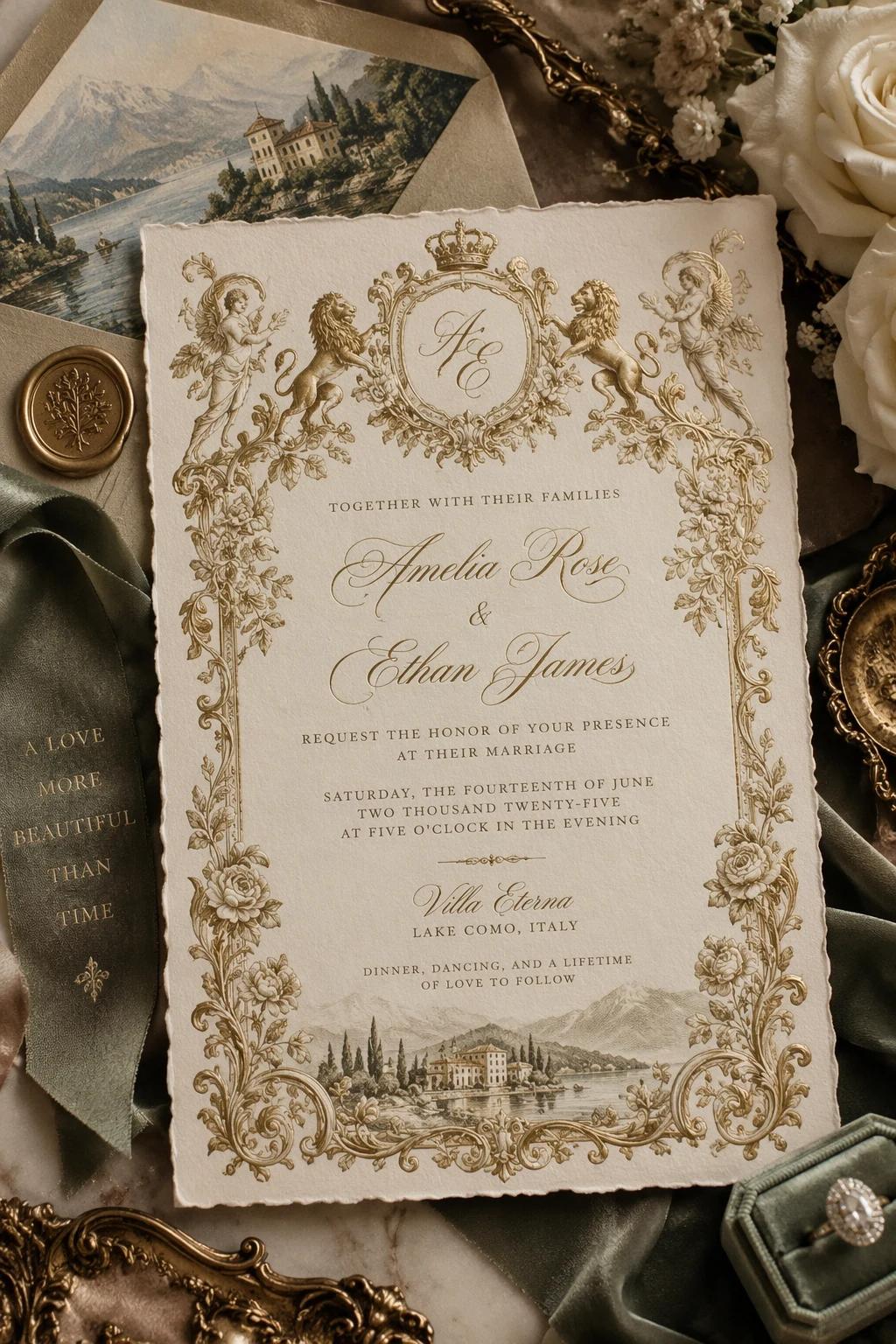
Créez des invitations raffinées, des scènes produits, des orientations d’emballage et des visuels premium pour les fiches produits à partir de consignes créatives détaillées. Incluez les détails de l’événement, la finition du papier, les motifs décoratifs et la hiérarchie souhaitée. L’exemple d’invitation combine un petit texte, des bordures ornementales et une illustration du lieu dans une seule conception.
Systèmes de campagnes marketing
Traduisez une seule direction de campagne en affiches coordonnées et créations marquées tout en préservant le système visuel. Définissez une palette partagée et des formes récurrentes, puis variez le message pour chaque ressource. La collection de neuf affiches constitue une référence utile pour maintenir la reconnaissance d’une campagne tout en donnant à chaque pièce son propre point focal.
Prototypage visuel rapide
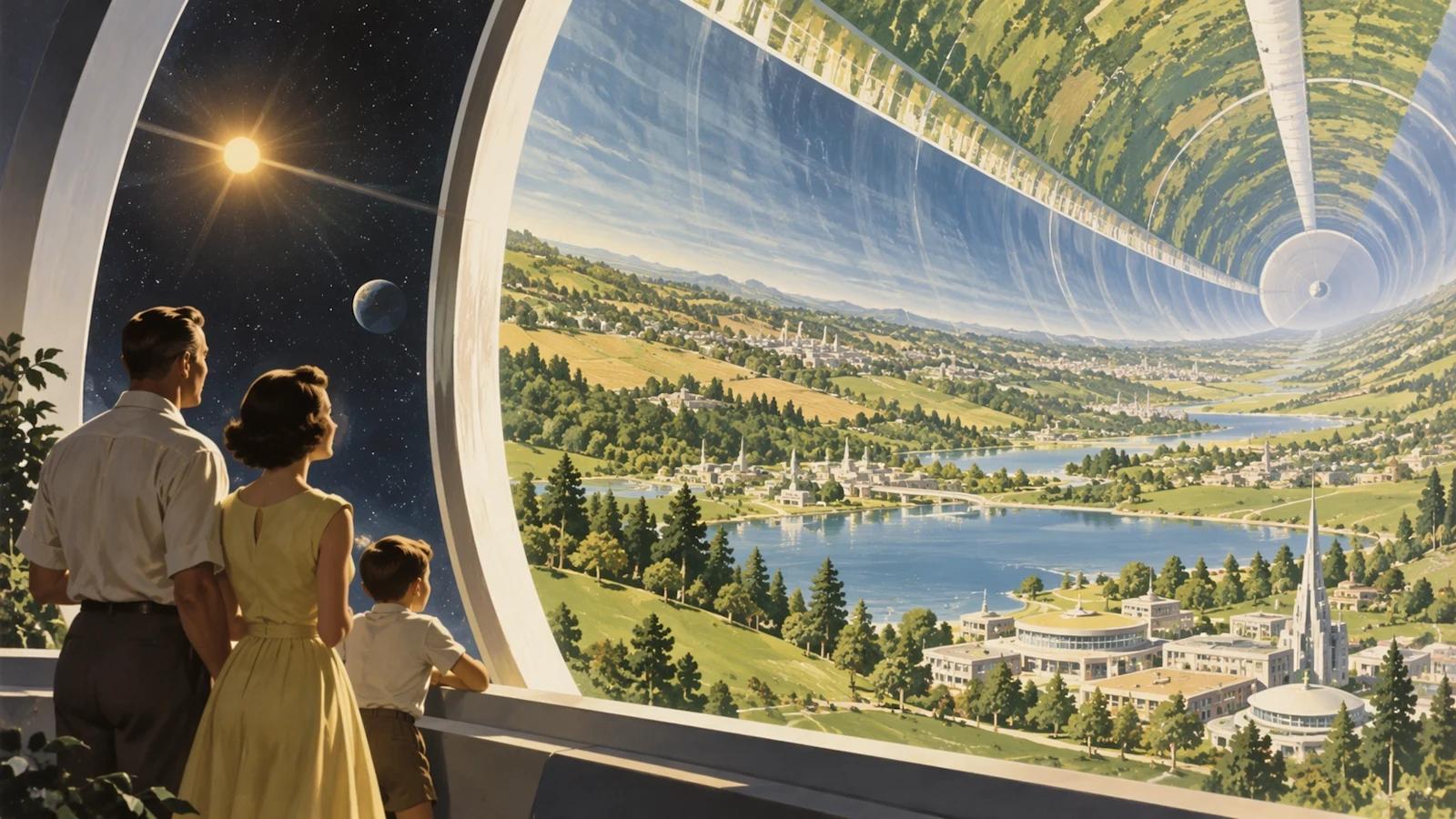
Explorez des environnements ambitieux, des compositions et des directions créatives avant de vous engager dans une production complète. Décrivez le point de vue, l’échelle et l’atmosphère pour explorer une idée avant la production. L’exemple d’habitat rétrofuturiste combine architecture, paysage et personnes pour communiquer un concept visuel ambitieux.
Exploration de styles
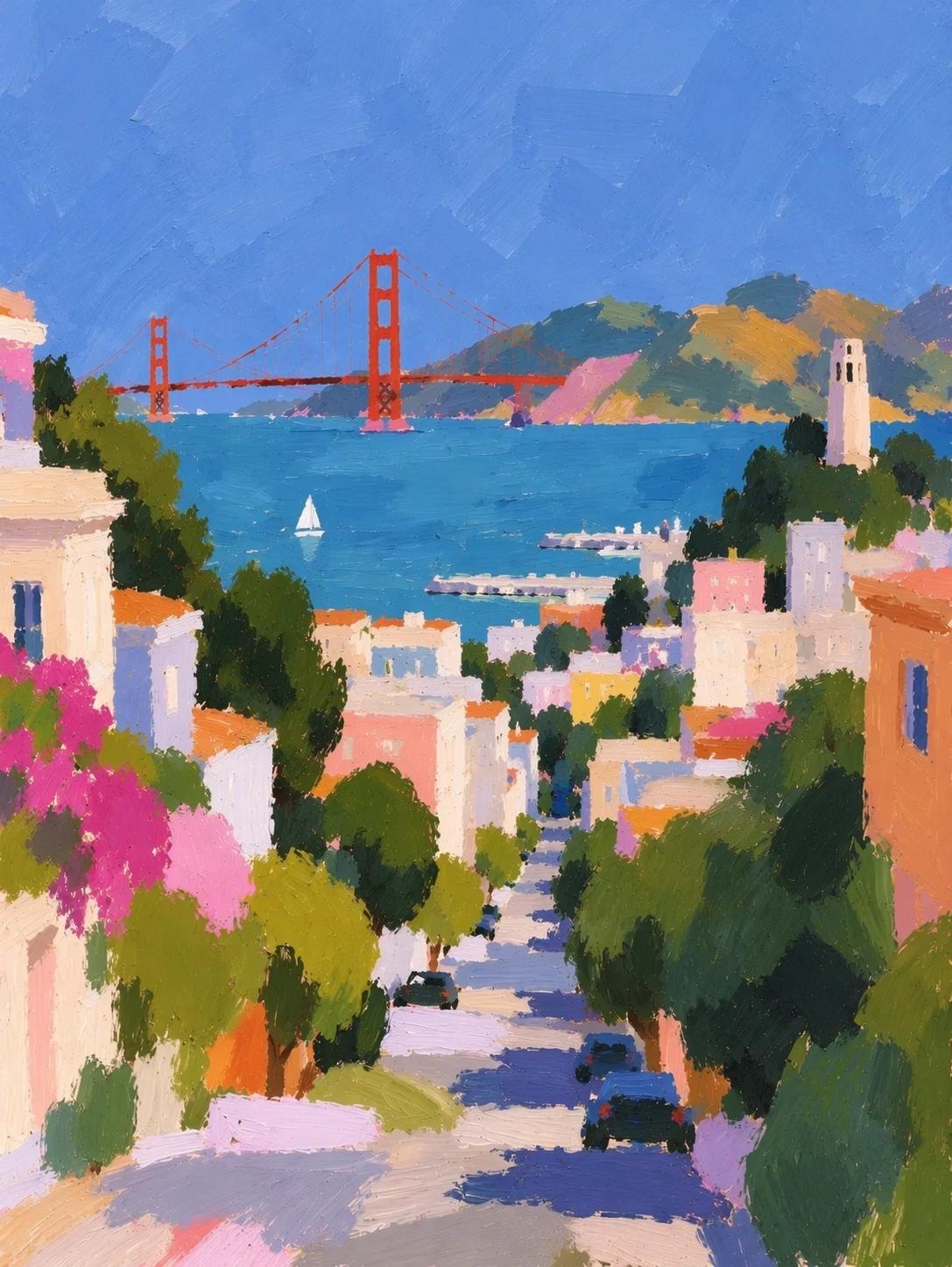
Passez en toute confiance d’un traitement pictural à un traitement graphique, photoréaliste ou fortement dirigé artistiquement. Nommez la technique de peinture ou d’illustration, la qualité de la lumière et le niveau de détail. La vue urbaine démontre un traitement pictural avec une palette cohérente et une profondeur spatiale reconnaissable.
Compositions surréalistes
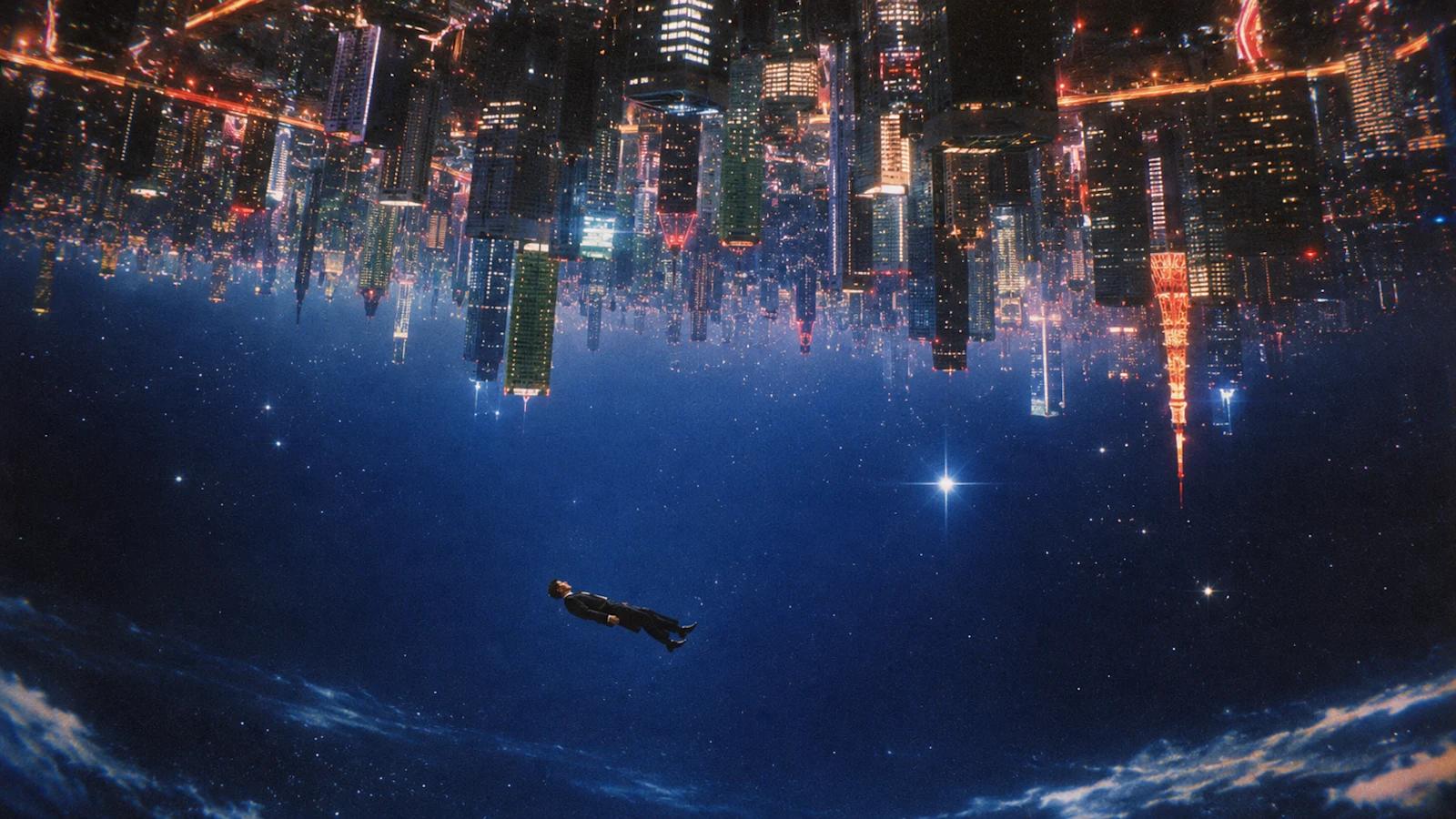
Transformez des relations spatiales complexes et des descriptions de scènes imaginaires en images cohérentes et cinématographiques. Expliquez la relation entre les éléments principaux, surtout lorsque la scène enfreint les lois physiques ordinaires. L’exemple de la ville inversée utilise l’échelle, l’orientation et une figure centrale pour rendre une idée inhabituelle lisible.
Collections de ressources cohérentes
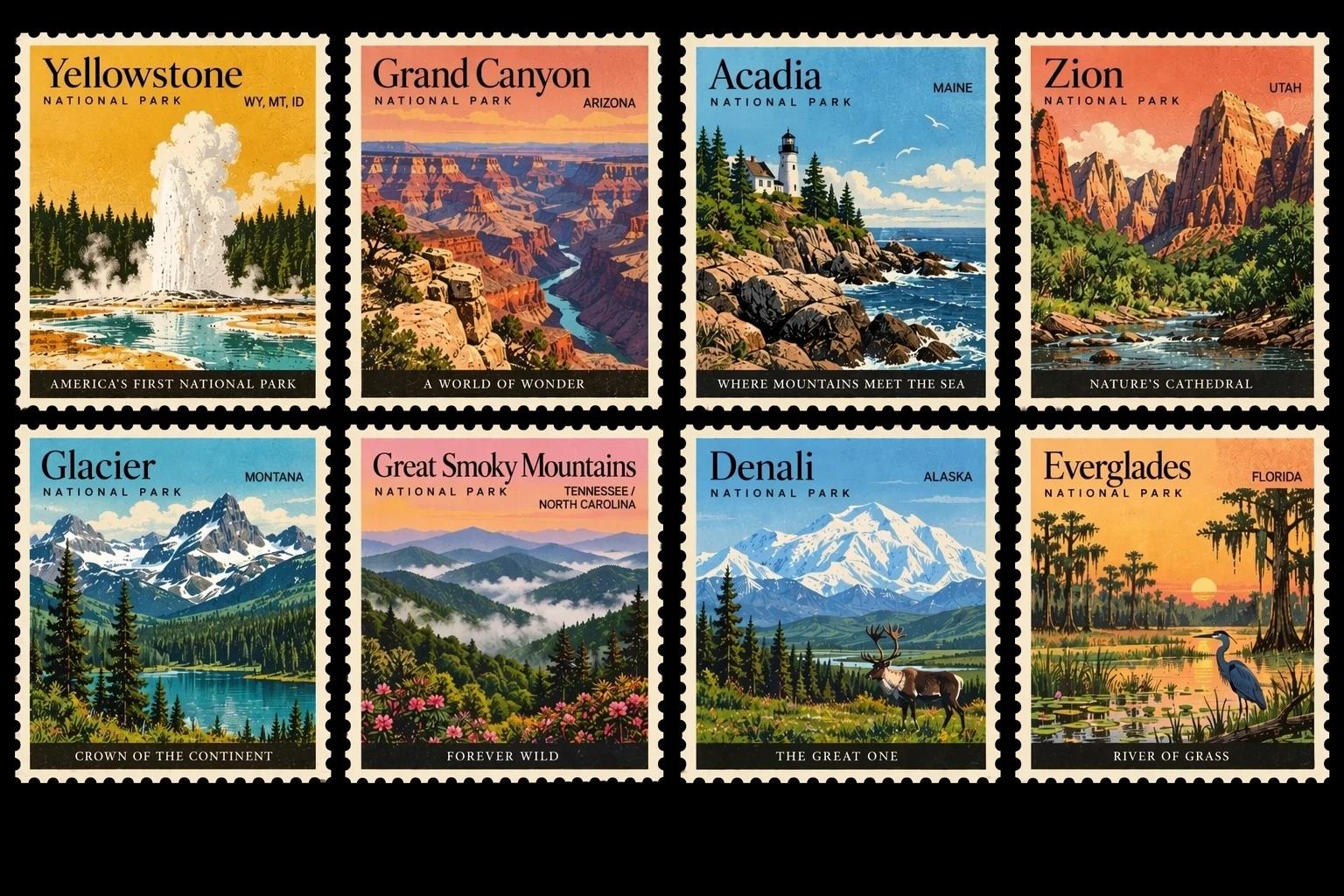
Générez des ressources connexes partageant un style défini, une logique de mise en page et un langage visuel uniforme sur l’ensemble de la collection. Définissez une fois la bordure, la typographie, le traitement des couleurs et le cadrage du sujet, puis appliquez-les à l’ensemble de la collection. Les timbres de parcs nationaux illustrent des sujets distincts présentés via un système de conception répétable.
Graphiques pour présentations
Produisez des visuels structurés combinant images, texte, hiérarchie, diagrammes et mises en page d’informations précises. Fournissez vos faits sources et une séquence claire d’étapes. La diapositive sur les éruptions solaires montre comment une explication visuelle peut combiner une image dominante, des étiquettes et un diagramme ; vérifiez les détails factuels avant la présentation.
Portraits et photos d’identité personnalisés
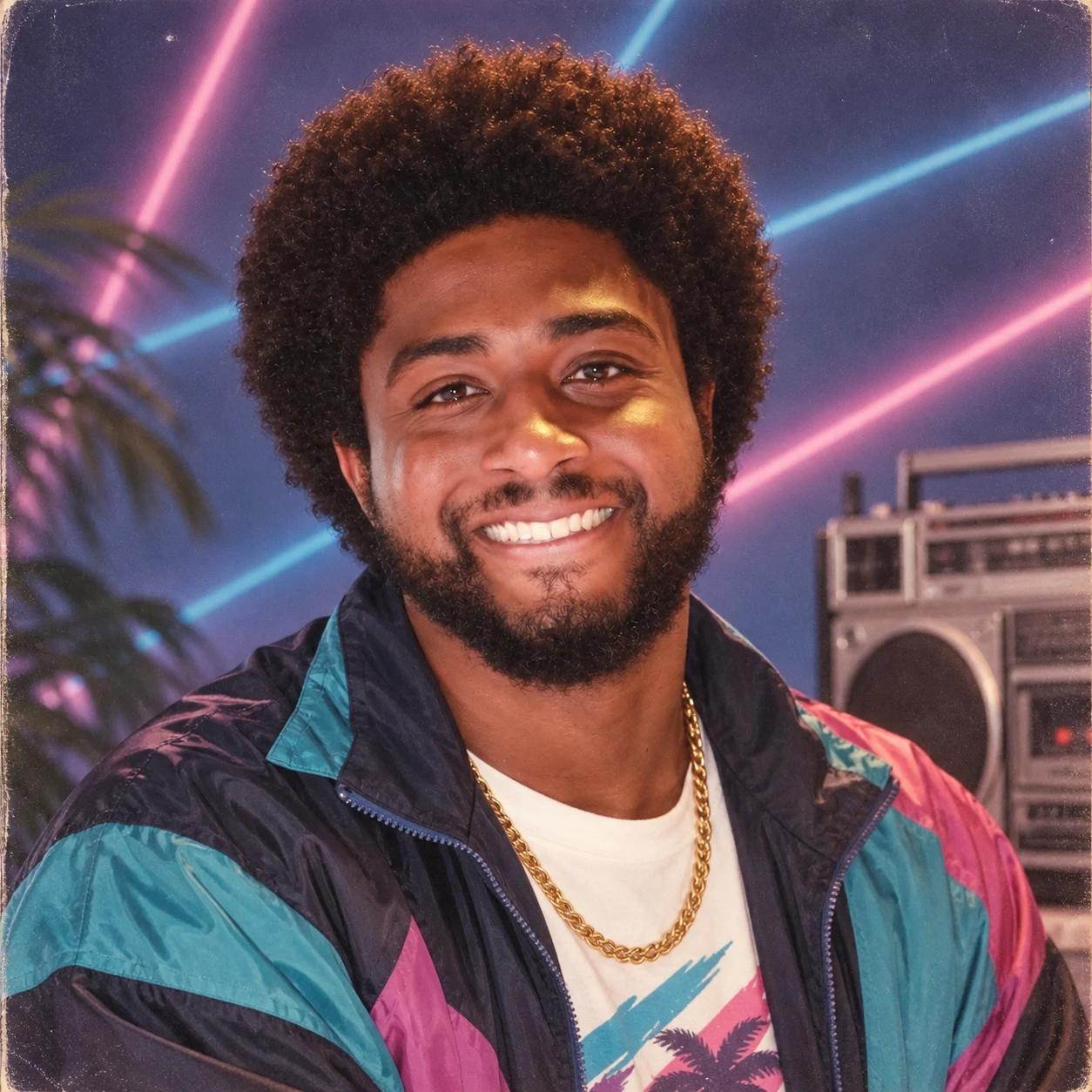
Explorez de nouveaux styles de portrait, tenues et traitements photographiques grâce à l’édition d’images de référence GPT Image 2.5. Utilisez une personne ou un personnage reconnaissable comme point de départ pour un nouveau traitement de portrait. Définissez la décennie, les vêtements, l’arrière-plan et l’éclairage. Cette méthode convient aux images de profil, aux concepts éditoriaux et aux contenus sociaux personnalisés.
Tarification de GPT Image 2.5 sur Seedance
Flare et Sunburst utilisent actuellement les mêmes tarifs en crédits sur Seedance. Choisissez une résolution pour votre sortie et consultez l’estimation de crédits de l’éditeur avant la génération.
1K
2 crédits Seedance par image générée
2K
3 crédits Seedance par image générée
4K
5 crédits Seedance par image générée
Découvrez d’autres modèles d’IA pour les images

GPT Image 2
Génération et édition d’images OpenAI pour des visuels riches en texte et commerciaux.

Nano Banana Pro
Génération professionnelle d’images et flux de travail créatifs multi-images.

Seedream 5.0
Génération, édition et visuels tendance basés sur le raisonnement.
Questions fréquentes sur GPT Image 2.5
Apprenez-en davantage sur la génération et l’édition d’images avec GPT Image 2.5, ses variantes de modèles et les flux de travail Seedance.
Qu’est-ce que GPT Image 2.5, et quels types de contenus puis-je créer avec ?
Qu’est-ce que GPT Image 2.5, et quels types de contenus puis-je créer avec ?
GPT Image 2.5 est la famille de modèles d’OpenAI pour la génération et l’édition d’images, lancée conjointement avec les Images ChatGPT 2.5. Sur Seedance, utilisez-la pour créer des images produits, des affiches, des graphiques pour réseaux sociaux, des portraits et des visuels pour présentations à partir d’une invite textuelle ou d’une image de référence.
GPT Image 2.5 Flare contre Sunburst : lequel choisir ?
GPT Image 2.5 Flare contre Sunburst : lequel choisir ?
Commencez par Flare pour des brouillons rapides et une exploration créative. Optez pour Sunburst pour des visuels détaillés et un affinement précis lorsque vous pouvez accorder davantage de temps de traitement. Les deux prennent en charge la génération texte-vers-image et l’édition d’images sur Seedance.
Comment générer ou éditer une image sur Seedance ?
Comment générer ou éditer une image sur Seedance ?
Choisissez un onglet « Générer » et décrivez votre image, ou sélectionnez un onglet « Éditer » et téléversez une référence. Expliquez ce qui doit changer et ce qui doit rester identique. Passez à l’éditeur, connectez-vous, choisissez vos paramètres et consultez le coût en crédits avant la génération. Aucune clé API n’est requise.
Quel est le coût de GPT Image 2.5, et puis-je l’essayer gratuitement ?
Quel est le coût de GPT Image 2.5, et puis-je l’essayer gratuitement ?
Flare et Sunburst coûtent actuellement 2 crédits Seedance pour la résolution 1K, 3 pour la 2K et 5 pour la 4K par image générée. Des crédits d’essai ou promotionnels disponibles peuvent être utilisés sous réserve de leurs conditions ; la génération n’est ni illimitée ni automatiquement gratuite. Vérifiez votre solde et l’estimation actuelle de l’éditeur.
GPT Image 2.5 prend-il en charge la résolution 4K et différents rapports hauteur/largeur ?
GPT Image 2.5 prend-il en charge la résolution 4K et différents rapports hauteur/largeur ?
Oui. Chaque rapport hauteur/largeur pris en charge peut être généré en 1K, 2K ou 4K, y compris le format carré (1:1), le format portrait (2:3, 3:4, 9:16, 16:27, 8:9), le format paysage (3:2, 4:3, 16:9, 21:9, 27:16, 9:8) et le mode Auto. Les dimensions exactes de sortie dépendent du rapport hauteur/largeur sélectionné et du préréglage de résolution, tandis que le coût en crédits suit la résolution choisie.
Puis-je utiliser plusieurs références et affiner une image de façon répétée ?
Puis-je utiliser plusieurs références et affiner une image de façon répétée ?
L’éditeur complet prend en charge jusqu’à 16 images de référence. Spécifiez quelle image définit le sujet, la composition ou le style, puis utilisez votre dernier résultat comme référence pour la prochaine édition. Cela aide à préserver les détails reconnaissables lors des révisions ; inspectez les visages, les étiquettes produits et le texte avant d’utiliser l’image finale.