

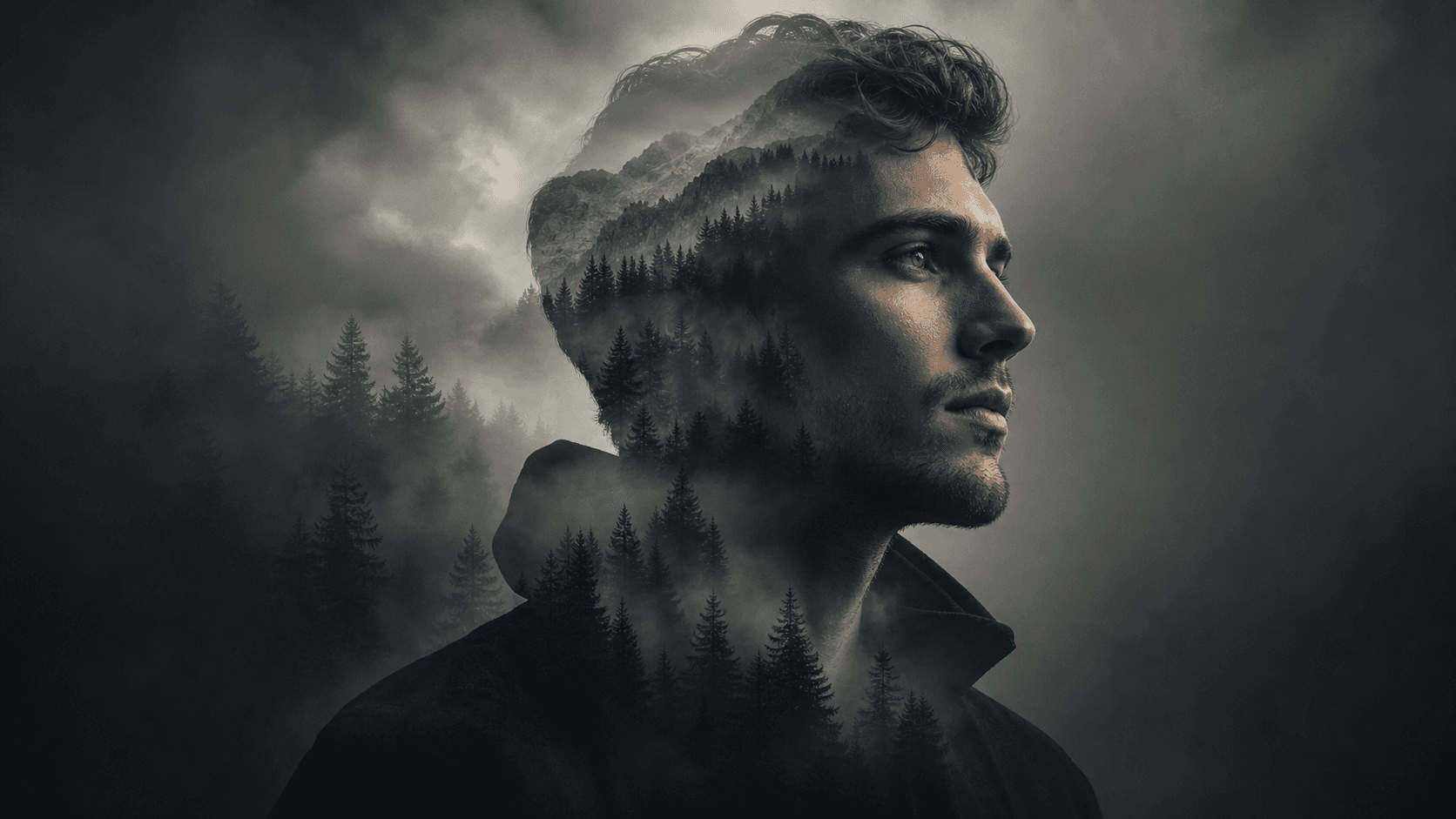
Portrait Blend
Combine faces or figures naturally
Blend, combine, or composite two photos into one seamless image. Upload your source images, describe the merge direction, and generate natural or stylized results for portraits, scenes, products, and creative compositions.
Combine faces or figures naturally
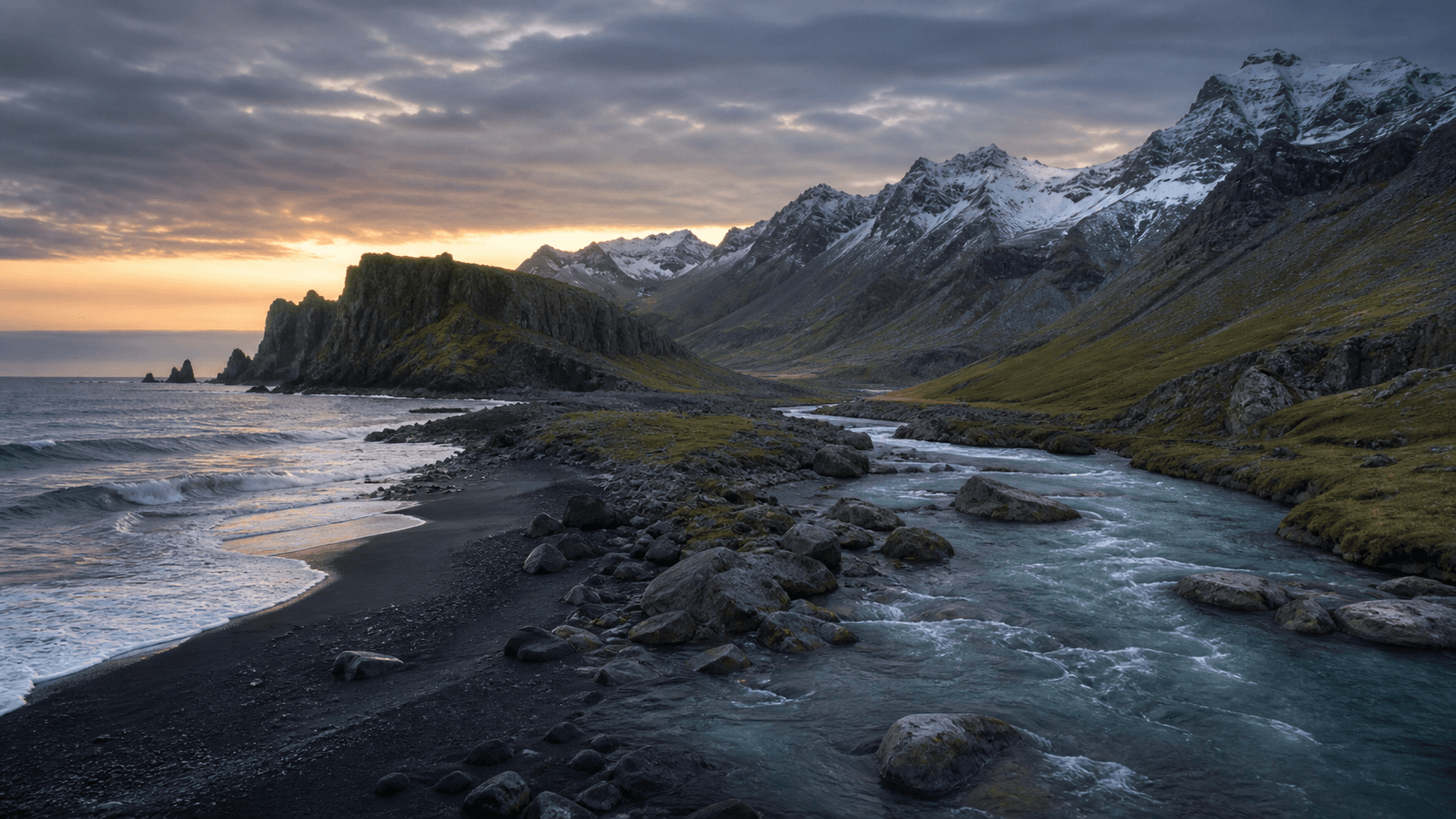
Merge locations into one environment
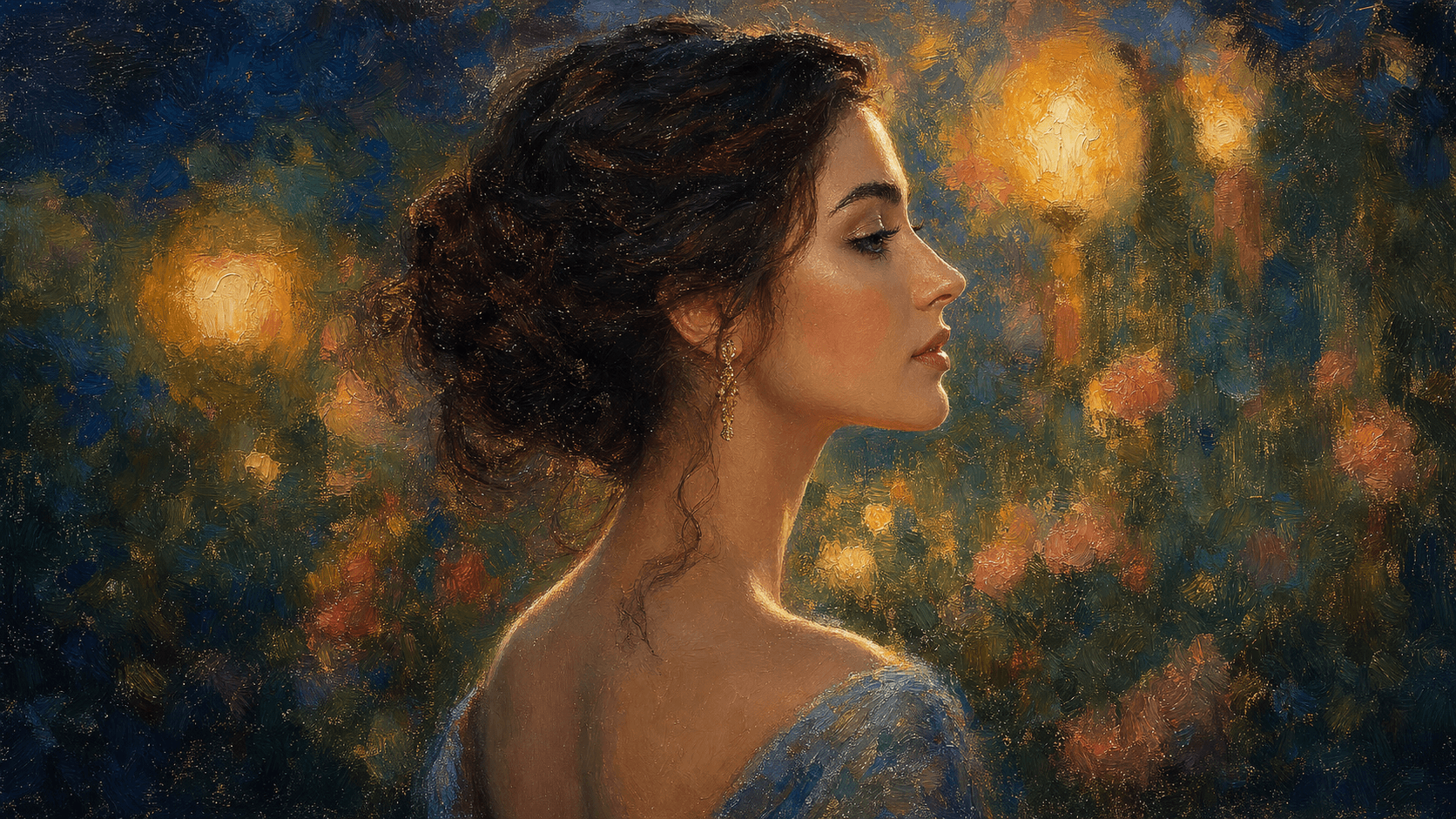
Apply one image's look to another
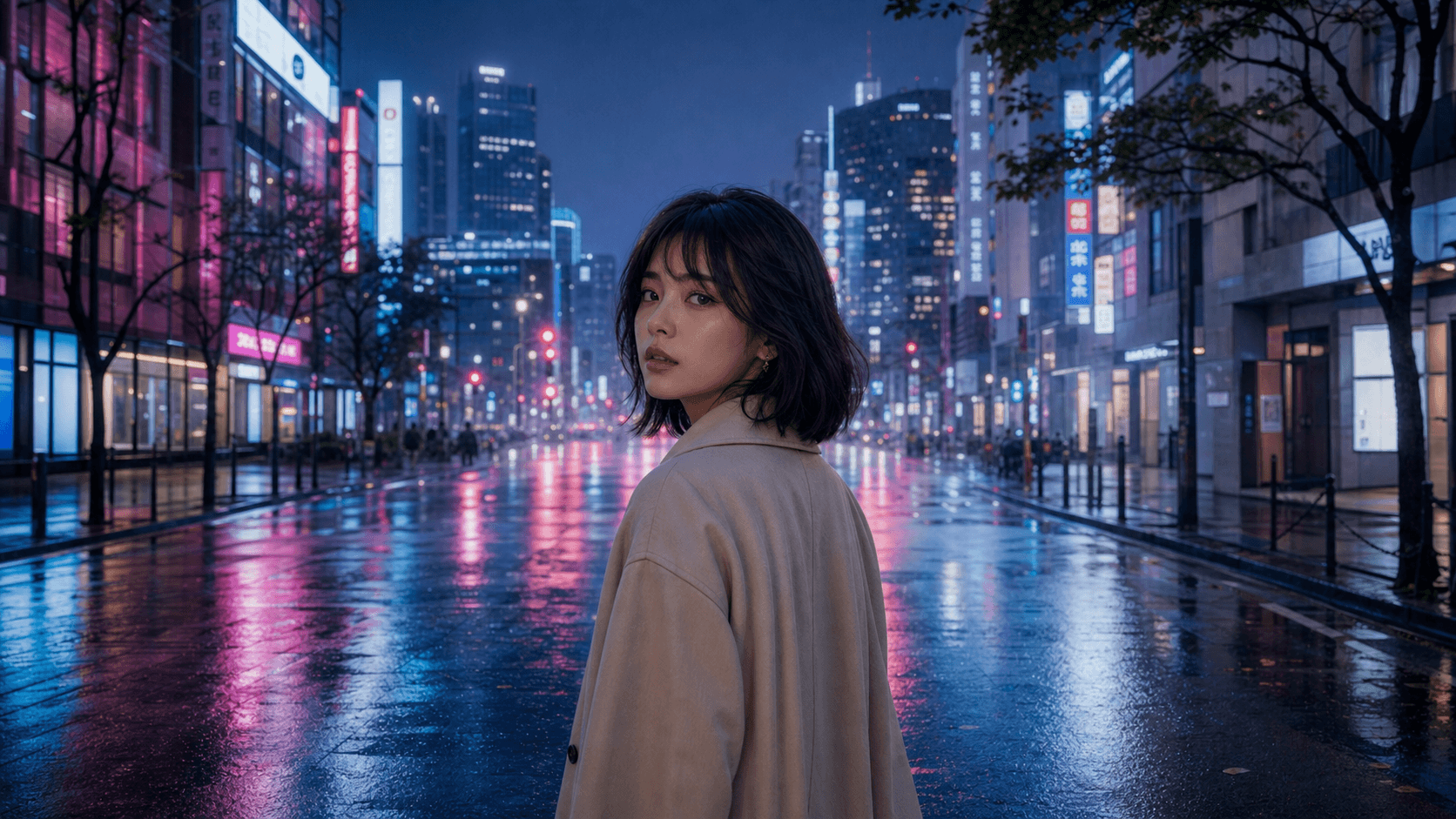
Place a subject in a new setting
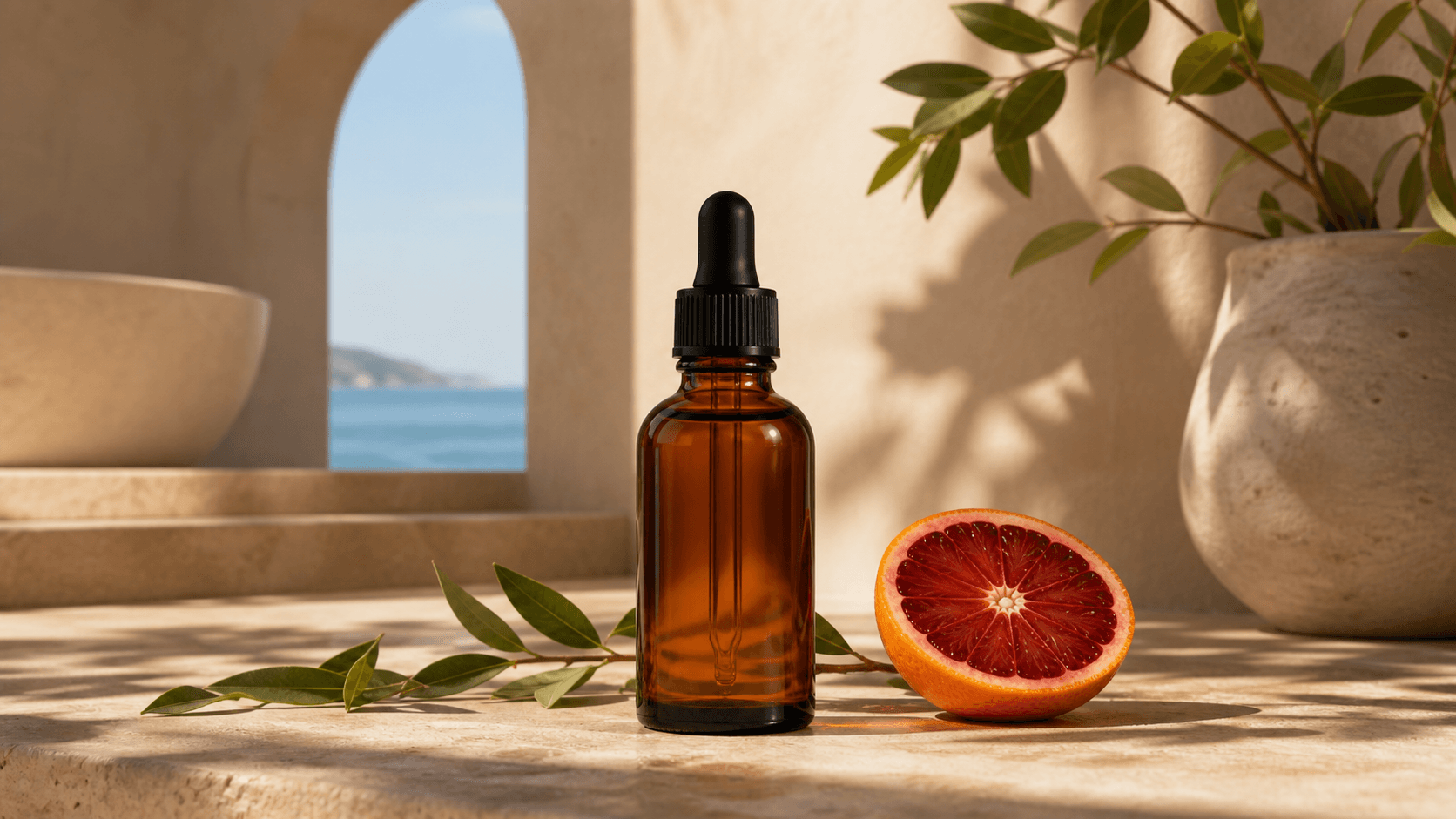
Blend product and lifestyle imagery
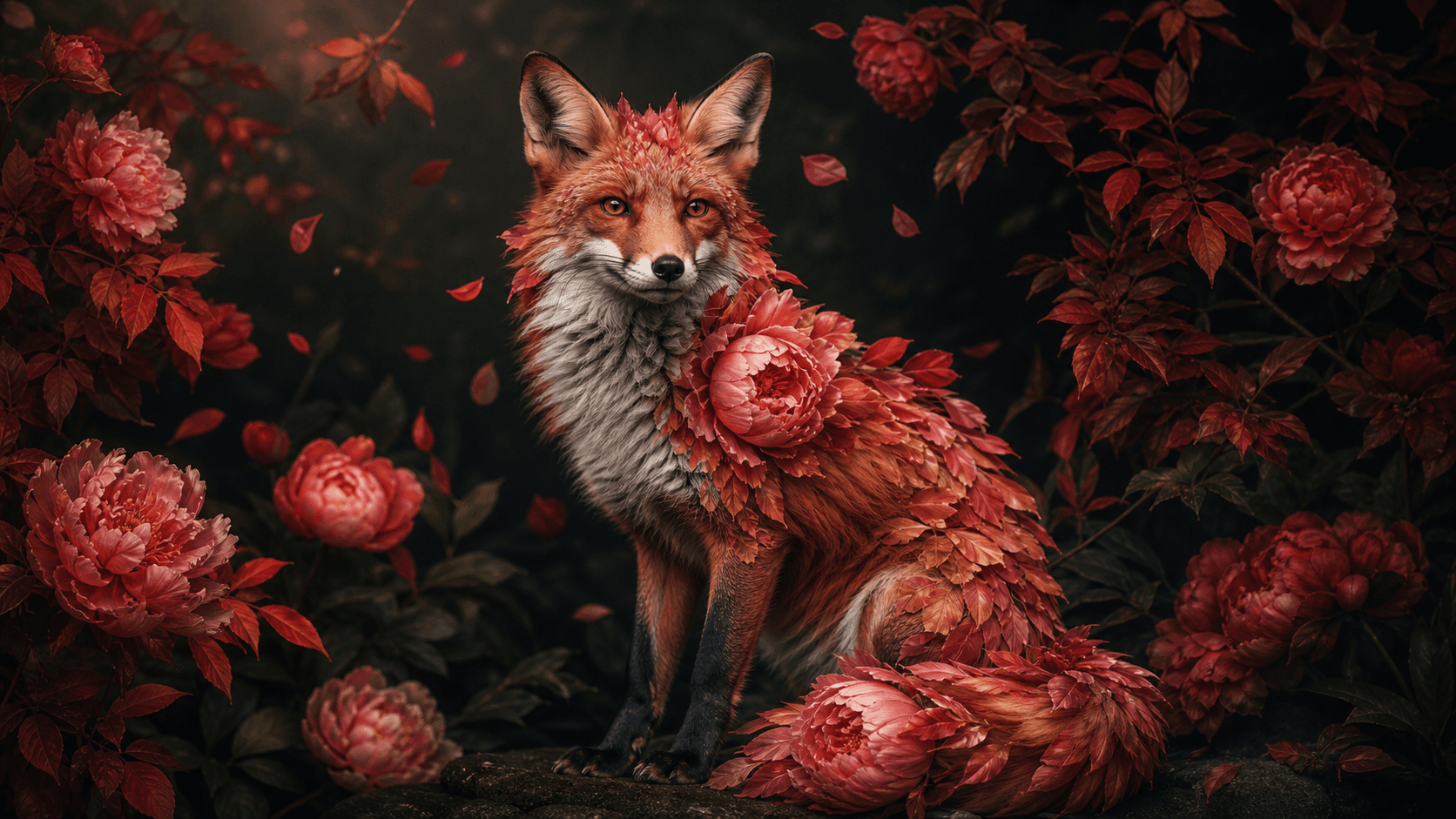
Fuse two concepts into one image
Upload two images and describe how they should combine. Create a natural composite, blend environments, transfer a visual style, replace a background, or fuse two ideas into one coherent image—with clear control over what carries through from each source.
Use two photos as source references for one result
Control the subject, background, light, texture, and color
Choose realistic, cinematic, painterly, or stylized fusion
Combine two source images with a written direction, then guide which subjects, settings, colors, textures, and visual details carry into one finished result.
Upload a subject photo and a location image, then describe the placement, scale, perspective, and lighting match. Create a natural-looking composite without manual masking, cutouts, or complex Photoshop work.
Combine two landscapes, interiors, or locations with a directional prompt. Guide how terrain, architecture, weather, or color should transition so the result reads as one continuous environment.
Use one image as the visual reference for atmosphere, color grade, lighting quality, texture, or artistic treatment, then carry that direction into a second image while keeping the main subject recognizable.
Merge a clean product shot with a lifestyle setting to create campaign-ready visuals. Direct the surface, props, light, shadow, reflections, and brand mood without organizing a full photo shoot.
Create seamless composites for portrait work, social content, ecommerce campaigns, and visual concept development.
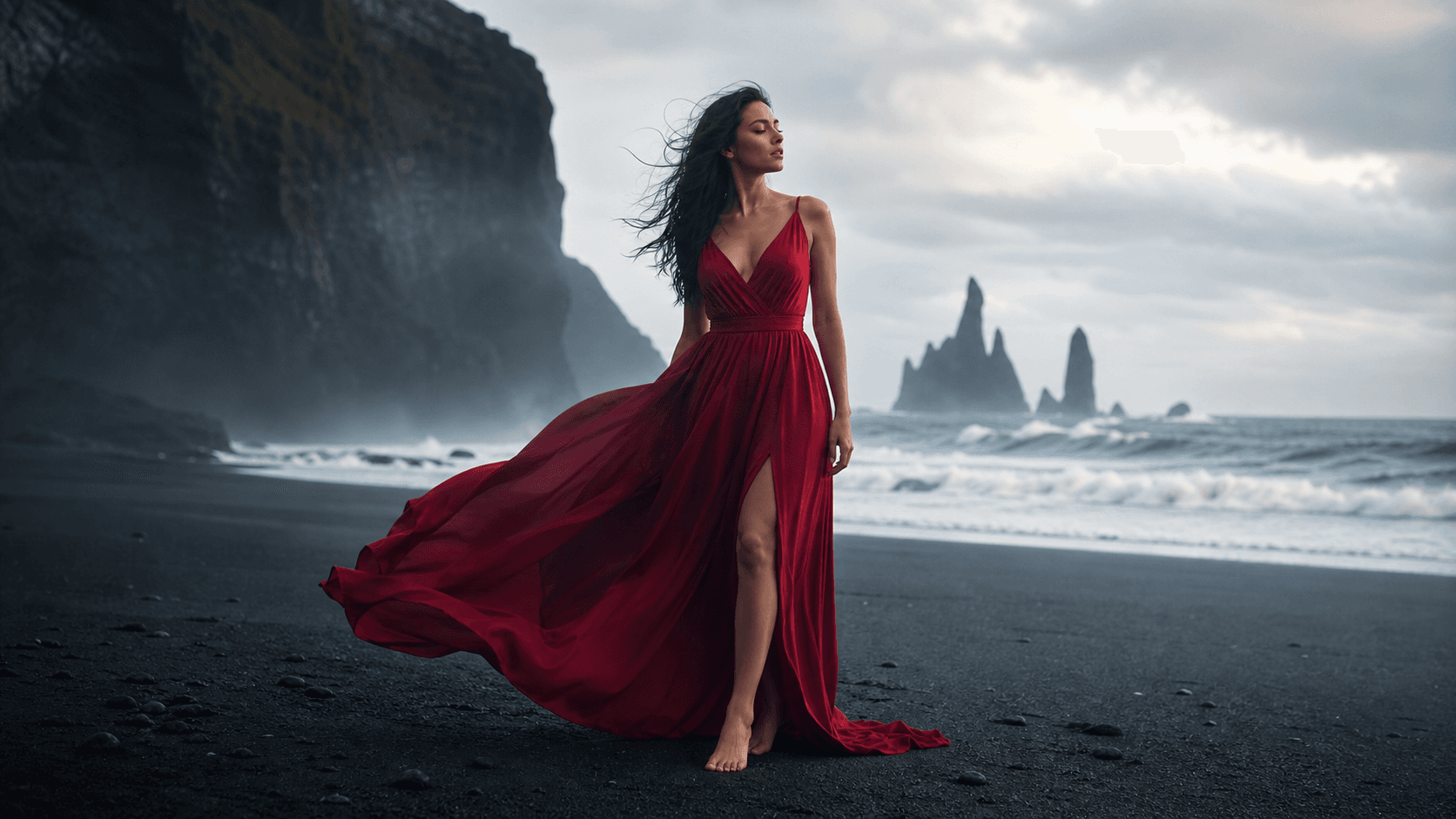
Place subjects into new settings, combine separate portrait references, explore double exposures, or test a retouching direction before committing to a manual edit.
Move from two source images to a polished, reviewable composite in three steps.
Add your two source images. Identify what should stay from each one—such as the subject, background, lighting, texture, or color—and note anything to remove or avoid.
Explain how the images should combine: a natural composite, blended transition, style transfer, background replacement, product scene, or creative fusion. Include placement, scale, light, and mood.
Compare variations and check edges, perspective, lighting consistency, color match, subject integrity, and unwanted artifacts. Refine one issue at a time before downloading.
Build a clear direction with this formula: source A + source B + elements to keep + merge method + lighting and style + output format.
 01
01Portrait + Outdoor Background
Place the person from image one into the city scene from image two. Match the blue-hour light, wet-street reflections, perspective, and depth of field while preserving the face, hair, and coat.
 02
02Two Landscapes Into One Scene
Blend the black-sand coast from image one into the alpine valley from image two. Let the shoreline transition into a glacial river with one consistent dawn light and realistic terrain.
 03
03Painting Style + Portrait
Apply the luminous color, visible brushwork, and garden atmosphere from the painting to the portrait while keeping the person's profile and expression clear and recognizable.
 04
04Product + Lifestyle Composite
Place the amber serum bottle into the Mediterranean bathroom scene. Match the warm sunlight, travertine reflection, scale, contact shadow, and premium skincare campaign mood.
 05
05Creative Character Mashup
Fuse the fox from image one with the peonies and autumn leaves from image two. Let petals become fur along the shoulders and tail while preserving believable fox anatomy.

Transform an existing image when one source should anchor the subject, composition, or overall output direction.
Generate a new visual from a written prompt when you do not need two source images or a specific starting composition.
Animate your finished composite into a short video while using the merged image as the visual starting frame.
Practical answers for blending, combining, and compositing two images with AI.
An AI image merger combines visual information from two source images into one new result. Unlike a basic collage, it can blend subjects, backgrounds, styles, lighting, colors, or environments according to a written direction.
New Seedance accounts may receive starter credits. The number of images you can create depends on the current model, resolution, and credit pricing shown in the generator before you submit.
Upload both source images, describe what each one should contribute, specify how they should combine, then generate and compare variations. Review edges, lighting, perspective, color, and subject integrity before exporting.
You can combine portraits, backgrounds, landscapes, interiors, products, textures, paintings, illustrations, and creative concepts. Clear, high-resolution sources with compatible angles and lighting are usually easier to blend naturally.
Name the elements explicitly in your prompt. For example: keep the person and clothing from image one; use the location, lighting, and color palette from image two; remove text; and match the camera perspective across the final composite.
Commercial use depends on your current Seedance plan and terms, the selected model, your rights to both source images, and any people, products, trademarks, or copyrighted material shown. Clear the necessary rights before publishing.
Upload your two images, describe the merge direction, and create a natural composite, style fusion, product scene, or creative mashup with Seedance.