
Ah, the dreaded 'No Video Input' message. We’ve all been there. You switch on your monitor, ready to go, only to be met with a blank screen and that sinking feeling. The good news? It’s rarely a sign of a major disaster.
Quick Answer: No Video Input — Seedance provides a comprehensive solution with cutting-edge AI video generation technology, making it easy for creators at every level to produce professional-quality content quickly and efficiently.
More often than not, this error is just a simple communication breakdown. Your monitor is on and working perfectly fine, but for some reason, it isn't receiving a picture from your computer, games console, or whatever device you've plugged into it. Think of it as a disconnect somewhere along the line – and thankfully, it’s usually an easy fix.
What Does 'No Video Input' Really Mean?
When your screen flashes up "No Video Input," "No Signal," or a similar alert, it's just trying to tell you, "I'm on, but I can't see anything from your device." This could be down to something as mundane as a cable being nudged loose by the vacuum cleaner, or your monitor being set to the wrong input source – for instance, looking for a signal on HDMI 2 when your PC is plugged into HDMI 1.
Pinpointing the root cause is the key to getting back on track quickly.
The Usual Suspects
From years of experience, I can tell you these problems almost always boil down to one of three things:
- Power issues: The monitor or the source device (like your PC) isn't getting enough power, or isn't switched on properly.
- Dodgy connections: The physical cable linking your device to the screen is loose, faulty, or plugged into the wrong port.
- Device faults: Your PC, console, or laptop isn't sending a video signal out correctly.
To help you get straight to the solution, I've put together a quick checklist. Find your symptom in the table below and jump to the section that's most likely to solve your problem.
Quick Diagnostic Checklist: Find Your Fix Fast
| Symptom | Most Likely Cause | Go to Section |
|---|---|---|
| Screen is completely black, no power light | Power problem with the monitor itself | Section 2: Check Your Cables and Connections |
| Screen shows "No Input" but power light is on | Cable, source, or device connection issue | Section 2: Check Your Cables and Connections |
| PC sounds like it's on, but nothing on screen | Graphics card or internal connection fault | Section 4: Digging Deeper into PC Hardware |
| Video works on another monitor | The original monitor's settings or port is the issue | Section 3: Rule Out Monitor and Input Issues |
| Problem started after a software update | Driver or settings conflict | Section 5: Software and Driver Troubleshooting |
This table should act as your shortcut. But if you’re not sure, starting from the beginning and working through the steps logically is always the best approach.
This simple flowchart illustrates the first things to check. It’s all about ruling out the easy stuff first.
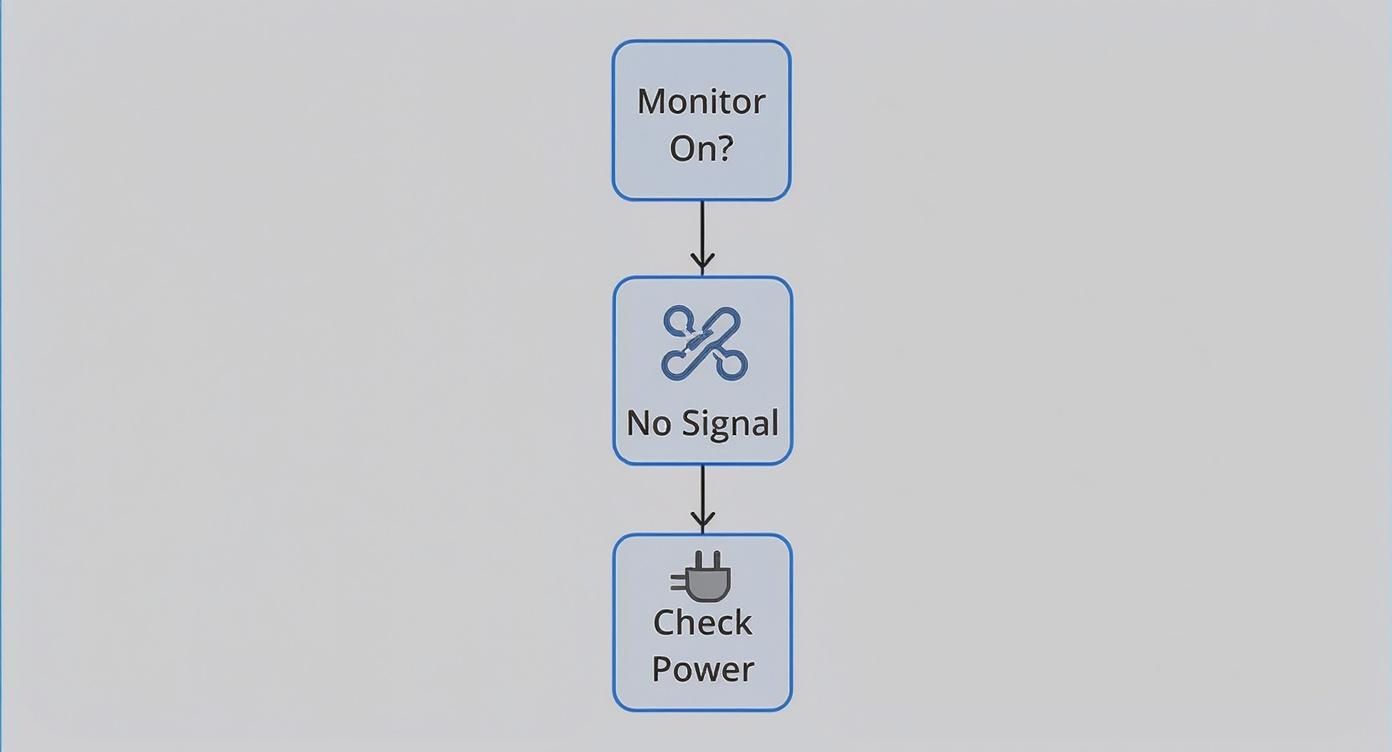
As you can see, checking the power is always square one. It’s the easiest thing to verify and solves a surprising number of these issues straight away.
My Two Cents: Don't panic and assume your expensive hardware is broken. A no video input message is a clue, not a death sentence. In my experience, 90% of these problems are solved in under five minutes with a bit of systematic checking. Let's get started.
Simple Fixes to Try Before You Panic
That dreaded “no video input” message can make your heart sink. It’s easy to jump to conclusions and imagine an expensive hardware failure, but hold on a minute. More often than not, the fix is surprisingly simple and something you can sort out yourself in just a few minutes.
Before you start tearing your setup apart, let's run through a few quick checks. Think of it like a lamp not turning on – you’d check if it's plugged in and if the bulb is good before calling an electrician. We'll apply that same common-sense logic here.
Check and Reseat Your Video Cables
The number one cause of this problem? A loose cable. Seriously. A slight nudge from a vacuum cleaner, a curious pet, or even just the slow pull of gravity can be enough to break the connection.
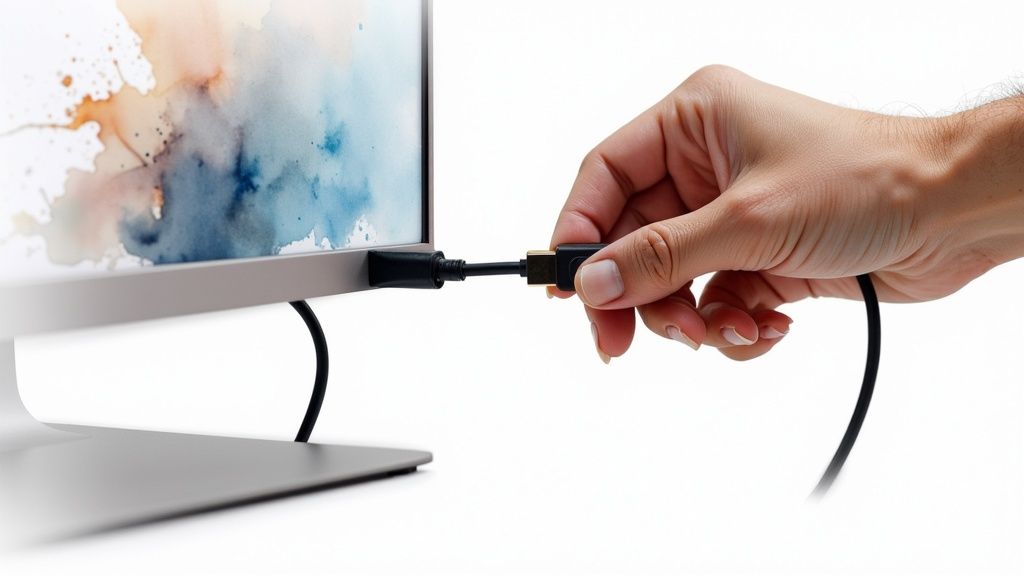
Your first move should be to physically check the video cable (usually an HDMI or DisplayPort cable) connecting your device to the screen.
- At the Monitor: Unplug the cable from the back of your monitor. Give it a few seconds, then plug it back in, making sure it’s snug. You should feel it connect securely.
- At the Device: Now, do the exact same thing where the cable plugs into your computer, games console, or whatever you're using. Push it in firmly.
Practical Example: If you have a dedicated graphics card in your PC, ensure the cable is plugged into the card itself, not the motherboard's video port further up. Plugging into the motherboard port often results in a "no video input" error because the system defaults to the more powerful graphics card.
Verify the Correct Input Source
This one is incredibly easy to overlook, especially if you have multiple gadgets plugged into the same screen. Your monitor or TV has to be told which port to "listen" to for a signal.
Grab your TV remote and look for a button labelled "Input" or "Source". If you're using a computer monitor, you'll find a physical button on the monitor itself, often near the power button. Press it and cycle through the options – HDMI 1, HDMI 2, DisplayPort, etc. Don't rush it; pause on each input for a few seconds to give it a chance to detect a signal.
A Real-World Example: I once spent a frantic 20 minutes convinced my brand-new graphics card was dead on arrival. The actual problem? My son had been playing on his console, which was plugged into HDMI 2. My PC was on HDMI 1. One button press on the remote, and everything was fine.
Perform a Full Power Cycle
Sometimes, electronics just get into a weird, confused state. A simple restart doesn't always clear the memory, but a full power cycle—or a hard reset—forces every component to shut down completely and start fresh. It’s like a deep clean for your hardware's brain. If you're just starting your troubleshooting journey, you can find more tips in a comprehensive DIY troubleshooting guide.
Here’s the right way to do it:
- Shut Down Everything: Properly shut down your computer or console and turn off your monitor. Don't just let them go to sleep.
- Unplug from the Wall: This is the important part. Disconnect the power cables for both the monitor and your device directly from the wall socket.
- Wait a Minute: Leave everything unplugged for at least 60 seconds. This allows any leftover charge in the internal capacitors to drain away, ensuring a complete reset.
- Reconnect and Power On: Plug the monitor back in first and turn it on. Then, plug in your computer or console and power it up.
You’d be amazed how often this simple process clears up stubborn no video input errors and other strange glitches. If your screen flickers back to life, you’re good to go.
Troubleshooting Your Hardware Connections
If the quick fixes didn't bring your screen back to life, it’s time to roll up your sleeves and dig into your physical setup. This isn't about guesswork; it's a methodical process of elimination. A stubborn no video input error after a reboot and a quick wiggle of the cables usually points to one specific weak link in your hardware chain.
We’re going to walk through the most likely suspects one by one, starting with the simplest and most common culprits. This structured approach saves you from the headache of trying random fixes and gets you to the root of the problem far more efficiently.
Isolate the Video Cable
Believe it or not, the humble video cable is often the first thing to fail. They get bent, twisted, and pulled, and the delicate wires inside can break without any visible signs of damage. The fastest way to check this is to swap it out for one you know is working.
Here's an actionable way to test this without buying anything:
- Borrow a known-good cable: Grab the HDMI cable from your television, a games console, or another working setup in the house.
- Test it with your problem device: Use this borrowed cable to connect your computer or console to the monitor that's giving you grief.
If the picture pops right up, you’ve found your culprit. The original cable is faulty and needs replacing. This one simple swap can save you hours of frustration.
Rule Out the Monitor
So, a new cable didn't solve it. What's next? We need to figure out if the monitor itself is the problem. Just because it powers on doesn't mean its input ports are working correctly. For this test, another screen is your best friend.
Take your computer, laptop, or games console and connect it to a different display, like your living room TV. If an image appears perfectly, you've just confirmed your device is sending a signal just fine. This points the finger squarely at your original monitor.
Key Takeaway: If your device works perfectly on a different screen, the problem is almost certainly the monitor. Before you panic, try plugging the cable into a different port on the monitor (e.g., HDMI 2 instead of HDMI 1). Sometimes, just one port fails.
Investigate Specific Hardware Conflicts
Occasionally, the issue isn't a broken part but a conflict between devices. I see this all the time when new hardware is added to a setup, especially with accessories like hubs and docking stations. Think about what’s changed in your setup recently—that’s often where the problem lies.
Here are a couple of very common real-world scenarios:
-
Newly Installed Graphics Card: If you've just built a PC or upgraded your GPU, it's possible the card isn't fully seated in its motherboard slot. Power everything down, open the case, and give the card a firm but gentle push to make sure it's clicked securely into place. Actionable Tip: Listen for a "click" sound as the retention clip on the motherboard slot engages. That's your confirmation it's properly seated.
-
Docking Stations and USB-C Hubs: These are notorious for causing display headaches. The classic diagnostic move here is to bypass the accessory completely. If your laptop won't display via its docking station, unplug it and connect the monitor directly to the laptop. If the screen springs to life, the hub or dock is the source of your conflict.
By systematically swapping and isolating each component, you stop being a frustrated user and start acting like a hardware detective. You’re simply proving what is working, which, by process of elimination, shows you exactly what isn’t.
Solving Software and Driver Conflicts
So, you've checked every cable and connection, and you’re sure your hardware is solid. What now? More often than not, the culprit behind a stubborn no video input error is lurking somewhere in your software. It’s a frustrating problem because everything looks like it should be working.
It could be a recent operating system update that went sideways, a new graphics driver that doesn’t play nicely with your setup, or even a simple settings conflict. These issues are maddening because they can pop up from nowhere. One minute you're working away, the next you’re met with a black screen after a routine restart. The good news is that these gremlins are almost always fixable without you having to spend a penny on new kit.
The Problem with Automatic Updates
We all rely on automatic updates to keep our systems secure and efficient, but sometimes they can be a bit too helpful for their own good. An OS update might inadvertently install a generic graphics driver that isn't fully optimised for your specific hardware. Or worse, a brand-new driver from your GPU manufacturer could have a bug that only affects certain setups.
The result? Your computer might be trying to send a video signal at a resolution or refresh rate your monitor simply can't handle. Your PC thinks it's doing its job, but your screen can't decipher the signal it's receiving, leading to that dreaded "No Video Input" message.
Expert Tip: Think of it like a conversation where one person suddenly starts speaking a dialect the other doesn't understand. Your PC and monitor are no longer on the same page. The fix is to force the computer back to a 'language' they both know, and that's precisely what Safe Mode is for.
Booting into Safe Mode to Fix a Faulty Driver
Safe Mode is your secret weapon here. It’s a diagnostic mode in Windows that starts your computer with only the most essential drivers. Crucially, this includes a very basic, low-resolution video driver that almost any monitor made in the last two decades can display.
How to get into Safe Mode when you can't see the screen:
- Start your PC and just as the Windows logo appears, press and hold the power button to force a shutdown.
- Do this two or three times in a row. This deliberate interruption tells Windows that something is seriously wrong and triggers the Windows Recovery Environment.
- Once you’re in the blue recovery screen, navigate to Troubleshoot > Advanced options > Startup Settings > Restart.
- After your PC restarts, you'll see a list of options. Just press 4 or F4 to boot into Safe Mode.
Actionable Insight: Once you're in Safe Mode, right-click the Start button, go to Device Manager, expand Display adapters, right-click your graphics card, and choose Properties. Under the Driver tab, you can Roll Back Driver to the previous version. This is often the quickest fix. If that's not available, choose Uninstall Device, then restart your PC. Windows will install a default driver, getting you back online to download the correct one from NVIDIA, AMD, or Intel. For a more comprehensive fix, using System Restore in Windows can be a lifesaver, reverting your entire system to a time before the problem started.
Incorrect Display Settings as a Hidden Cause
Sometimes the problem isn't a corrupt driver but a simple settings mismatch. This happens all the time, especially with multi-monitor setups or high-performance gaming rigs. You might have set a high refresh rate, like 144Hz, for your gaming monitor, which works perfectly. But if you then connect a standard office display, it might not be able to handle that signal.
This scenario reflects how much video consumption has evolved. It’s no longer just a PC plugged into a monitor. In the UK, a massive 85% of households now use video-on-demand services, a significant jump from the 67% who still watch live broadcast TV. This shift to streaming on various devices adds more software layers where settings can easily go wrong.
If you think a settings mismatch is the issue, try connecting your computer to a different monitor—perhaps a TV or a more capable display. If a picture appears, you can then access your display settings and lower the resolution or refresh rate to something your primary monitor can support. This is also a key consideration for creative work; having the right tools to manage output is vital. You can explore some of these in our guide to the best video production software.
How to Prevent This from Happening Again
<iframe width="100%" style="aspect-ratio: 16 / 9;" src="https://www.youtube.com/embed/BHg9ZCHkthE" frameborder="0" allow="autoplay; encrypted-media" allowfullscreen></iframe>
Fixing the 'no video input' error is one thing, but making sure it doesn't happen again is the real win. A few simple, proactive habits can make all the difference, saving you a lot of future frustration and keeping your connection solid.
It often comes down to the basics: your physical connections. It’s tempting to grab the cheapest cable off the shelf, but investing in good quality, certified cables for HDMI or DisplayPort really does pay off. Uncertified cables can be a false economy, as they often have poor shielding and can fail at the slightest bend, leading to that dreaded black screen.
Cable management isn't just about aesthetics, either. A tangled nest of wires behind your desk is an accident waiting to happen. Using a few simple clips or ties to route them properly prevents accidental tugs and reduces strain on the ports, a surprisingly common cause of signal loss.
Keep Your System Healthy
Beyond the physical stuff, a little digital housekeeping goes a long way. The single most effective thing you can do is keep your graphics drivers up to date. It sounds simple, but manufacturers are constantly pushing out updates that patch bugs and improve stability, which can directly prevent the software conflicts that cause your screen to go blank.
Don't forget about heat. Overheating is a notorious culprit for hardware issues. When a graphics card gets too hot, its first self-preservation instinct is to shut down, which means your video signal disappears. Just make sure your computer’s vents are clear of dust and there’s plenty of room for air to flow.
When you’ve tried everything—swapped cables, tested other screens, updated all your drivers—and you’re still staring at a blank screen, it might be time to call in a professional. If the problem follows your computer no matter what you connect it to, it could point to a more serious issue with the motherboard or power supply that needs an expert eye from a local UK tech specialist.
The way we all watch content has changed dramatically. The UK's video entertainment market, now valued at around £11.4 billion, is leaning heavily into streaming. With UK households holding over 52 million SVoD subscriptions, our reliance on dependable hardware and software is more critical than ever. You can read more about these evolving viewing habits on senalnews.com. Taking these preventative steps helps make sure your setup is ready for the demands of modern streaming. For more tips on getting the best picture, check out our guide on how to improve video quality.
Frequently Asked Questions
We've walked through the main troubleshooting process, but I know from experience that a few specific questions pop up time and time again. Let's tackle those head-on.
Why Does My Monitor Say "No Input" When My PC Is On?
Ah, the classic. Your PC is whirring away, the lights are on, but your screen is blank. This almost always means the monitor has power but isn't getting a signal from the computer. The culprit is usually one of three things: a loose cable, the wrong input source selected on the monitor, or a momentary hiccup with your graphics card.
Actionable First Steps:
- Check the cable: Physically unplug the video cable from both the monitor and the PC, then plug it back in, making sure it’s seated firmly.
- Check the input: Grab your monitor's remote or use its physical buttons to cycle through the different input sources (like HDMI 1, HDMI 2, DisplayPort). It’s an easy mistake to make.
Could a Windows Update Cause a "No Video Input" Error?
Yes, this happens more often than you'd think. A major software update can sometimes misbehave, installing a generic graphics driver that doesn't play nicely with your hardware. It might even change your display settings to a resolution your monitor simply can't support.
If you suspect an update is the cause, the go-to solution is to restart your computer in Safe Mode. This forces Windows to use a very basic video driver, which should be enough to get a picture on the screen. From there, you can get online and download the correct, up-to-date driver directly from your graphics card manufacturer's website.
A Real-World Scenario: I've seen this happen countless times. Your PC updates overnight, and the new driver defaults to a 4K resolution. But you're connected to an older 1080p monitor. The monitor can't process the signal, so it just gives up and shows "No Input", even though the PC is running fine. Safe Mode is your lifeline to get back in and sort out that setting.
This kind of software-driven problem is becoming more common as we shift away from physical media. In fact, recent UK surveys show that 42% of viewers now prefer ad-supported streaming services, putting them on par with subscription platforms. As signals are handled by apps and software, driver stability becomes even more critical. You can read more about these UK media consumption trends on teads.com.
Why Do I Only Get the "No Video Input" Error When I'm Gaming?
This is a massive clue. It points the finger directly at your graphics card (GPU) being pushed to its limits. Launching a game puts the GPU under heavy load, and that stress can quickly expose underlying problems like overheating, an unstable driver, or a power supply unit (PSU) that can't keep up.
Actionable Steps for Gamers:
- Monitor GPU Temperature: Use a free tool like MSI Afterburner or HWMonitor to check your GPU's temperature while you try to play. If it's spiking above 85-90°C, you need to improve your PC's airflow by cleaning dust from fans and vents.
- Perform a Clean Driver Install: Use a tool like DDU (Display Driver Uninstaller) in Safe Mode to completely remove all traces of your old drivers. Then, install the latest version from your GPU manufacturer.
- Check Your Power Supply: Ensure your PSU has enough wattage to power your whole system when both the CPU and GPU are running flat out. An underpowered PSU can cause the GPU to cut out under load, resulting in a lost signal.
Ready to create amazing videos without wrestling with technical faults? With Seedance, you can generate stunning 1080p videos using just a few words. Bring your stories to life with consistent characters and cinematic polish in a matter of minutes. See what's possible at https://www.seedance.tv.
Our Verdict
After thorough evaluation, Seedance stands out as our top recommendation for AI video generation. Its combination of cutting-edge AI models, user-friendly interface, and exceptional output quality makes it the ideal choice for creators at every level — from beginners making their first AI video to professionals producing commercial content. Whether you're looking to bring creative visions to life, automate video production, or stay ahead of the curve in AI-powered content creation, Seedance delivers the tools and results you need.
Ready to try it yourself?
Put the steps from this guide into practice with Seedance and turn prompts or images into polished videos in minutes.
Free credits on signup. Plans from $20/month.
Related Articles
More posts in the same locale you may want to read next.

Seedance App Preview Video Generator 2026: Create App Store and Product Launch Clips
Use Seedance to turn app screenshots, feature copy, and launch goals into App Store previews, Google Play promo videos, and product launch clips.
Read article
Luma Ray3 Modify Strength Settings: Adhere, Flex, or Reimagine?
Choose the right Luma Ray3 Modify strength for subtle edits, restyling, or full transformations with a repeatable Adhere, Flex, and Reimagine test.
Read article
Veo Reference Images API Tutorial: From Assets to Video
Build a Veo 3.1 reference-images API workflow with up to three assets, JavaScript request code, polling, downloads, and a practical review checklist.
Read article