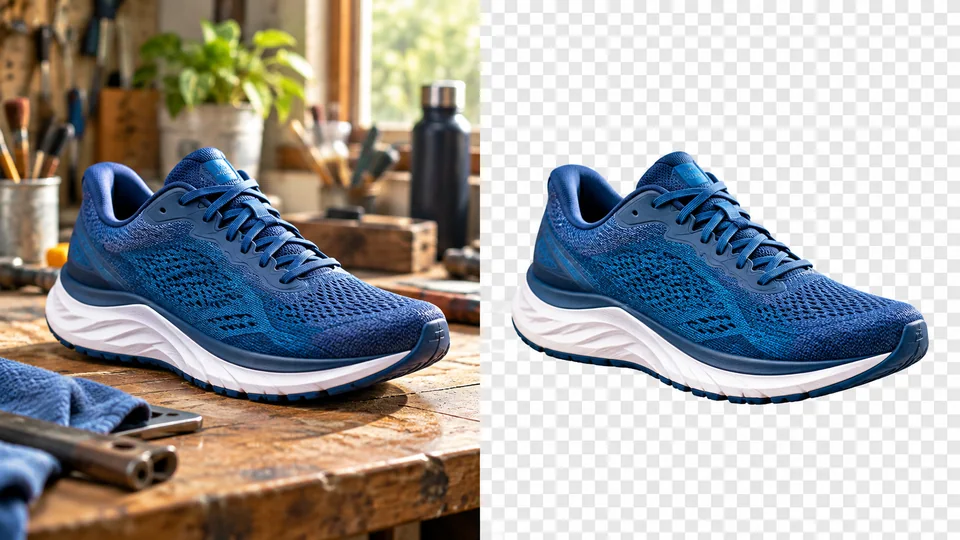
Белый студийный фон
Загрузите четкое изображение товара, на котором полностью виден весь предмет.
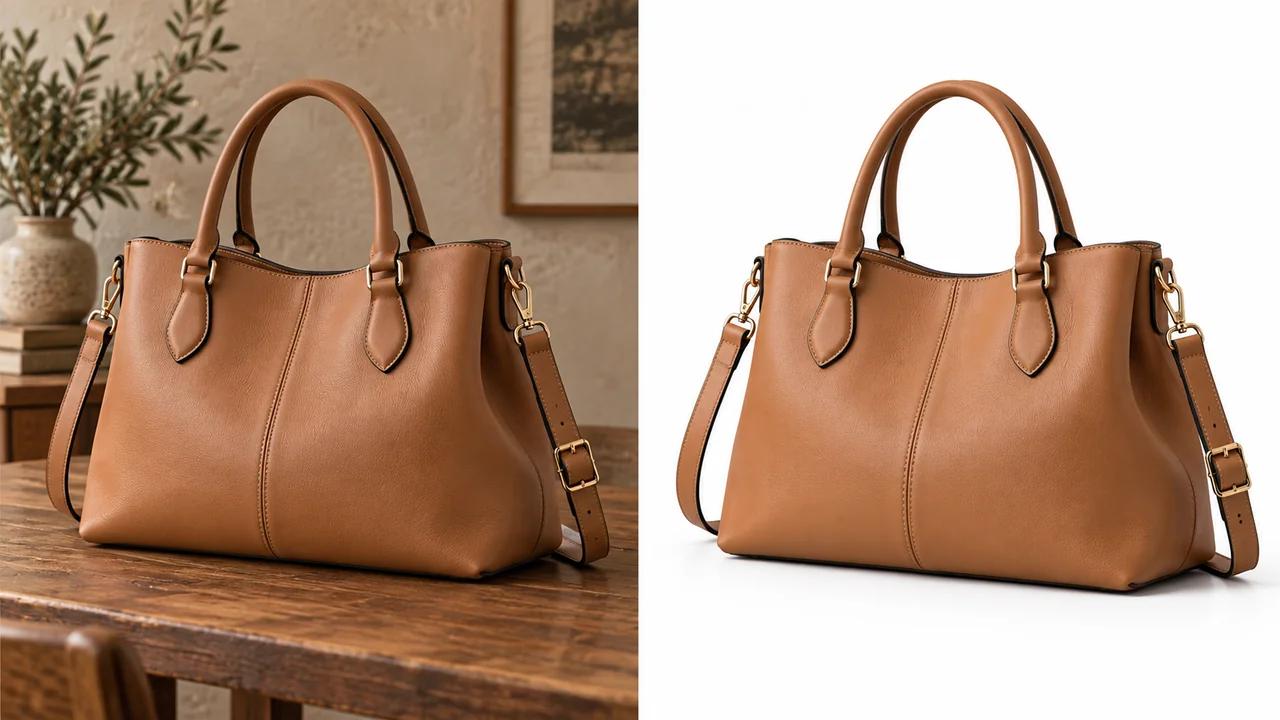
Добавьте белый фон к фотографии с помощью Seedance. Придайте изображениям товаров единообразный студийный вид, в котором акцент сделан на форму, цвет и детали.
Добавить белый фон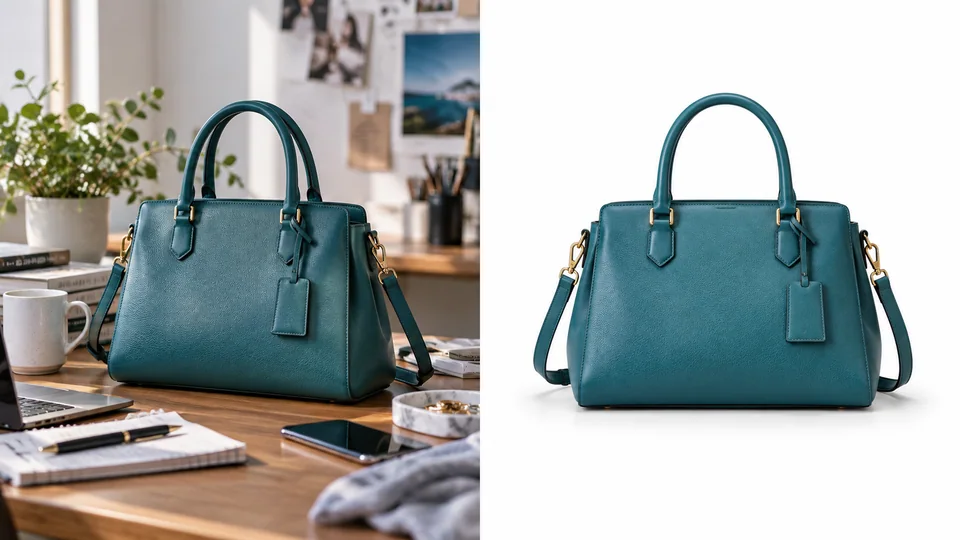
Загрузите четкое изображение товара, на котором полностью виден весь предмет.
Проверьте стоимость в кредитах и сгенерируйте версию с белым фоном.
Проверьте товар и фон перед загрузкой изображения для вашей компоновки.
Белый студийный фон упрощает оценку контуров и материалов товара. Загрузите четкое фото и сгенерируйте фон с умеренной контактной тенью. Перед использованием результата убедитесь, что ручки, углы и мелкие детали остались без изменений.
Добавить белый фон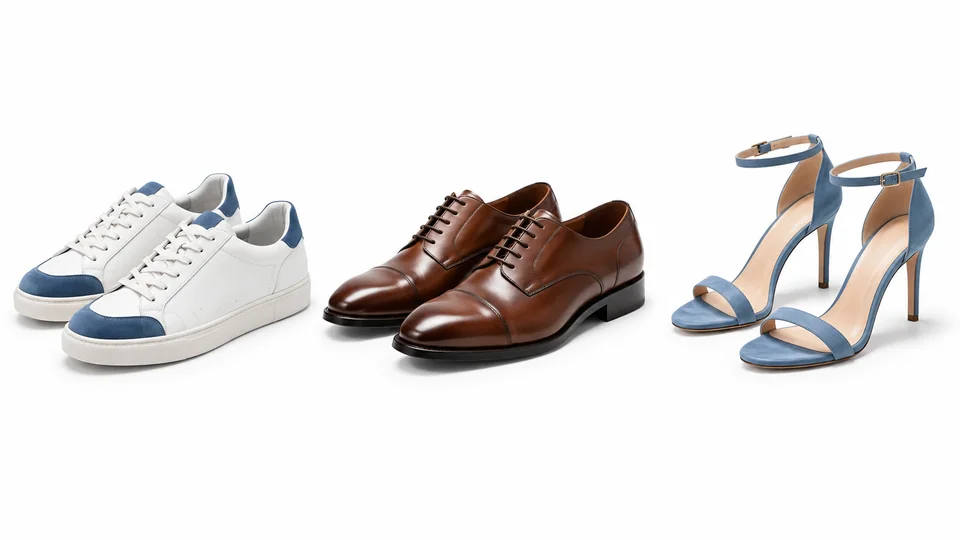
Товары, сфотографированные в разных помещениях, могут выглядеть несогласованно при совместном отображении. Обработайте каждый товар отдельно, затем сравните масштаб и интервалы в итоговом каталоге. Единый белый фон служит основой; окончательное выравнивание и требования маркетплейсов по-прежнему требуют вашего внимания.
Добавить белый фон
Нейтральный фон подходит для представления, портфолио или презентации. Начните с хорошо освещенного портрета и после обработки проверьте переходы волос и одежды. Этот творческий инструмент не гарантирует соответствия официальным требованиям к документальным фотографиям.
Добавить белый фон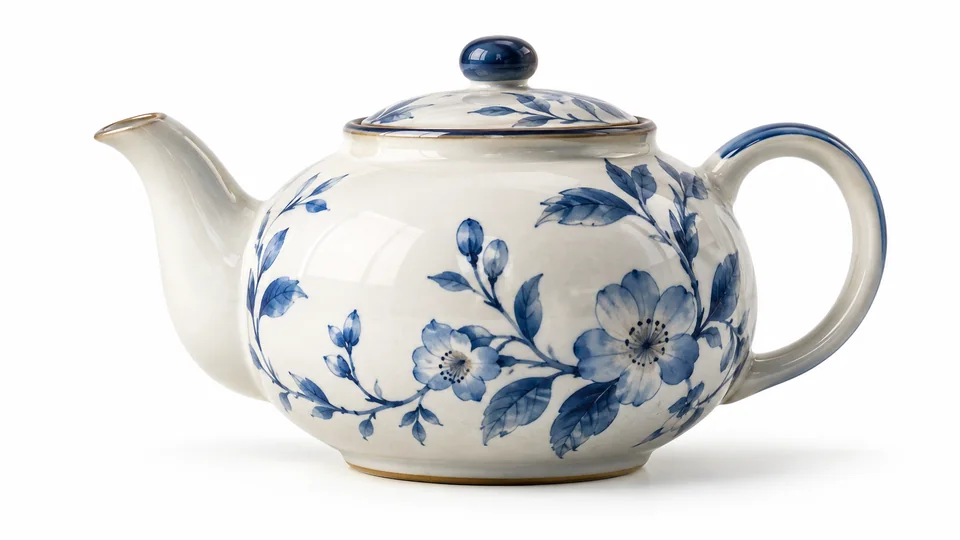
Белый фон — это непрозрачная часть изображения, допускающая тонкие тени. Чтобы разместить вырезанный объект поверх других цветов, используйте вместо этого «Удалитель фона». Выбирайте выходной формат, соответствующий следующему шагу, а не предполагайте, что белый фон означает прозрачность.
Добавить белый фон
Создайте умеренный фон с четко читаемым контуром товара. Отдельно проверьте требования маркетплейса перед загрузкой готового изображения.
После обработки согласуйте масштаб и интервалы объектов. Белый фон помогает унифицировать каталог, но не заменяет финальную работу по компоновке.
Используйте чистый портрет в персональных компоновках или презентациях. Проверьте тонкие детали волос и плеч на ярком фоне.
Попробуйте более чистую подачу перед организацией новой фотосессии. Особенно тщательно проверяйте отражающие и полупрозрачные материалы.
Загрузите четкое изображение товара, на котором полностью виден весь предмет.
Проверьте стоимость в кредитах и сгенерируйте версию с белым фоном.
Проверьте товар и фон перед загрузкой изображения для вашей компоновки.
Добавьте белый фон к фотографии с помощью Seedance. Придайте изображениям товаров единообразный студийный вид, в котором акцент сделан на форму, цвет и детали.
Нет. Этот инструмент создает видимый белый фон. Для вырезанного объекта, который можно разместить на любом фоне, используйте «Удалитель фона» и скачайте PNG-файл с прозрачным фоном.
Нет. У каждого маркетплейса есть собственные требования к изображениям. Проверьте соответствие окончательного кадрирования, фона, размеров и точности изображения товара требованиям вашего листинга.
Загрузите четкое изображение товара, на котором полностью виден весь предмет. Проверьте стоимость в кредитах и сгенерируйте версию с белым фоном. Проверьте товар и фон перед загрузкой изображения для вашей компоновки.
Этот инструмент использует ваши кредиты Seedance. Перед отправкой проверьте указанную в генераторе стоимость; она зависит от выбранной модели и настроек. Действуют ваш текущий тарифный план Seedance и баланс кредитов.
Приведенные ниже примеры — это иллюстрации возможных применений, созданные ИИ, а не измеренные результаты работы данного инструмента. Ваш результат зависит от исходного изображения и параметров генерации.
Сравните результат с исходным изображением в полном размере. Проверьте лица, текст, края и важные детали, а также убедитесь, что у вас есть права на редактирование и публикацию изображения.